Add a marker
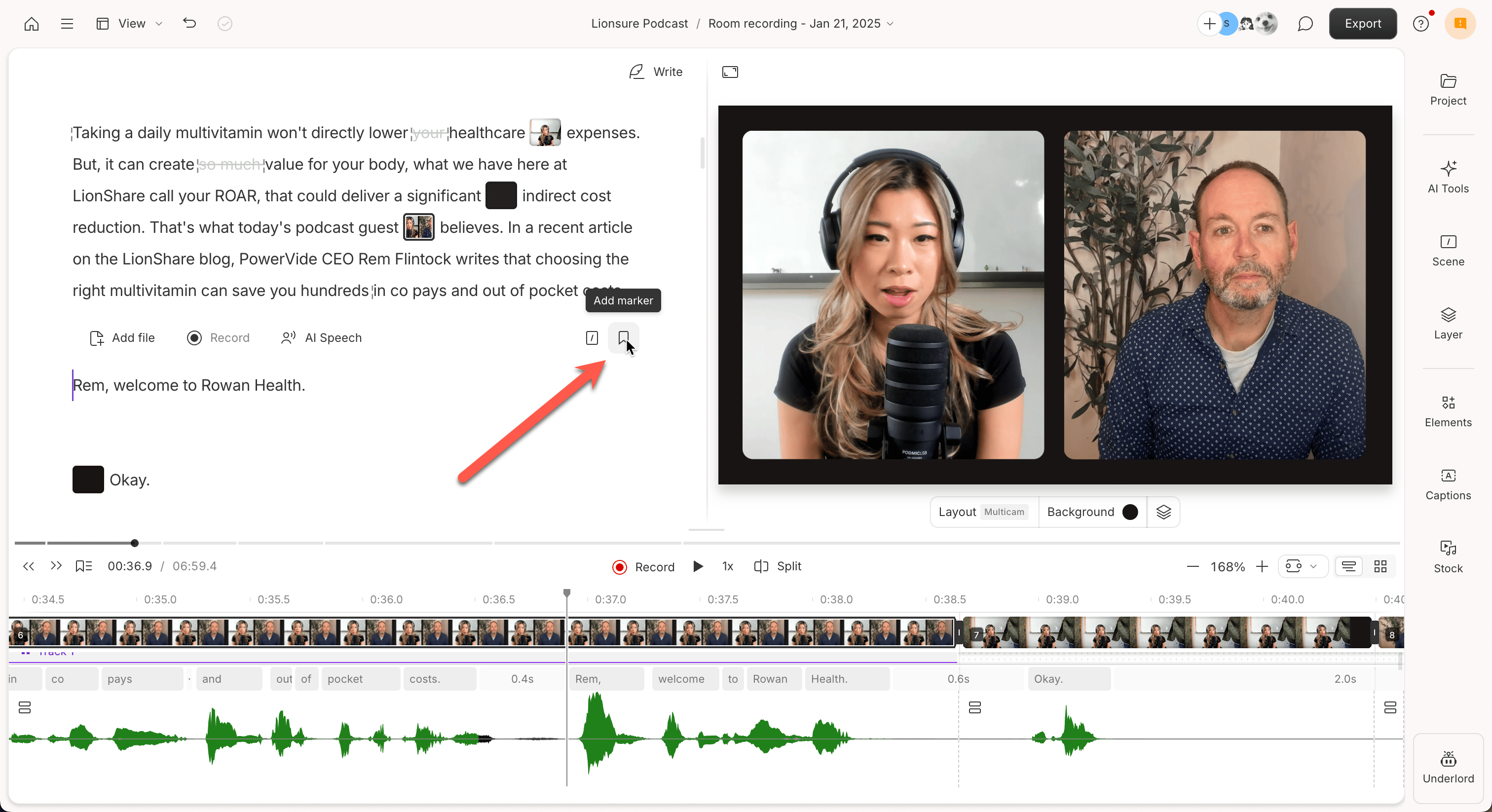
There are several ways to add a marker to the script:- Type
#directly into your script. - Click Add marker on a blank line in the script.\
- Use the Add Chapters tool from the AI Tools panel.
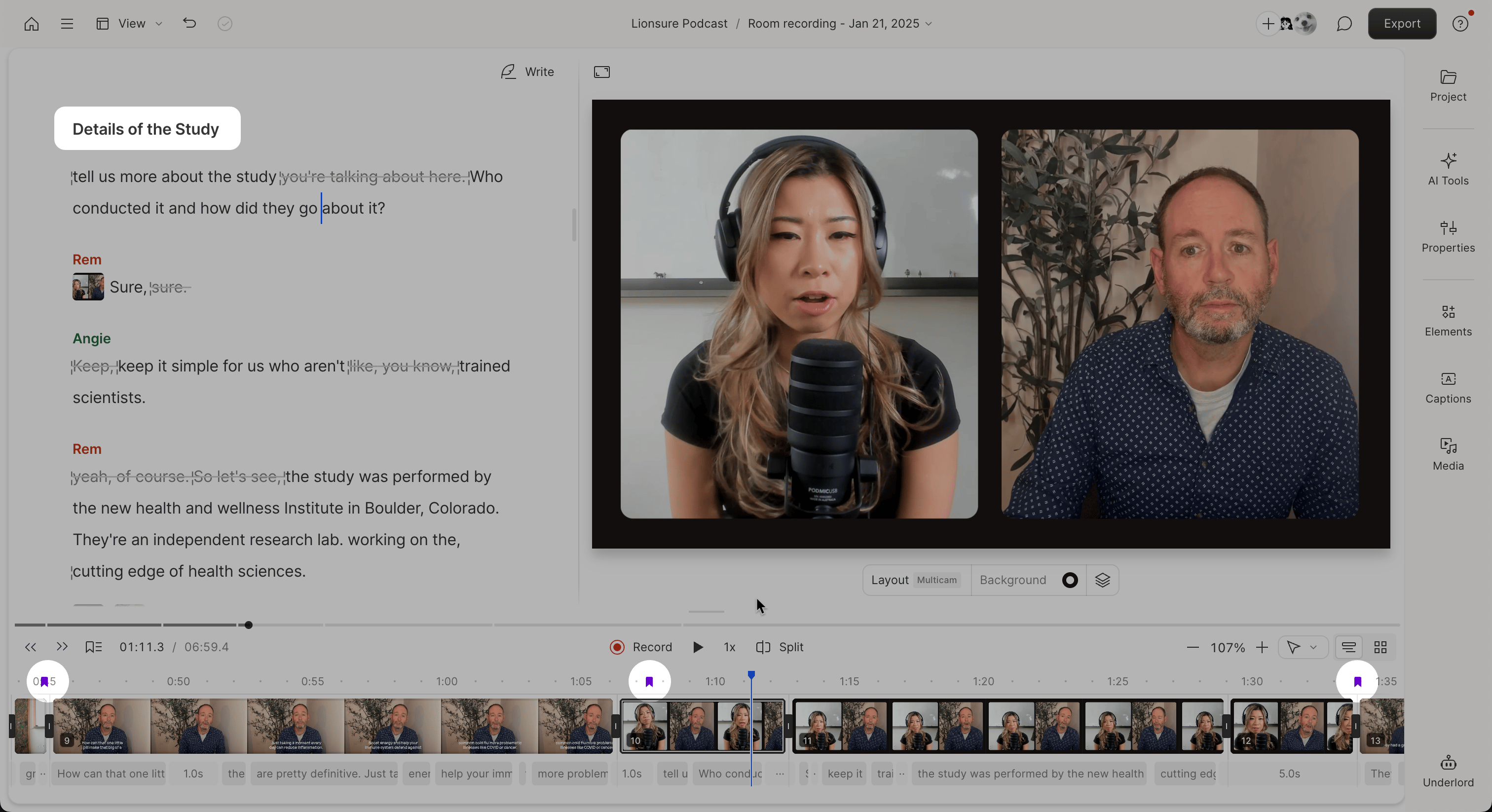
Navigate between markers
Click the marker icon next to the playback controls to view all markers in your script and jump between sections.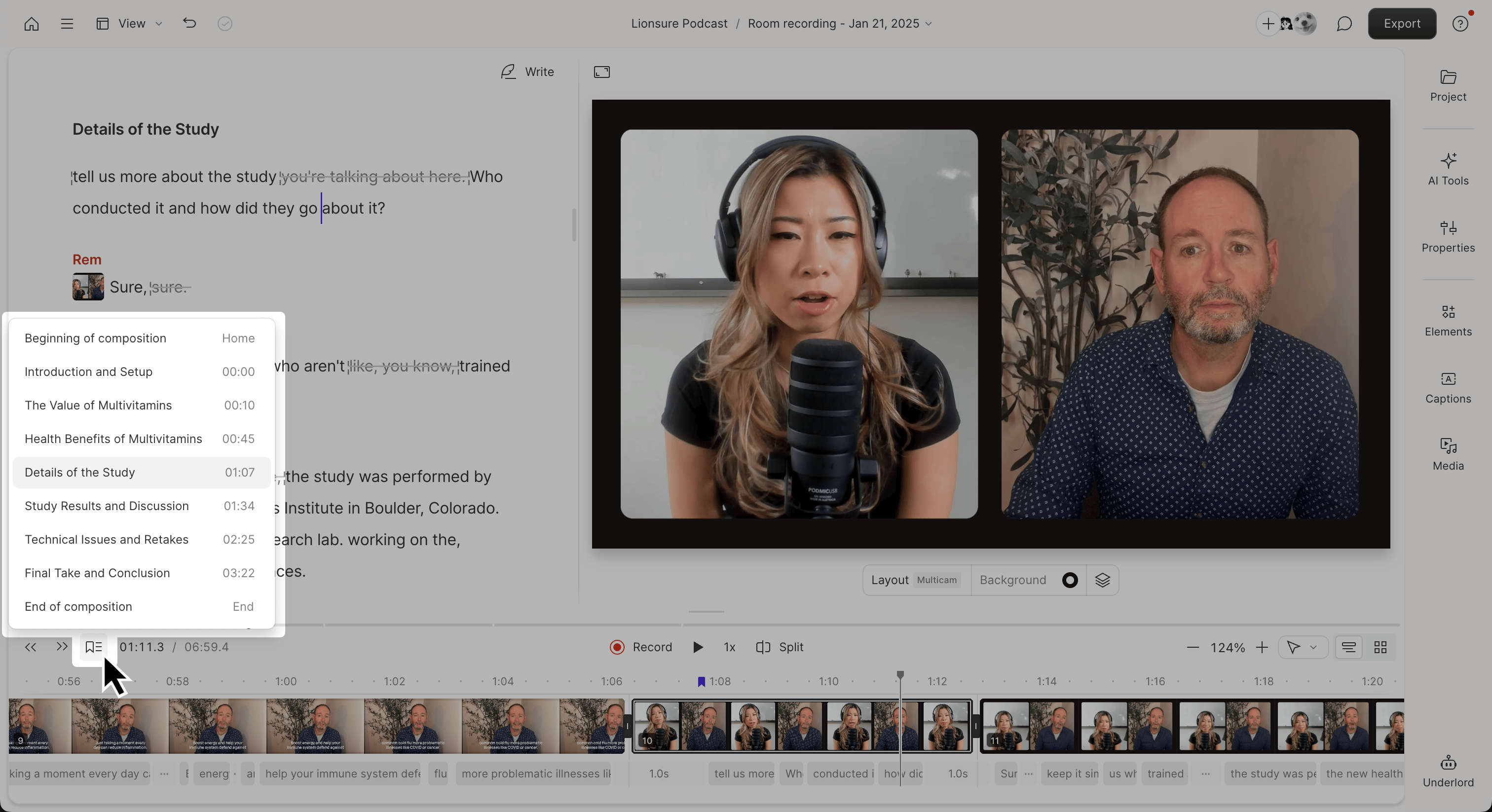
Edit markers
Move a marker
Hover over a marker until the grabber appears. Click and drag the marker to a new location. As you drag, the script highlights where the marker will land.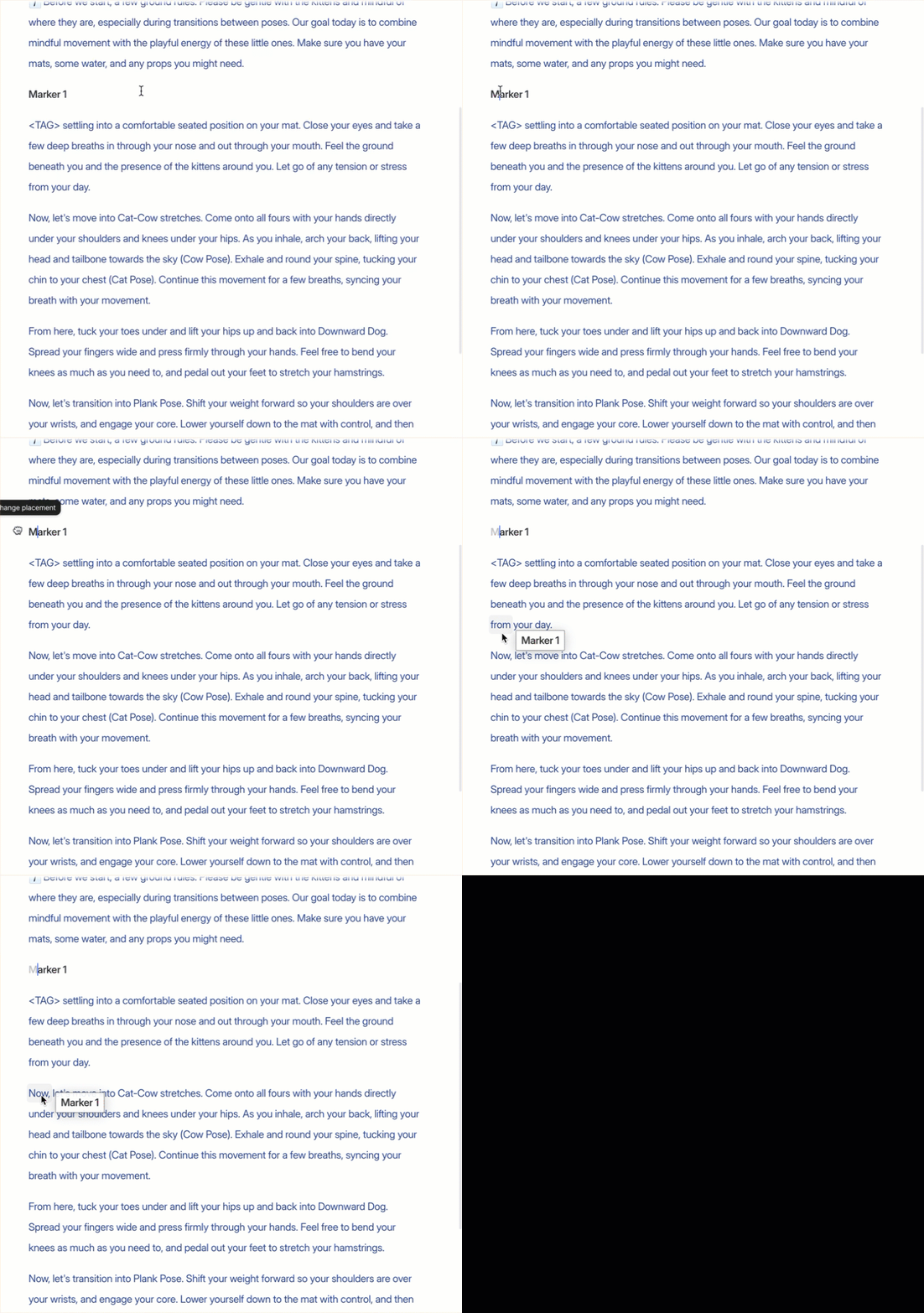
Rename a marker
Click into the marker’s label and type a new name.Delete a marker
Select the marker in your script and press Delete on your keyboard.How markers appear in exports
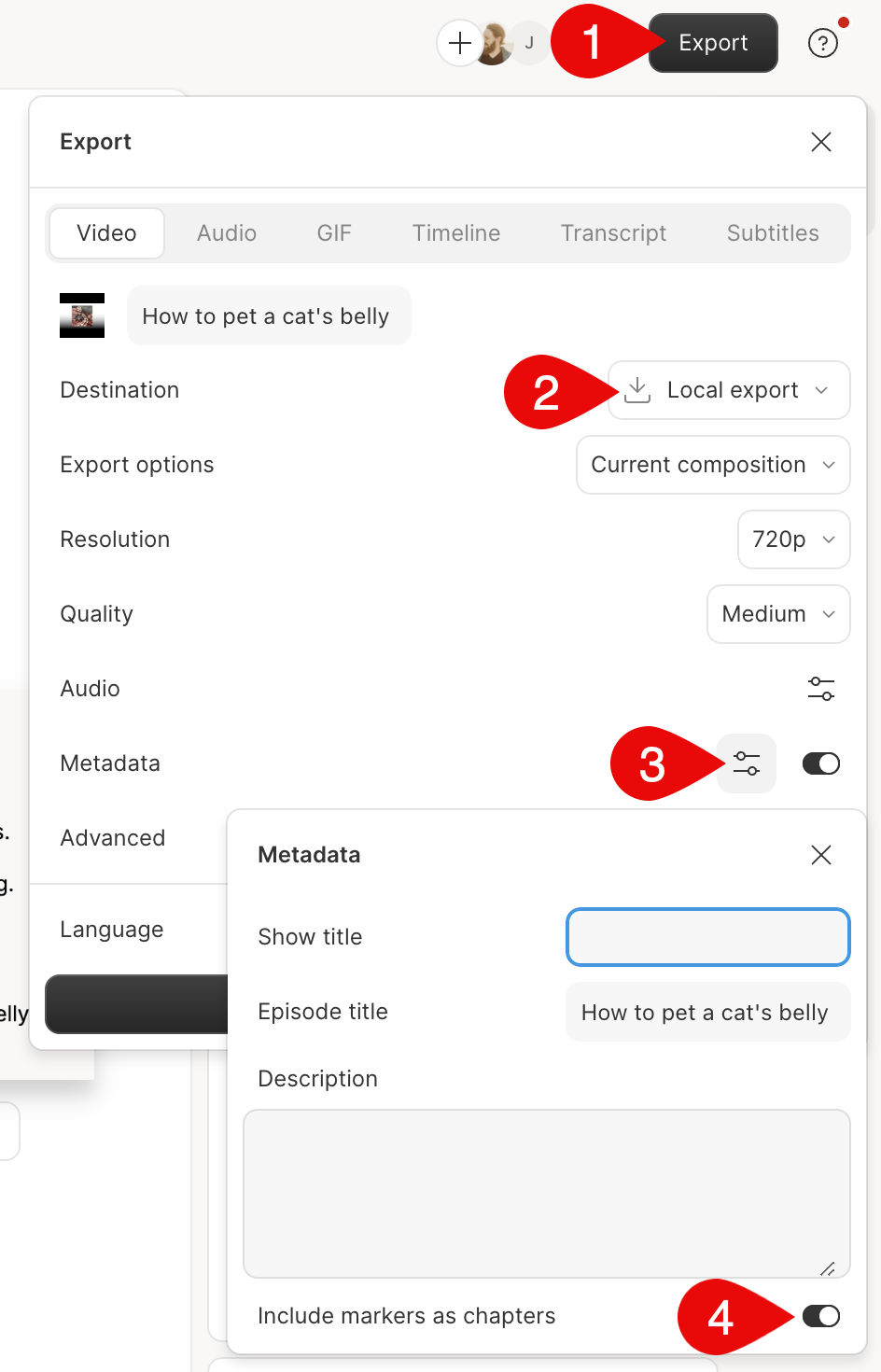
Do markers show up as chapters in my video?
Markers automatically appear as chapters in Descript web links. For local exports, turn on Include markers as chapters in the Metadata settings. This works for MP4, MP3, and AAC files. Media players and podcast apps that support chapters will display them. Note: YouTube doesn’t support chapter metadata from exported files. You’ll need to add chapters manually in the video description. You can easily copy a formatted list of your chapters for this purpose by clicking the marker icon next to the playback controls and selecting Copy chapters for YouTube.