

How to use the teleprompter
- Open your Descript project or composition.
- Activate the teleprompter:
-
If using the Editor recorder, click the Record button at the bottom of the editor window. Then, click the Teleprompter button to the right of the record button.\

-
If using the Screen Recorder in the desktop app, open the dock from your system tray, then click the teleprompter icon:\
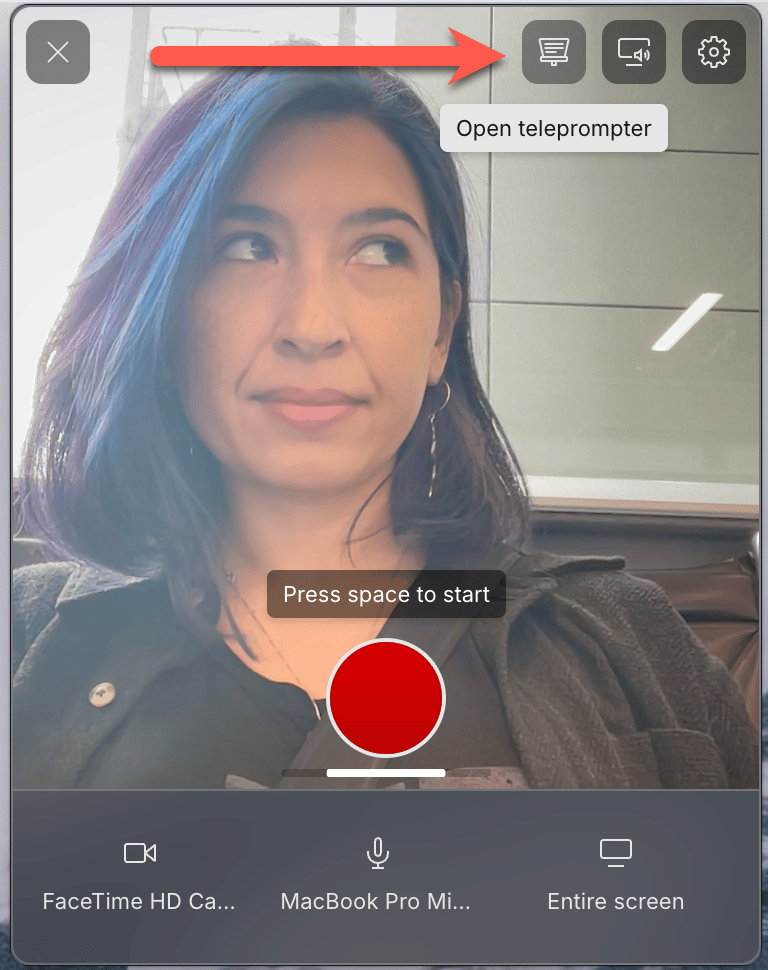
-
If using Rooms, the teleprompter button will be available to Hosts and Co-hosts in the bottom-left corner of the window, next to the Comments button.
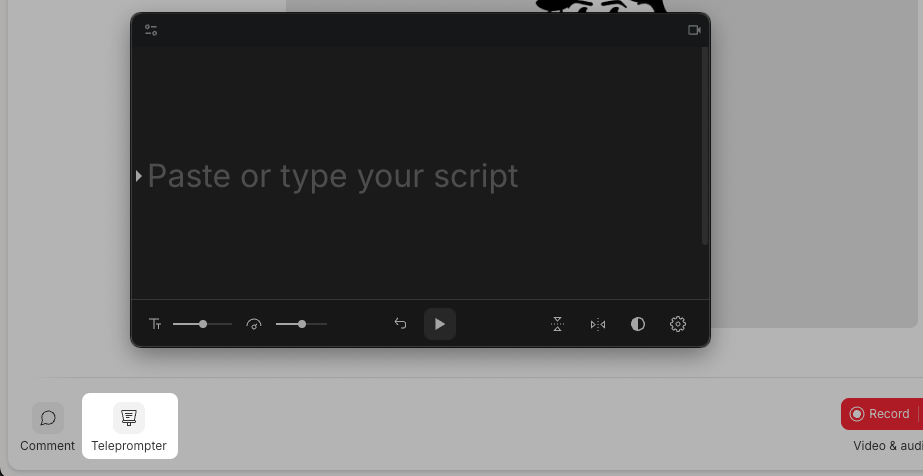
-
If using the Editor recorder, click the Record button at the bottom of the editor window. Then, click the Teleprompter button to the right of the record button.\
- Enter your script. You have three options:
- Paste — copy and paste text directly into the window
- Type — manually enter your script
- Import from script — pull text from your current composition (not available in Rooms)
- Configure the Teleprompter settings:\
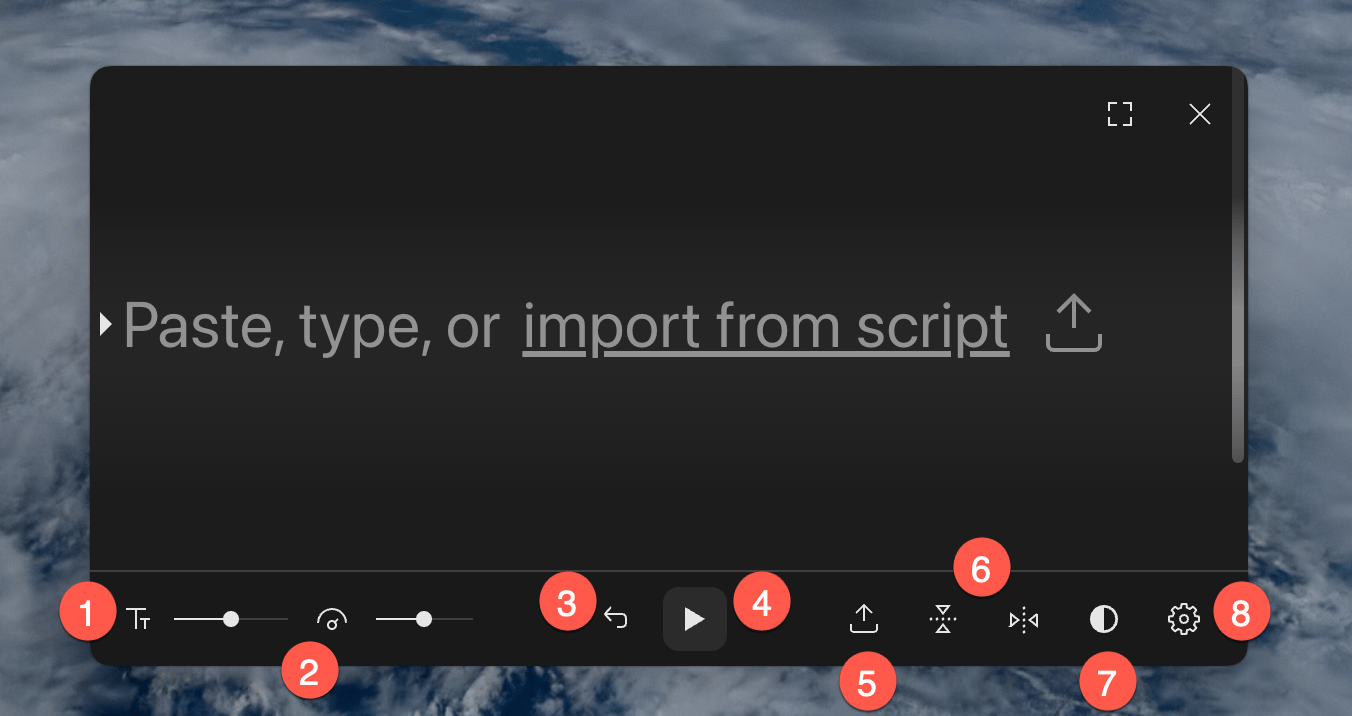
- Font size: Adjust the size of your script text
- Scroll speed: Control how fast your script scrolls
- Restart: Jump back to the top of the script
- Play: Manually start scrolling (only needed if auto-scroll is off)
- Import from script: Quickly pull in script content
- Flip/Mirror: Flip the display for use with a physical teleprompter setup
- Theme: Switch between light and dark mode
- Settings: Access additional Teleprompter preferences
- Click Record. The teleprompter will scroll based on your selected settings-either automatically or manually. In Rooms, you’ll need to manually click the Play button in the teleprompter window to start scrolling.
Using a tablet or iPad?On macOS, you can use Apple Sidecar to use your iPad as a second display. Other devices may require third-party mirroring software.
Teleprompter settings
- Scroll speed: There are two options for controlling the scroll speed of the teleprompter. Note, scrolling is time-based and does not respond to your voice or track words in real-time
- Variable: Speeds up over line breaks and white space
- Constant: Scrolls at a steady, fixed pace
- Auto-scroll when recording begins: Starts scrolling automatically when you hit Record. This is the default behavior and will always default to on with each recording.
- Focus mode: Adds a soft gradient above and below the center line to reduce visual distractions
Teleprompter window visibility
Whether the teleprompter window appears in your recording depends on where you’re recording:- Using the Descript desktop app: The teleprompter window is never captured in your recording, even when recording your screen.
- Descript Rooms and Descript for Web: If you’re screen sharing, the teleprompter window will be visible in your screen share. To keep it out of frame, use a second display or position the window outside your shared area.