Start a Rooms recording
To begin your session, click the Record button. A countdown will appear on the screen, giving everyone time to prepare before the recording officially begins. This ensures a smooth beginning to your recording. To create an audio-only Rooms recording, click the icon on the right side of the record button and select Audio only.Recording in progress
Once the recording starts, a timer will display the elapsed recording time, indicating that the session is active and being recorded. You can track the length of the recording with the timer at the top.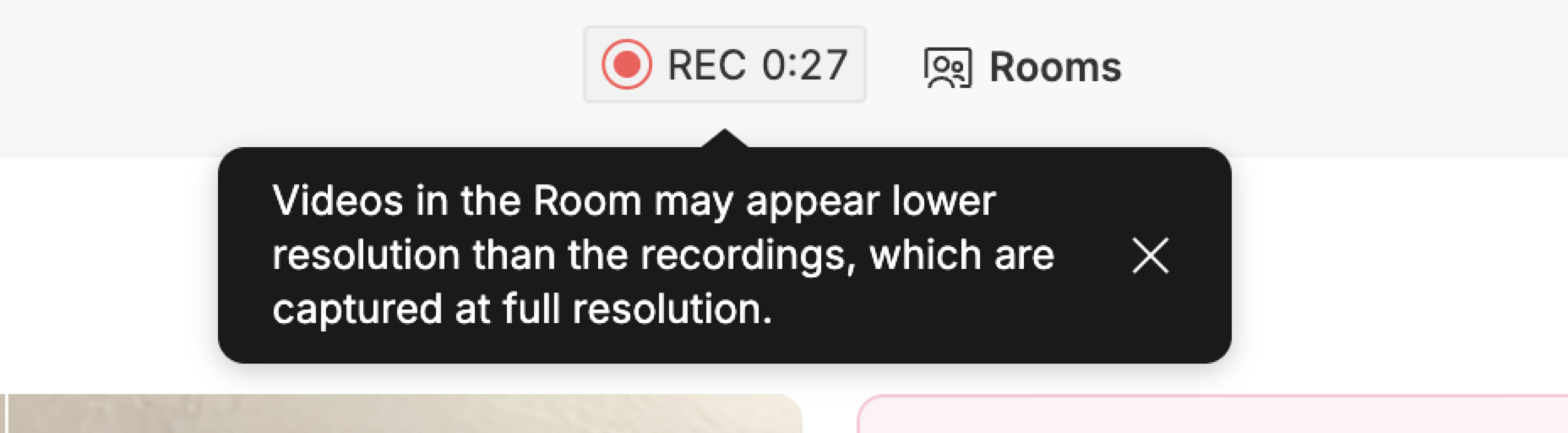
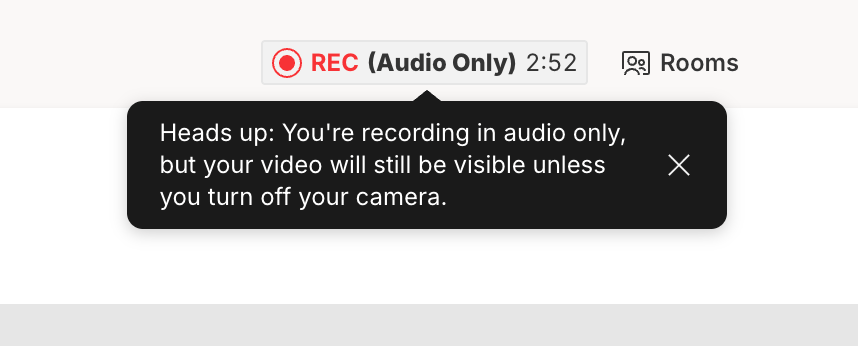
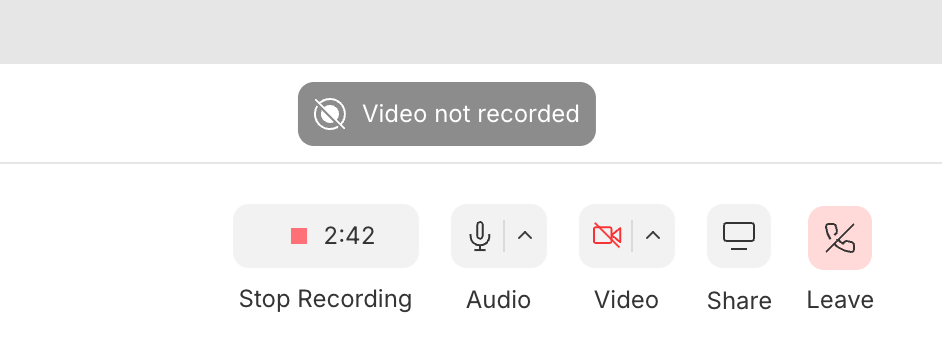
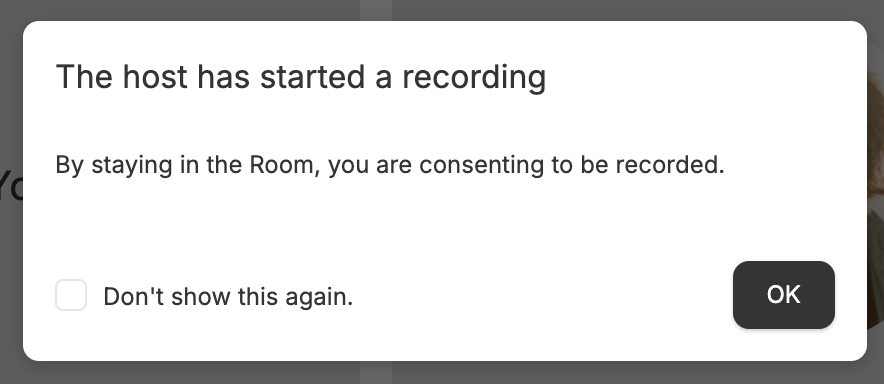
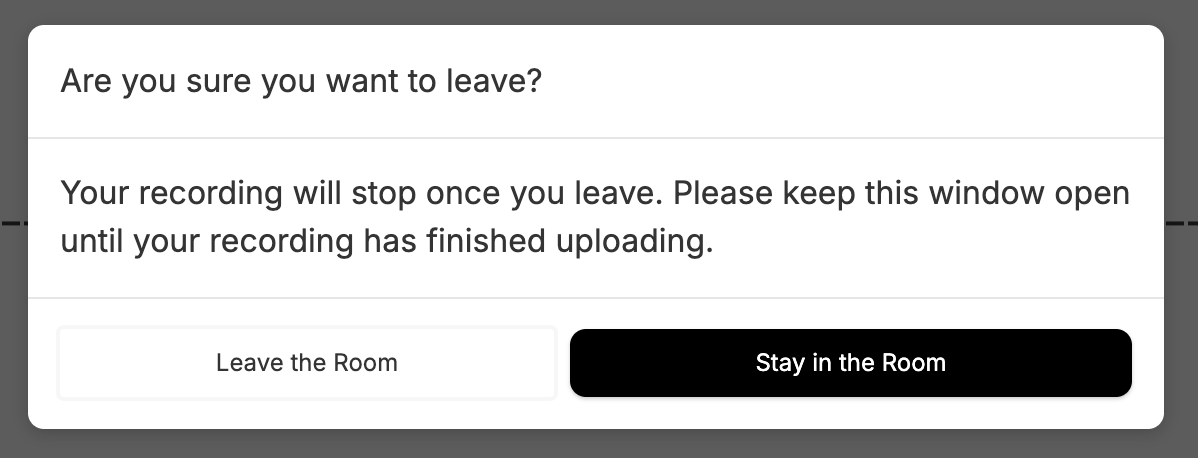
We suggest staying in the Room during the recording to avoid interruptions or data loss. If you need to leave mid-recording, use the Leave button at the bottom of the Room. Please continue to leave the tab open while your recordings are uploaded.
Screen sharing
To share your screen, click Share at the bottom of the Room.\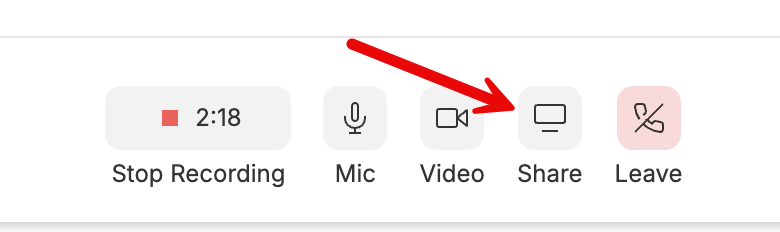
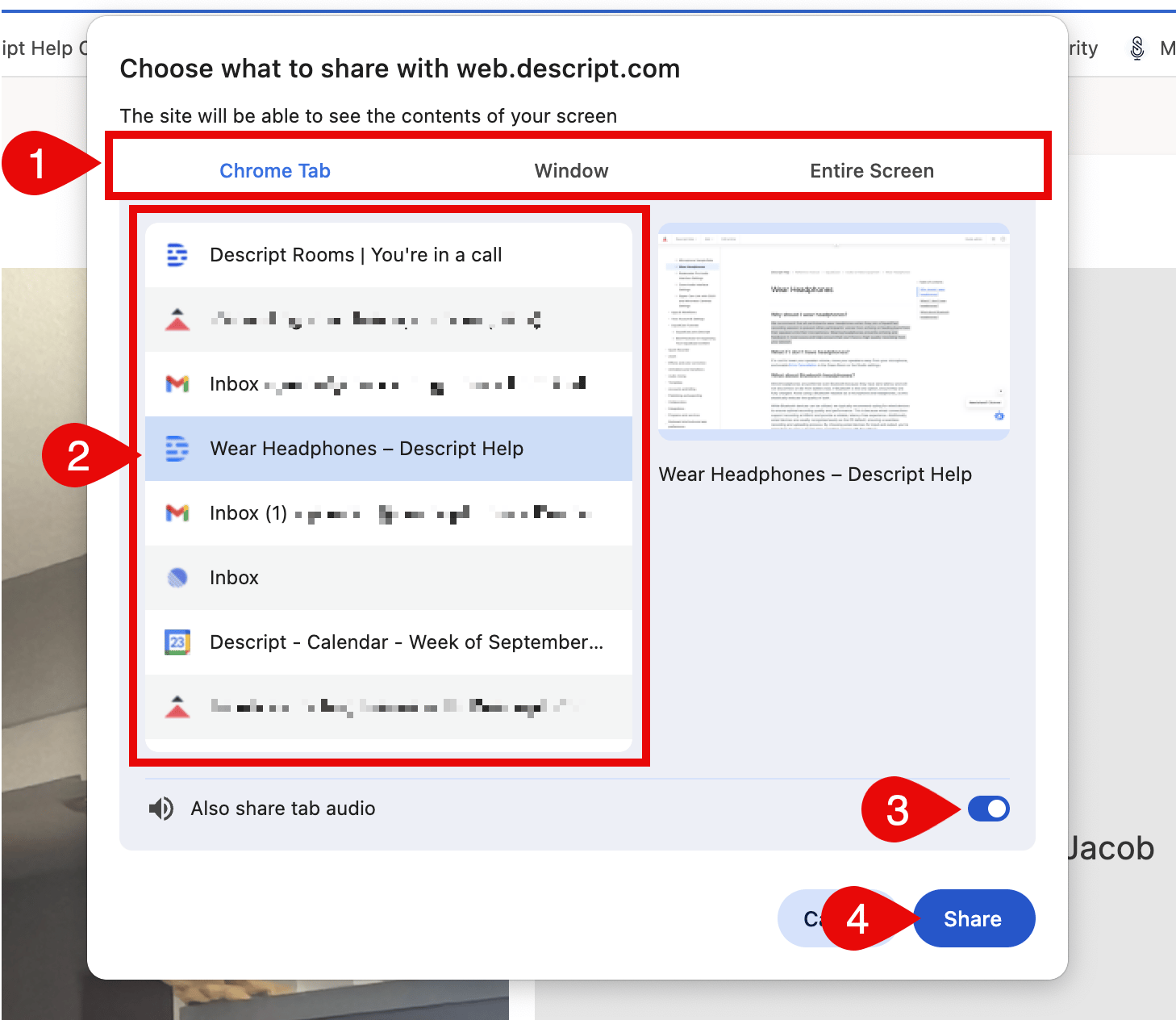
Up to two people can share a screen simultaneously, and both will be recorded during the session.

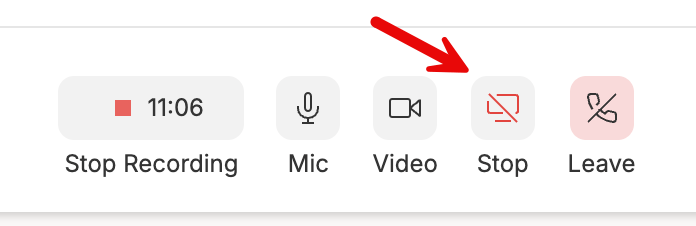
Screen share sizes may vary depending on the window size and screen resolution. If needed, you can resize the window being shared.
Using the teleprompter in Rooms
Hosts and Co-hosts can use Descript’s built-in teleprompter while recording in a Room. The teleprompter helps you read your script while keeping your eyes on the camera.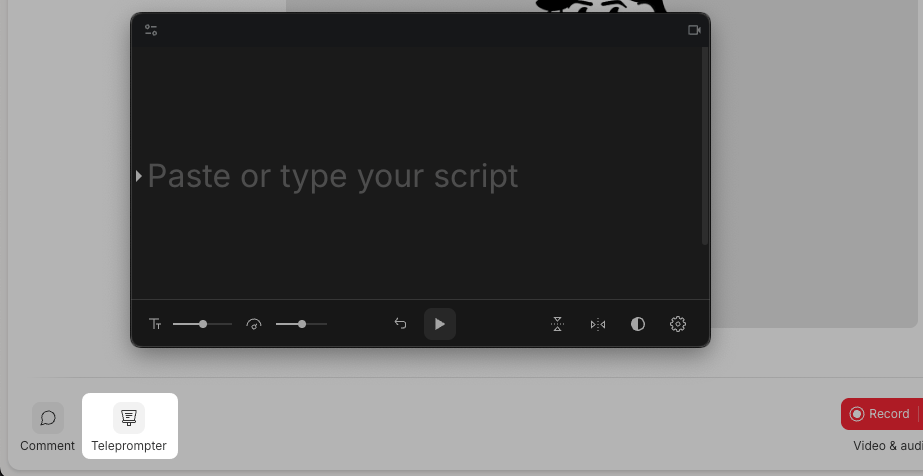
Enable live captions
Click the Captions button in the lower left corner to enable live closed captioning. Captions display in real time for all main-stage participants.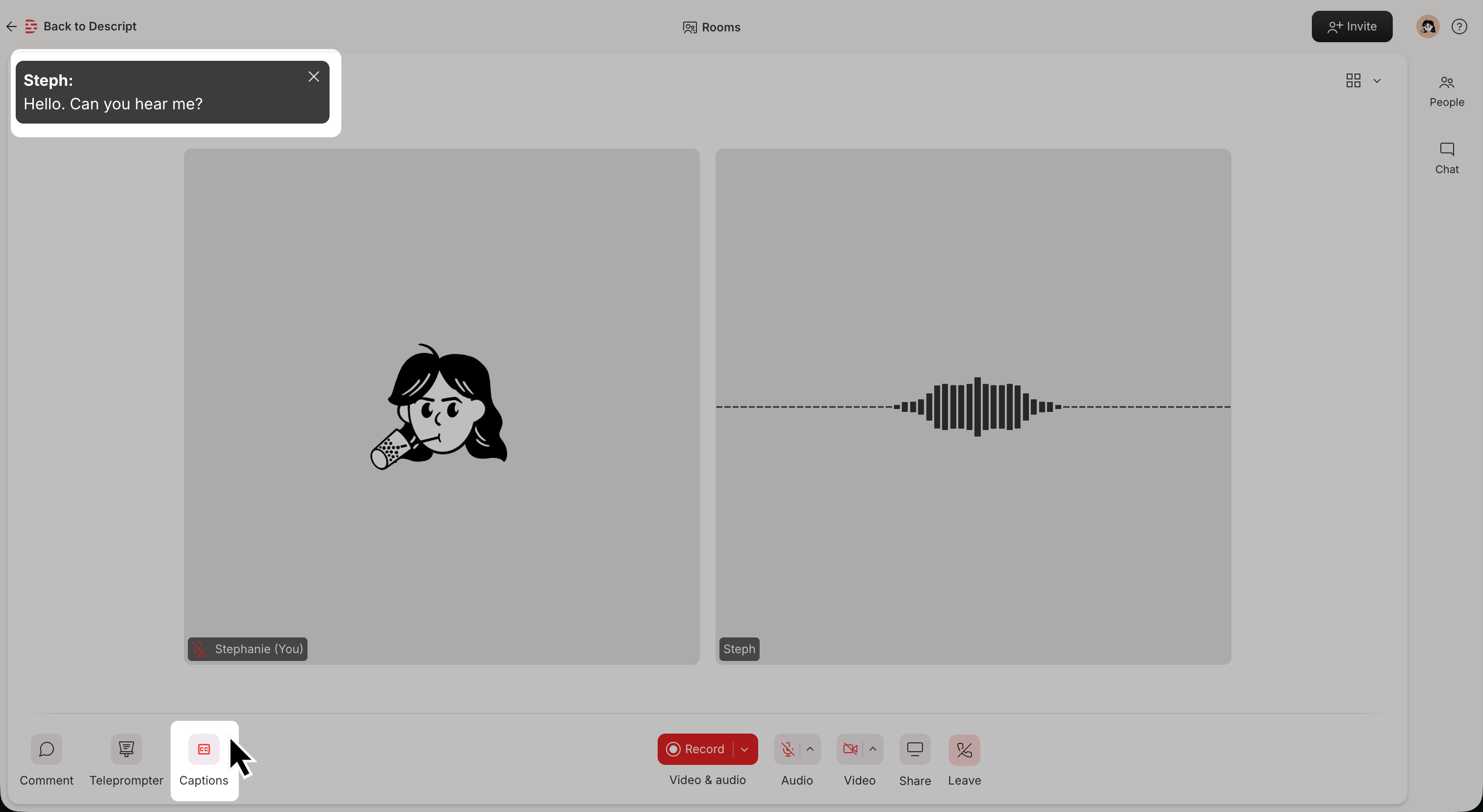
Stop and save the recording
When you’re ready to stop, click the Stop Recording button. This action finalizes the recording and saves it to a Descript project.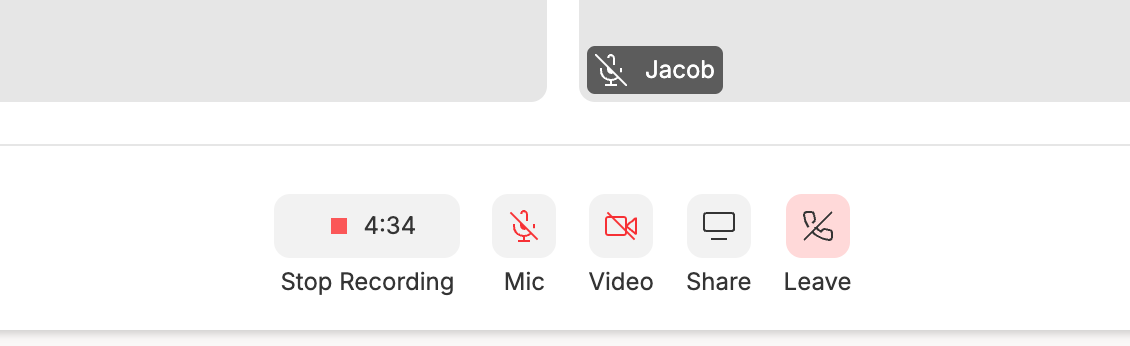
Recordings are limited to 4 hours per session. If you need to record longer, you can stop and start new recordings as needed. Each recording will be saved in the same project when you exit the Room.
What happens when the host stops a recording
Once the host stops recording, an upload status will be displayed. The host can view the upload progress of all participants’ recordings, including their own, ensuring that everything is saved correctly. Guests will see their own upload status during this process.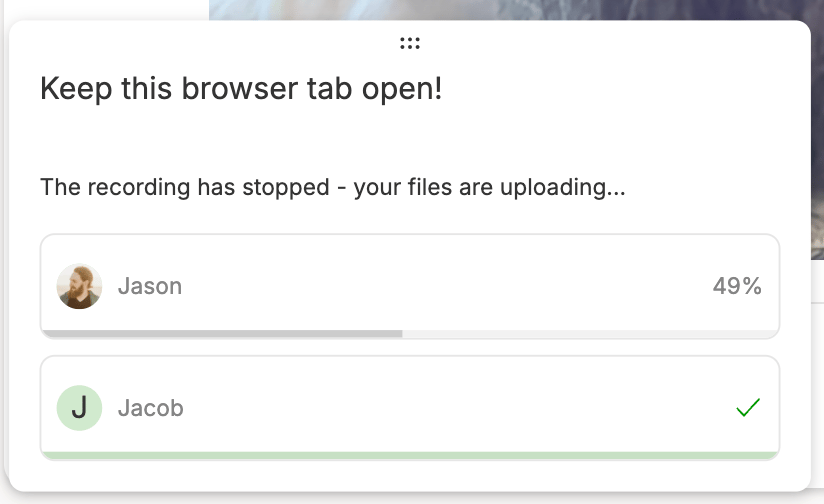
Upload process
While files are uploaded, the dialog box showing the status remains visible and cannot be dismissed; however, it can be moved around on the screen. Ensuring that all recordings are safely uploaded before closing the browser tab is important. The upload window can be closed once all uploads are complete (or if they have stalled). If you are the room owner, you can click Open project in Descript once uploads finish to go directly to your project. At this point, it will be clear that all recordings have been successfully uploaded, and the tab is safe to close. Once all uploads are complete, the host will be ready to edit the recordings in Descript.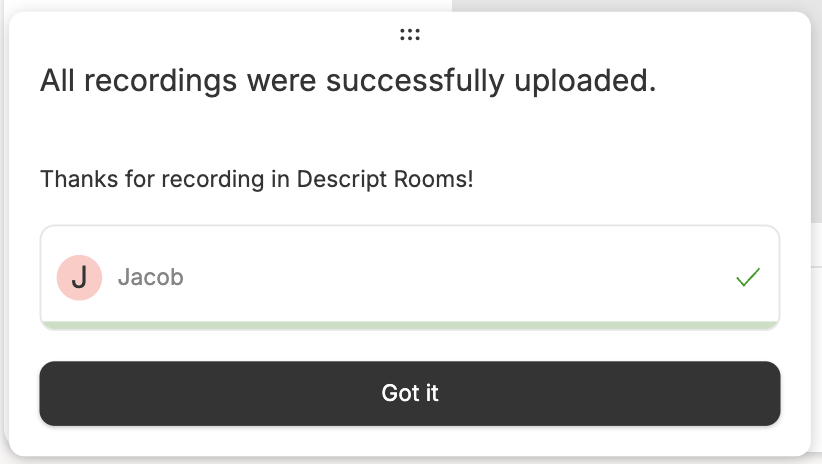
Leave the Room and continued uploads
Guests can leave the Room anytime by pressing the Leave button. This is different from simply closing the browser tab. Even after leaving, uploads will continue in the background, but it’s essential to keep the tab open until uploads finish to avoid interruptions. Closing the tab or browser too soon could stop the upload process. Participants will be taken to a post-call page showing their upload status. Once uploads are complete, a confetti animation confirms everything is saved, and it’s safe to close the tab. Room owners can also click Open project in Descript to access their project directly.\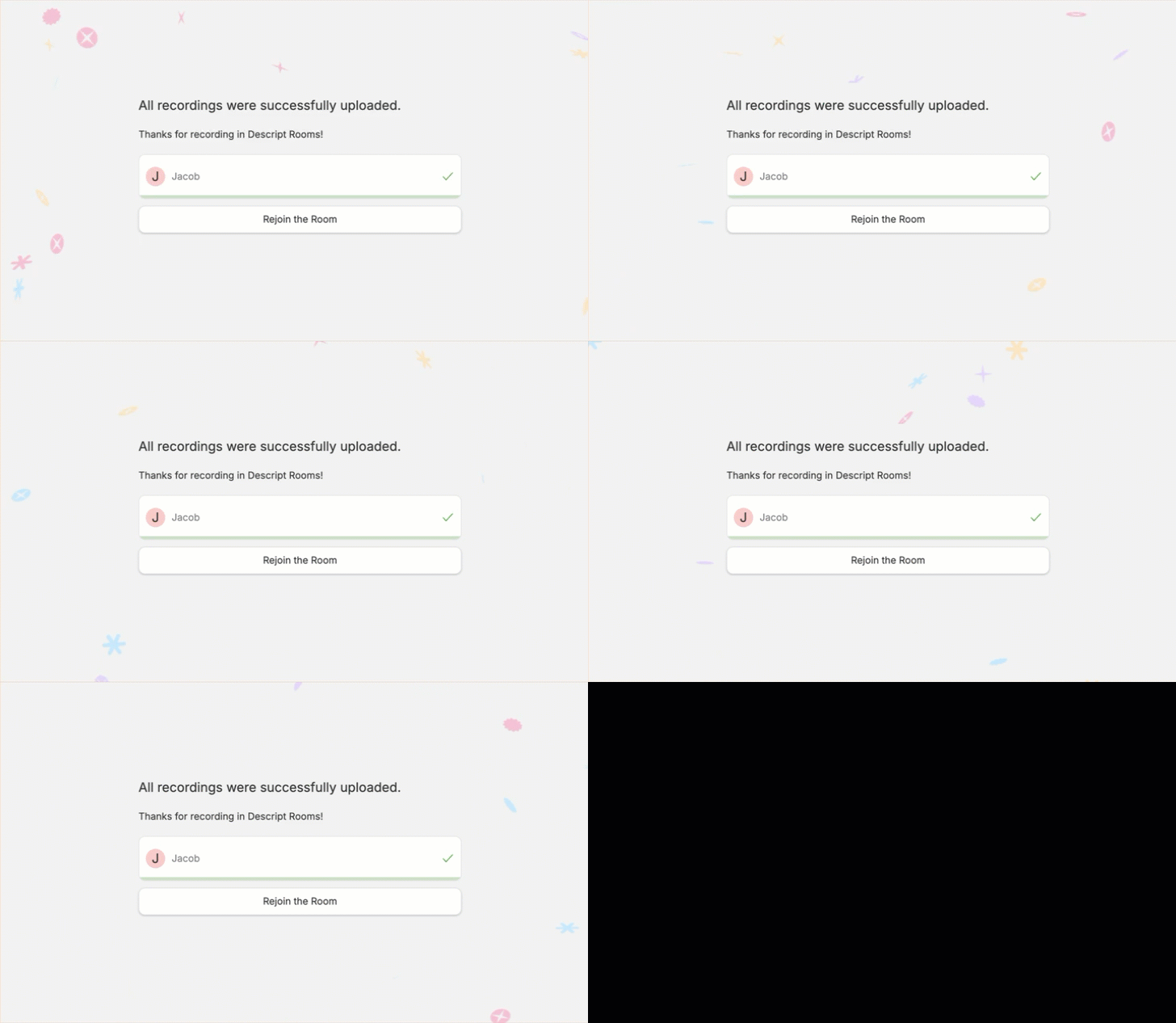
- Stop the recording and leave the Room.
- Stop the recording and close the Room, which ends the session for everyone.