

Usage noteOn current plans, this feature uses AI Credits. Learn more about tracking your Media Minutes and AI Credits.Legacy and Sunset plans track usage differently. See our Understanding your Legacy and Sunset plan guide for details.
How Quick design works
Quick design does three things when it runs:- Creates scenes — Splits your content into logical moments so visuals change over time instead of staying on one continuous shot.
- Applies layouts and styling — Chooses scene layouts and applies basic formatting so the project looks intentionally designed.
- Adds B-roll (optional) — Pulls from stock and AI-generated media to cover cuts and add visual variety.
- Quick design requires a project with media in the Script track. If you haven’t set one up yet, add your script or record your content first.
- Quick design can only be used on single-scene projects. Run it before adding any scenes manually.
How to use Quick design
- Open a new or existing project.
- Import your media.
- Click the AI tools button in the sidebar.
-
Select Quick design from the Look good section.
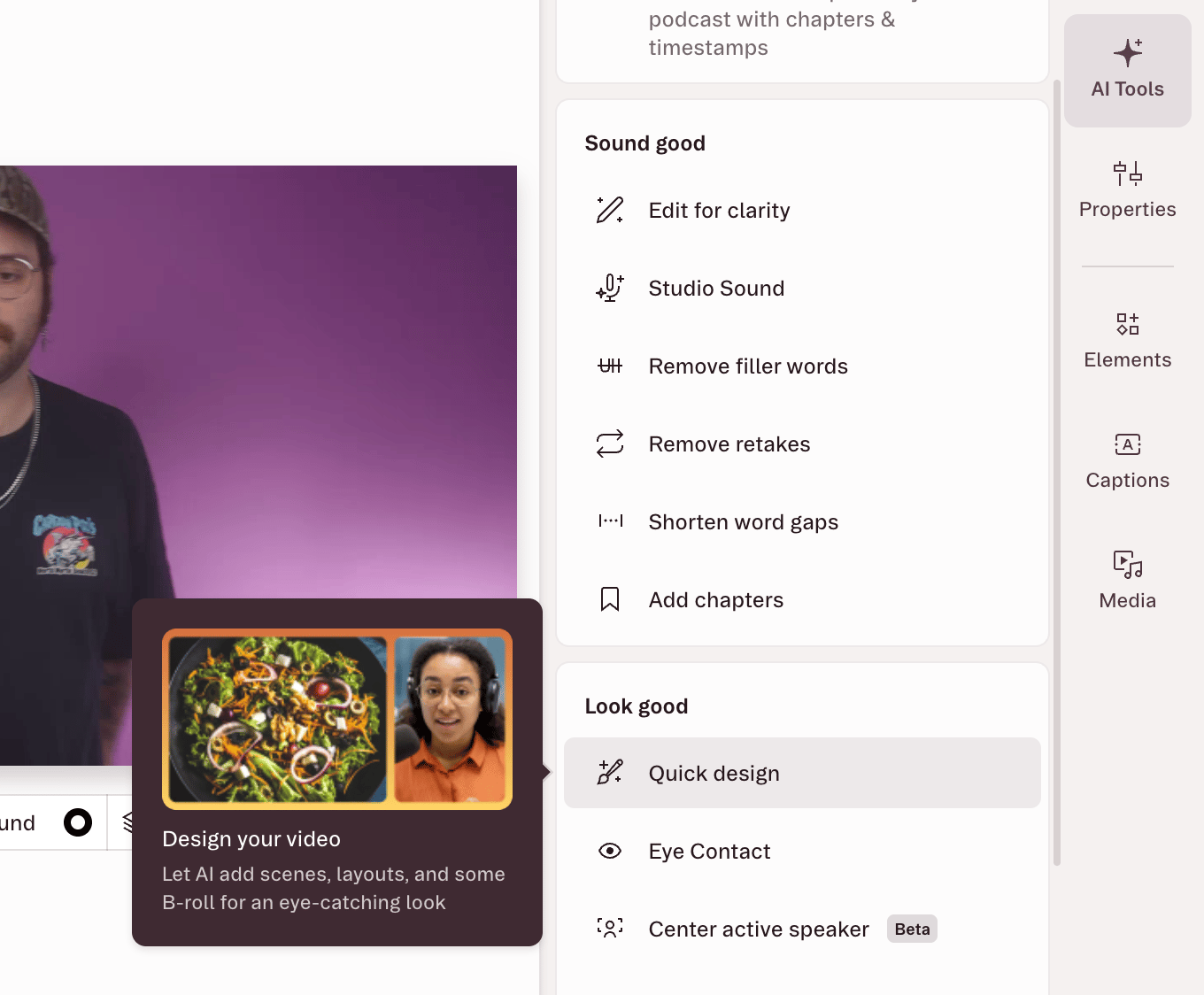
-
Choose whether to include B-roll. If enabled, Quick design will add supporting visuals using stock or AI-generated media.
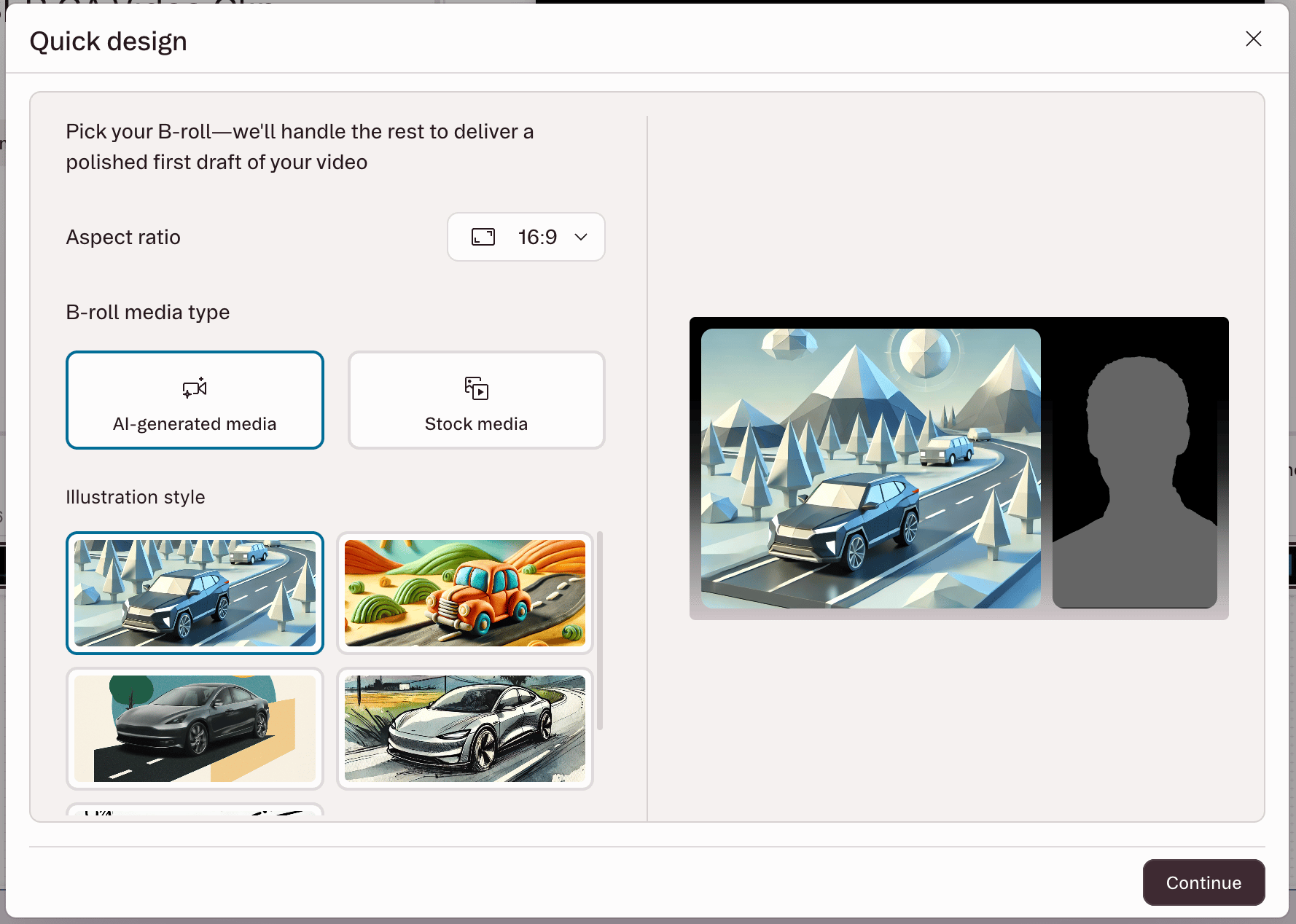
- Click Continue to start processing.