Project vs. page commentsComments created in a Descript project are not the same as comments made on a published share page – project comments are private to those with access to a project, and page comments appear on content exported using the Descript (web link) destination.
Leave a comment
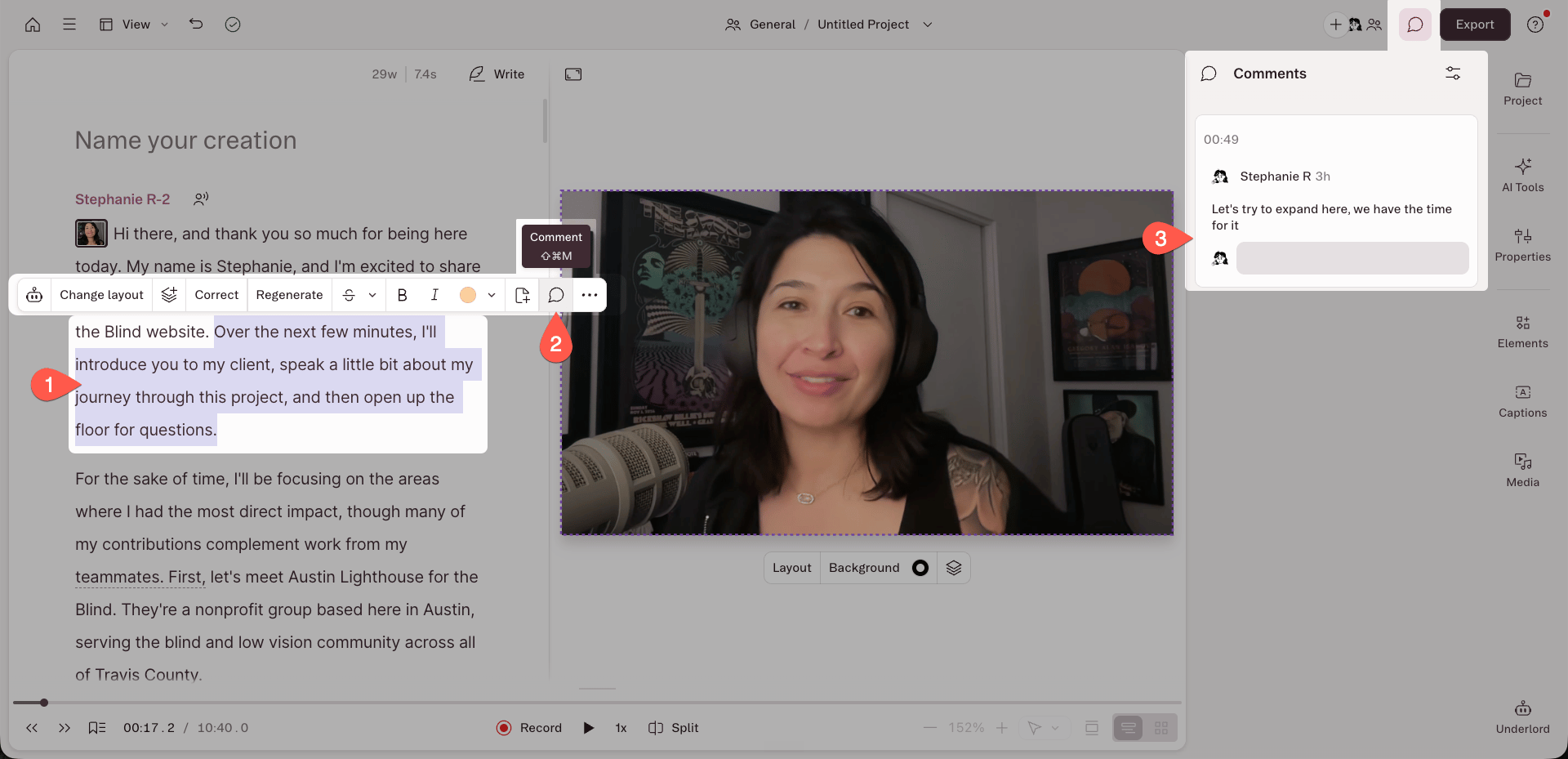
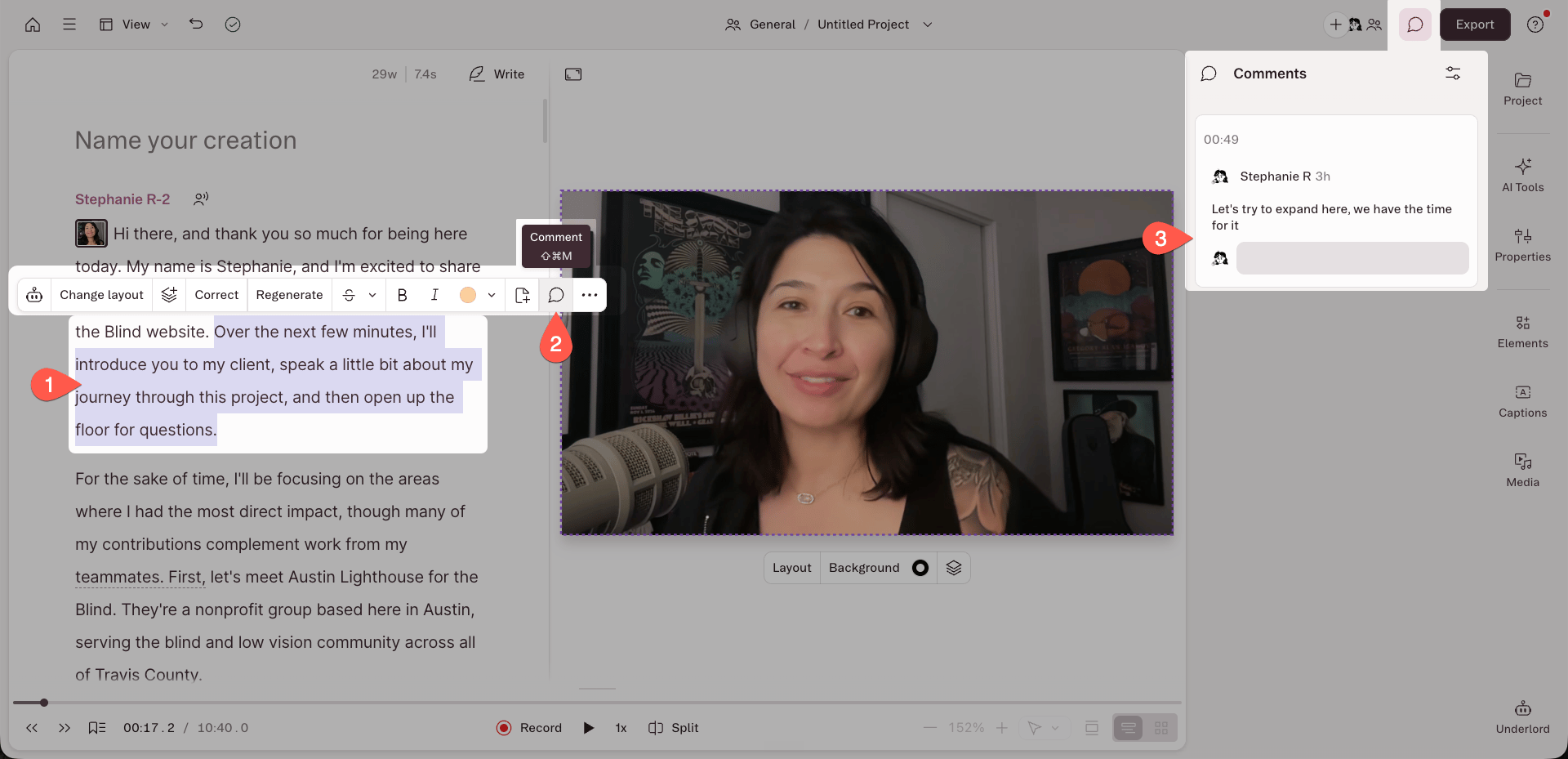
- Select some words in your transcript, or double-click a single word.
- Click the chat bubble icon in the hover menu.
- Type your comment in the box that appears in the right-hand panel.
Edit a comment
- Hover over the comment you want to change.
- Click the ellipsis (…) menu on the comment.
- Select Edit.
- Make your changes, then click Save.
Mention a collaborator
Type @ in a comment box to pull up a list of your collaborators — drive members and anyone you’ve given project access. Select a name to tag them. Tagged collaborators get an email notification with the contents of your comment.Resolve a comment
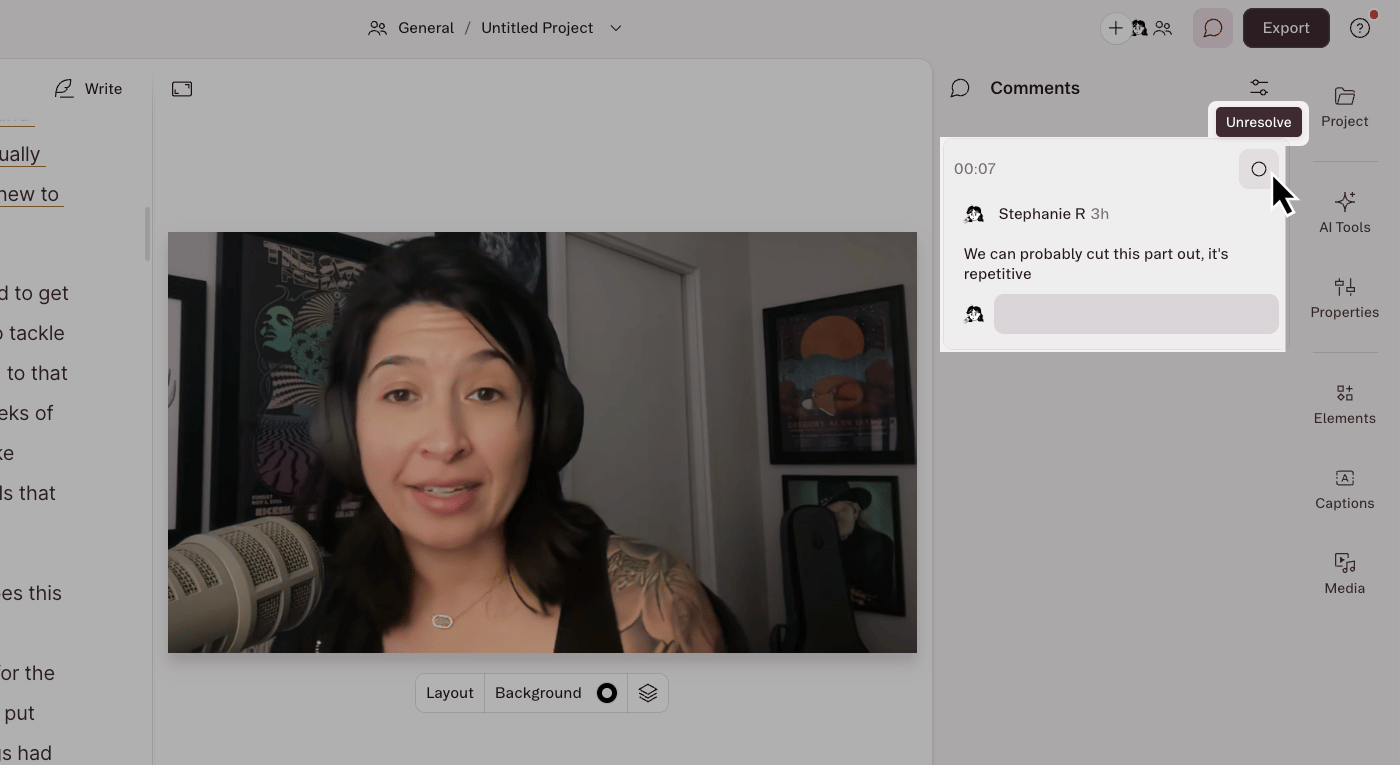
Click the circle icon in the top-right corner of a comment box to resolve it. Resolved comments move out of the script and into the archived view.View and sort comments
Click the chat bubble icon at the top right of the editor to show or hide the comment sidebar. With the sidebar open, click the properties icon at the top of the panel and choose a sorting option.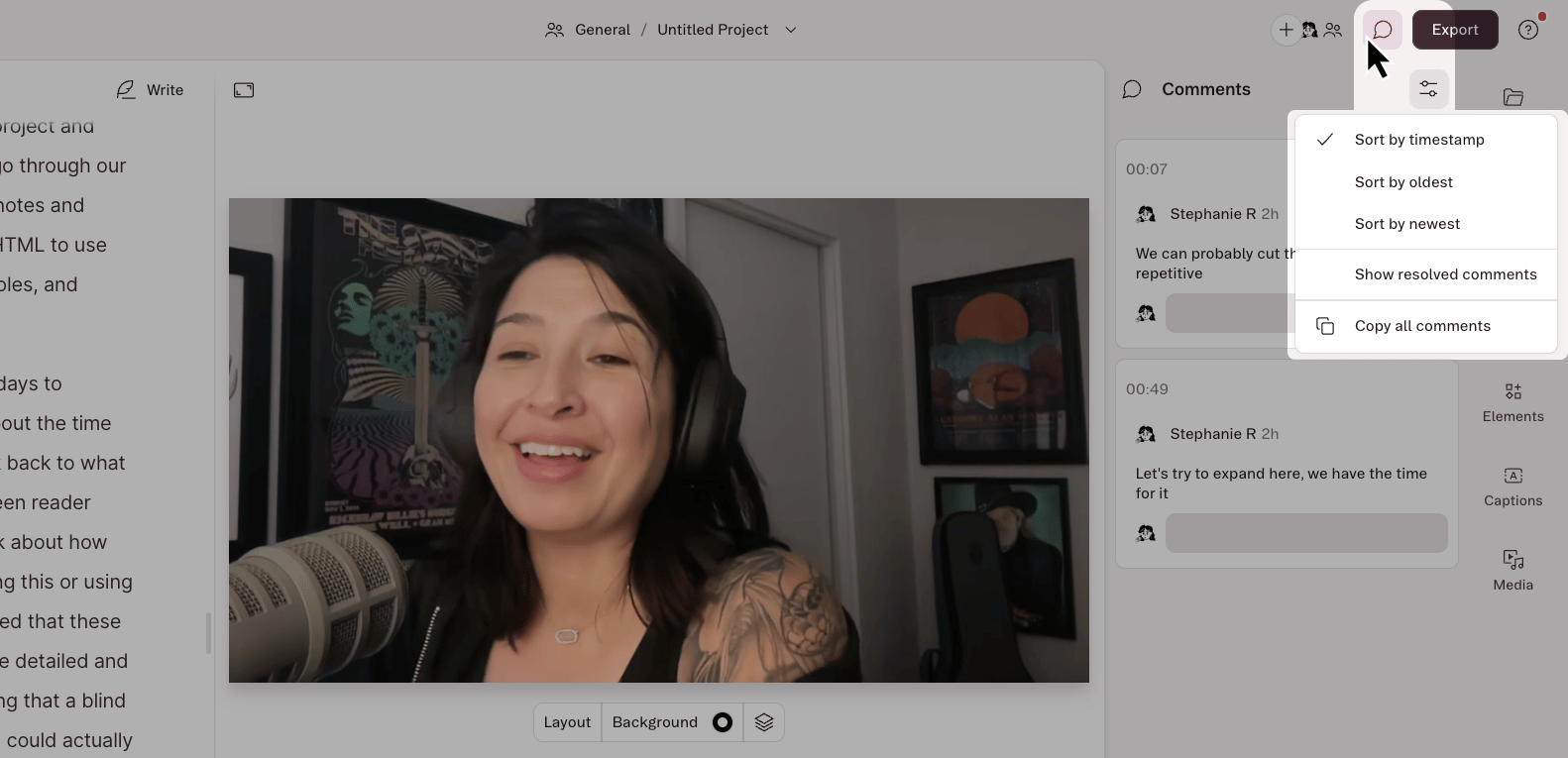
View resolved comments
Click the properties icon at the top of the panel to switch between resolved and unresolved comments. To bring a resolved comment back into the script, click the circle icon in its top-right corner.