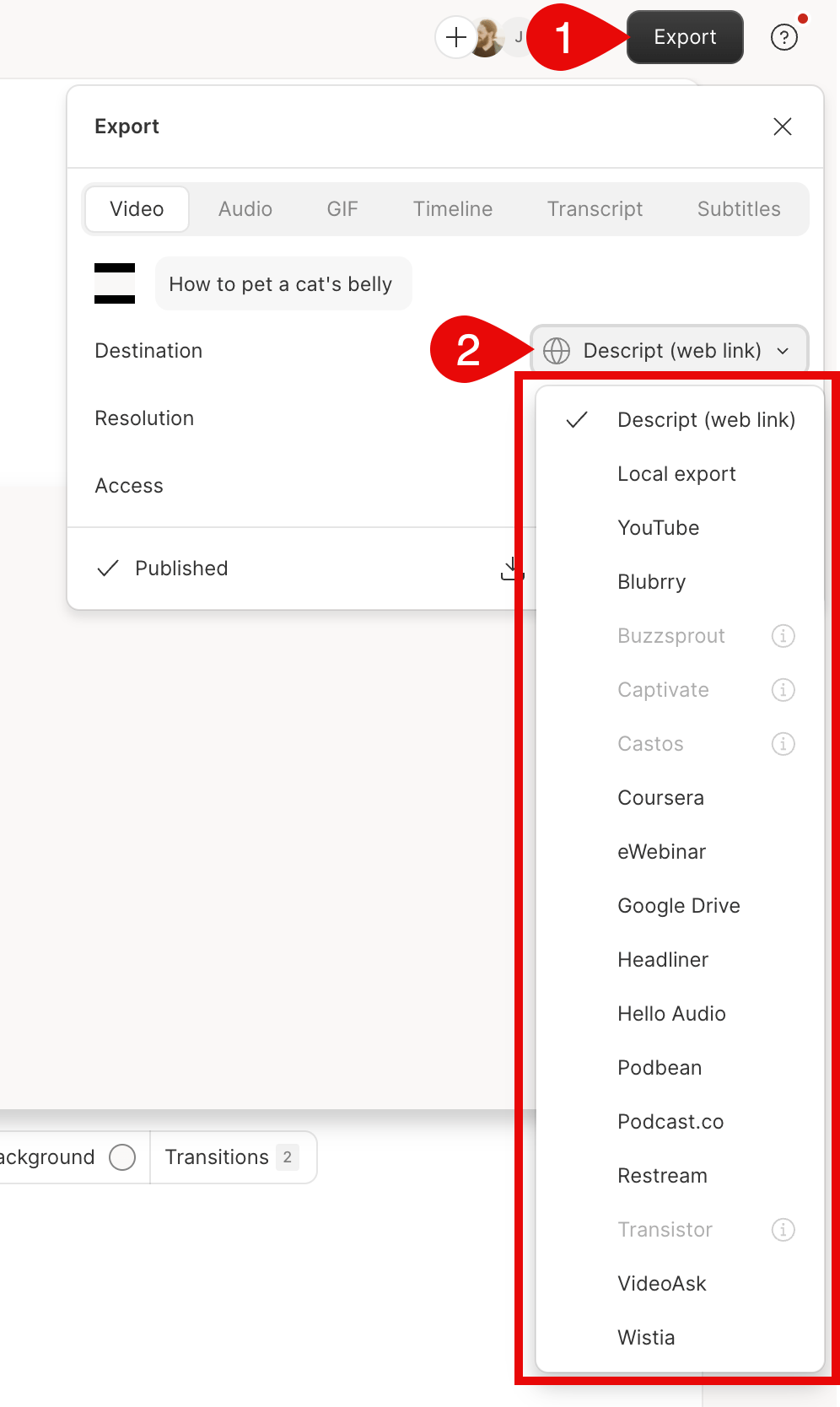
Export from Descript…
Import from Descript…
Integration instructions
Step 1. Acquire the Descript URL from your user
When a customer exports (via Descript’s export feature) their final content in Descript, the audio or video will be uploaded to a share.descript.com page (example), and they’ll be presented with a confirmation dialog with quick links to push the media to their content host and other services. Once you’re a supported partner, the user will be able to select your service to appear as a quick link. The link will direct the user to your episode creation URL, with an argument that will allow you to grab the file from Descript, like this: https://www.example.com/my/profile/descript_import/new?title=Overview&url=https%3A%2F%2Fshare.descript.com%2Fview%2Fa50ffa05-540c-4c62-a36e-4fb14035a9cf You can then query https://share.descript.com/<descript_publish_id> to obtain the media & transcript information for the user’s project.Step 2. Download the media
The https://share.descript.com/<descript_publish_id> page provides links to the user’s audio and/or video via the following <meta> in the HTML <head>: <meta property=“descript:audio” content=“<link to the m4a audio file>”><meta property=“descript:video” content=“<link to the mp4 video file>“>
Step 3. Download the transcript data
Descript provides transcript information using the Podcast Namespace Transcript specification. Descript provides this information in both the JSON & WebVTT formats. To access this data, the https://share.descript.com/<descript_publish_id> page provides links to the the via the following <meta> in the HTML <head>: <meta property=“descript:subtitles” content=“<link to the subtitle (WebVTT) file>”><meta property=“descript:transcript” content=“<link to the transcript JSON file>“>
Step 4. Include transcript data in a podcast feed
See Podcast Namespace’s guide for information on how to include transcripts in your podcast’s .RSS feed.Best Practices
1. Polling
The user may click the link to your creation page before their file has completed exporting. To provide the best customer experience, we recommend polling the meta links until the asset is found. While the asset is being generated, the media links will return either a 403 or 404 error. We recommend polling every 30 seconds to 1 minute with a max timeout of 3 hours. The share.descript.com URL will include the metadata tags, with a link to the asset, even while the assets are being generated. Rather than having to poll the Descript page, then fetch the assets once the metadata tags appear, you should be able to fetch the Descript page once to get the asset URLs, then poll the asset URLs until the asset is ready.2. Show progress in the UI
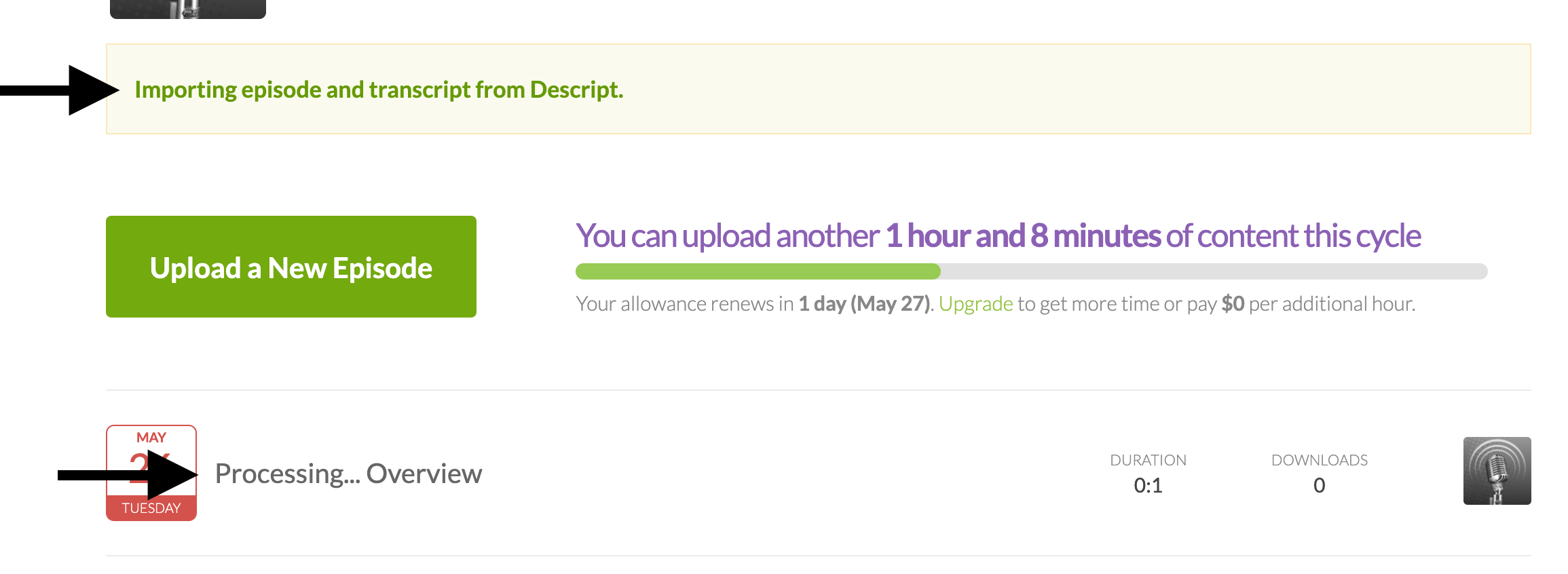
While polling is occurring on your app, the user should be notified that the final asset is processing.