

Admins control who can join, how workspaces are organized, and what members can do. Any editor or viewer can be promoted to admin by the drive owner or another admin — there’s no limit to how many a drive can have.

Assign or remove drive admins

Only the drive owner and other admins can assign or remove admin status.
  1. Press Command/Control + , to open App Settings, then select the Members tab in the left-hand sidebar.
  2. Click ... next to a member’s role and select Make drive admin or Remove drive admin.
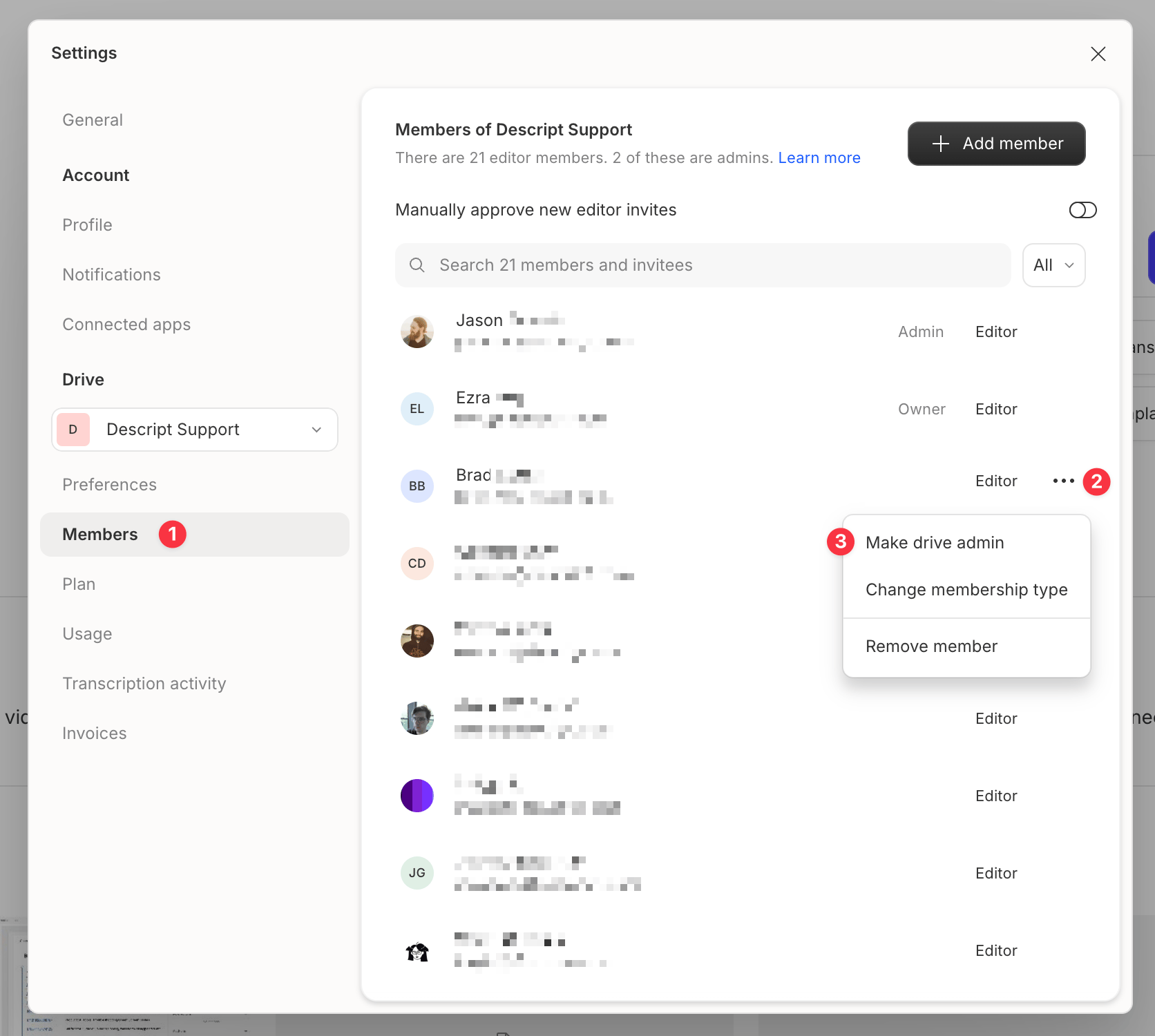
Removing admin privileges does not remove the member from the drive or change their membership type. CleanShot 2025-10-01 at 07.45.56@2x.png

What drive admins can do

Drive admins have more control than standard members. Their additional permissions fall into four main areas:

Manage membership

Admins oversee team membership. They can add or remove admins, switch roles between Editor and Viewer roles, and remove members from the drive. They also manage invitations—approving invited Editors, revoking pending invites, and controlling whether Editors can invite new members. Admins can also manage invite links, with the option to require manual or automatic approval for new Editors. Learn more about drive membership roles.

Manage workspaces

Admins can create, rename, and delete custom workspaces. They control workspace visibility (open or private), add and remove workspace members, and change workspace icons. Non-admin members can view workspaces and join open workspaces, but can’t adjust workspace settings. Learn more about workspaces.

Manage the drive

Admins configure drive-level settings including plan details, drive name, drive logo, and Brand Studio permissions. They can also adjust global settings — including publish privacy settings and the default save location for new projects.

Publish integrations

Admins manage available publish integrations: turn individual publish destinations on or off for everyone on the drive. Turning a destination off removes it as an option when publishing any project on the drive. Configure this directly in App settings.

Manage projects

Admins can assign project ownership to any editor or make themselves the owner of any project in shared workspaces. Admins can see all projects in the general workspace and custom workspaces, but not projects in members’ personal workspaces.