Copy your project link
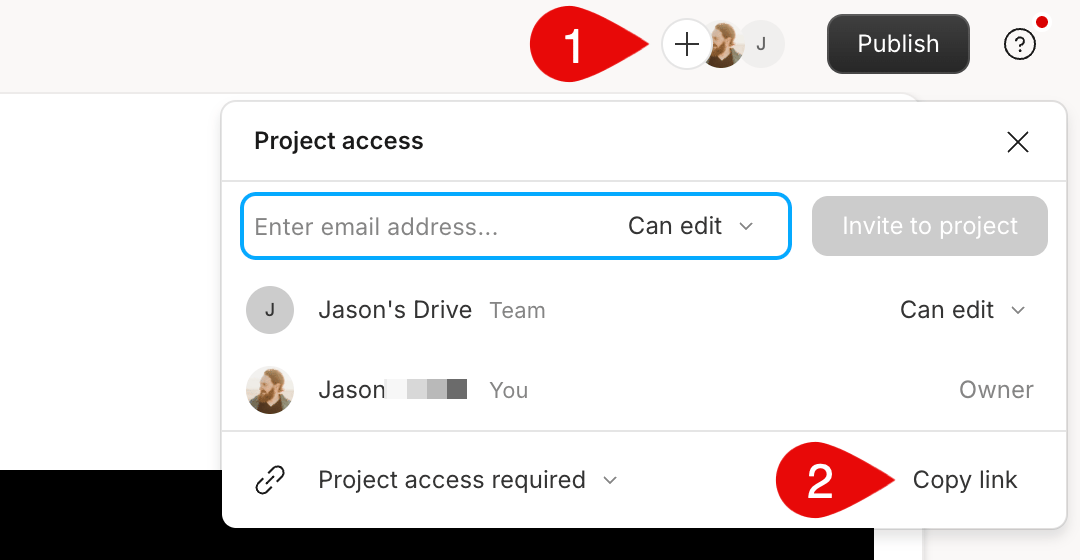
From an open project
- Click the Project Access icon (circular button with a plus) in the top-right corner.
- Select Copy link.
From the Drive view
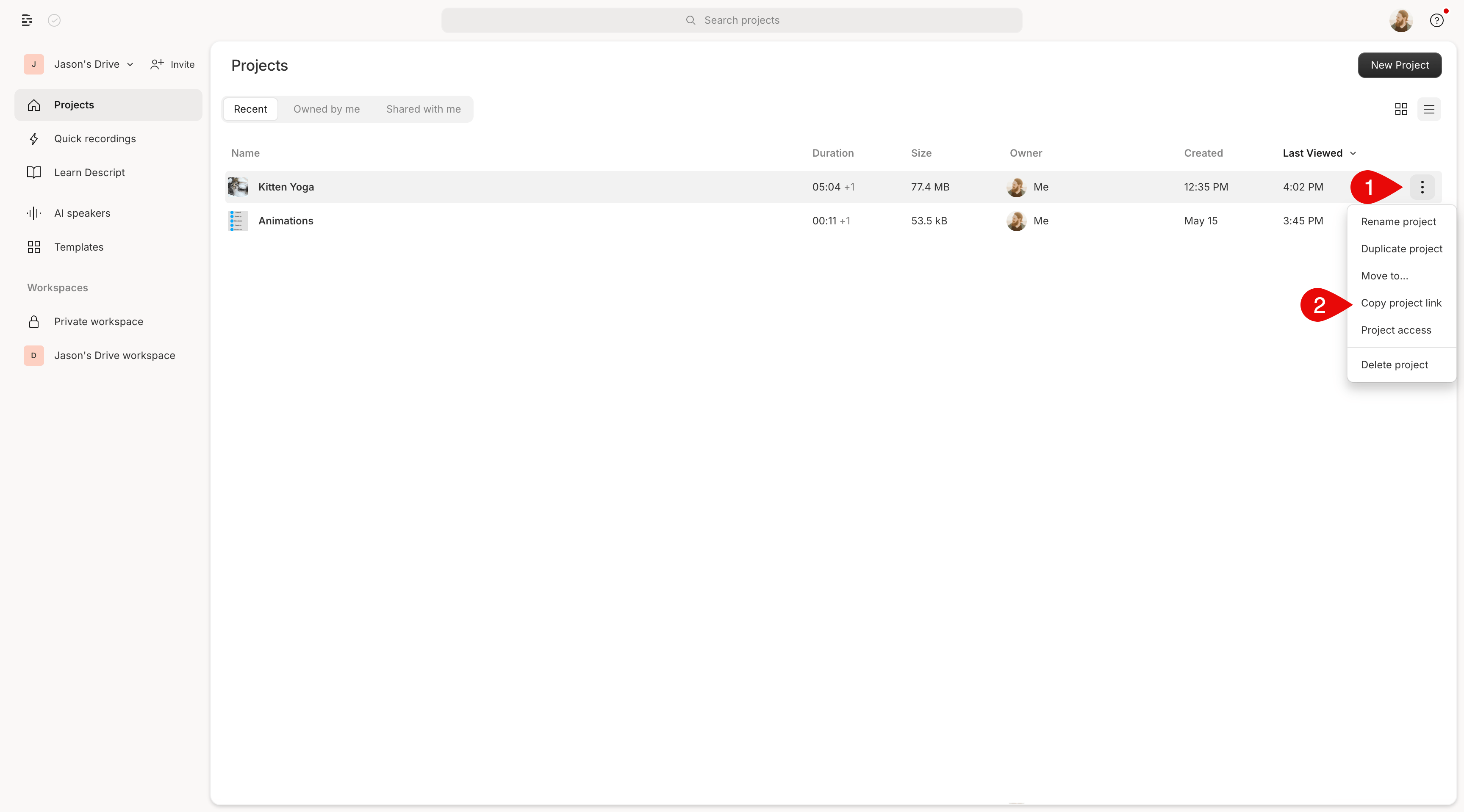
- Hover over the project name in your Drive.
- Click the More options icon (three vertical dots).
- Select Copy project link.
How project link permissions work
By default, project links are set to Project access required. Who can open the link depends on where the project lives:- Drive workspace (shared): Everyone on your Drive has access based on their role:
- Editors can view and edit, so long as the Team setting is “Can edit”
- Viewers can view and comment
- Personal workspace (private): Only you can access the project. If you change project access, Descript automatically moves the project to your Drive workspace.
How to change project link access
Update access settings to share more broadly without inviting people individually:- In the project editor, click the Project Access icon. In the Drive view, click More options.
- Select one of the following access levels:
- Anyone with the link can comment: View access plus the ability to leave comments.
- Anyone with the link can view: View-only, no commenting or editing.
- Project access required: Only people with explicit access can open the link.
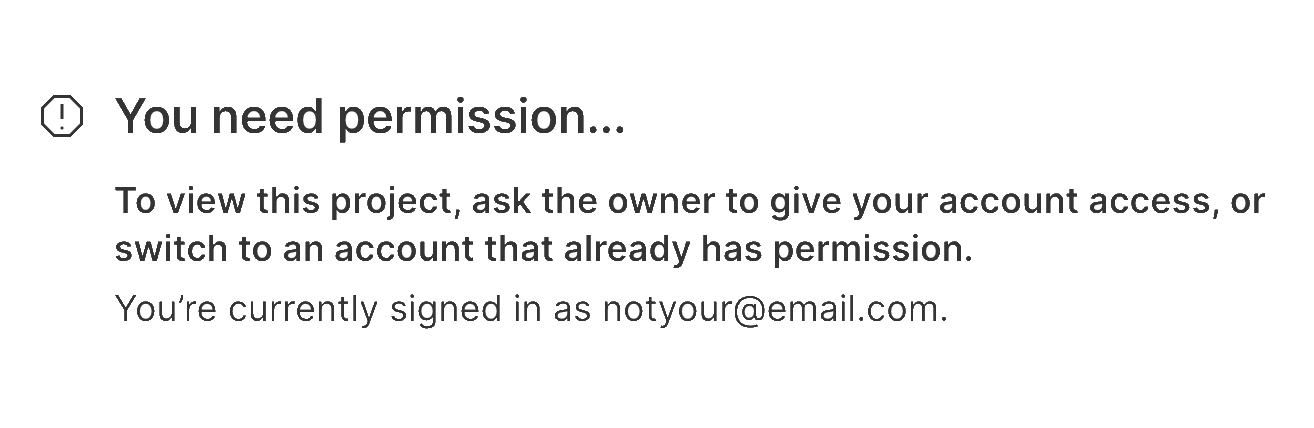
You need permission… To view this project, ask the owner to give your account access, or switch to an account that already has permission.