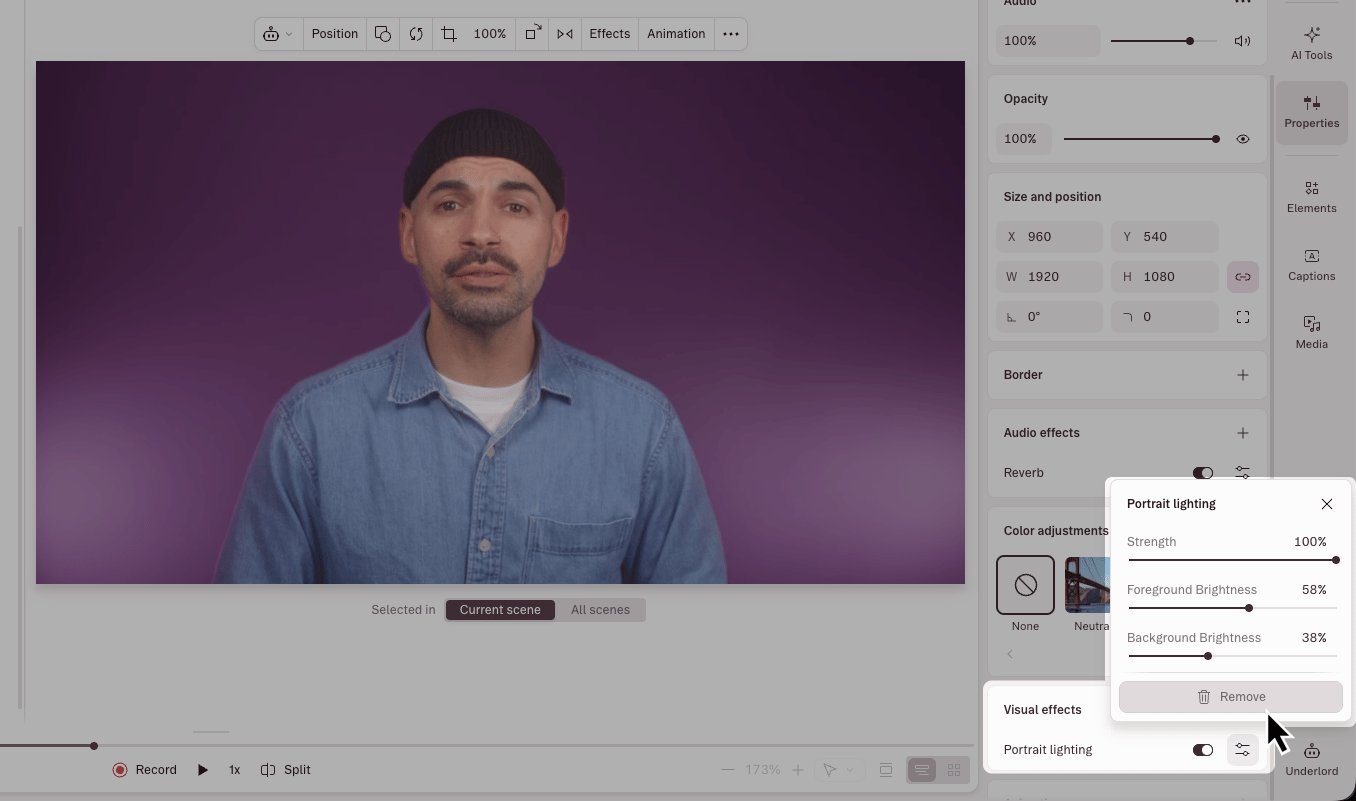
Properties panel behaviorThe panel is context-aware and updates based on what you have selected—showing either scene-level or layer-level options. If the effect options you expect aren’t visible, check which item is selected in the Layer list. Learn more about how the Properties panel works.
Add a visual effect
- In the scene editor, select the scene or layer.
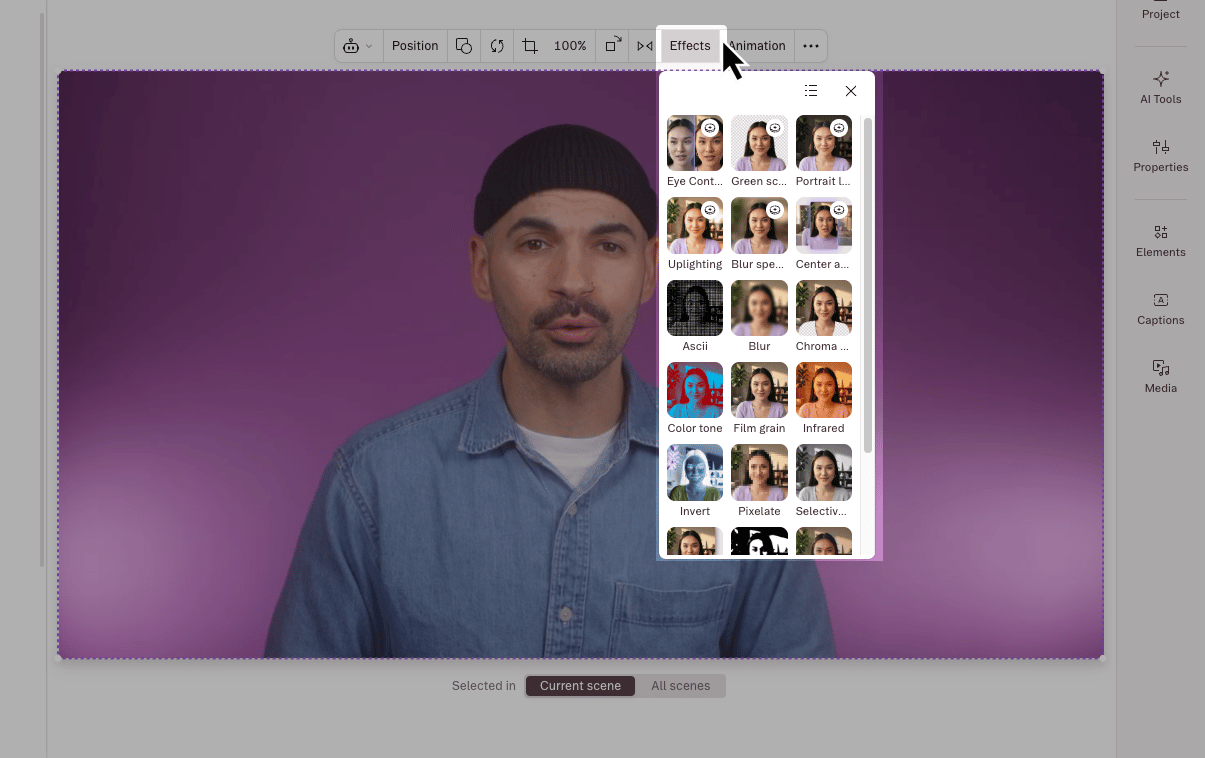
- Click Effects in the hover toolbar, then select + Add effect.
- In the Effects drawer, hover over an effect to preview it on your current frame, then click to apply.
Effects in sequencesVisual effects in a sequence can also be added and adjusted from the Properties panel, just like in the main editor.
Add an audio effect
To a script layer
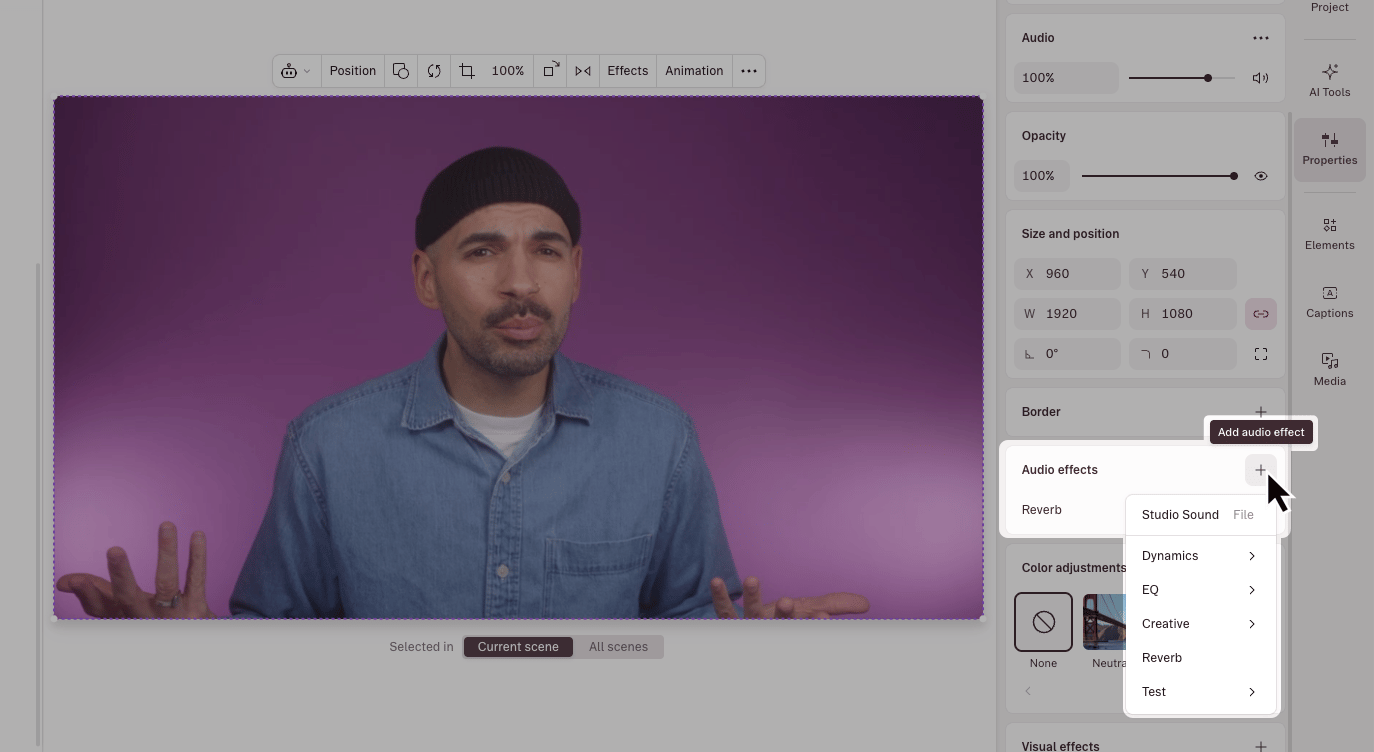
- Select the script layer in the scene editor or from the Layer list in the Properties panel.
- Click the + button next to Audio effects in the Properties panel.
- Choose the audio effect you want to apply.
To a sequence track
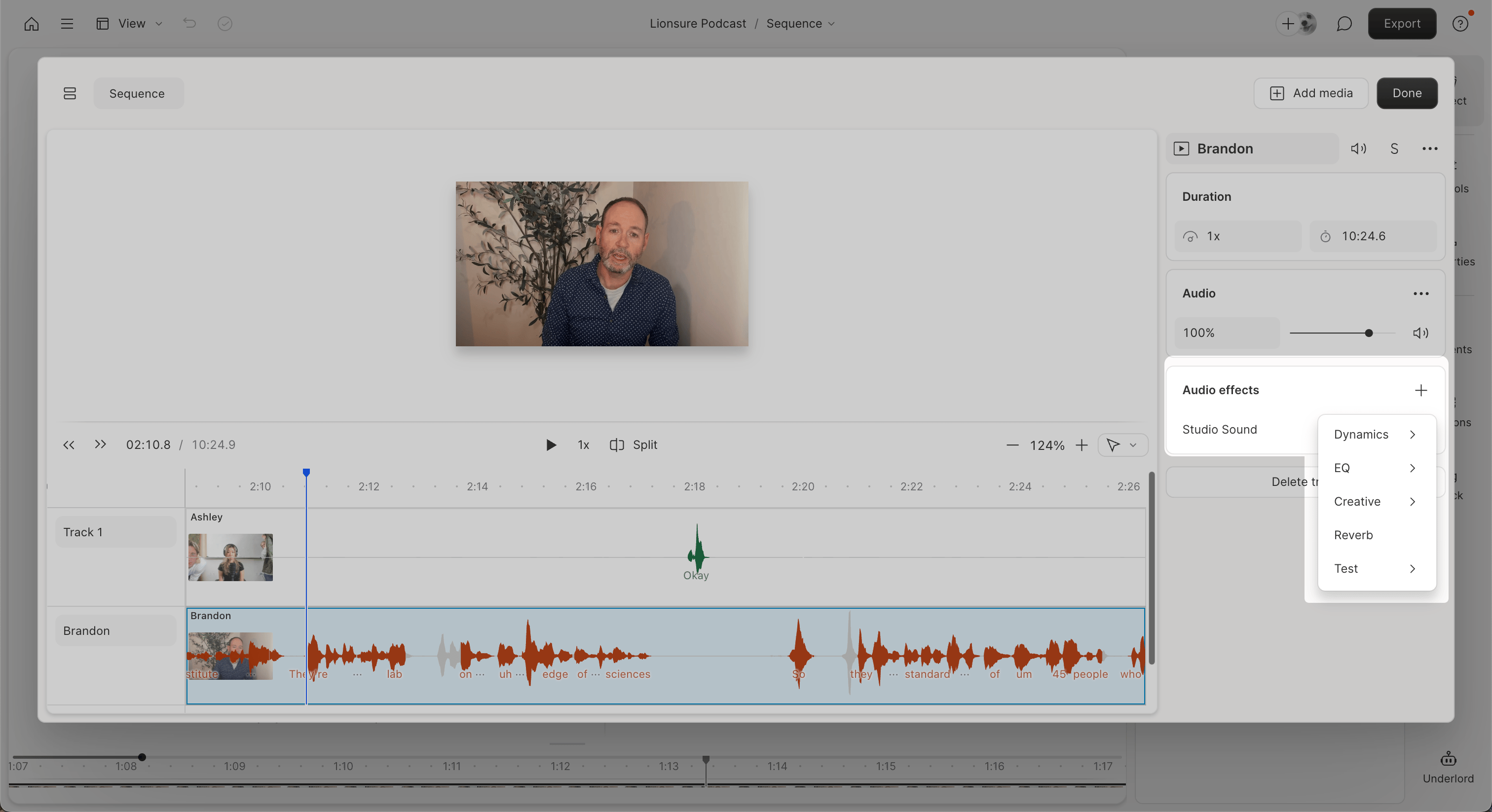
- Open your sequence in the Sequence Editor.
- Select a track.
- Click the + button in the Audio effects section.
- Choose the effect you want to apply.
Adjust an effect
Once an effect is added, it appears in the appropriate Properties panel section — Visual effects for visual effects, Audio effects for audio.- Click the sliders icon next to an effect to expand its controls.
- Drag a slider or enter a specific value to adjust settings.
- Some audio effects include preset configurations. Click the Effect settings menu (•••), then choose a preset from the dropdown.
Disable or remove an effect
To temporarily disable an effect, toggle the switch next to the effect name in the Effects section. This preserves your settings but hides the effect. To remove the effect:- Click the Effect settings menu (•••) next to the effect name.
- Select Remove effect.