

- No selection → Displays scene-level properties for the scene where the playhead is positioned
- Scene selected → Displays scene-level properties for the selected scene
- Layer selected → Displays layer-level properties for the selected video, image, text, or audio element
What you’ll find in the Properties panel
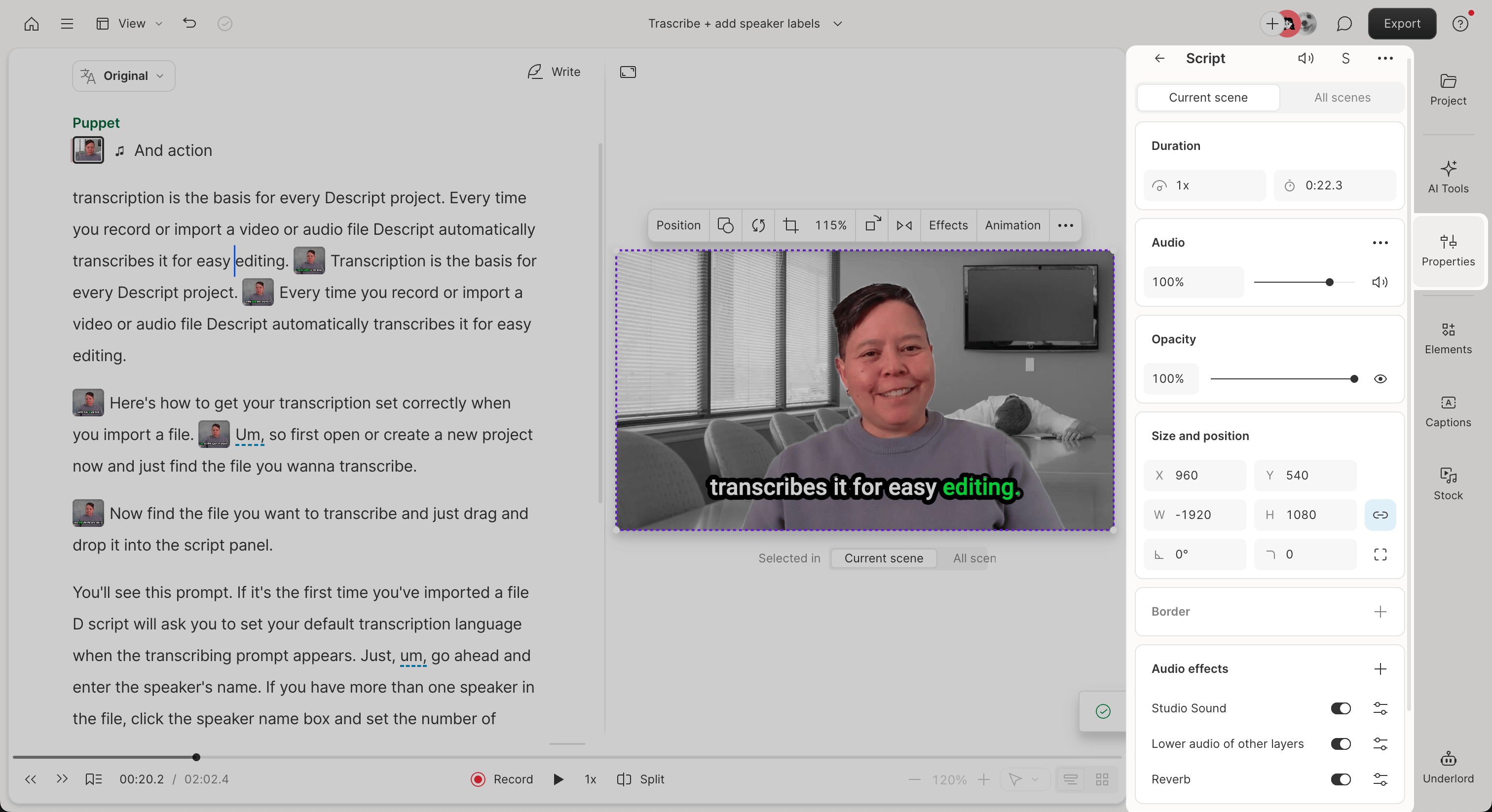
Manage layers in a scene
When no layer is selected, the scene-level view appears by default. Scroll to the bottom of the Properties panel to find the Layer list, which shows every visual or audio layer in the current scene.- Click a layer to view and edit its properties
- Drag layers to reorder them on the scene editor
- Right-click a layer to rename, hide, or delete it
- Click the lock icon to lock or unlock a layer
- Change a layer’s visual role using the dropdown next to its name
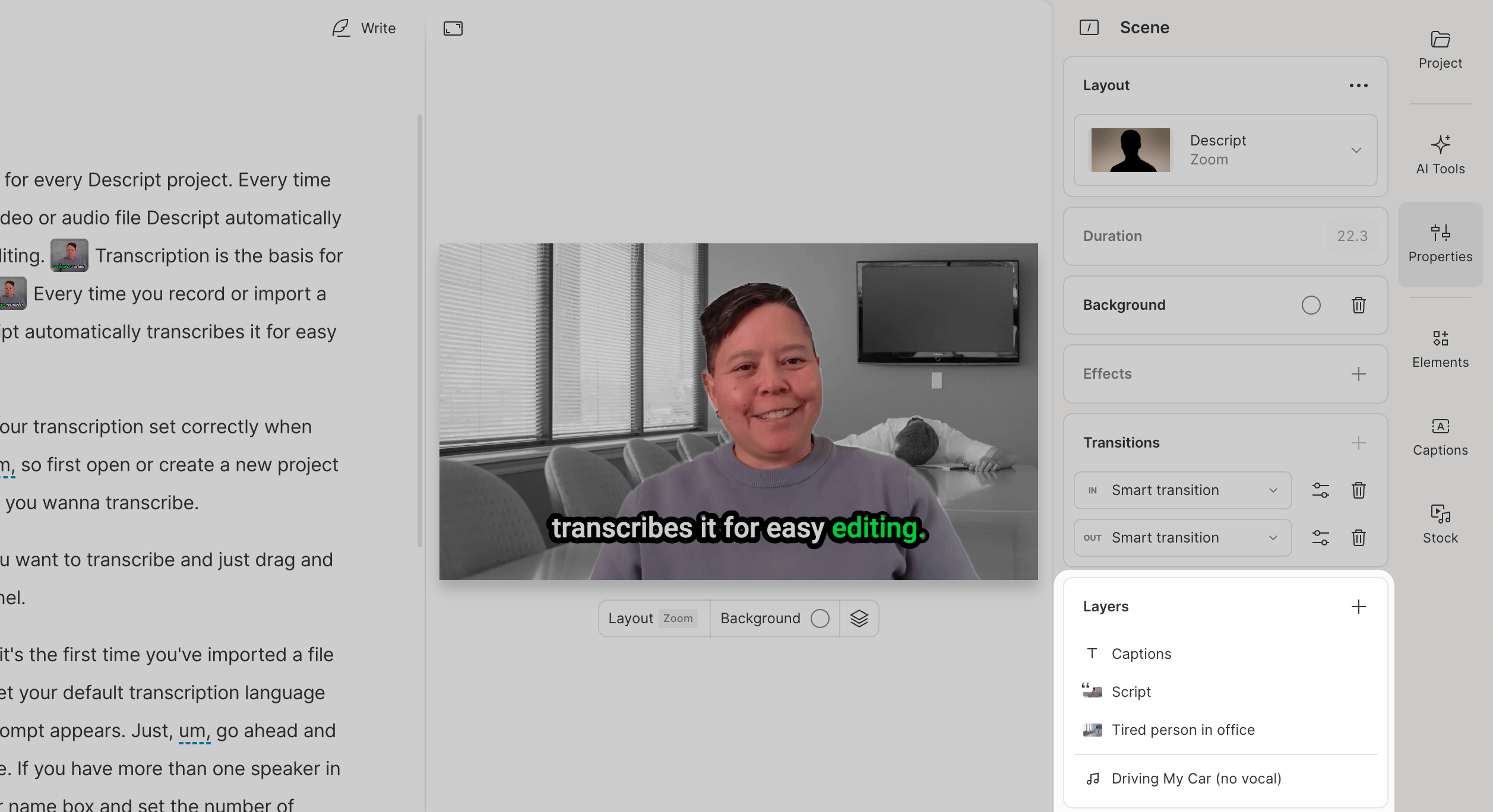
Navigate between scene-level and layer-level properties
Selecting a layer in the scene editor will automatically open that layer’s properties in the Properties panel. To return to scene-level settings, click the Back button in the top-left corner of the Properties panel.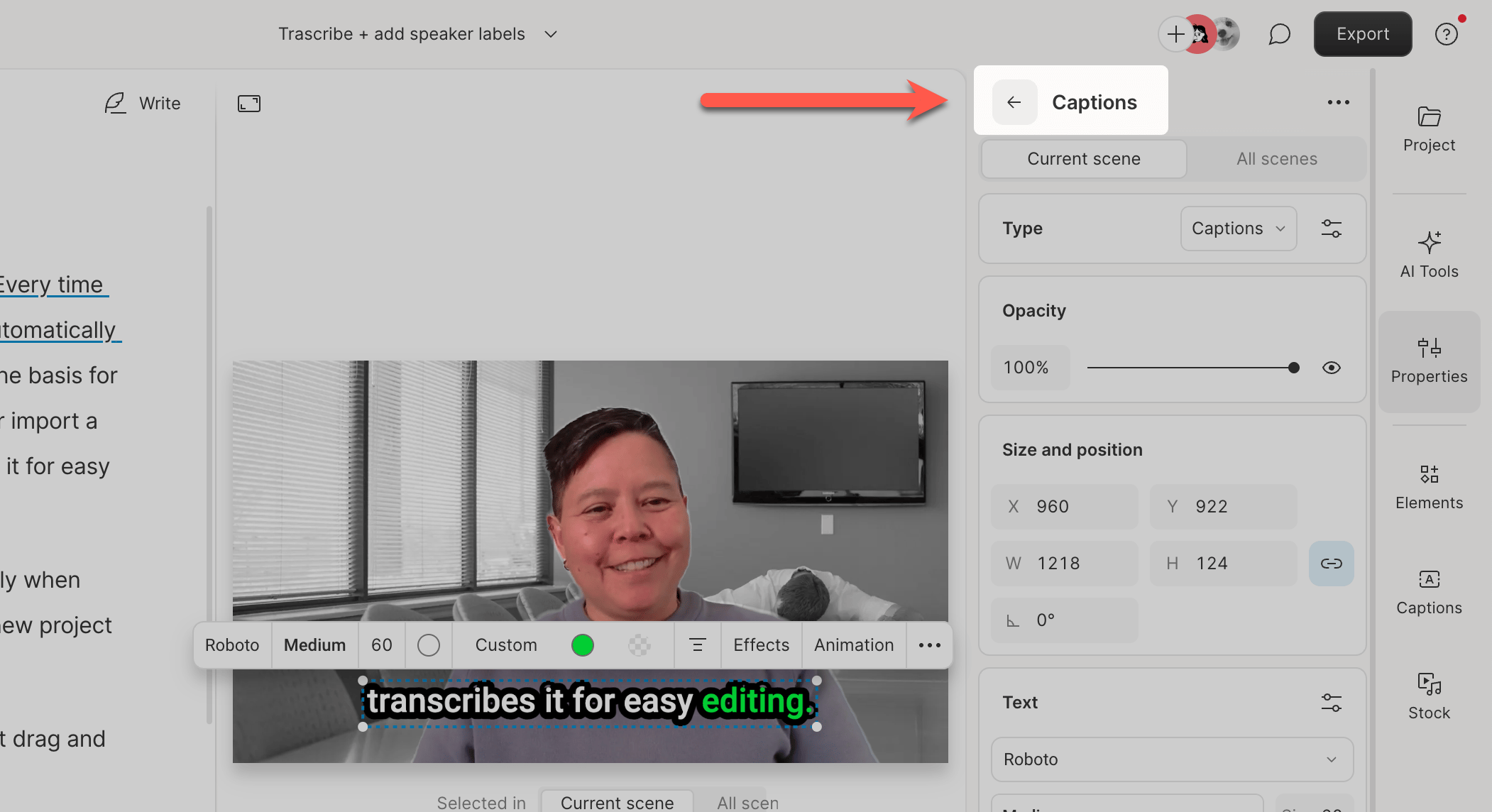
TipYou’ll know you’re editing a layer when the panel shows the layer’s name at the top. If you’re editing scene-level properties, it will display Scene instead.