

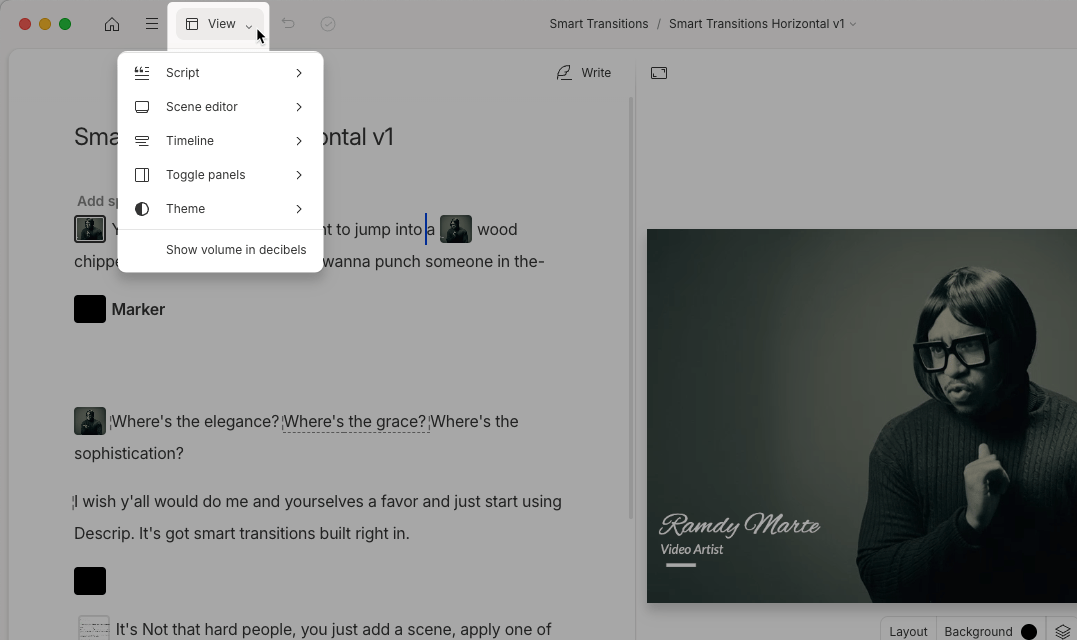
Script panel settings
- Toggle script: Show or hide the script panel. When hidden, the scene editor expands to fill the workspace.
- Show edit boundaries: Display cut and edit markers within the script. See Edit boundaries for details.
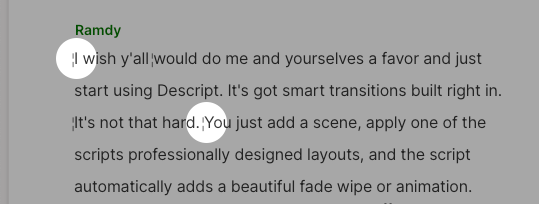
- Underline filler words: Highlight filler words with a dashed blue underline.
- Underline word errors: Underline instances where alignment fails.
Scene editor settings
- Toggle scene editor: Show or hide the visual scene editor. When hidden, only the script is visible.
- Scene editor placement: Arrange the scene editor as Full-screen video, Stacked, or Side-by-side.
- Snap-to guides: Show alignment guides while moving elements. Layers snap to guides for precise positioning.
Timeline settings
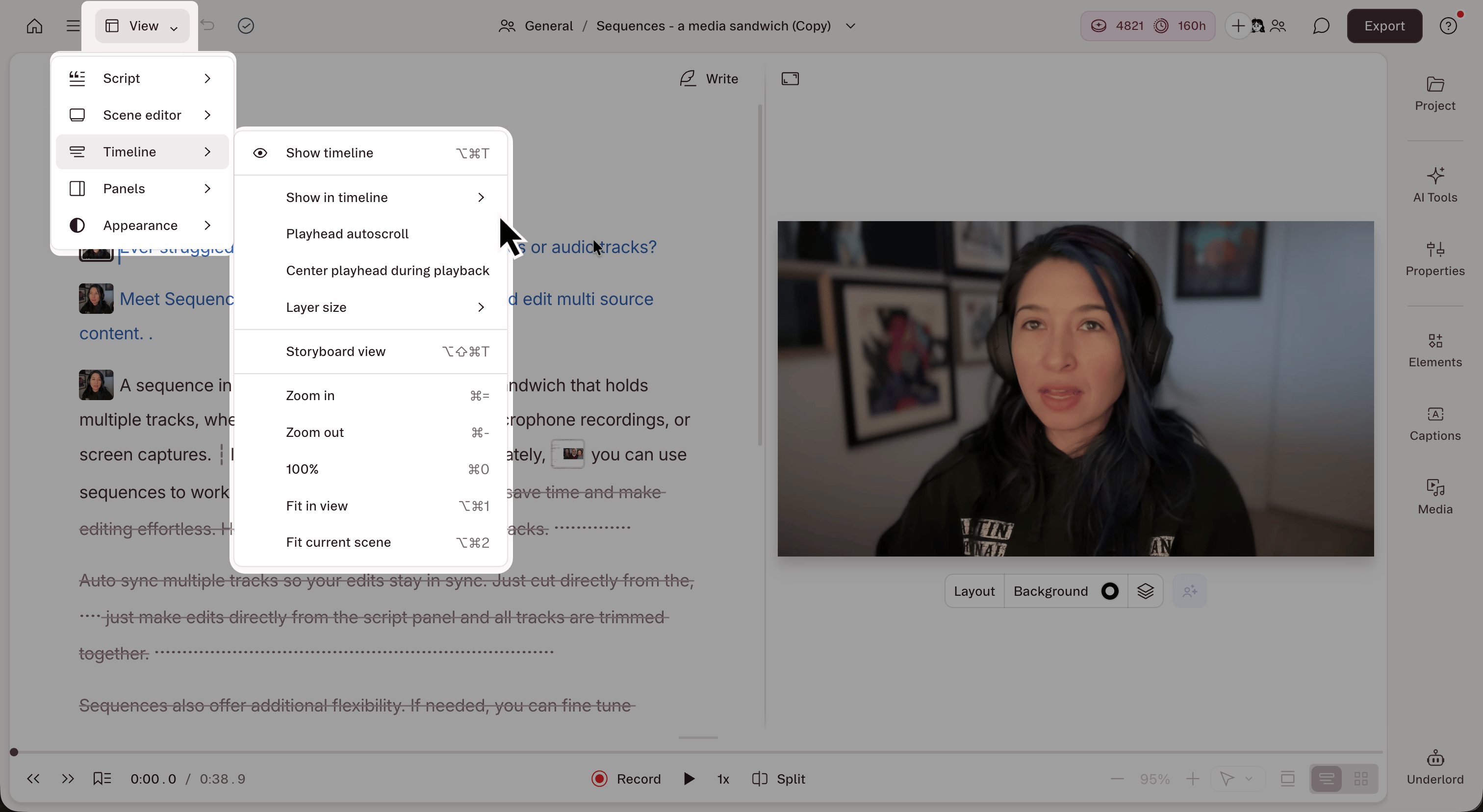
- Toggle timeline: Show or collapse the timeline. Use
Shift + Cmd/Ctrl + Sto toggle quickly. - Playhead autoscroll: Turn automatic scrolling of the timeline playhead on or off.
Show in timeline
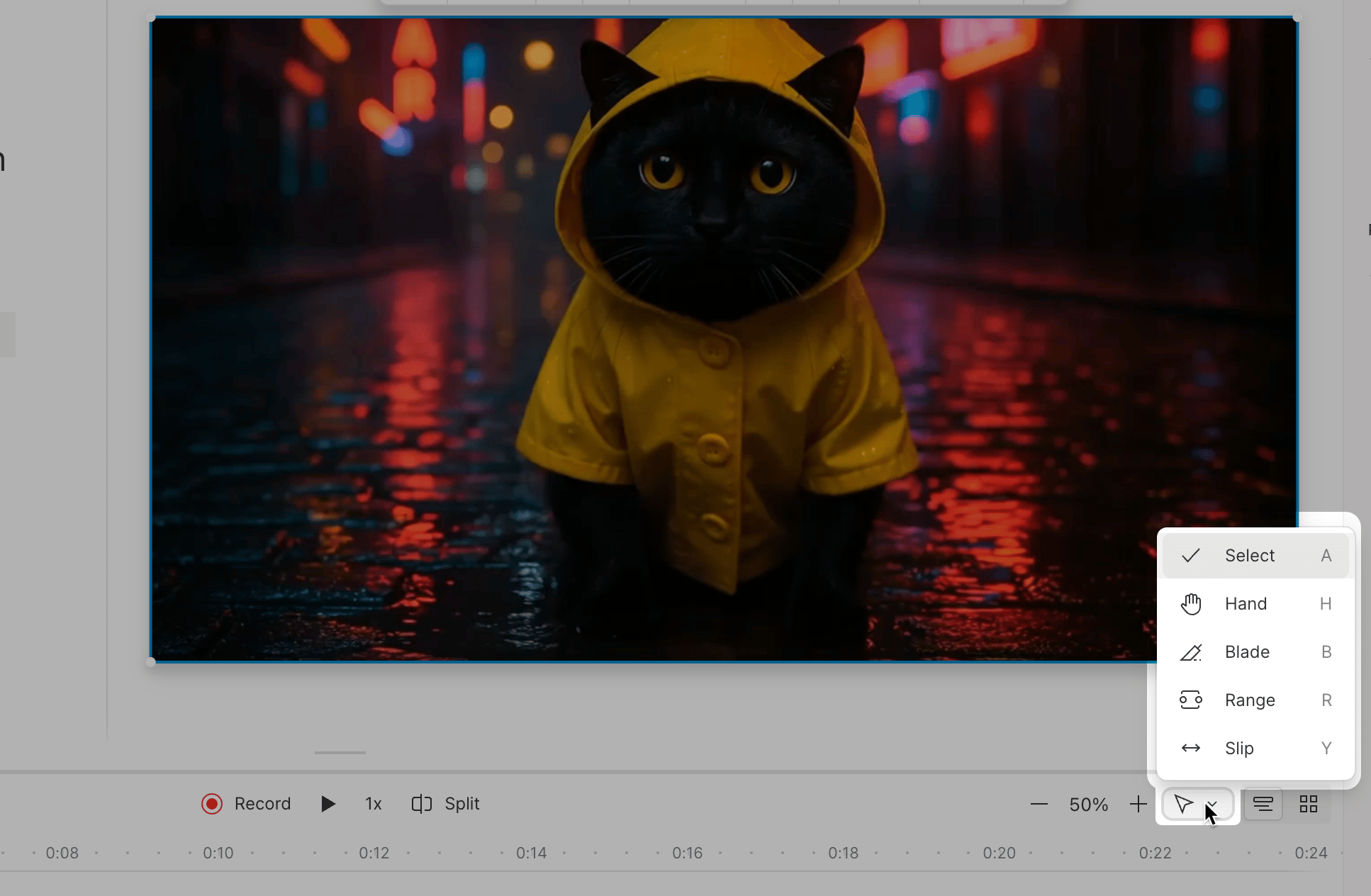
- Advanced timeline tools: Enables additional options in the timeline toolbar.\
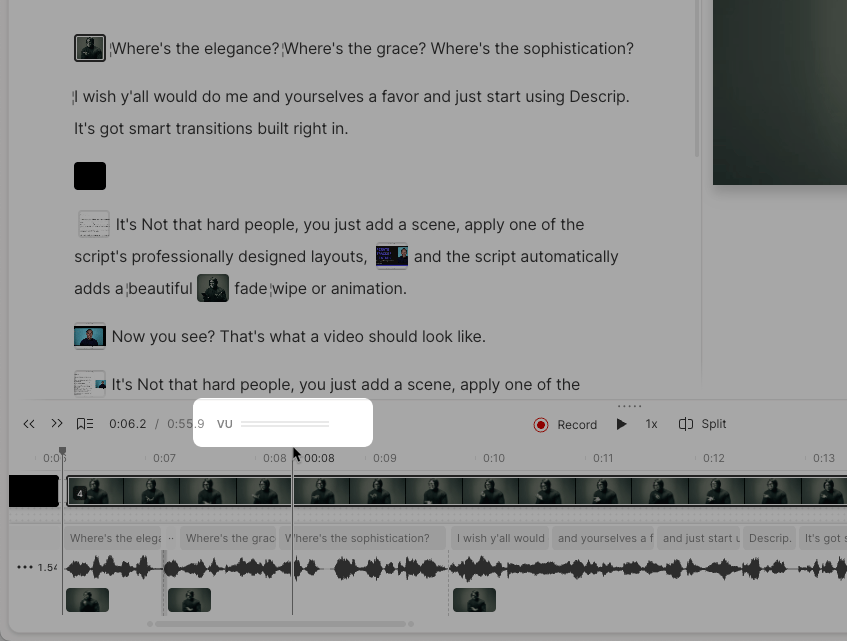
- Volume meter: Displays a VU meter for real-time audio levels.\
- Markers, comments, and audio pins: Show or hide these indicators in the timeline view.
Timeline display options
- Layer size: Switch between compact, default, and large track height.
- Timeline view / Storyboard view: Toggle between a full layer timeline and a scene thumbnail layout.
- Zoom in / Zoom out: Adjust the timeline zoom level.
- 100%: Reset the timeline zoom to 100%.
- Fit in view: Fit the full composition into the visible timeline area.
- Fit current scene: Fit only the current scene into the visible timeline.
Sidebar panel visibility
Toggle the visibility of these side panels:Appearance settings
- Theme: Switch between Light, Dark, or System theme modes.