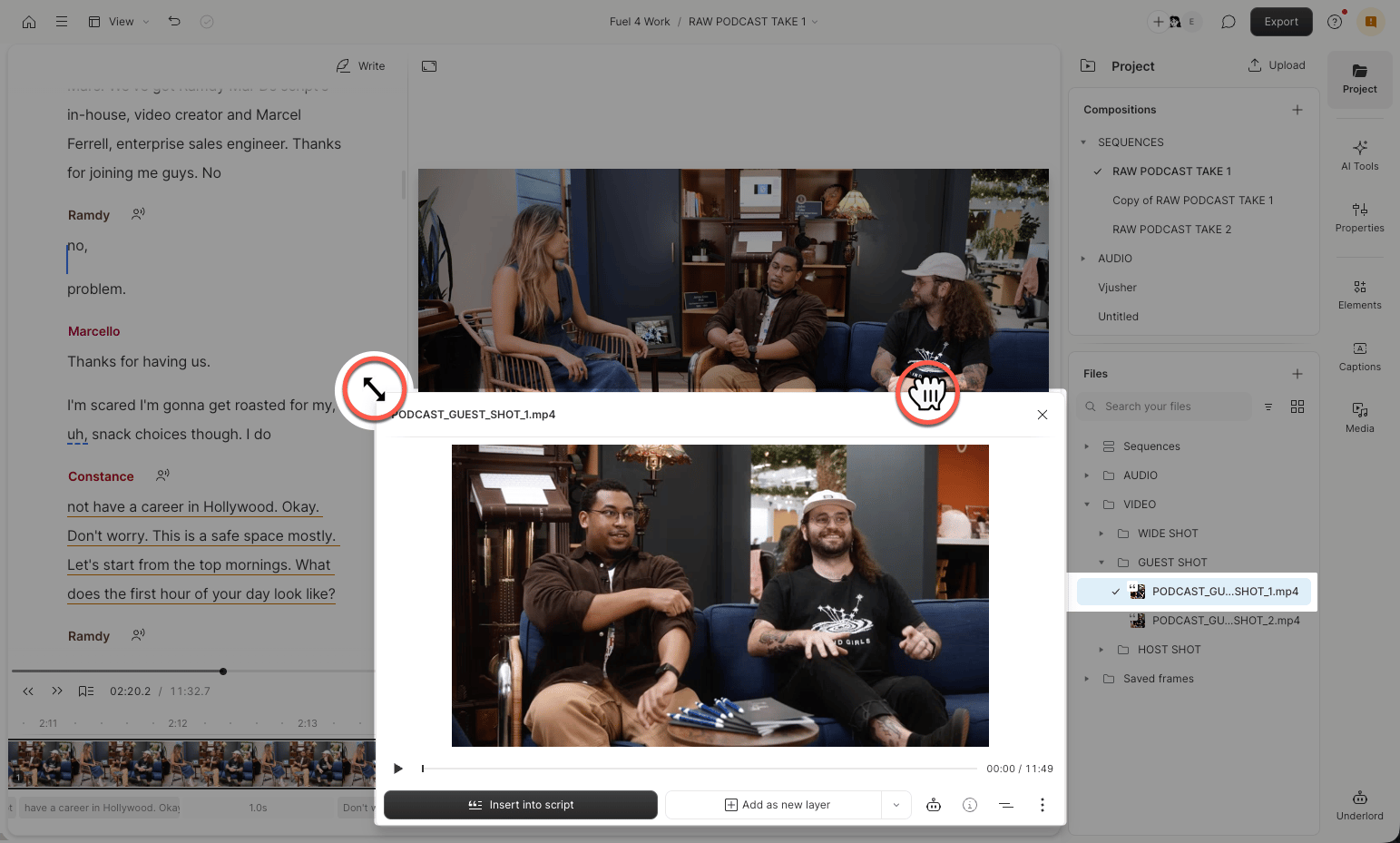
Layout preferencesWhile the app is open, new compositions keep your Timeline and sidebar sizes. Descript saves your custom layout preferences (like script and scene editor visibility) per project, so the layout is preserved when you return.
Adjust editor panels
Resize panels
Resize the Script editor, scene editor, Timeline, and sidebar by clicking and dragging the border between panels.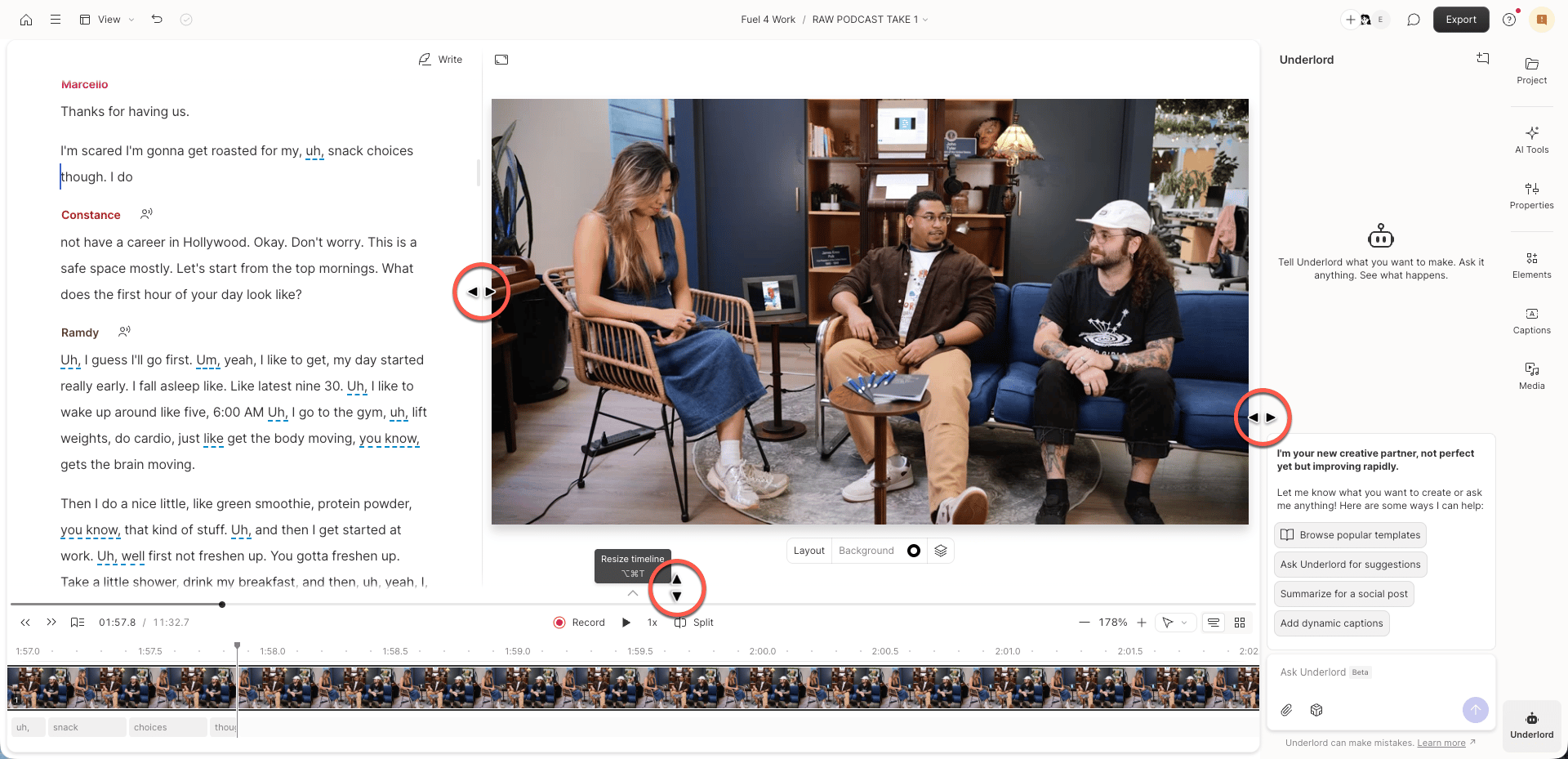
Show or hide comments
Show or hide comments — or collapse the panel entirely — by clicking the Comments icon in the top right corner of the window.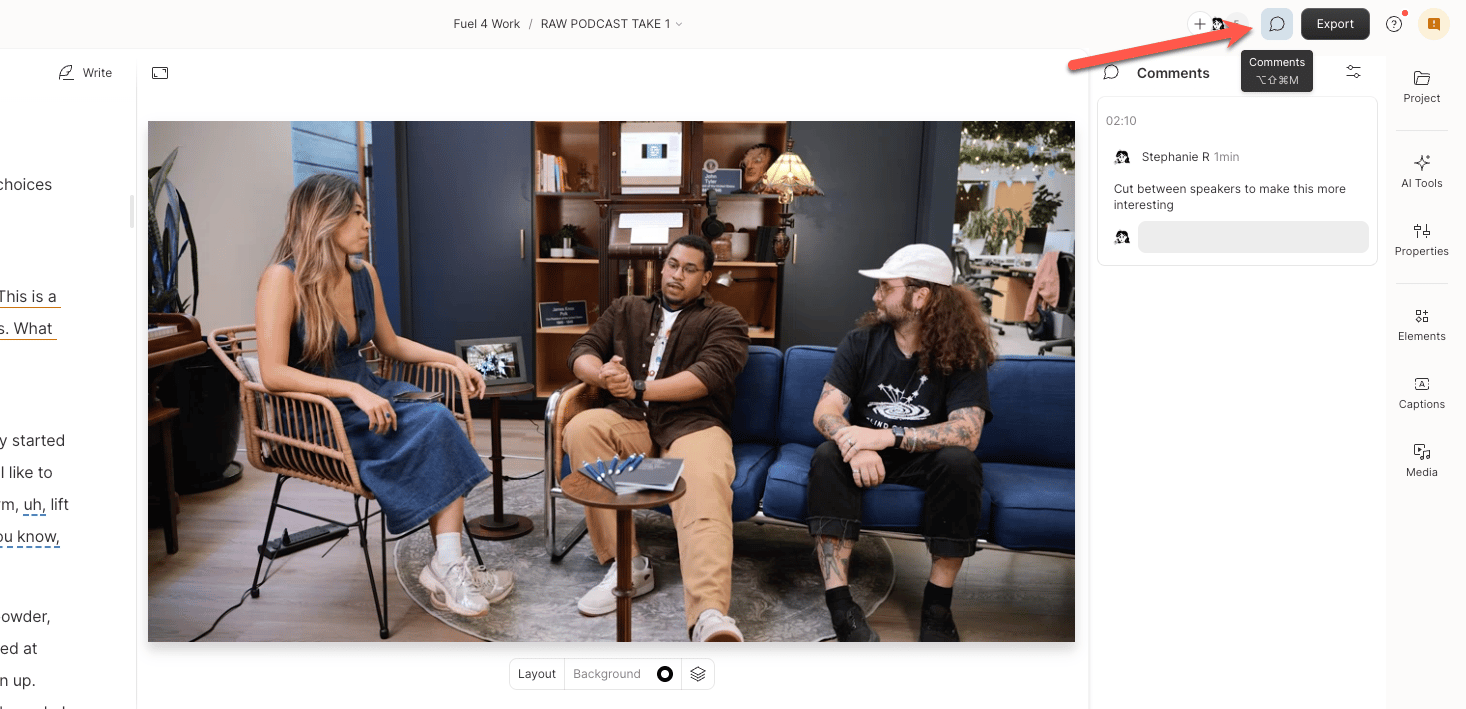
Change the layout in video compositions
In video compositions, open the View > Scene editor menu to change how the Script editor and scene editor are arranged. Three layouts are available under Scene editor placement:- Full-screen video: The scene editor fills the workspace and the script is hidden. Shortcut: Cmd/Ctrl + .
- Stacked: The scene editor sits above the Script editor.
- Side-by-side: The Script editor and scene editor sit next to each other.
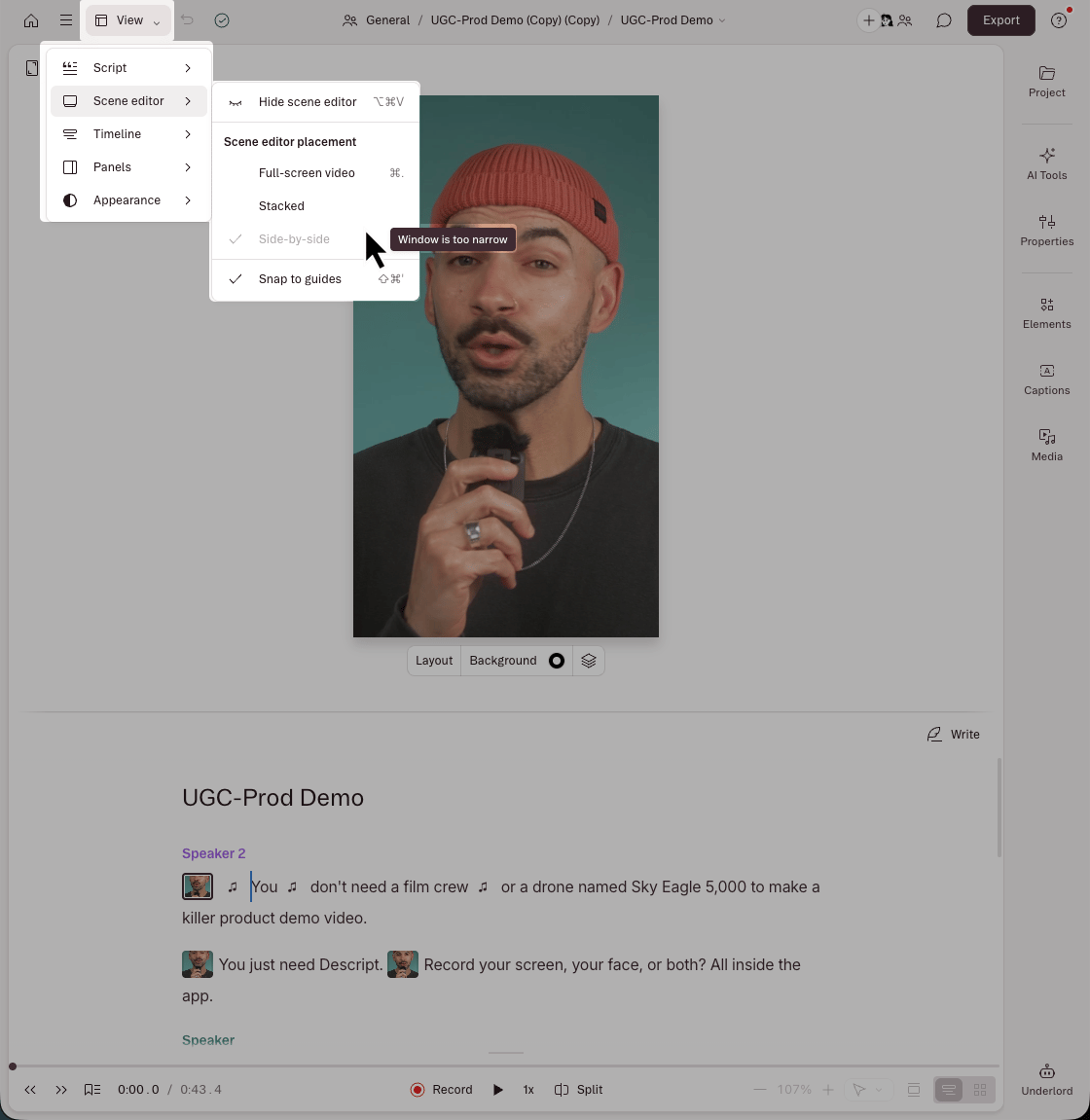
Side-by-side is grayed out?Descript disables Side-by-side when there isn’t enough horizontal space to fit the Script editor and scene editor next to each other. You’ll see a “Window is too narrow” tooltip on the disabled option. To bring it back:
- Widen the Descript window or make it full screen.
- Lower your zoom level. In a browser, press Cmd/Ctrl + 0 to reset zoom to 100%. On the desktop app, check your operating system’s display scaling.
- Remember that Scene editor placement options only appear in video compositions. Audio-only compositions don’t have a scene editor.
Adjustable panels
You can move and resize floating panels that appear when you open settings or project assets.Move a panel
Click a blank area in the panel’s top bar, then drag the panel anywhere within the editor.Resize floating panels
Drag the edge or corner of a floating panel to resize it.