

Search your drive
- Click the Search bar at the top of the app.
- Type a keyword, part of a file name, a word spoken in a recording, or a description of the content.
- Search returns results across your entire drive:
- Projects: matched by project name or transcript content
- Media files: matched by file name
- Transcripts: matched by spoken content; results show a snippet of the matching line
- Folders: matched by folder name
- Layout packs: matched by pack name
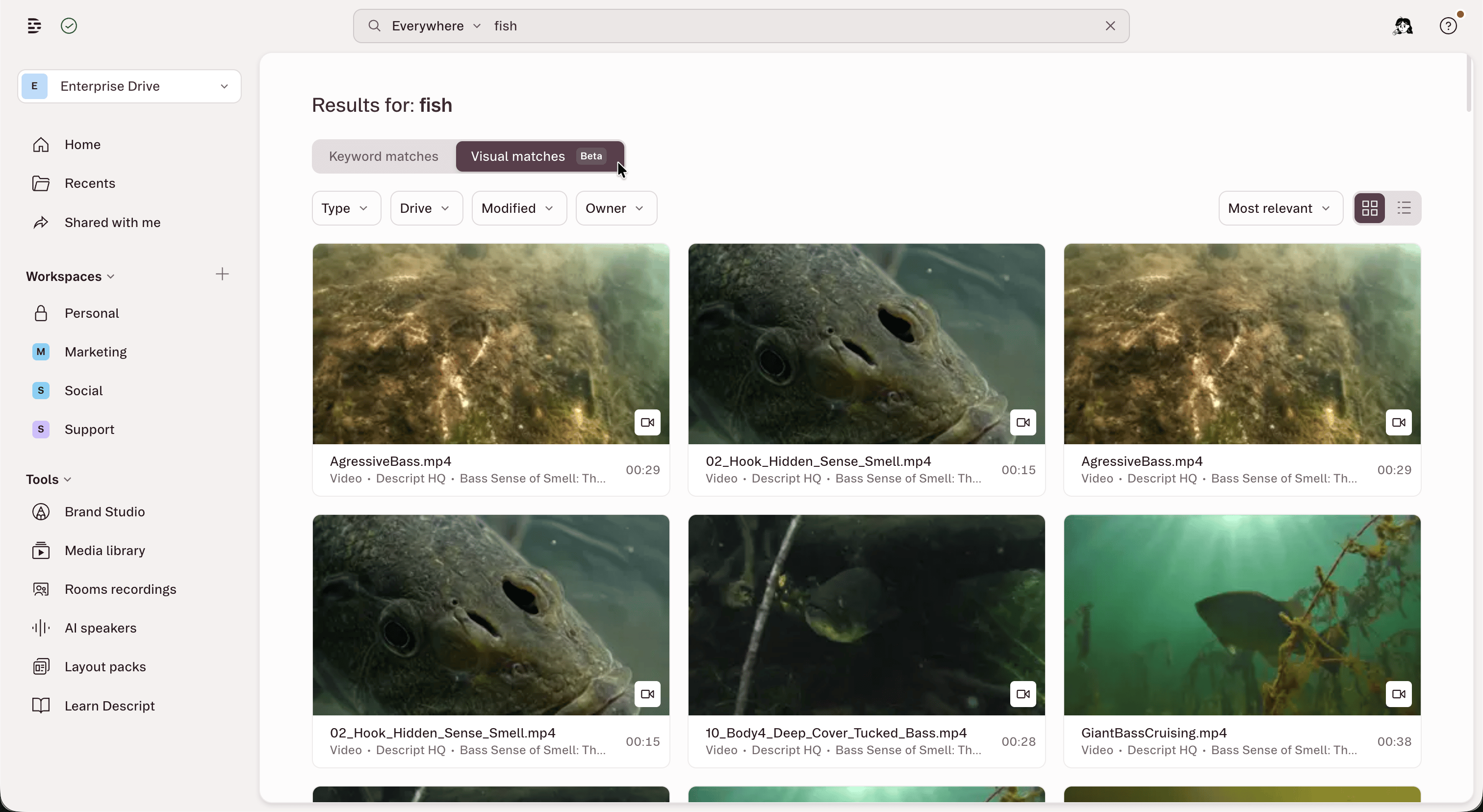
- Visual matches (Enterprise only): Find images and videos by what appears on screen, rather than just names and transcripts.Type “dog at the beach” and Descript will surface the exact moment that matches that description.
- Select a result from the list to open it, or press Enter to see even more results.
Searching within a project?Finding files inside your currently open project is handled by the Project panel and/or Search in scripttools.
View all results on the search page
Press Enter after typing to open the full search results page. From there you can:- Tab between keyword matches or visual matches
- Filter by content type: show only projects, videos, audio, images, folders, or layout packs
- Sort results: order by relevance or date
- Take actions: right-click any result to rename, delete, move, duplicate, or download it without leaving search