

Descript’s HDR support is currently in Beta. You may experience slower rendering, exporting, or playback when working with HDR footage while we continue improving performance and color handling.
How to fix HDR recordings after recording
Converting HDR recordings on macOS
Converting HDR recordings on macOS
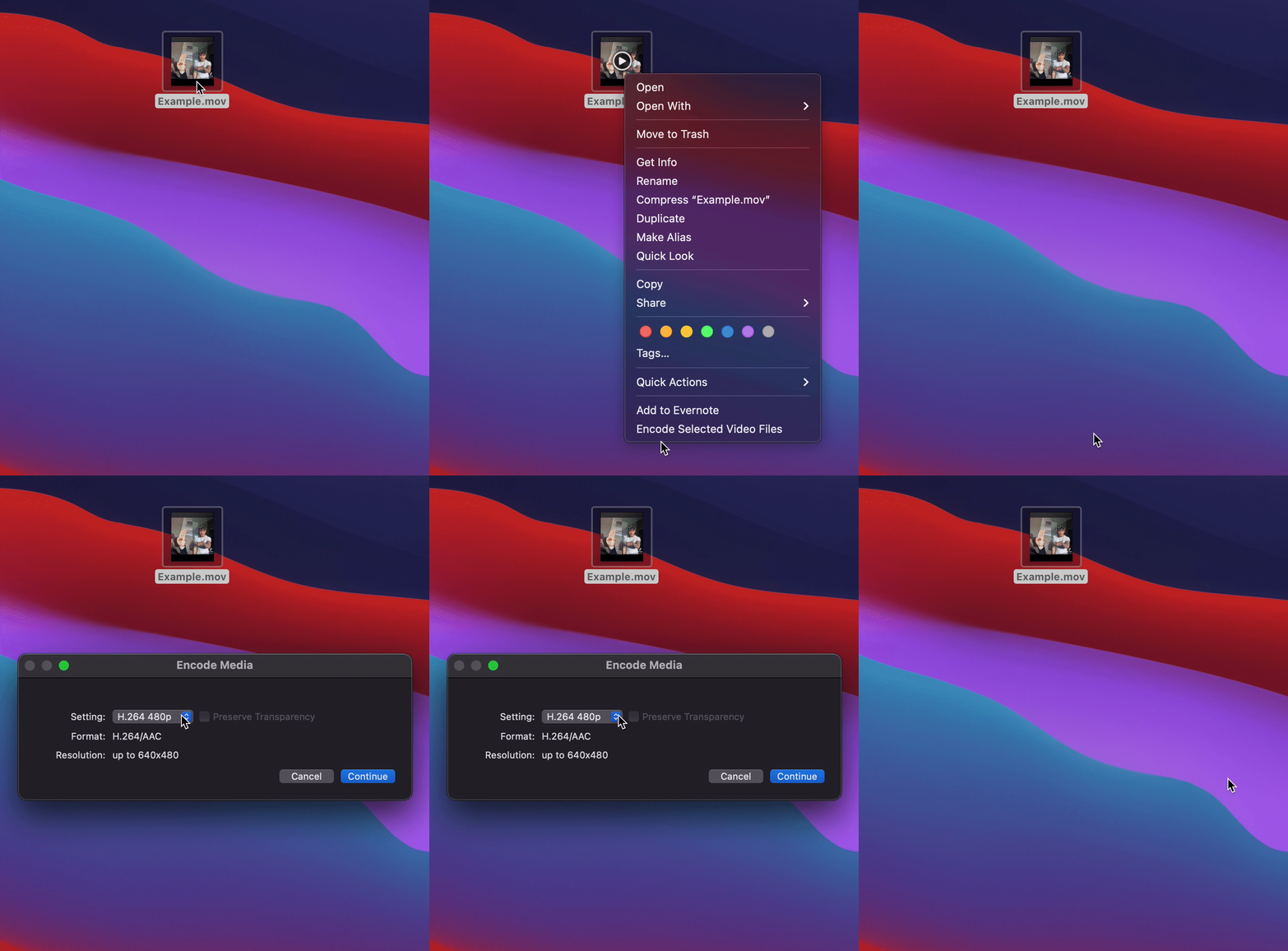
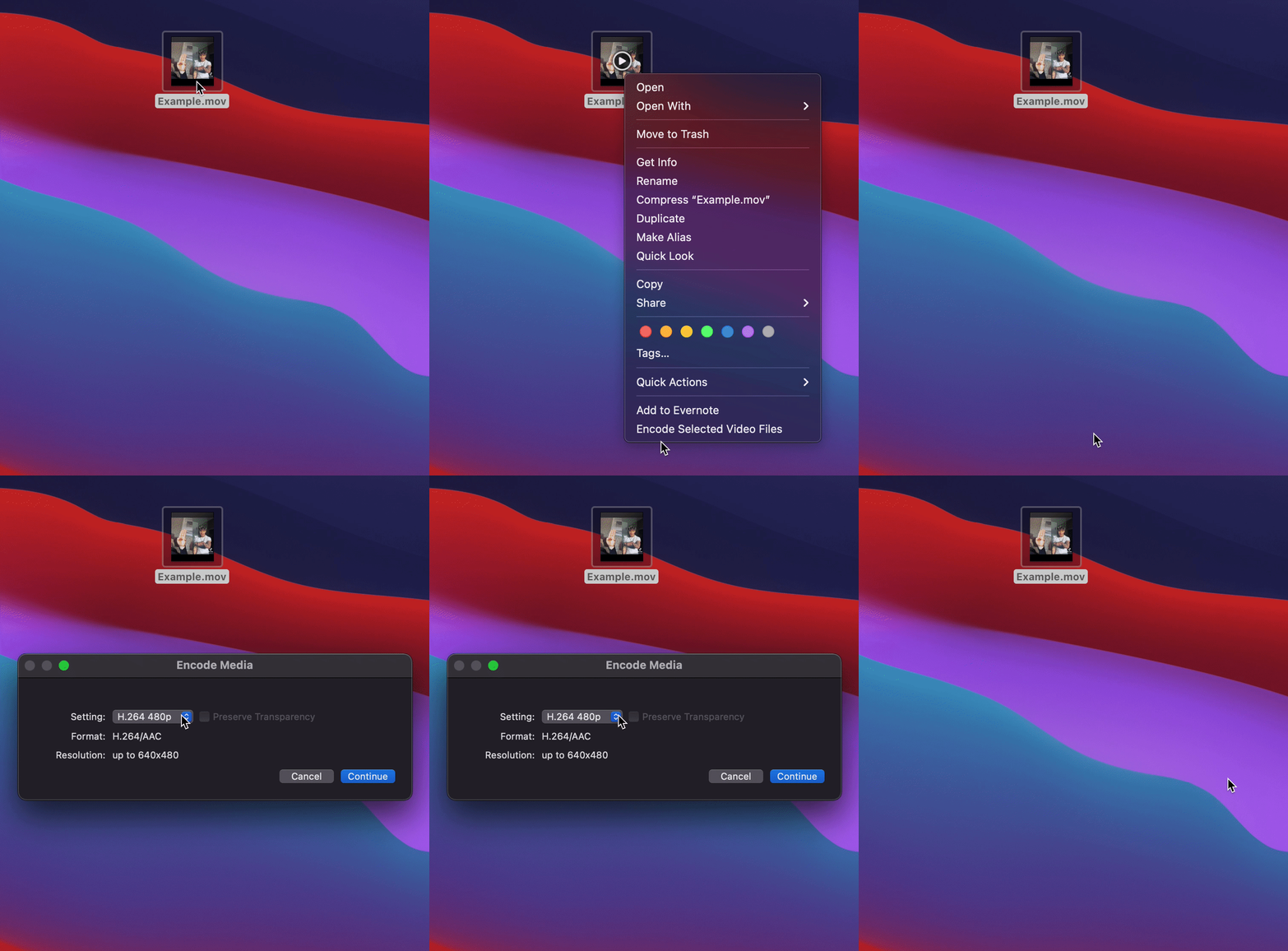
- Right-click your video file in Finder.
- Select Encode Selected Video Files.
- Choose one of the H.264 options to convert the video to SDR.
-
Click Continue. A converted copy of the video will be created in the same folder.
- Import the converted video into Descript. If the original HDR file is already in your project, you can replace the file to keep your existing edits.
Converting HDR recordings on Windows
Converting HDR recordings on Windows
- Use a video encoding tool to convert the video to SDR. We recommend HandBrake, a free and open-source video transcoder. Learn how to use HandBrake .
- When encoding, choose an H.264 preset or format.
- Import the converted file into Descript. If you already imported the HDR version, you can replace the file to preserve your edits.