

Check your original file
Check your original file
If you recorded your media outside of Descript, audio/video sync issues may stem from the source file itself. Try previewing it in your system’s media player. If the file is out of sync:
- Re-export the file using the same settings.
- Try a different export format or encoding.
- Contact the third-party app or hardware manufacturer for help.
Try adjusting sync in the media preview modal
Try adjusting sync in the media preview modal
For consistent delays or clips that start slightly out of sync, use Set A/V sync offset to shift the audio without editing the timeline or entering a sequence. Learn how to adjust A/V sync offset.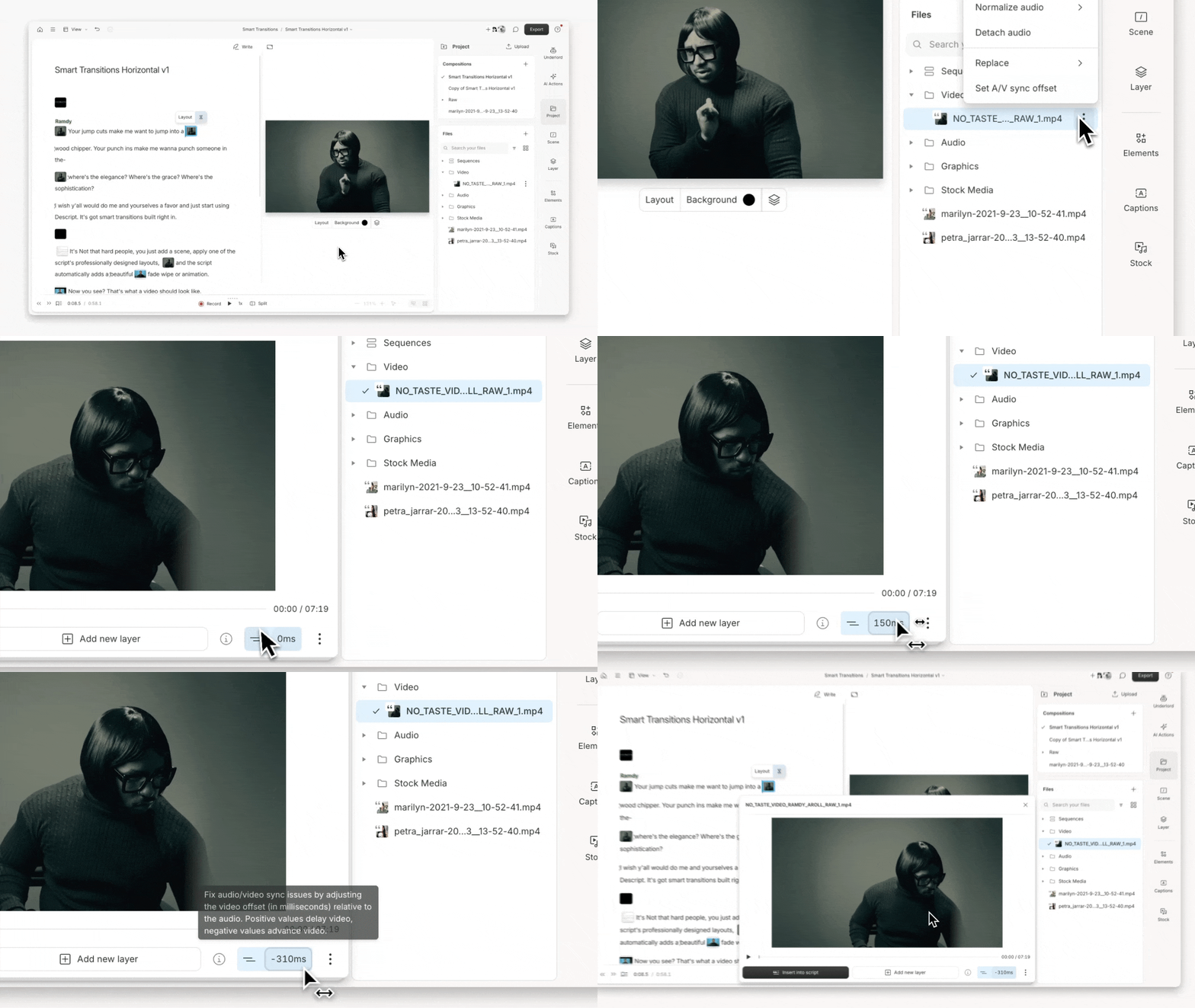
Bluetooth playback appears out of sync
Bluetooth playback appears out of sync
Using Bluetooth headphones can sometimes cause sync delays during playback. Try switching to your computer’s built-in speakers or wired headphones. In most cases, your final export will be properly synced even if in-app playback appears delayed.
Use the built-in Repair file tool
Use the built-in Repair file tool
Descript includes a Repair file feature that can automatically correct timing issues in some media files.
Manually fix sync in a sequence
Manually fix sync in a sequence
For precise control, detach the audio from a video clip and manually realign them in a sequence.
- Right-click the media clip and select Detach Audio.
- Right-click again and select Edit Sequence, or use
Cmd + Shift + O(Mac) /Ctrl + Shift + O(Windows). - Use the Select tool to drag the audio clip into alignment with the video.