

Looking for role-based permissions?If you’re trying to understand what a team member can or can’t do before removing them, check out our Drive membership roles guide.
Steps to remove a member
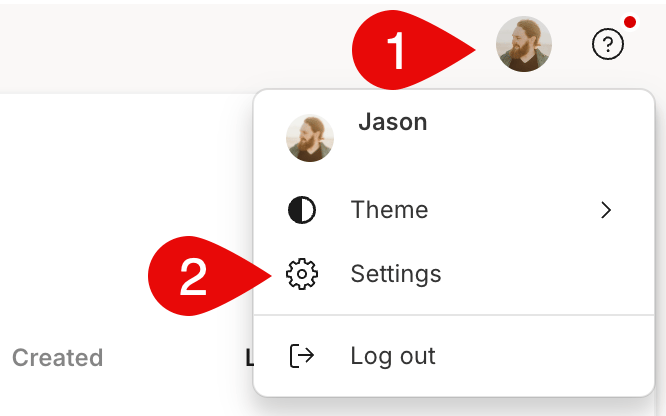
- Go to web.descript.com/members or open the app. You can access the Members tab in two ways:
- Click your profile in the top right corner, select Settings, then choose Members from the left-hand menu.\
- Click your Drive name in the top left corner and choose Members from the dropdown.\
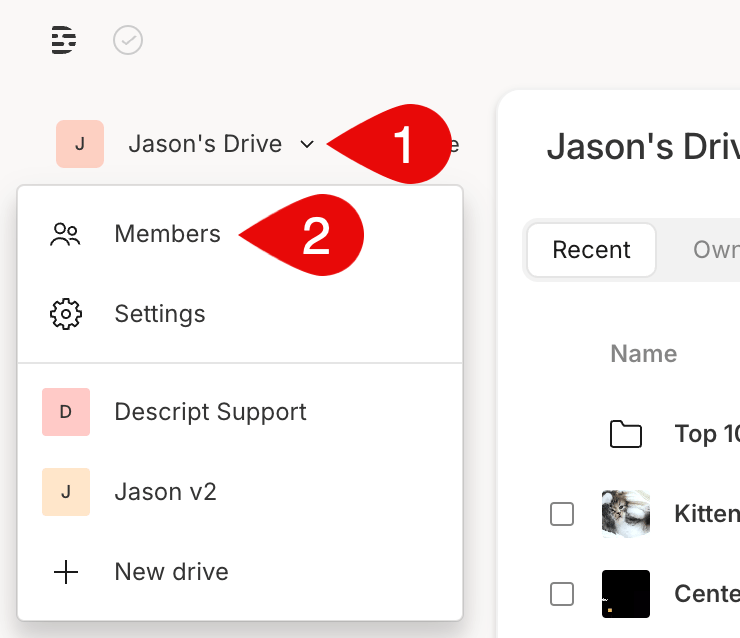
- Click your profile in the top right corner, select Settings, then choose Members from the left-hand menu.\
- Click the … menu next to the member’s name and select Remove member. Confirm the removal when prompted.
Replace a Drive member
- Remove the member you want to replace. If they were an Editor, this will free up a paid seat.
- Invite the new member to your Drive. If they’re added as an Editor, they’ll use the newly available seat.