

Common layer properties
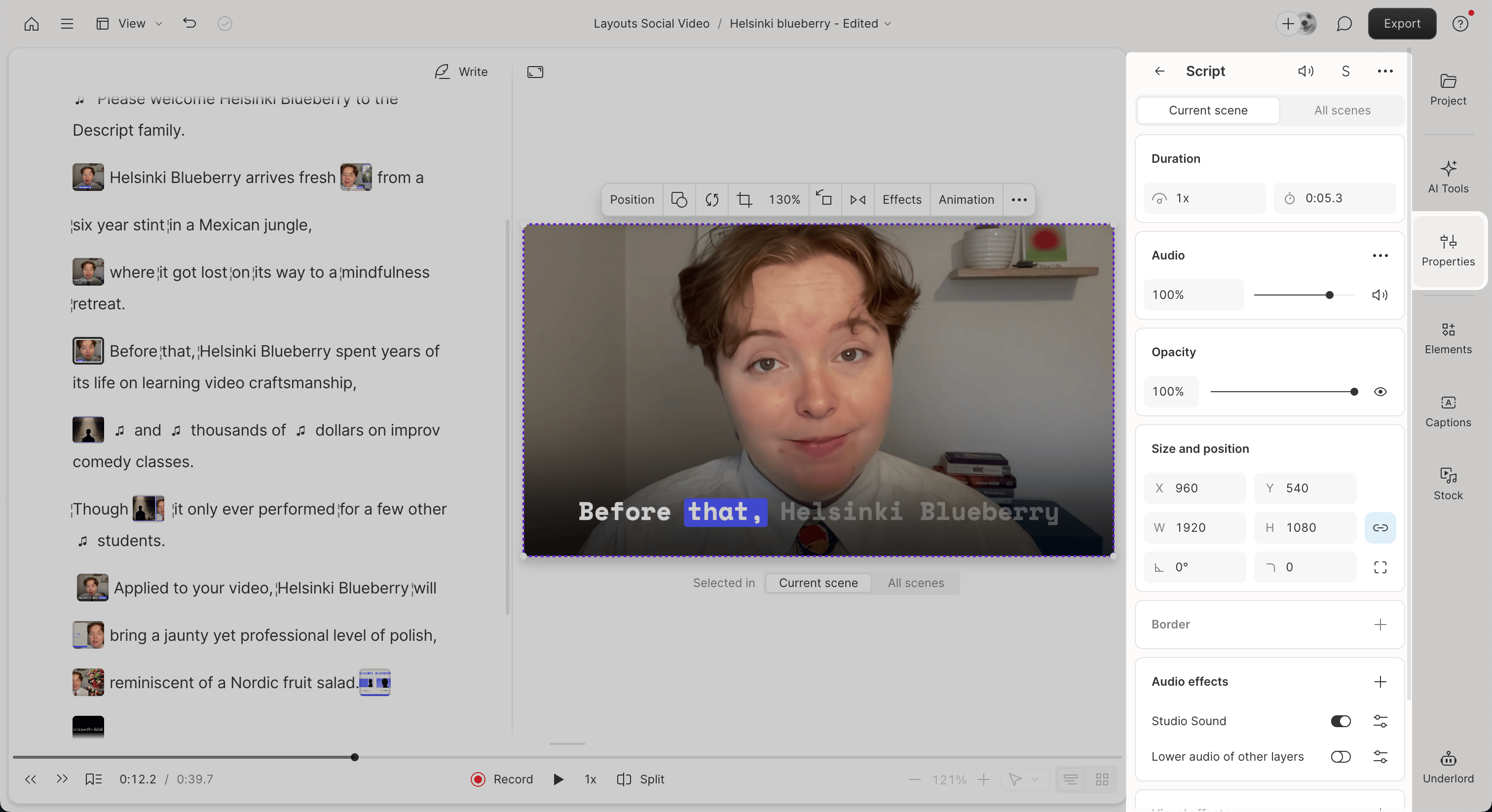
- Duration – Adjust how long the selected layer appears in the scene.
- Audio (for audio or video layers) – Adjust volume, panning, or use mute/solo controls.
- Opacity – Make the layer more or less transparent.
- Size & Position – Move, resize, and crop layers directly on the scene editor. Use the link icon to maintain aspect ratio when resizing.
- Border – Add an outline around the layer.
- Animation – Add entrance, exit, or motion animations.
- Effects – Apply visual or audio effects like blur or EQ. View all available effects.
Apply changes to one scene or all scenes
If a layer appears in multiple scenes, you can use the Current scene / All scenes toggle in the Properties panel. This lets you choose whether your edits apply only to the current scene or across every scene using that layer. This option is helpful for bulk edits or maintaining a consistent visual style throughout your project.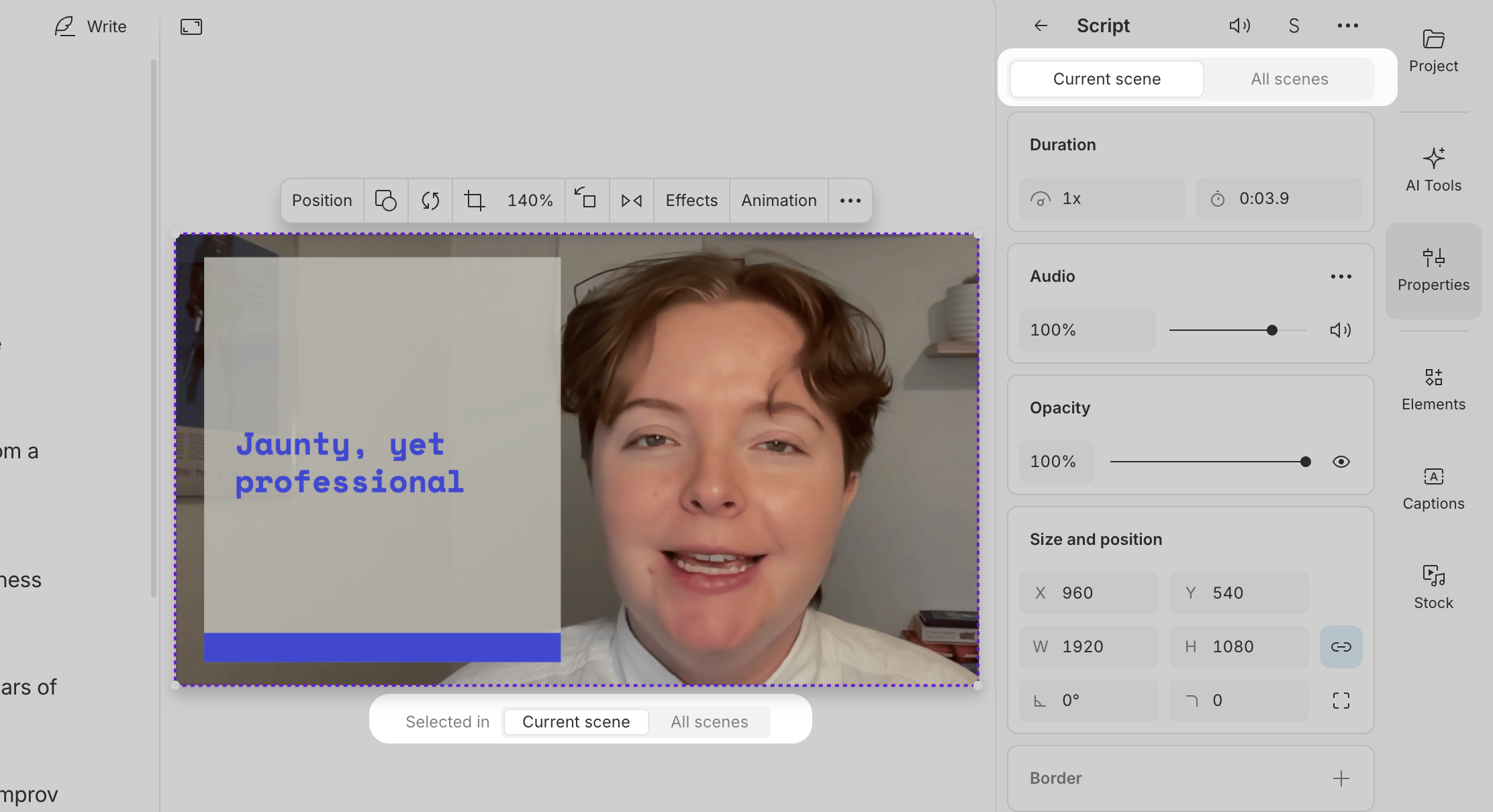
- Select the layer you want to adjust.
- Set the toggle to Current scene or All scenes.
- Make your edit in the Properties panel.
Related articles
- Using the Properties Panel – Overview of how the Properties panel updates based on your selection
- Scene properties – Adjust layout, background, transitions, and other scene-level controls
- Visual and audio effects overview – See all available effects and how to apply them to scenes and layers
- Layer order and visibility – Reorder, lock, and show/hide layers in a scene