

How to select multiple layers
Multi-select is available only in the Scene Editor. At this time, selecting multiple layers cannot be done from the Properties Panel or the Timeline.- Shift + Click — Add or remove layers from your selection by holding Shift and clicking them in the Scene Editor.
- Click + Drag — Hold and drag to draw a box that selects all layers inside it.
What you can do with multi-select
Basic operations
- Move, resize, delete, or copy/paste layers together.
Edit properties across layers
- The Properties Panel shows only the options shared by the selected layers.
- If values differ across selected layers, the field displays Mixed. Updating it applies the change to all selected layers.
- Changes in size and position fields apply to each layer individually, not to the selection as a whole.
Alignment tools
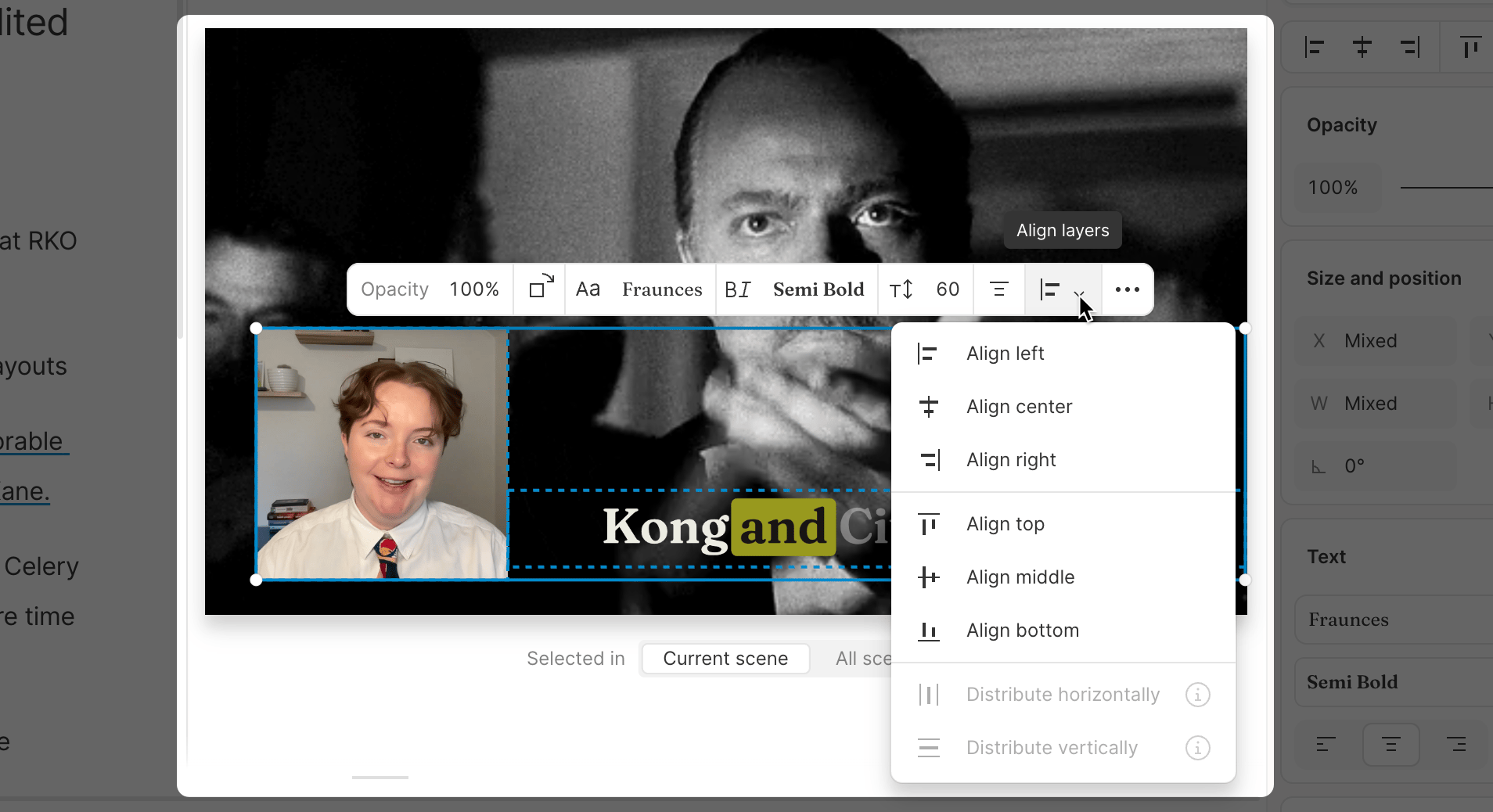
- Use the alignment buttons in the toolbar to line up selected layers (left, right, center, top, middle, bottom).
- Use distribution options to space layers evenly (horizontally or vertically). At least three layers must be selected to use distribution.
- Alignment applies to all layers in your selection at once.
Text alignment vs. layer alignment
- Text alignment controls how text is positioned inside a text box (left, center, right).
- Layer alignment positions the entire text box relative to the selection’s bounding box.
Limitations
- You can only select layers that are in the same scene.
- Grouping layers and scaling text font size aren’t available yet.
- Text layers don’t scale their font size when resized.
- Snap-to-grid alignment across multiple layers isn’t supported.