

Not seeing a transcript?Layers are not part of the transcribed script track. If you want your media to be transcribed, you’ll need to add it to the script track. Learn how the script track works.
Layers and clips explained
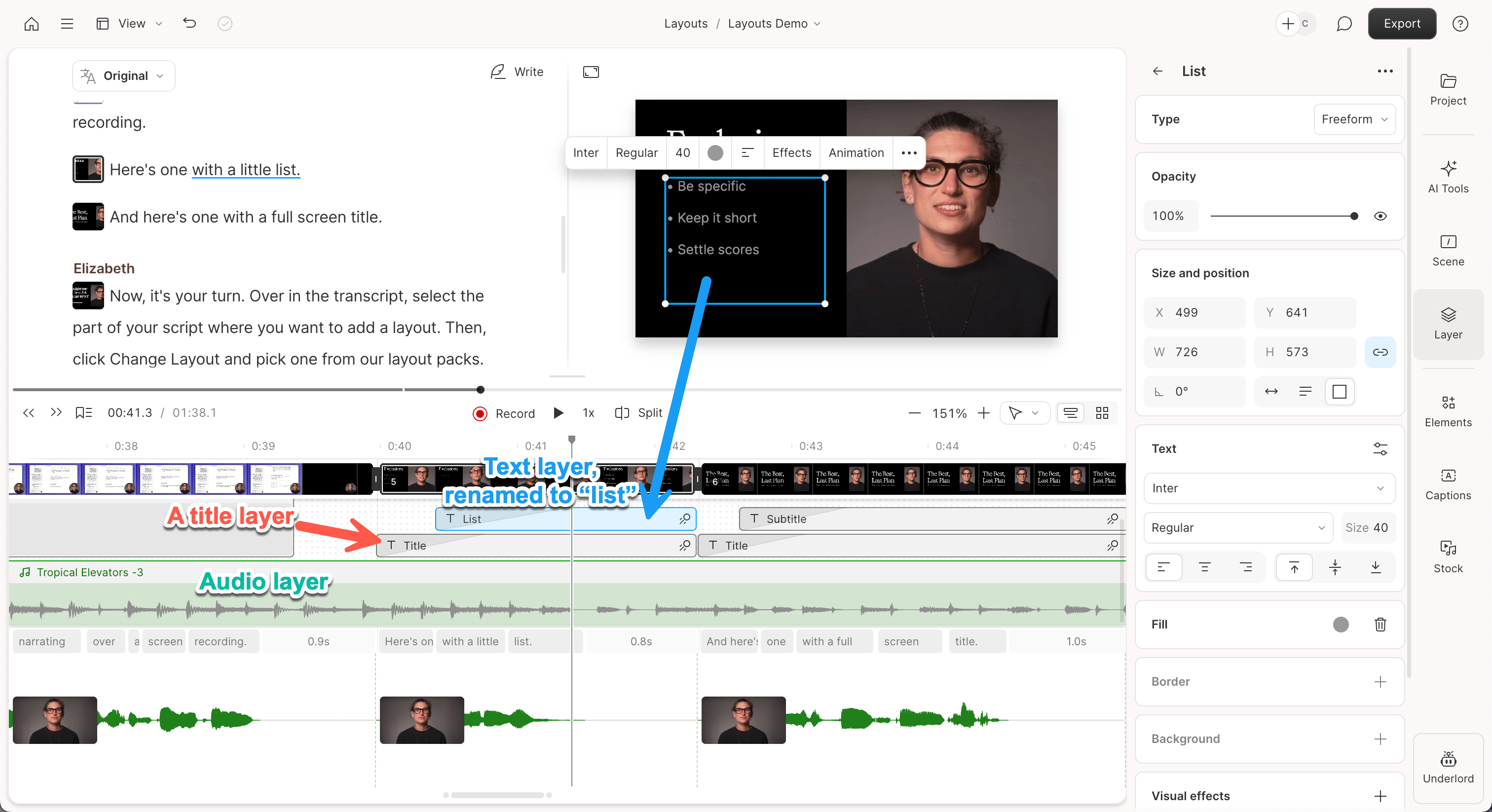
How to work with clips and layers
Trim a clip or layer
Adjust where a clip or layer starts and/or ends without deleting the underlying media by manually adjusting it via the timeline.- First, select the layer in your scene editor.
- Hover your mouse over the edge of any clip or layer in the timeline.
- When the cursor changes to a small handle, click and drag to trim.
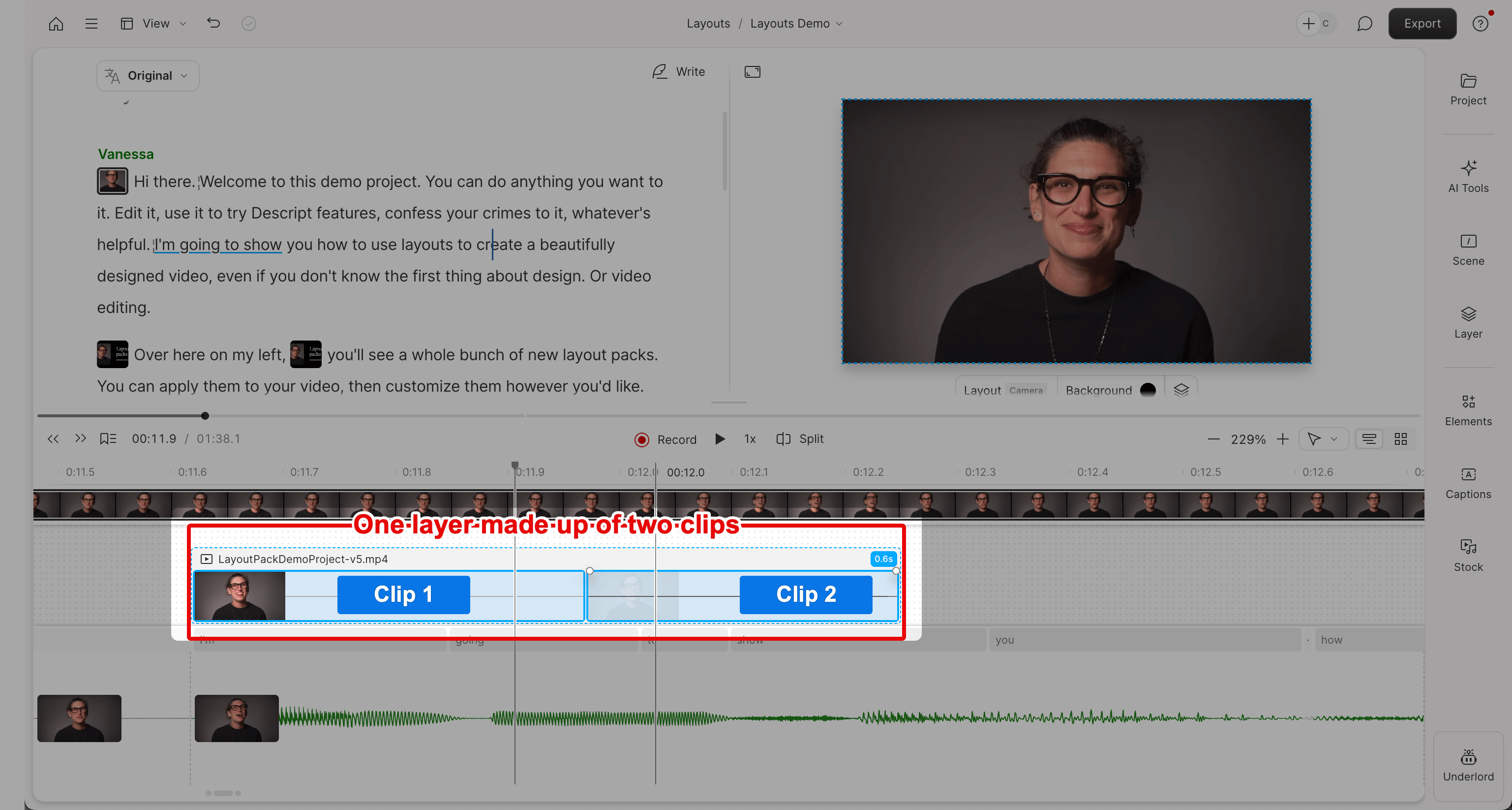
Split a clip or layer
Splitting divides a clip into separate segments at the playhead position, letting you isolate and adjust different parts of your media.- Position the playhead where you want to split.
- Press Cmd+Shift+S (Mac) or Ctrl+Shift+S (Windows).
Copy and paste behavior
When you paste a layer, Descript tries to maintain the original offset from the start of the scene you copied it from. This preserves layer timing when moving content between scenes. If the playhead is in a scene long enough to fit that offset, the layer pastes at the same relative position within the scene. If the destination scene isn’t long enough, the layer may not paste or may paste at a different position than expected.Types of layers in Descript
You can add any of these layer types to your composition:- Video, audio, and images
- Shapes
- Waveforms
- Progress bars
- Text, emojis, and captions
- Avatars