

Add a waveform to your composition
- In the Scene Editor, open the Elements panel on the right.
- Select Waveform.
- Choose a style: Lines, Circle, Ring, or Wave.
Assign a waveform to a specific speaker
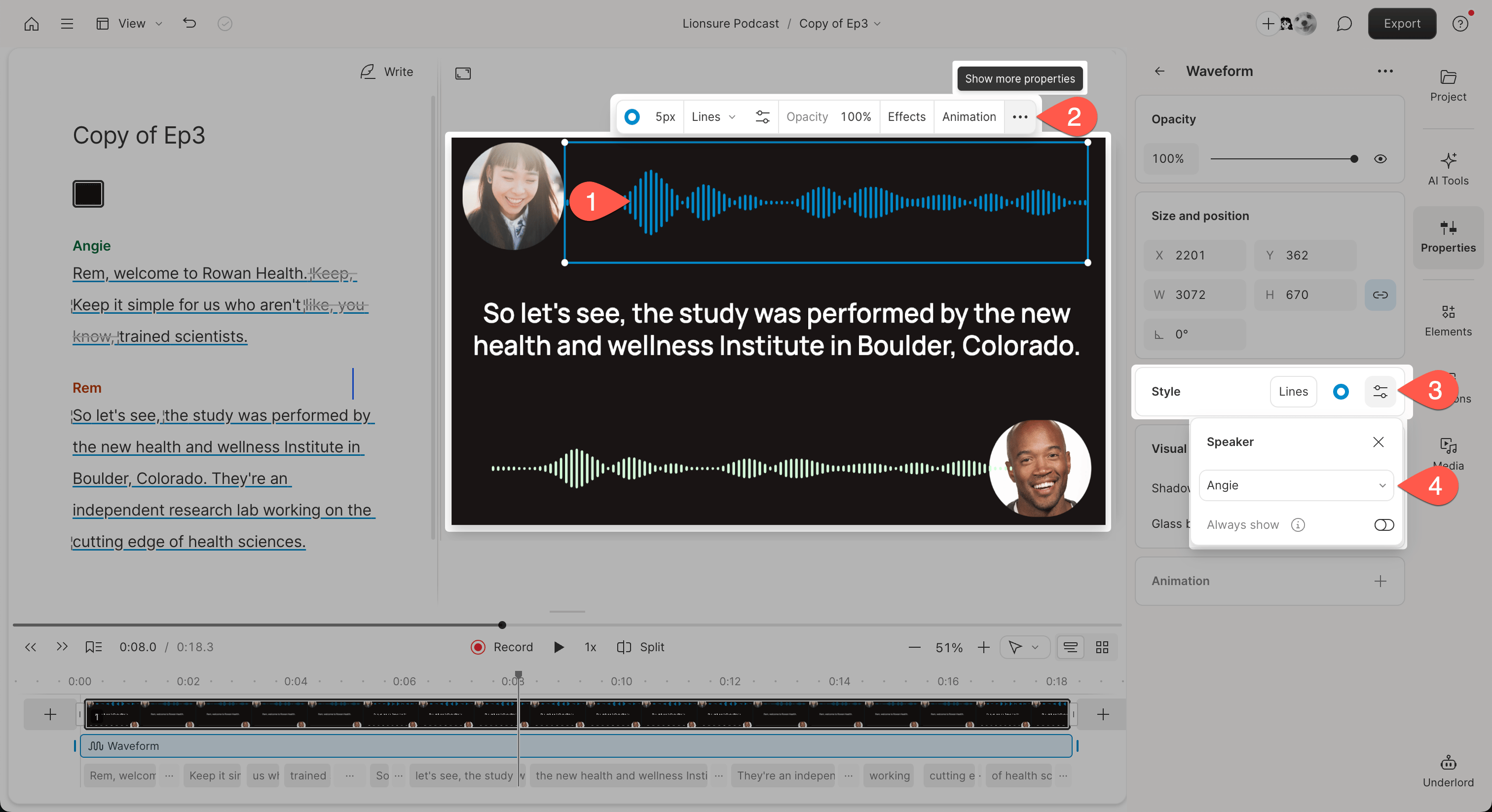
You can assign a waveform to a specific speaker so it only animates when that speaker is talking. Waveforms use speaker labels to determine when to animate. Make sure your speaker labels are accurate for best results. Learn about detecting and labeling speakers in your script.- Select the waveform in the Scene Editor.
- In the hover menu, click the Show more options button at the far right
- Find the Style section in the Properties Panel. Select the options menu.
- Choose a speaker from the dropdown.
Click to open the image full-size in a new tab.
Tip: Assign speakers before adding scenesSpeaker assignments respect scene boundaries — if you add scenes after assigning speakers, you may need to reassign waveforms in each scene. Learn more about scenes.