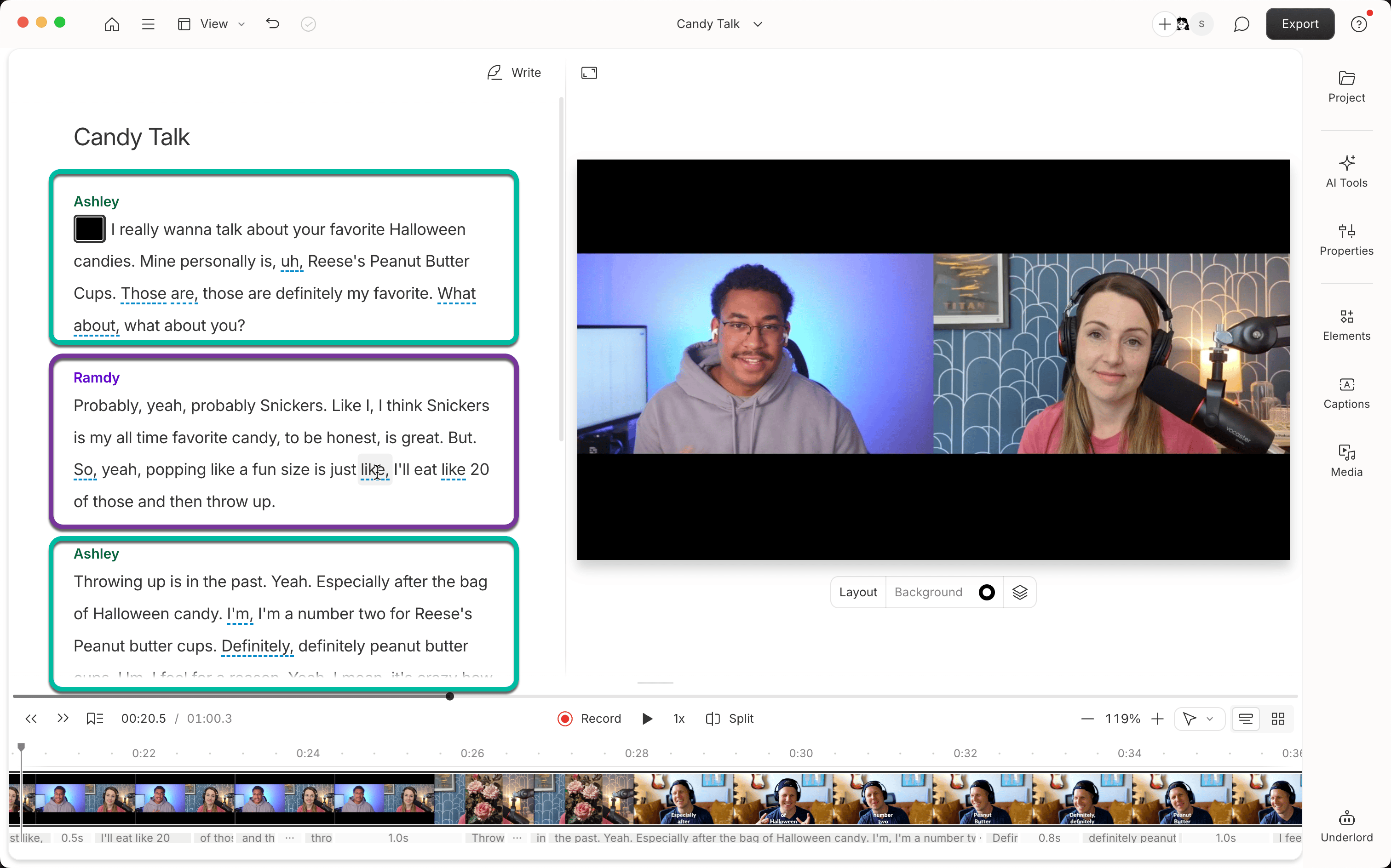
How speaker detection works
Speaker detection works in two steps:- Detect: When you import and transcribe a file, Descript’s AI automatically analyzes the audio and identifies distinct voices. Automatic Speaker detection is available for files up to 5 hours long.
- Identify: Once detection finishes, you’ll get a notification prompting you to assign a name to each Speaker. Descript plays a sample of each voice so you can tell them apart and create labels.
Speaker detection modes
Speaker detection works differently depending on your selected mode (automatic or manual). This app setting can be different between web and desktop apps, so check your settings in both Descript for Web and the desktop app.
If your file exceeds these limits, the Detect speakers option will be disabled. You can check this by right-clicking the file — a tooltip will explain the time restriction.
Detect and identify speakers
- Import your file into a project. Descript begins detecting speakers in the background automatically as part of the automatic transcription process.
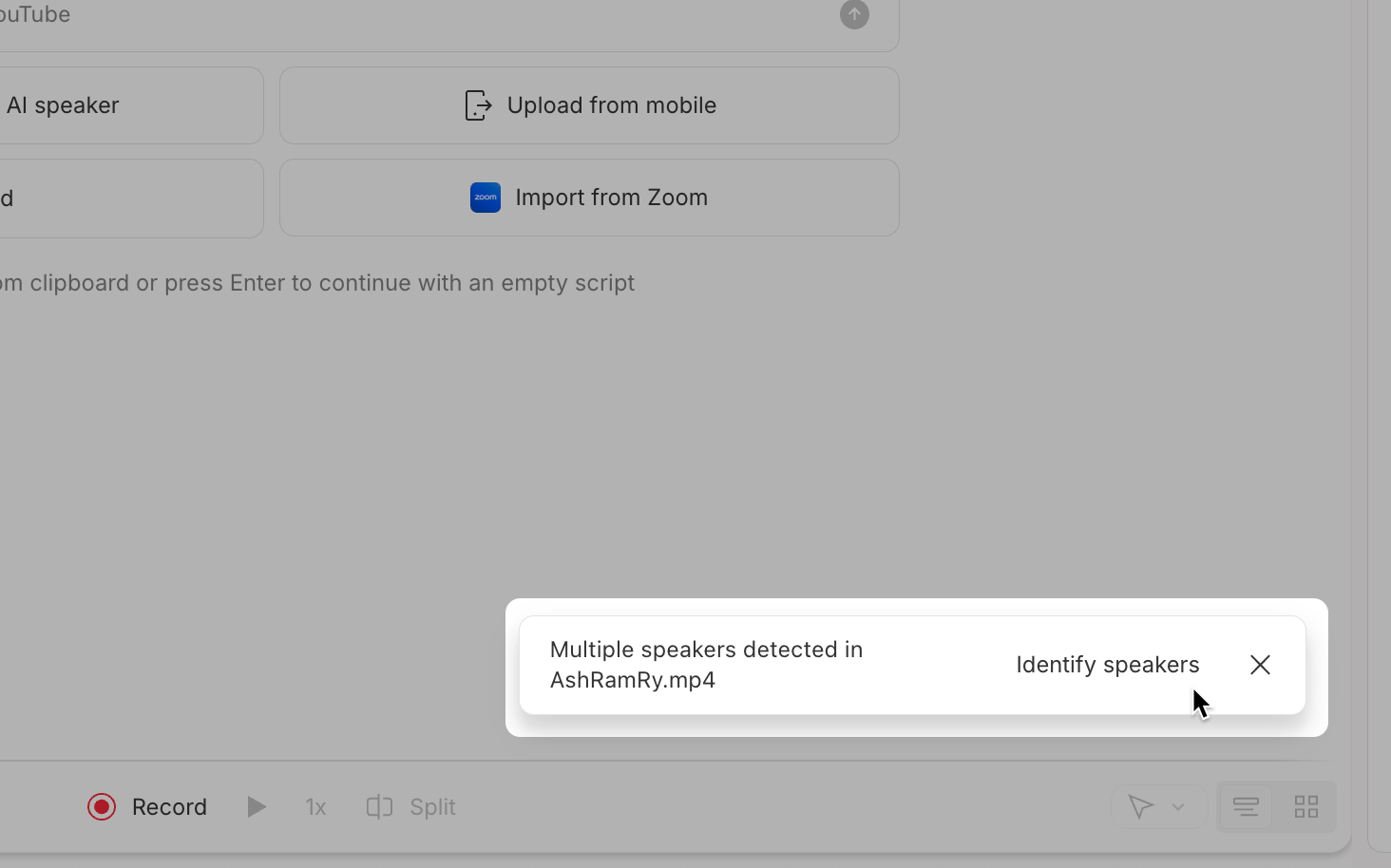
- When detection is complete, you’ll get a notification. Click Identify speakers.
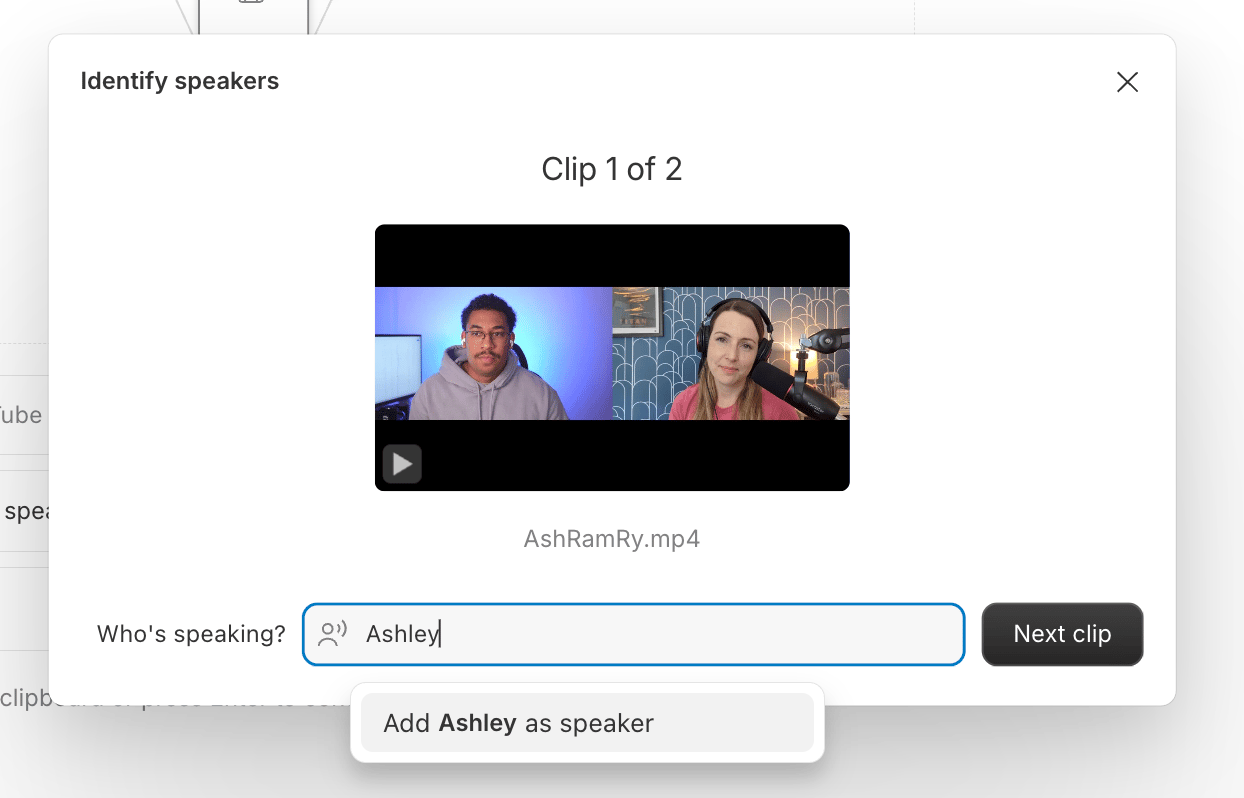
- The Identify speakers modal will open. Listen to the audio sample for each detected voice to confirm who’s speaking.
- Add the speaker’s name, or select an existing name from the list.
- When you’ve listened to all the samples, click Close.
- Add the file to your script panel — the speaker labels will appear automatically in your transcript.
Manually trigger speaker detection
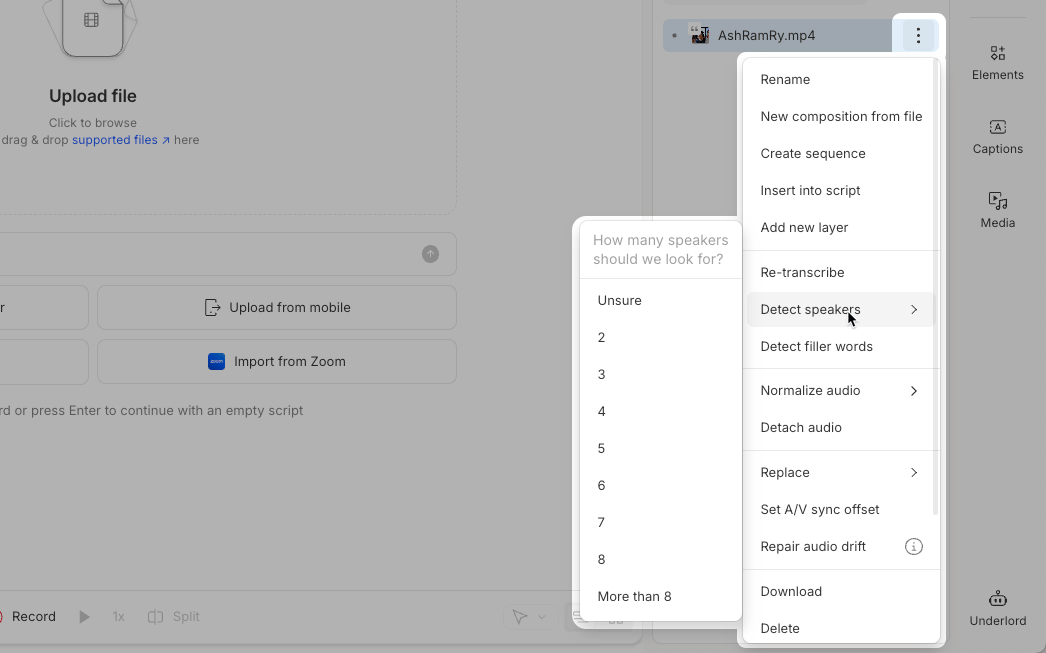
If automatic detection is disabled, speaker detection won’t run when you import files. To trigger it manually, click the ellipsis next to your file in the Project panel and select Detect speakers. You’ll be prompted to enter the number of speakers before detection begins.