Install the app
- macOS
- Windows
- Download the Descript installer for Mac. Note, clicking this link will immediately begin the download process.
- Once the .zip file finishes downloading, click to unpack it.
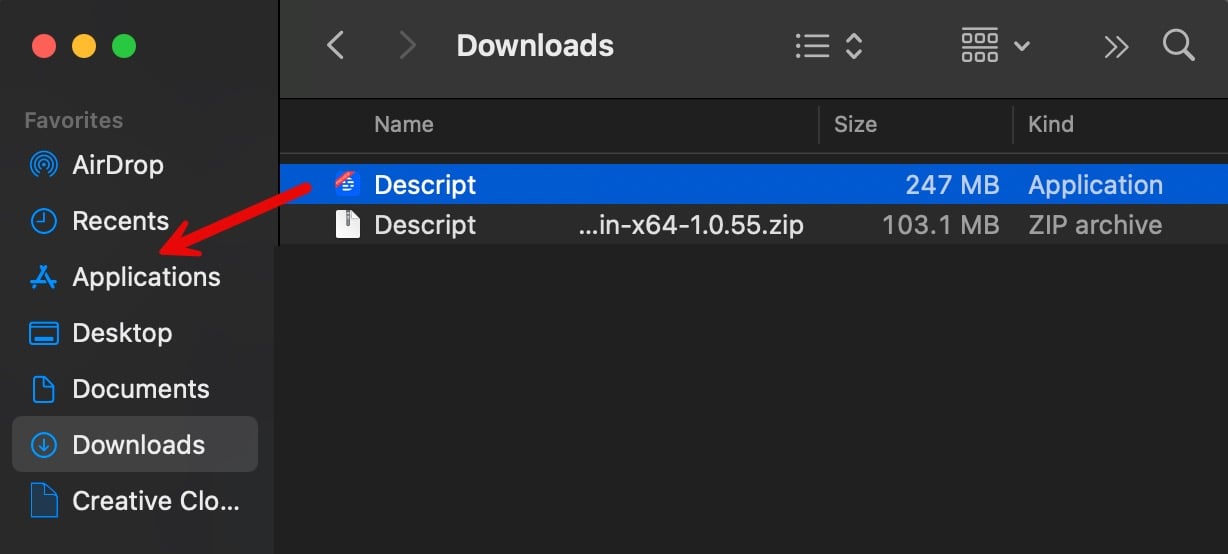
- Drag the extracted Descript application to your Applications folder.
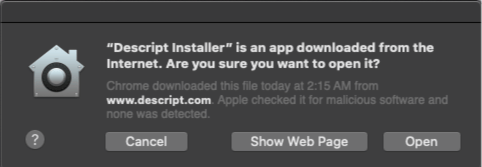
- Double-click the app to launch. If prompted to confirm opening the file, click Open.
- Once open, sign in or create an account to start using Descript.
Why does Descript launch when I start my computer?
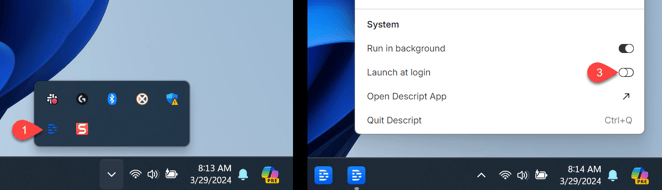
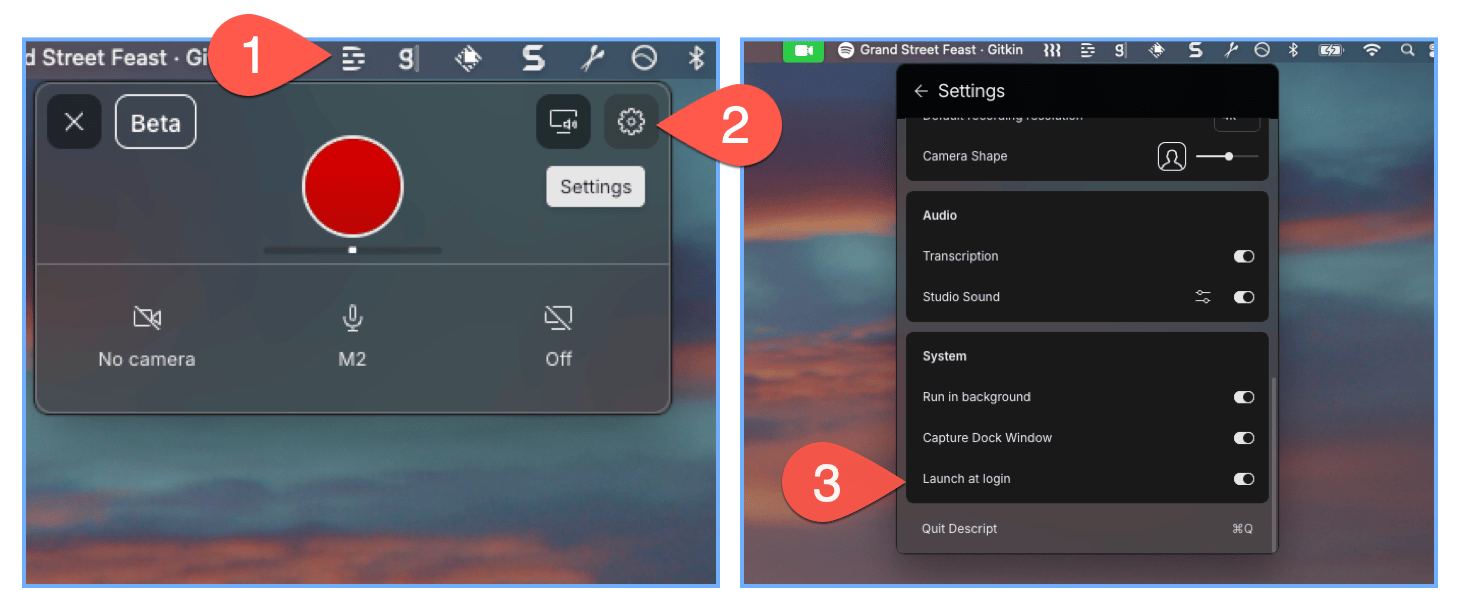
By default, Descript opens automatically when you sign in to your computer — this keeps the menu bar (Mac) or taskbar (Windows) Screen Recorder available whenever you need it. To turn it off, open the Screen Recorder and disable Launch at login in its settings.Disable Launch at login on macOS
- Click the Descript icon in your menu bar.
- Select Settings.
- Turn off Launch at login.
Disable Launch at login on Windows
- Click the Descript icon in your taskbar. You may need to click the arrow to Show hidden icons.
- Select Settings.
- Turn off Launch at login.