
.ttf/.otf files. Fonts added to a drive are available to everyone on it, in captions, text clips, and layout packs.
Fonts added using the steps below are saved at the Drive level. Fonts uploaded while generating a layout pack are saved in the pack’s project, not added to the Drive’s shared font list. If you work across multiple Drives, you’ll need to add shared fonts to each one separately.
Uploading your own font files requires a Drive on a Creator, Business, or Enterprise plan.Business and Enterprise users can also organize custom fonts in Brand Studio.
Add a custom font
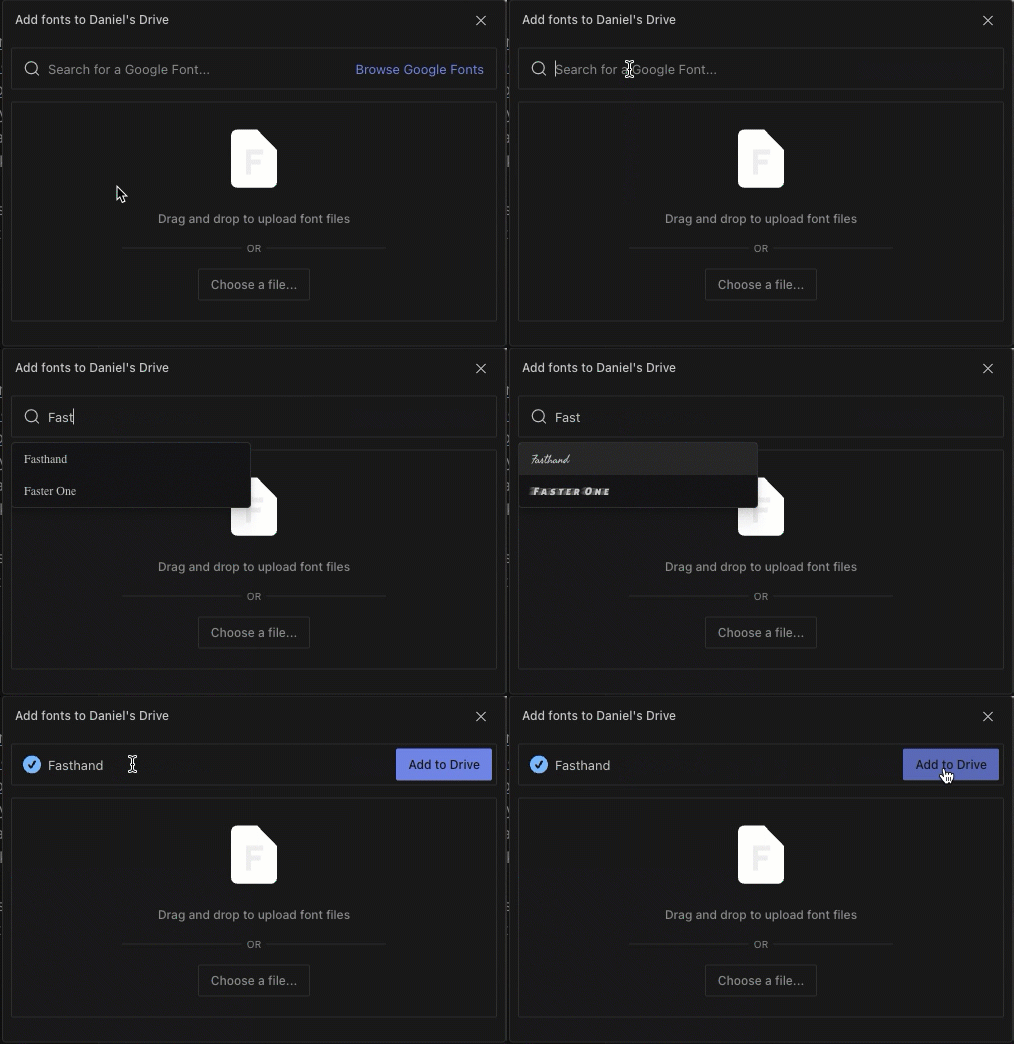
Search for a Google Font directly in Descript, browse Google’s font library in a separate tab, or upload your own font file.- Add a text layer to your composition, then select it in the scene editor.
- In the right-hand sidebar, select the Properties panel, click the Font dropdown menu, then click the cloud icon next to the search field to add fonts to Drive.
- Choose how to add your font:
- Search for a Google Font: Type a font name, select it, and click Add to Drive.
- Browse Google Fonts: Click Browse Google Fonts to view Google’s library in a new tab. When you find a font, return to Descript, search for it by name, and click Add to Drive.
-
Upload a custom font: Click Upload a custom font and select
.ttf,.otf, or.wofffiles from your computer.