Apply colors, gradients, stroke, and fill to your scene elements
Change the color of elements in your scene with the fill and stroke tools. Apply a solid color, build a gradient, or sample a color from anywhere on screen with the eyedropper.Fill and Stroke are both available in the Properties panel and the hover toolbar. Text elements use Border instead of Stroke.
Two entry points open the same picker, depending on what you’re coloring:
For most elements, select the element in the Scene Editor or Properties panel, then select Fill or Stroke in the hover toolbar. For text elements, Border replaces Stroke.
Scene backgrounds can only be adjusted via theProperties panel. Open the panel in the right-hand sidebar, then select the fill in the Background section. Background colors cannot be edited via the hover toolbar.
Select the Gradient tab, then pick a preset gradient or choose a gradient style. If you already have a solid color selected and switch to the Gradient tab, Descript starts you off with a gradient based on that color.
Vertical: colors flow from top to bottom
Horizontal: colors flow from left to right
Center: colors radiate from the middle
Corner: colors radiate from a corner
Where gradients aren’t supportedGradients aren’t available for waveforms, strokes, or text borders.
Add reusable gradients in Brand Studio so your drive’s editors can apply them across projects.
Add the gradient to your brand kit in Brand Studio.
Select an element in the Scene Editor, then open Fill.
Select the saved gradient from the Brand studio palette.
To customize a gradient on the selected element, select Select color in the brand palette, then open Advanced controls in the Gradient tab. To update the saved brand asset, edit the gradient in Brand Studio.
Stroke and Border use the same color and eyedropper options as Fill (Stroke for most elements, Border for text). To set how thick the outline is, enter a value in the numeric field next to Stroke or Border in the hover toolbar. Gradients aren’t currently available for Stroke or Border.
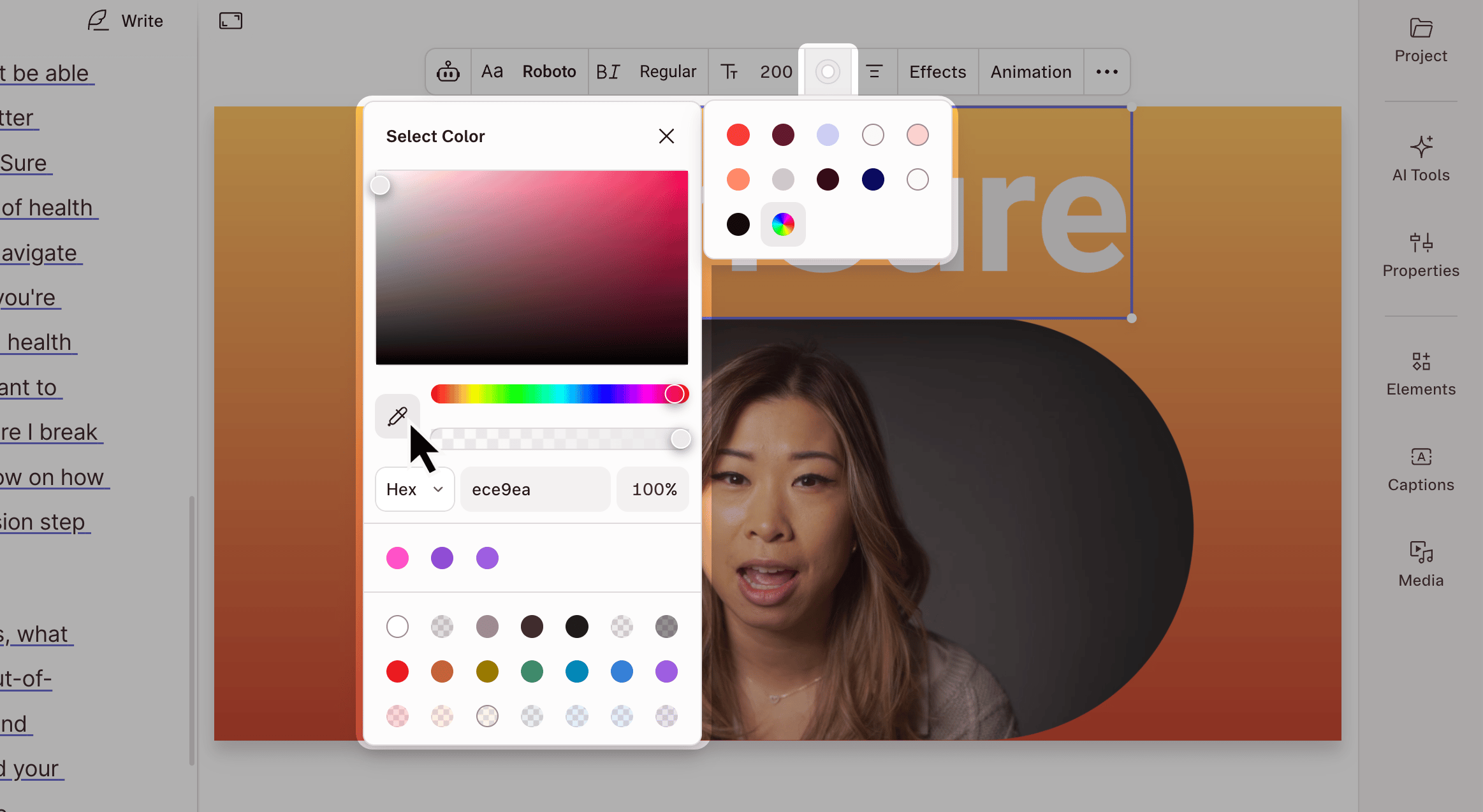
The eyedropper grabs any color visible on screen and applies it to your element. It works for solid fills, individual gradient stops, strokes, and the Chroma Key effect.Select the eyedropper icon in the swatch grid, hover over the color you want to sample, then click to apply it.
{"docsConfig":{"theme":"mint","$schema":"https://mintlify.com/docs.json","name":"Descript Help Center","description":"User guides and documentation for Descript, a text-based video and audio editor.","colors":{"primary":"#651A39","light":"#CDCDFE","dark":"#F73B3B"},"logo":{"light":"https://mintcdn.com/descript-5bf56f3f/cSbTRRN32pg3UC1d/images/01a_Logo_2_color_Dark.png?fit=max\u0026auto=format\u0026n=cSbTRRN32pg3UC1d\u0026q=85\u0026s=5d5e4bea817ea025e6f7daf713a7fcfe","dark":"https://mintcdn.com/descript-5bf56f3f/cSbTRRN32pg3UC1d/images/01b_Logo_2_color_Light.png?fit=max\u0026auto=format\u0026n=cSbTRRN32pg3UC1d\u0026q=85\u0026s=90296d892f5b71071480e08d18b959b8"},"favicon":"https://mintcdn.com/descript-5bf56f3f/cSbTRRN32pg3UC1d/images/02a_Monogram_Primary.png?fit=max\u0026auto=format\u0026n=cSbTRRN32pg3UC1d\u0026q=85\u0026s=0dcc0c665590f0d18907633e2c109a25","api":{"openapi":"developers/openapi.json"},"appearance":{"default":"system"},"background":{"color":{"light":"#fdfcfc","dark":"#110A0D"}},"navbar":{"links":[]},"footer":{"socials":{"x":"https://x.com/descript","website":"https://www.descript.com","discord":"https://discord.com/channels/764925197379174411/960303941789294602","reddit":"https://www.reddit.com/r/Descript","facebook":"https://www.facebook.com/descriptapp"}},"fonts":{"heading":{"family":"Booton SemiBold","weight":500},"body":{"family":"Booton Regular","weight":500}},"styling":{"eyebrows":"breadcrumbs","latex":false},"integrations":{"ga4":{"measurementId":"G-5C5EVM1H51"},"posthog":{"apiKey":"phc_w3ZqFHxxJraLWo3LU7wfDkCEhJZLo0X22W9e0VFu2Vu","sessionRecording":true}},"contextual":{"options":["copy","view","assistant","chatgpt","claude","perplexity","grok","aistudio","mcp","cursor","vscode","download-spec","download-pdf"],"display":"header"},"interaction":{"drilldown":false},"navigation":{"pages":[]}},"deployment":{"deploymentMetadataValue":{"subdomain":"descript-5bf56f3f","hasAudioNarration":false,"actualSubdomain":"descript-5bf56f3f","customDomains":["help.descript.com","docs.descriptapi.com"],"gitSource":{"type":"github","owner":"descriptinc","repo":"descript","deployBranch":"main","contentDirectory":"help-center","isPrivate":true,"mountPath":"","label":"","isBase":true},"chroma":{"liveDeploymentHistoryId":"6aecb01564441d6863c94a59","collectionId":"2288632b-54a3-44a7-895f-b76364638fa0","schemaVersion":"v3","latestBuiltDeploymentHistoryId":"6aecb01564441d6863c94a59"},"entitlements":{"AI_CHAT":{"status":"ENABLED"},"REMOVE_BRANDING":{"status":"ENABLED"},"CONTEXTUAL_FEEDBACK":{"status":"ENABLED"},"CODE_SNIPPET_FEEDBACK":{"status":"ENABLED"},"WEB_MCP":{"status":"ENABLED"},"NARRATION":{"status":"ENABLED"}},"buildId":"6aee5c586ef4287a44197d0d","clientVersion":"0.0.4076","searchFilterCounts":[{"language":"default","tag":"Help Center","count":333},{"language":"default","tag":"SquadCast","count":67},{"language":"default","tag":"Script editing","count":34},{"language":"default","tag":"Export \u0026 share","count":33},{"language":"default","tag":"Record","count":28},{"language":"default","tag":"Visuals","count":28},{"language":"default","tag":"Add \u0026 manage media","count":25},{"language":"default","tag":"Effects, animations, transitions","count":23},{"language":"default","tag":"Troubleshooting","count":20},{"language":"default","tag":"Billing, payments, plans","count":19}],"searchSettings":{"isFiltersEnabled":false,"showContentSnippets":true,"maxResults":12}},"assistantConfig":{"enableAskAiButton":false,"enableStarterQuestions":false,"enableContextualStarterQuestions":false,"enableAskAiSearchBar":true,"deflection":{"enabled":true,"type":"link","url":"http://descript.zendesk.com/hc/en-us/requests/new"}},"basePath":"","hasChatPermissions":true,"hasWebMcpPermissions":true,"toggles":[{"name":"kill-isr","enabled":true,"variant":{"name":"disabled","enabled":false,"feature_enabled":true},"impressionData":false},{"name":"agent-mintlify-slack","enabled":true,"variant":{"name":"disabled","enabled":false,"feature_enabled":true},"impressionData":false},{"name":"agent-integrations-settings","enabled":true,"variant":{"name":"disabled","enabled":false,"feature_enabled":true},"impressionData":false},{"name":"rbac-expansion","enabled":true,"variant":{"name":"disabled","enabled":false,"feature_enabled":true},"impressionData":false},{"name":"automations-pr-grouping","enabled":true,"variant":{"name":"disabled","enabled":false,"feature_enabled":true},"impressionData":false},{"name":"custom-prefix","enabled":true,"variant":{"name":"disabled","enabled":false,"feature_enabled":true},"impressionData":false},{"name":"analytics-v7","enabled":true,"variant":{"name":"disabled","enabled":false,"feature_enabled":true},"impressionData":false},{"name":"user-flows-analytics","enabled":true,"variant":{"name":"disabled","enabled":false,"feature_enabled":true},"impressionData":false},{"name":"no-publish-flow","enabled":true,"variant":{"name":"disabled","enabled":false,"feature_enabled":true},"impressionData":false},{"name":"workos-onboarding","enabled":true,"variant":{"name":"disabled","enabled":false,"feature_enabled":true},"impressionData":false},{"name":"llms-txt-v2","enabled":true,"variant":{"name":"disabled","enabled":false,"feature_enabled":true},"impressionData":false},{"name":"snapshot-serving-live","enabled":true,"variant":{"name":"disabled","enabled":false,"feature_enabled":true},"impressionData":false},{"name":"stripTemperatureMiddleware","enabled":true,"variant":{"name":"disabled","enabled":false,"feature_enabled":true},"impressionData":false},{"name":"support-platform-pylon-zendesk","enabled":true,"variant":{"name":"disabled","enabled":false,"feature_enabled":true},"impressionData":false},{"name":"snapshot-serving","enabled":true,"variant":{"name":"disabled","enabled":false,"feature_enabled":true},"impressionData":false},{"name":"instant-rollback","enabled":true,"variant":{"name":"disabled","enabled":false,"feature_enabled":true},"impressionData":false},{"name":"granular-notifications-server","enabled":true,"variant":{"name":"disabled","enabled":false,"feature_enabled":true},"impressionData":false},{"name":"granular-notifications","enabled":true,"variant":{"name":"disabled","enabled":false,"feature_enabled":true},"impressionData":false},{"name":"automations-fable","enabled":true,"variant":{"name":"disabled","enabled":false,"feature_enabled":true},"impressionData":false},{"name":"fixed-ai-action-pricing","enabled":true,"variant":{"name":"disabled","enabled":false,"feature_enabled":true},"impressionData":false},{"name":"automation-resolve-merge-conflict","enabled":true,"variant":{"name":"disabled","enabled":false,"feature_enabled":true},"impressionData":false},{"name":"scoped-publishing","enabled":true,"variant":{"name":"disabled","enabled":false,"feature_enabled":true},"impressionData":false},{"name":"mintql","enabled":true,"variant":{"name":"disabled","enabled":false,"feature_enabled":true},"impressionData":false},{"name":"page-level-analytics","enabled":true,"variant":{"name":"disabled","enabled":false,"feature_enabled":true},"impressionData":false},{"name":"editor-version-history-v2","enabled":true,"variant":{"name":"disabled","enabled":false,"feature_enabled":true},"impressionData":false},{"name":"instinct-self-updating-docs","enabled":true,"variant":{"name":"disabled","enabled":false,"feature_enabled":true},"impressionData":false},{"name":"billing-page-v2","enabled":true,"variant":{"name":"disabled","enabled":false,"feature_enabled":true},"impressionData":false},{"name":"full-page-search","enabled":true,"variant":{"name":"disabled","enabled":false,"feature_enabled":true},"impressionData":false},{"name":"workspace-projects","enabled":true,"variant":{"name":"disabled","enabled":false,"feature_enabled":true},"impressionData":false},{"name":"assistant-v5","enabled":true,"variant":{"name":"disabled","enabled":false,"feature_enabled":true},"impressionData":false},{"name":"fork-pr-previews","enabled":true,"variant":{"name":"disabled","enabled":false,"feature_enabled":true},"impressionData":false},{"name":"revalidation-jwt","enabled":true,"variant":{"name":"disabled","enabled":false,"feature_enabled":true},"impressionData":false},{"name":"workos-sso-scim","enabled":true,"variant":{"name":"disabled","enabled":false,"feature_enabled":true},"impressionData":false},{"name":"hobby-abuse-scan","enabled":true,"variant":{"name":"disabled","enabled":false,"feature_enabled":true},"impressionData":false},{"name":"dashboard-inbox","enabled":true,"variant":{"name":"disabled","enabled":false,"feature_enabled":true},"impressionData":false},{"name":"workos-signup","enabled":true,"variant":{"name":"disabled","enabled":false,"feature_enabled":true},"impressionData":false},{"name":"turbopuffer-dual-write","enabled":true,"variant":{"name":"disabled","enabled":false,"feature_enabled":true},"impressionData":false},{"name":"workos-enabled","enabled":true,"variant":{"name":"disabled","enabled":false,"feature_enabled":true},"impressionData":false},{"name":"approve-review-flow","enabled":true,"variant":{"name":"disabled","enabled":false,"feature_enabled":true},"impressionData":false},{"name":"editor-metadata","enabled":true,"variant":{"name":"disabled","enabled":false,"feature_enabled":true},"impressionData":false},{"name":"sso-setup-deadline-banner","enabled":true,"variant":{"name":"disabled","enabled":false,"feature_enabled":true},"impressionData":false},{"name":"turbopuffer-serve","enabled":true,"variant":{"name":"disabled","enabled":false,"feature_enabled":true},"impressionData":false},{"name":"live-agents","enabled":true,"variant":{"name":"disabled","enabled":false,"feature_enabled":true},"impressionData":false},{"name":"comment-mode","enabled":true,"variant":{"name":"disabled","enabled":false,"feature_enabled":true},"impressionData":false}],"googleFontsInlined":false},"customCss":[{"filePath":"style.css","content":".effect-anchor{scroll-margin-top:6rem}tr:has(.effect-anchor:target){background-color:rgba(101, 26, 57, 0.07)}.dark tr:has(.effect-anchor:target){background-color:rgba(205, 205, 254, 0.1)}tr:has(.effect-anchor) td ul{margin:0}.custom-card{backdrop-filter:brightness(1.06);-webkit-backdrop-filter:brightness(1.06);border:1.5px solid rgba(0, 0, 0, 0.12);border-radius:1rem;transition:transform 0.15s ease,\n box-shadow 0.15s ease,\n border-color 0.15s ease}.custom-card:hover{transform:translateY(-2px);box-shadow:0 4px 8px rgba(0, 0, 0, 0.08)}.dark .custom-card{border-color:rgba(255, 255, 255, 0.14)}.dark .custom-card:hover{border-color:rgba(255, 255, 255, 0.22)}html:not([data-current-path^=\"/squadcast\"]):not([data-current-path^=\"/developers\"]) .sidebar-group-header,html:not([data-current-path^=\"/squadcast\"]):not([data-current-path^=\"/developers\"]) .sidebar-group-header *,html:not([data-current-path^=\"/squadcast\"]):not([data-current-path^=\"/developers\"]) .sidebar-group-header h3.sidebar-title,html:not([data-current-path^=\"/squadcast\"]):not([data-current-path^=\"/developers\"]) .sidebar-group-header h3.sidebar-title span{font-weight:800!important}.dark img[src*=\"squadcast-logo-coin-dark\"]{content:url('/images/squadcast-logo-coin-light.png')}"}],"page":{"pagePath":"visuals/color-stroke","slug":"/visuals/color-stroke","pageMetadata":{"title":"Apply color, gradients, and stroke to elements","description":"Apply colors, gradients, stroke, and fill to your scene elements","sidebarTitle":"Fill and stroke","href":"/visuals/color-stroke"},"description":{"compiledSource":"\"use strict\";\nconst {jsx: _jsx} = arguments[0];\nconst {useMDXComponents: _provideComponents} = arguments[0];\nfunction _createMdxContent(props) {\n const _components = {\n p: \"p\",\n ..._provideComponents(),\n ...props.components\n };\n return _jsx(_components.p, {\n children: \"Apply colors, gradients, stroke, and fill to your scene elements\"\n });\n}\nfunction MDXContent(props = {}) {\n const {wrapper: MDXLayout} = {\n ..._provideComponents(),\n ...props.components\n };\n return MDXLayout ? _jsx(MDXLayout, {\n ...props,\n children: _jsx(_createMdxContent, {\n ...props\n })\n }) : _createMdxContent(props);\n}\nreturn {\n default: MDXContent\n};\n","frontmatter":{},"scope":{}},"pageType":"default","mdx":{"mdxSource":{"compiledSource":"\"use strict\";const{Fragment:_Fragment,jsx:_jsx,jsxs:_jsxs}=arguments[0];const{useMDXComponents:_provideComponents}=arguments[0];const Wistia=({id,title=`Video`,ratio=`16 / 9`})=>{const{Frame}=_provideComponents()||{};if(!Frame)_missingMdxReference(`Frame`,true);return _jsx(Frame,{children:_jsx(`iframe`,{className:`mint-w-full mint-rounded-xl`,style:{aspectRatio:ratio},src:`https://fast.wistia.net/embed/iframe/${id}?seo=false`,title,allow:`autoplay; fullscreen`,allowFullScreen:true})})};function _createMdxContent(props){const _components={a:`a`,li:`li`,ol:`ol`,p:`p`,strong:`strong`,ul:`ul`,..._provideComponents(),...props.components},{Heading,OptimizedImage,Warning,_MdxComponentBoundary}=_components;if(!Heading)_missingMdxReference(`Heading`,true);if(!OptimizedImage)_missingMdxReference(`OptimizedImage`,true);if(!Warning)_missingMdxReference(`Warning`,true);if(!_MdxComponentBoundary)_missingMdxReference(`_MdxComponentBoundary`,true);return _jsxs(_Fragment,{children:[_jsx(_components.p,{children:`Change the color of elements in your scene with the fill and stroke tools. Apply a solid color, build a gradient, or sample a color from anywhere on screen with the eyedropper.`}),`\n`,_jsxs(_components.p,{children:[`Fill and Stroke are both available in the `,_jsx(_components.a,{href:`/descript-tour/properties-panel`,children:`Properties panel`}),` and the hover toolbar. Text elements use Border instead of Stroke.`]}),`\n`,_jsx(Heading,{level:`2`,id:`open-the-picker`,children:`Open the picker`}),`\n`,_jsx(_components.p,{children:`Two entry points open the same picker, depending on what you’re coloring:`}),`\n`,_jsxs(_components.ul,{children:[`\n`,_jsxs(_components.li,{children:[_jsx(_components.strong,{children:`For most elements,`}),` select the element in the `,_jsx(_components.a,{href:`/visuals/scene-editor-overview`,children:`Scene Editor`}),` or `,_jsx(_components.a,{href:`/descript-tour/properties-panel`,children:`Properties panel`}),`, then select `,_jsx(_components.strong,{children:`Fill`}),` or `,_jsx(_components.strong,{children:`Stroke`}),` in the hover toolbar. For text elements, `,_jsx(_components.strong,{children:`Border`}),` replaces Stroke.`]}),`\n`,_jsxs(_components.li,{children:[_jsx(_components.strong,{children:`Scene backgrounds can only be adjusted via the`}),` `,_jsx(_components.a,{href:`/descript-tour/properties-panel`,children:_jsx(_components.strong,{children:`Properties panel`})}),_jsx(_components.strong,{children:`.`}),` Open the panel in the right-hand sidebar, then select the fill in the `,_jsx(_components.strong,{children:`Background`}),` section. Background colors cannot be edited via the hover toolbar.`]}),`\n`]}),`\n`,_jsx(Heading,{level:`2`,id:`apply-a-color`,children:`Apply a color`}),`\n`,_jsx(_components.p,{children:`Pick a swatch or use the color controls to choose a custom color or gradient.`}),`\n`,_jsx(Heading,{level:`2`,id:`apply-a-gradient`,children:`Apply a gradient`}),`\n`,_jsxs(_components.p,{children:[`Select the `,_jsx(_components.strong,{children:`Gradient`}),` tab, then pick a preset gradient or choose a gradient style. If you already have a solid color selected and switch to the Gradient tab, Descript starts you off with a gradient based on that color.`]}),`\n`,_jsxs(_components.ul,{children:[`\n`,_jsxs(_components.li,{children:[_jsx(_components.strong,{children:`Vertical`}),`: colors flow from top to bottom`]}),`\n`,_jsxs(_components.li,{children:[_jsx(_components.strong,{children:`Horizontal`}),`: colors flow from left to right`]}),`\n`,_jsxs(_components.li,{children:[_jsx(_components.strong,{children:`Center`}),`: colors radiate from the middle`]}),`\n`,_jsxs(_components.li,{children:[_jsx(_components.strong,{children:`Corner`}),`: colors radiate from a corner`]}),`\n`]}),`\n`,_jsx(_MdxComponentBoundary,{name:`Wistia`,children:_jsx(Wistia,{id:`p4pkont1oz`,title:`Apply a gradient`})}),`\n`,_jsxs(Warning,{children:[_jsx(_components.p,{children:_jsx(_components.strong,{children:`Where gradients aren’t supported`})}),_jsx(_components.p,{children:`Gradients aren’t available for waveforms, strokes, or text borders.`})]}),`\n`,_jsx(Heading,{level:`2`,id:`customize-a-gradient`,children:`Customize a gradient`}),`\n`,_jsxs(_components.p,{children:[`For finer control over color values and the position of each transition, select `,_jsx(_components.strong,{children:`Advanced controls`}),` in the `,_jsx(_components.strong,{children:`Gradient`}),` tab. From there:`]}),`\n`,_jsxs(_components.ul,{children:[`\n`,_jsx(_components.li,{children:`Drag any stop along the gradient slider to change where its color appears`}),`\n`,_jsx(_components.li,{children:`Edit a stop’s hex value or position percentage to fine-tune`}),`\n`,_jsxs(_components.li,{children:[`Select `,_jsx(_components.strong,{children:`+`}),` next to `,_jsx(_components.strong,{children:`Stops`}),` to add more, up to 64 stops`]}),`\n`,_jsx(_components.li,{children:`Select the trash icon next to a stop to remove it`}),`\n`]}),`\n`,_jsx(Heading,{level:`2`,id:`save-and-reuse-brand-gradients`,children:`Save and reuse brand gradients`}),`\n`,_jsxs(_components.p,{children:[`Add reusable gradients in `,_jsx(_components.a,{href:`/branding/brand-studio#add-your-brand-colors`,children:`Brand Studio`}),` so your drive’s editors can apply them across projects.`]}),`\n`,_jsxs(_components.ol,{children:[`\n`,_jsxs(_components.li,{children:[`Add the gradient to your brand kit in `,_jsx(_components.strong,{children:`Brand Studio`}),`.`]}),`\n`,_jsxs(_components.li,{children:[`Select an element in the `,_jsx(_components.a,{href:`/visuals/scene-editor-overview`,children:`Scene Editor`}),`, then open `,_jsx(_components.strong,{children:`Fill`}),`.`]}),`\n`,_jsxs(_components.li,{children:[`Select the saved gradient from the `,_jsx(_components.strong,{children:`Brand studio`}),` palette.`]}),`\n`]}),`\n`,_jsxs(_components.p,{children:[`To customize a gradient on the selected element, select `,_jsx(_components.strong,{children:`Select color`}),` in the brand palette, then open `,_jsx(_components.strong,{children:`Advanced controls`}),` in the `,_jsx(_components.strong,{children:`Gradient`}),` tab. To update the saved brand asset, `,_jsx(_components.a,{href:`/branding/brand-studio#add-your-brand-colors`,children:`edit the gradient in Brand Studio`}),`.`]}),`\n`,_jsx(Heading,{level:`2`,id:`apply-a-stroke-or-border`,children:`Apply a stroke or border`}),`\n`,_jsxs(_components.p,{children:[`Stroke and Border use the same color and eyedropper options as Fill (Stroke for most elements, Border for text). To set how thick the outline is, enter a value in the numeric field next to `,_jsx(_components.strong,{children:`Stroke`}),` or `,_jsx(_components.strong,{children:`Border`}),` in the hover toolbar. Gradients aren’t currently available for Stroke or Border.`]}),`\n`,_jsx(OptimizedImage,{src:`https://mintcdn.com/descript-5bf56f3f/NQQ8Oln3iV-r_AmP/images/external/descript-46513765540749-594457fa1e.png?fit=max\u0026auto=format\u0026n=NQQ8Oln3iV-r_AmP\u0026q=85\u0026s=91e18bf0d7900d9951d69e805eaec20e`,alt:`Stroke control in the hover toolbar showing the width numeric field.`,\"data-og-width\":`2100`,width:`2100`,\"data-og-height\":`1150`,height:`1150`,\"data-path\":`images/external/descript-46513765540749-594457fa1e.png`,\"data-optimize\":`true`,\"data-opv\":`3`,srcset:`https://mintcdn.com/descript-5bf56f3f/NQQ8Oln3iV-r_AmP/images/external/descript-46513765540749-594457fa1e.png?w=280\u0026fit=max\u0026auto=format\u0026n=NQQ8Oln3iV-r_AmP\u0026q=85\u0026s=6f292ff897a67401e1890aef0d891b2f 280w, https://mintcdn.com/descript-5bf56f3f/NQQ8Oln3iV-r_AmP/images/external/descript-46513765540749-594457fa1e.png?w=560\u0026fit=max\u0026auto=format\u0026n=NQQ8Oln3iV-r_AmP\u0026q=85\u0026s=728282613dadd29521c3e866e2dc20aa 560w, https://mintcdn.com/descript-5bf56f3f/NQQ8Oln3iV-r_AmP/images/external/descript-46513765540749-594457fa1e.png?w=840\u0026fit=max\u0026auto=format\u0026n=NQQ8Oln3iV-r_AmP\u0026q=85\u0026s=c1eef1c128493c7ffebff72fe87ac366 840w, https://mintcdn.com/descript-5bf56f3f/NQQ8Oln3iV-r_AmP/images/external/descript-46513765540749-594457fa1e.png?w=1100\u0026fit=max\u0026auto=format\u0026n=NQQ8Oln3iV-r_AmP\u0026q=85\u0026s=e6da4ef599a5bdaf10ad46d9537ccb80 1100w, https://mintcdn.com/descript-5bf56f3f/NQQ8Oln3iV-r_AmP/images/external/descript-46513765540749-594457fa1e.png?w=1650\u0026fit=max\u0026auto=format\u0026n=NQQ8Oln3iV-r_AmP\u0026q=85\u0026s=e94b53e7bd2d397d63a876137b74e58c 1650w, https://mintcdn.com/descript-5bf56f3f/NQQ8Oln3iV-r_AmP/images/external/descript-46513765540749-594457fa1e.png?w=2500\u0026fit=max\u0026auto=format\u0026n=NQQ8Oln3iV-r_AmP\u0026q=85\u0026s=35dd0347f5dbbb36d6558d7c83f2f500 2500w`}),`\n`,_jsx(Heading,{level:`2`,id:`sample-a-color-with-the-eyedropper`,children:`Sample a color with the eyedropper`}),`\n`,_jsxs(_components.p,{children:[`The eyedropper grabs any color visible on screen and applies it to your element. It works for solid fills, individual gradient stops, strokes, and the `,_jsx(_components.a,{href:`https://help.descript.com/hc/en-us/articles/10327650435085`,children:`Chroma Key`}),` effect.`]}),`\n`,_jsx(_components.p,{children:`Select the eyedropper icon in the swatch grid, hover over the color you want to sample, then click to apply it.`}),`\n`,_jsx(OptimizedImage,{src:`https://mintcdn.com/descript-5bf56f3f/NQQ8Oln3iV-r_AmP/images/external/descript-46513765541773-8dfee65352.png?fit=max\u0026auto=format\u0026n=NQQ8Oln3iV-r_AmP\u0026q=85\u0026s=9193ebdcff558294511a9afeeb7b7c86`,alt:`Eyedropper icon in the Fill picker swatch grid.`,\"data-og-width\":`2326`,width:`2326`,\"data-og-height\":`1274`,height:`1274`,\"data-path\":`images/external/descript-46513765541773-8dfee65352.png`,\"data-optimize\":`true`,\"data-opv\":`3`,srcset:`https://mintcdn.com/descript-5bf56f3f/NQQ8Oln3iV-r_AmP/images/external/descript-46513765541773-8dfee65352.png?w=280\u0026fit=max\u0026auto=format\u0026n=NQQ8Oln3iV-r_AmP\u0026q=85\u0026s=7514e932cbc144959b96b8f1914fcdfc 280w, https://mintcdn.com/descript-5bf56f3f/NQQ8Oln3iV-r_AmP/images/external/descript-46513765541773-8dfee65352.png?w=560\u0026fit=max\u0026auto=format\u0026n=NQQ8Oln3iV-r_AmP\u0026q=85\u0026s=ca9576e7307fb66bb25d2e3268b0708f 560w, https://mintcdn.com/descript-5bf56f3f/NQQ8Oln3iV-r_AmP/images/external/descript-46513765541773-8dfee65352.png?w=840\u0026fit=max\u0026auto=format\u0026n=NQQ8Oln3iV-r_AmP\u0026q=85\u0026s=38ce23944c31b390ee5cf0904fd6a37f 840w, https://mintcdn.com/descript-5bf56f3f/NQQ8Oln3iV-r_AmP/images/external/descript-46513765541773-8dfee65352.png?w=1100\u0026fit=max\u0026auto=format\u0026n=NQQ8Oln3iV-r_AmP\u0026q=85\u0026s=f9c4eb35077de57034b4ad44fc2cd567 1100w, https://mintcdn.com/descript-5bf56f3f/NQQ8Oln3iV-r_AmP/images/external/descript-46513765541773-8dfee65352.png?w=1650\u0026fit=max\u0026auto=format\u0026n=NQQ8Oln3iV-r_AmP\u0026q=85\u0026s=508719af000804ad41a563c362cdbdfa 1650w, https://mintcdn.com/descript-5bf56f3f/NQQ8Oln3iV-r_AmP/images/external/descript-46513765541773-8dfee65352.png?w=2500\u0026fit=max\u0026auto=format\u0026n=NQQ8Oln3iV-r_AmP\u0026q=85\u0026s=6704a9c405908b41910910b63d50be76 2500w`})]})}function MDXContent(props={}){const{wrapper:MDXLayout}={..._provideComponents(),...props.components};return MDXLayout?_jsx(MDXLayout,{...props,children:_jsx(_createMdxContent,{...props})}):_createMdxContent(props)}return{Wistia,default:MDXContent};function _missingMdxReference(id,component){throw new Error(`Expected `+(component?`component`:`object`)+\" `\"+id+\"` to be defined: you likely forgot to import, pass, or provide it.\")}","frontmatter":{},"scope":{"config":{},"pageMetadata":{"title":"Apply color, gradients, and stroke to elements","description":"Apply colors, gradients, stroke, and fill to your scene elements","sidebarTitle":"Fill and stroke","href":"/visuals/color-stroke"}}},"mdxSourceWithNoJs":null,"noJsSplices":[[142,503,")=>null;function _cr"]]},"mdxExtracts":{"tableOfContents":[{"title":"Open the picker","slug":"open-the-picker","depth":2,"children":[]},{"title":"Apply a color","slug":"apply-a-color","depth":2,"children":[]},{"title":"Apply a gradient","slug":"apply-a-gradient","depth":2,"children":[]},{"title":"Customize a gradient","slug":"customize-a-gradient","depth":2,"children":[]},{"title":"Save and reuse brand gradients","slug":"save-and-reuse-brand-gradients","depth":2,"children":[]},{"title":"Apply a stroke or border","slug":"apply-a-stroke-or-border","depth":2,"children":[]},{"title":"Sample a color with the eyedropper","slug":"sample-a-color-with-the-eyedropper","depth":2,"children":[]}],"codeExamples":{}},"jsLinks":["/_mintlify/custom/descript-5bf56f3f/2dc3a904ed64e2d6/analytics.js","/_mintlify/custom/descript-5bf56f3f/0f2d12095d1f7fa5/legacy-hash-redirect.js"],"dynamicCss":".mint-w-full {\n width: 100%\n}\n.mint-rounded-xl {\n border-radius: 0.75rem\n}","subdomain":"descript-5bf56f3f","siteName":"Descript Help Center","title":"Apply color, gradients, and stroke to elements - Descript Help Center","relatedPagesConfig":{"enabled":true,"limit":5,"mode":"automatic"},"navMaps":{"firstHrefInVersion":{},"firstHrefInLanguage":{}},"lastModified":"2026-11-06T16:10:30.249Z","originalFileLocation":"visuals/color-stroke.mdx"},"headHtml":"\u003cscript data-mint-head>(function(){var d=document.documentElement,p=null;if(!p){try{p=localStorage.getItem(\"isDarkMode\")}catch(e){}if(p==='true')p='dark';else if(p==='false')p='light';if(p!=='light'\u0026\u0026p!=='dark'\u0026\u0026p!=='system')p=\"system\"}var r=p==='system'?(matchMedia(\"(prefers-color-scheme: dark)\").matches?'dark':'light'):p;d.classList.remove(r==='dark'?'light':'dark');d.classList.add(r);d.setAttribute(\"data-theme-preference\",p)})();\u003c/script>\u003cmeta data-mint-head name=\"description\" content=\"Apply colors, gradients, stroke, and fill to your scene elements\">\u003cmeta data-mint-head name=\"application-name\" content=\"Descript Help Center\">\u003cmeta data-mint-head name=\"generator\" content=\"Mintlify\">\u003clink data-mint-head rel=\"icon\" type=\"image/png\" sizes=\"192x192\" href=\"/mintlify-assets/_mintlify/favicons/descript-5bf56f3f/kFeqHqu-v8e5VpSc/_generated/favicon/android-chrome-192x192.png\" media=\"(prefers-color-scheme: light)\">\u003clink data-mint-head rel=\"apple-touch-icon\" type=\"image/png\" sizes=\"180x180\" href=\"/mintlify-assets/_mintlify/favicons/descript-5bf56f3f/kFeqHqu-v8e5VpSc/_generated/favicon/apple-touch-icon.png\">\u003clink data-mint-head rel=\"icon\" type=\"image/png\" sizes=\"16x16\" href=\"/mintlify-assets/_mintlify/favicons/descript-5bf56f3f/kFeqHqu-v8e5VpSc/_generated/favicon/favicon-16x16.png\" media=\"(prefers-color-scheme: light)\">\u003clink data-mint-head rel=\"icon\" type=\"image/png\" sizes=\"32x32\" href=\"/mintlify-assets/_mintlify/favicons/descript-5bf56f3f/kFeqHqu-v8e5VpSc/_generated/favicon/favicon-32x32.png\" media=\"(prefers-color-scheme: light)\">\u003clink data-mint-head rel=\"shortcut icon\" type=\"image/x-icon\" href=\"/mintlify-assets/_mintlify/favicons/descript-5bf56f3f/kFeqHqu-v8e5VpSc/_generated/favicon/favicon.ico\" media=\"(prefers-color-scheme: light)\">\u003clink data-mint-head rel=\"icon\" type=\"image/png\" sizes=\"192x192\" href=\"/mintlify-assets/_mintlify/favicons/descript-5bf56f3f/kFeqHqu-v8e5VpSc/_generated/favicon-dark/android-chrome-192x192.png\" media=\"(prefers-color-scheme: dark)\">\u003clink data-mint-head rel=\"icon\" type=\"image/png\" sizes=\"16x16\" href=\"/mintlify-assets/_mintlify/favicons/descript-5bf56f3f/kFeqHqu-v8e5VpSc/_generated/favicon-dark/favicon-16x16.png\" media=\"(prefers-color-scheme: dark)\">\u003clink data-mint-head rel=\"icon\" type=\"image/png\" sizes=\"32x32\" href=\"/mintlify-assets/_mintlify/favicons/descript-5bf56f3f/kFeqHqu-v8e5VpSc/_generated/favicon-dark/favicon-32x32.png\" media=\"(prefers-color-scheme: dark)\">\u003clink data-mint-head rel=\"shortcut icon\" type=\"image/x-icon\" href=\"/mintlify-assets/_mintlify/favicons/descript-5bf56f3f/kFeqHqu-v8e5VpSc/_generated/favicon-dark/favicon.ico\" media=\"(prefers-color-scheme: dark)\">\u003cmeta data-mint-head property=\"og:title\" content=\"Apply color, gradients, and stroke to elements - Descript Help Center\">\u003cmeta data-mint-head property=\"og:description\" content=\"Apply colors, gradients, stroke, and fill to your scene elements\">\u003cmeta data-mint-head property=\"og:site_name\" content=\"Descript Help Center\">\u003cmeta data-mint-head property=\"og:url\" content=\"https://help.descript.com/visuals/color-stroke\">\u003cmeta data-mint-head property=\"og:type\" content=\"website\">\u003cmeta data-mint-head property=\"og:image\" content=\"https://descript-5bf56f3f.mintlify.site/_mintlify/api/og/v2?division=Working+with+layers+and+clips\u0026amp;title=Apply+color%2C+gradients%2C+and+stroke+to+elements\u0026amp;description=Apply+colors%2C+gradients%2C+stroke%2C+and+fill+to+your+scene+elements\u0026amp;theme=f81376d507a7ea740b835510\u0026amp;signature=46c9040bf488298839207c83e4aa85d6aab99d53576db1bcd81a32275a8bfa1c\">\u003cmeta data-mint-head property=\"og:image:width\" content=\"1200\">\u003cmeta data-mint-head property=\"og:image:height\" content=\"630\">\u003cmeta data-mint-head name=\"twitter:card\" content=\"summary_large_image\">\u003cmeta data-mint-head name=\"twitter:title\" content=\"Apply color, gradients, and stroke to elements - Descript Help Center\">\u003cmeta data-mint-head name=\"twitter:description\" content=\"Apply colors, gradients, stroke, and fill to your scene elements\">\u003cmeta data-mint-head name=\"twitter:image\" content=\"https://descript-5bf56f3f.mintlify.site/_mintlify/api/og/v2?division=Working+with+layers+and+clips\u0026amp;title=Apply+color%2C+gradients%2C+and+stroke+to+elements\u0026amp;description=Apply+colors%2C+gradients%2C+stroke%2C+and+fill+to+your+scene+elements\u0026amp;theme=f81376d507a7ea740b835510\u0026amp;signature=46c9040bf488298839207c83e4aa85d6aab99d53576db1bcd81a32275a8bfa1c\">\u003cmeta data-mint-head name=\"twitter:image:width\" content=\"1200\">\u003cmeta data-mint-head name=\"twitter:image:height\" content=\"630\">\u003cmeta data-mint-head name=\"msapplication-config\" content=\"/mintlify-assets/_mintlify/favicons/descript-5bf56f3f/kFeqHqu-v8e5VpSc/_generated/favicon/browserconfig.xml\">\u003cmeta data-mint-head name=\"apple-mobile-web-app-title\" content=\"Descript Help Center\">\u003cmeta data-mint-head name=\"msapplication-TileColor\" content=\"#651A39\">\u003clink data-mint-head rel=\"canonical\" href=\"https://help.descript.com/visuals/color-stroke\">\u003clink data-mint-head rel=\"alternate\" type=\"application/xml\" href=\"/sitemap.xml\">\u003clink data-mint-head rel=\"alternate\" type=\"text/markdown\" href=\"/visuals/color-stroke.md\">\u003cscript data-mint-head type=\"application/ld+json\">{\"@context\":\"https://schema.org\",\"@graph\":[{\"@type\":\"Organization\",\"@id\":\"https://help.descript.com/#organization\",\"name\":\"Descript Help Center\",\"url\":\"https://help.descript.com\",\"logo\":{\"@type\":\"ImageObject\",\"url\":\"https://mintcdn.com/descript-5bf56f3f/cSbTRRN32pg3UC1d/images/01a_Logo_2_color_Dark.png?fit=max\u0026auto=format\u0026n=cSbTRRN32pg3UC1d\u0026q=85\u0026s=5d5e4bea817ea025e6f7daf713a7fcfe\"}},{\"@type\":\"WebSite\",\"@id\":\"https://help.descript.com#website\",\"name\":\"Descript Help Center\",\"url\":\"https://help.descript.com\",\"publisher\":{\"@id\":\"https://help.descript.com/#organization\"}},{\"@type\":\"WebPage\",\"@id\":\"https://help.descript.com/visuals/color-stroke#webpage\",\"url\":\"https://help.descript.com/visuals/color-stroke\",\"name\":\"Apply color, gradients, and stroke to elements\",\"description\":\"Apply colors, gradients, stroke, and fill to your scene elements\",\"dateModified\":\"2026-11-06T16:10:30.249Z\",\"isPartOf\":{\"@id\":\"https://help.descript.com#website\"},\"breadcrumb\":{\"@id\":\"https://help.descript.com/visuals/color-stroke#breadcrumb\"}},{\"@type\":\"BreadcrumbList\",\"@id\":\"https://help.descript.com/visuals/color-stroke#breadcrumb\",\"itemListElement\":[{\"@type\":\"ListItem\",\"position\":1,\"name\":\"Visuals\",\"item\":\"https://help.descript.com/visuals/scene-editor-overview\"},{\"@type\":\"ListItem\",\"position\":2,\"name\":\"Working with layers and clips\",\"item\":\"https://help.descript.com/visuals/working-with-layers-and-clips-overview\"},{\"@type\":\"ListItem\",\"position\":3,\"name\":\"Apply color, gradients, and stroke to elements\",\"item\":\"https://help.descript.com/visuals/color-stroke\"}]},{\"@type\":[\"Article\",\"TechArticle\"],\"@id\":\"https://help.descript.com/visuals/color-stroke#article\",\"headline\":\"Apply color, gradients, and stroke to elements\",\"name\":\"Apply color, gradients, and stroke to elements\",\"description\":\"Apply colors, gradients, stroke, and fill to your scene elements\",\"url\":\"https://help.descript.com/visuals/color-stroke\",\"mainEntityOfPage\":{\"@id\":\"https://help.descript.com/visuals/color-stroke#webpage\"},\"dateModified\":\"2026-11-06T16:10:30.249Z\",\"publisher\":{\"@id\":\"https://help.descript.com/#organization\"},\"isPartOf\":{\"@id\":\"https://help.descript.com#website\"}}]}\u003c/script>","siteName":"Descript Help Center","nav":{"global":null,"tabs":[{"tab":"Help Center","icon":"life-ring","groups":[{"group":"Home","icon":"house","pages":[{"title":"Welcome","mode":"frame","href":""}]},{"group":"Descript terms and concepts","icon":"book","hidden":true,"pages":[{"title":"Descript terminology and concepts","href":"/descript-terms-and-concepts"}]},{"group":"Getting started","icon":"rocket","pages":[{"title":"Get started with Descript","sidebarTitle":"Get started with Descript","href":"/getting-started/get-started-with-descript"},{"group":"Set up and install","pages":[{"title":"Sign in to Descript","sidebarTitle":"Sign in","href":"/getting-started/sign-in"},{"title":"Download and install Descript","href":"/getting-started/install"},{"title":"Descript for web","sidebarTitle":"Descript for web","href":"/getting-started/descript-for-web"},{"title":"Descript system requirements","sidebarTitle":"System requirements","href":"/getting-started/descript-system-requirements"},{"title":"Uninstalling Descript","href":"/getting-started/uninstalling-descript"}]},{"group":"Edit your first project","pages":[{"title":"Create a new project","href":"/getting-started/create-a-new-project"},{"title":"Import and upload files into Descript","href":"/getting-started/import-overview"},{"title":"Add a file to the script","href":"/getting-started/add-a-file-to-the-script"},{"title":"Edit like a doc","sidebarTitle":"Edit like a doc","href":"/getting-started/edit-like-a-doc"},{"title":"Scenes overview","href":"/getting-started/scenes"},{"title":"Underlord (Beta): Your AI co-editor in Descript","sidebarTitle":"Underlord","href":"/getting-started/underlord-beta-your-ai-co-editor-in-descript"}]}]},{"group":"Switch to Descript","icon":"arrow-right-arrow-left","pages":[{"title":"Switch from Riverside to Descript","sidebarTitle":"Switch from Riverside","href":"/switch-from-riverside"}]},{"group":"Descript tour","icon":"compass","pages":[{"title":"Navigating Descript","sidebarTitle":"Navigating Descript","href":"/descript-tour/navigating-descript"},{"title":"Drive view","sidebarTitle":"Drive view","href":"/descript-tour/drive-view"},{"group":"The Descript editor","pages":[{"title":"The editor interface","href":"/descript-tour/the-editor-interface"},{"title":"Playback and navigation","href":"/descript-tour/playback-and-navigation"},{"title":"Customize the editor","href":"/descript-tour/customize-the-editor"},{"title":"Multi-window editing","href":"/descript-tour/multi-window-editing"},{"title":"Project panel","href":"/descript-tour/project-panel"},{"title":"Properties panel","href":"/descript-tour/properties-panel"},{"title":"Find and add media with the Media panel","sidebarTitle":"Media panel","href":"/descript-tour/media-panel"},{"title":"Manage the editor layout with the view menu","href":"/descript-tour/view-menu"}]},{"group":"Toolbars, shortcuts","pages":[{"title":"Action bar","href":"/descript-tour/action-bar"},{"title":"Selection toolbar","href":"/descript-tour/selection-toolbar"},{"title":"Keyboard shortcuts","href":"/descript-tour/keyboard-shortcuts"},{"title":"Copy and paste attributes","href":"/descript-tour/copy-paste-attributes"}]},{"group":"AI Tools","pages":[{"title":"AI tools overview","href":"/descript-tour/ai-tools-overview"},{"title":"Sound good with AI tools","href":"/descript-tour/sound-good-tools"},{"title":"Look good with AI tools","href":"/descript-tour/look-good-tools"},{"title":"Repurpose with AI tools","href":"/descript-tour/repurpose-tools"},{"title":"Publish with AI tools","href":"/descript-tour/publish-tools"},{"title":"Write with AI tools","href":"/descript-tour/write-tools"}]}]},{"group":"Record","icon":"microphone","pages":[{"title":"Choose a recording method in Descript","sidebarTitle":"Recorder overview","href":"/record/editor-recorder-overview"},{"group":"Rooms","pages":[{"title":"Get started with Descript Rooms","sidebarTitle":"Rooms overview","href":"/record/rooms-overview"},{"title":"Create a Rooms session and invite participants","href":"/record/host-guide"},{"title":"Join a Descript Room","href":"/record/guest-guide"},{"title":"Record in a Descript Room","href":"/record/record-in-a-descript-room"},{"title":"Rooms: Recording checklist","sidebarTitle":"Recording checklist","href":"/record/recording-checklist"},{"title":"Control Room overview","href":"/record/control-room"},{"title":"Roles in Descript Rooms","sidebarTitle":"Roles","href":"/record/roles"},{"title":"Descript Rooms settings","href":"/record/room-settings"},{"title":"Use push-to-talk in the Control Room","sidebarTitle":"Push-to-talk","href":"/record/push-to-talk"},{"title":"Leave editor comments during a live room session","sidebarTitle":"Rooms comments","href":"/record/comments"},{"title":"Schedule a Descript Rooms session","href":"/record/schedule"},{"title":"Edit a Descript Rooms project","href":"/record/edit"},{"title":"Audio and video quality","href":"/record/quality"},{"title":"Async recordings","sidebarTitle":"Async recordings","href":"/record/async-recordings"}]},{"group":"Editor recorder","pages":[{"title":"Choose a recording method in Descript","sidebarTitle":"Recorder overview","href":"/record/editor-recorder-overview"},{"title":"How to use the editor recorder in Descript","href":"/record/editor-recorder"},{"title":"How to record multiple USB mics or devices at the same time on macOS","href":"/record/multi-device-macos"},{"title":"Unsupported recording devices and services","href":"/record/unsupported"}]},{"group":"Screen recording","pages":[{"title":"How to use the screen recorder in the Descript desktop app","href":"/record/screen-recorder"},{"title":"Record a slideshow presentation with Descript","href":"/record/presentation"}]},{"title":"Record with Descript's built-in teleprompter","sidebarTitle":"Teleprompter","href":"/record/record-with-descript-s-built-in-teleprompter"},{"group":"Troubleshooting","pages":[{"title":"Troubleshooting recorder issues","href":"/record/troubleshooting"},{"title":"Recording performance issues: Low frame rate or sync problems","href":"/record/frame-rate-sync"},{"title":"Troubleshooting recording device connection issues","href":"/record/device-connection"},{"title":"Recover a lost Descript recording","href":"/record/recover"},{"title":"Recover and replace stalled Rooms recordings","href":"/record/rooms-recover-replace"},{"title":"Troubleshooting issues with Descript Rooms","href":"/record/rooms-ts"},{"title":"Frequently asked questions about Descript Rooms","href":"/record/rooms-faq"}]}]},{"group":"Add \u0026 manage media","icon":"photo-film","pages":[{"group":"Import","pages":[{"title":"Import and upload files into Descript","href":"/getting-started/import-overview"},{"title":"Upload a file from your computer","href":"/add-and-manage-media/local"},{"title":"Import files from Google Drive","href":"/add-and-manage-media/google-drive"},{"title":"Import files from other projects","href":"/add-and-manage-media/projects"},{"title":"Upload a slide deck (PDF) into Descript","href":"/add-and-manage-media/slides"},{"title":"Import Brand Studio media into your project","href":"/add-and-manage-media/brand-media"},{"title":"Import Zoom recordings into Descript","href":"/add-and-manage-media/zoom"},{"title":"Import files using edit in Descript","tag":"beta","href":"/add-and-manage-media/editInDescript"},{"title":"Importing Captivate episodes directly into Descript (Beta)","href":"/add-and-manage-media/captivate"},{"title":"Importing Restream recordings directly into Descript (Beta)","href":"/add-and-manage-media/restream"},{"title":"Supported file types","href":"/add-and-manage-media/supported-file-types"}]},{"group":"Media Library","pages":[{"title":"Media library","sidebarTitle":"Media library","href":"/add-and-manage-media/media-library-overview"},{"title":"Import media library files to your project","href":"/add-and-manage-media/import-media-library"}]},{"group":"Stock media","pages":[{"title":"Find and add media with the Media panel","sidebarTitle":"Media panel","href":"/descript-tour/media-panel"},{"title":"How to avoid and resolve YouTube copyright strikes when using stock media","href":"/add-and-manage-media/copyright-strikes"}]},{"group":"Manage media files","pages":[{"title":"Project file actions","href":"/add-and-manage-media/project-file-actions"},{"title":"Replace file","href":"/add-and-manage-media/replace-file"},{"title":"Repair audio drift","href":"/add-and-manage-media/repair-audio-drift"},{"title":"Adjust A/V sync offset for a media file","href":"/add-and-manage-media/av-sync"},{"title":"Flatten tracks","href":"/add-and-manage-media/flatten-tracks"},{"title":"Troubleshooting audio and video sync issues","href":"/add-and-manage-media/ts-av-issues"},{"title":"Troubleshooting missing file errors","href":"/add-and-manage-media/ts-missing-files"},{"title":"Why is my import or upload taking so long?","href":"/add-and-manage-media/ts-import-lag"},{"title":"Fix color problems when importing HDR videos into Descript","href":"/add-and-manage-media/ts-hdr"}]},{"sidebarTitle":"Search","title":"Search","href":"/add-and-manage-media/search-your-drive"}]},{"group":"Script editing","icon":"edit","pages":[{"title":"Edit like a doc","sidebarTitle":"Edit like a doc","href":"/getting-started/edit-like-a-doc"},{"group":"Transcription","pages":[{"title":"Automatic transcription","href":"/script-editing/automatic-transcription"},{"title":"Supported transcription languages","href":"/script-editing/supported-transcription-languages"},{"title":"Use your own transcript","href":"/script-editing/import-transcript"},{"title":"The wordbar","href":"/script-editing/the-wordbar"},{"title":"Realign words in a transcript","href":"/script-editing/realign-range"},{"title":"Transcription glossary","href":"/script-editing/transcription-glossary"}]},{"group":"Making edits","pages":[{"title":"Add a file to the script","href":"/getting-started/add-a-file-to-the-script"},{"title":"Deleting vs ignoring script text","href":"/script-editing/delete-vs-ignore"},{"title":"Filler words","href":"/script-editing/filler-words"},{"title":"Edit boundaries","href":"/script-editing/edit-boundaries"},{"title":"Restore removed media","href":"/script-editing/restore-removed-media"},{"title":"Edit word gaps in your script","href":"/script-editing/word-gaps"},{"title":"Highlight text and copy highlights","href":"/script-editing/highlights"},{"title":"Markers and chapters","href":"/script-editing/markers-chapters"},{"title":"Replace script track","href":"/script-editing/replace-script-track"},{"title":"Search in script tool","href":"/script-editing/search-in-script-tool"},{"title":"Wordless media in your script (Beta)","href":"/script-editing/wordless-media"}]},{"group":"Corrections \u0026 pacing","pages":[{"title":"Correct your transcript","href":"/script-editing/correct-your-transcript"},{"title":"Shorten Word Gaps","href":"/script-editing/shorten-word-gaps"},{"title":"Edit for Clarity","href":"/script-editing/edit-for-clarity"},{"title":"Trim and adjust spaces between words","href":"/script-editing/trim-and-adjust-spaces-between-words"}]},{"group":"Regenerate","pages":[{"title":"Regenerate overview","href":"/script-editing/regenerate-overview"},{"title":"Smooth jumpy or awkward audio cuts with Regenerate","href":"/script-editing/fix-take"},{"title":"Smooth jump cuts","sidebarTitle":"Smooth jump cuts","tag":"New","href":"/script-editing/smooth-jump-cuts"},{"title":"Use Regenerate to edit or change recorded audio","href":"/script-editing/change-meaning"}]},{"group":"Speakers","pages":[{"title":"Speakers overview","sidebarTitle":"Speakers","href":"/script-editing/speakers"},{"title":"Speaker labels","sidebarTitle":"Speaker labels","href":"/script-editing/speaker-labels"},{"title":"Automatic speaker detection","href":"/script-editing/speaker-detection"}]},{"group":"Multi-track (sequences)","pages":[{"title":"Sequence overview","href":"/script-editing/multi-track-sequences-overview"},{"title":"Create a sequence","href":"/script-editing/create-a-sequence"},{"title":"Edit individual tracks with the Sequence Editor","href":"/script-editing/sequence-editor"},{"title":"Detach audio","href":"/script-editing/detach-audio"},{"title":"Fix duplicate transcripts or mic bleed","href":"/script-editing/fix-duplicate-transcripts-or-mic-bleed"}]}]},{"group":"Visuals","icon":"image","pages":[{"group":"Scenes","pages":[{"title":"Scene Editor overview","href":"/visuals/scene-editor-overview"},{"title":"Scene boundaries","href":"/visuals/boundaries"},{"title":"Scene properties","href":"/visuals/properties"},{"title":"Splitting vs. creating a new scene","href":"/visuals/split-vs-create"},{"title":"Control how layers behave across scenes in Descript","href":"/visuals/scenes-layers"},{"title":"Attaching a layer to a scene","href":"/visuals/attach-layer"},{"title":"Reorder scenes","href":"/visuals/reorder"}]},{"title":"Scene Editor tools","sidebarTitle":"Scene editor tools","href":"/visuals/scene-editor-tools"},{"group":"Working with layers and clips","pages":[{"title":"Layer and clip overview","href":"/visuals/working-with-layers-and-clips-overview"},{"title":"Adjust layer properties","href":"/visuals/layer-properties"},{"title":"Adjust clip speed, duration, or looping","href":"/visuals/clip-properties"},{"title":"Add layers to your composition","href":"/visuals/add-layer"},{"title":"Layer visibility and order","href":"/visuals/layer-visibility"},{"title":"Lock layers in Descript","href":"/visuals/lock-layers"},{"title":"Multi-select: Move, resize, and align layers together","href":"/visuals/multi-select"},{"title":"Replace media (B-roll, images, audio) in your composition","description":"The Replace Media option lets you swap out media without losing edits, captions, or other adjustments.","href":"/visuals/replace-media"},{"title":"Apply color, gradients, and stroke to elements","sidebarTitle":"Fill and stroke","href":"/visuals/color-stroke"},{"title":"Placeholder layers","description":"Add placeholder layers to mark where media should go in your project.","href":"/visuals/placeholder-layers"},{"title":"Visual roles","href":"/visuals/visual-roles"}]},{"group":"Captions, shapes, elements","pages":[{"title":"Captions","href":"/visuals/captions"},{"title":"Add and customize text layers","href":"/visuals/text-layers"},{"title":"Shape layers","href":"/visuals/shapes"},{"title":"Waveforms","href":"/visuals/waveforms"},{"title":"Progress bars","href":"/visuals/progress-bars"},{"title":"Custom fonts","href":"/visuals/custom-fonts"}]},{"group":"Speaker framing","pages":[{"title":"Automatic Multicam","href":"/visuals/automatic-multicam"},{"title":"Center active speaker (Beta)","href":"/visuals/center-active-speaker"}]},{"title":"Save a frame from your video","sidebarTitle":"Save a frame from your video","href":"/visuals/save-a-frame-from-your-video"},{"group":"AI-assisted visual editing","pages":[{"title":"AI video maker","sidebarTitle":"AI Video Maker","href":"/ai-assistant/ai-video-maker"},{"title":"Create a first-draft video with Quick Design","sidebarTitle":"Create a first-draft video with Quick design","href":"/ai-assistant/quick-design"}]}]},{"group":"Timeline","icon":"timeline","pages":[{"title":"Timeline overview","sidebarTitle":"Timeline overview","href":"/timeline/timeline-overview"},{"group":"Timeline tools","pages":[{"title":"Advanced timeline tools","href":"/timeline/timeline-tools"},{"title":"The split button: How to split scenes and layers directly in the timeline","href":"/timeline/split-button"},{"title":"Automatic microfades","href":"/timeline/automatic-microfades"}]},{"title":"Freeze frames","sidebarTitle":"Freeze frames","href":"/timeline/freeze-frames"},{"title":"Using gap clips","sidebarTitle":"Using gap clips","href":"/timeline/using-gap-clips"}]},{"group":"Generative media","icon":"wand-magic-sparkles","pages":[{"group":"AI images, video, and sound","pages":[{"title":"Extend video with AI","href":"/generative-media/extend-video"},{"title":"Edit images with AI","href":"/generative-media/edit-with-ai"},{"title":"Create AI video transitions with start and end frame","href":"/generative-media/last-frame"},{"title":"Generate a YouTube thumbnail","href":"/generative-media/yt-thumbnail"},{"title":"Generate AI images and video","href":"/generative-media/generate-media"},{"title":"Generate AI music and sound effects","href":"/generative-media/generate-audio"},{"title":"Generative media style library","href":"/generative-media/style-library"},{"title":"Generative image and video models in Descript","href":"/generative-media/models"}]},{"group":"Avatars","pages":[{"title":"Avatars overview","sidebarTitle":"Overview","href":"/generative-media/overview"},{"title":"Create your avatar","sidebarTitle":"Create an avatar","href":"/generative-media/create-your-avatar"},{"title":"Troubleshooting avatars","sidebarTitle":"Troubleshooting","href":"/generative-media/troubleshooting"}]}]},{"group":"Effects, animations, transitions","icon":"sparkles","pages":[{"title":"Visual and audio effects overview","sidebarTitle":"Visual and audio effects overview","href":"/effects-animations-transitions/overview"},{"title":"Apply and adjust effects","sidebarTitle":"Apply and adjust effects","href":"/effects-animations-transitions/apply-adjust"},{"group":"Visual effects","pages":[{"title":"Eye Contact","href":"/effects-animations-transitions/eye-contact"},{"title":"Green Screen","href":"/effects-animations-transitions/green-screen"},{"title":"Blur speaker background","href":"/effects-animations-transitions/blur-speaker-background"},{"title":"Glass blur","href":"/effects-animations-transitions/glass-blur"},{"title":"Color adjustments","href":"/effects-animations-transitions/color-adjustments"},{"title":"Touch up your appearance with skin smoothing","sidebarTitle":"Skin smoothing","href":"/effects-animations-transitions/skin-smoothing"}]},{"group":"Audio effects","pages":[{"title":"Studio Sound","href":"/effects-animations-transitions/studio-sound"},{"title":"EQ","href":"/effects-animations-transitions/eq"},{"title":"Lower audio of other layers","href":"/effects-animations-transitions/lower-other-audio"},{"title":"Adjust volume and pan audio","href":"/effects-animations-transitions/volume-pan"},{"title":"Auto-leveling","href":"/effects-animations-transitions/auto-leveling"},{"title":"Composition audio properties","href":"/effects-animations-transitions/composition-audio-properties"},{"title":"Room tone","href":"/effects-animations-transitions/room-tone"},{"title":"Volume automation and keyframes","href":"/effects-animations-transitions/volume-automation-and-keyframes"},{"title":"Volume unit meter","sidebarTitle":"Volume unit meter","href":"/effects-animations-transitions/vu-meter"}]},{"group":"Animations \u0026 transitions","pages":[{"title":"Animate visual layers","href":"/effects-animations-transitions/animate-visual-layers"},{"title":"Animate text and captions","sidebarTitle":"Text animations","href":"/effects-animations-transitions/text-animations"},{"title":"Transitions","href":"/effects-animations-transitions/transitions"},{"title":"Smart transitions","href":"/effects-animations-transitions/smart-transitions"},{"title":"Ken Burns animation","href":"/effects-animations-transitions/ken-burns-animation"},{"title":"Add a zoom effect with a custom animation","href":"/effects-animations-transitions/custom-zoom"}]}]},{"group":"AI speech","icon":"volume-high","pages":[{"group":"Text-to-speech audio","pages":[{"title":"Generate text-to-speech audio","sidebarTitle":"Text-to-speech audio","href":"/ai-speech/tts"},{"title":"Write mode","href":"/ai-speech/write-mode"},{"title":"Stock AI voices","sidebarTitle":"Stock AI voices","href":"/ai-speech/stock-voices"},{"title":"Convert recorded audio to AI speech","sidebarTitle":"Convert to AI speech","href":"/ai-speech/convert-to-ai-speech"},{"title":"AI Speaker pronunciation tips","sidebarTitle":"Pronunciation","href":"/ai-speech/pronunciation"},{"title":"Convert AI speech to a standard audio layer","sidebarTitle":"Convert to standard audio","href":"/ai-speech/convert-to-audio"},{"title":"AI text-to-speech colors","sidebarTitle":"Text-to-speech colors","href":"/ai-speech/tts-colors"}]},{"group":"Voice clones / custom speakers","pages":[{"title":"Create a custom voice clone","sidebarTitle":"Create a voice clone","href":"/ai-speech/custom-speaker"},{"title":"Manage your AI Speakers","href":"/ai-speech/sharing"}]},{"title":"Troubleshooting and using AI Speakers","sidebarTitle":"Troubleshooting and using AI speakers","href":"/ai-speech/troubleshooting"}]},{"group":"Templates \u0026 presets","icon":"layer-group","pages":[{"group":"Prompt templates","pages":[{"title":"Move your templates to skills","sidebarTitle":"Move templates to skills","href":"/templates-and-presets/custom-templates"}]},{"group":"Reusable visuals and media","pages":[{"title":"Layout packs overview","href":"/templates-and-presets/overview"},{"title":"Save your own layouts","href":"/templates-and-presets/layouts-save"},{"title":"Remix a layout pack","href":"/templates-and-presets/layouts-remix"},{"title":"Generate a layout pack","href":"/templates-and-presets/layouts-generate"},{"title":"Share a custom layout pack","href":"/templates-and-presets/layouts-sharing"},{"title":"Change a drive's default layout pack","sidebarTitle":"Change a drive's default layout pack","href":"/templates-and-presets/layouts-default"},{"title":"Apply a layout to a scene","href":"/templates-and-presets/layouts-apply"},{"title":"How layouts interact with scenes and the script","href":"/templates-and-presets/layouts-behavior"},{"title":"Aspect ratio consideration for custom layout packs","href":"/templates-and-presets/layouts-aspect"}]}]},{"group":"Repurpose","icon":"recycle","pages":[{"title":"Create Clips from your content","sidebarTitle":"Create clips from your content","href":"/repurpose/create-clips-from-your-content"},{"group":"Translate \u0026 dub","pages":[{"title":"Translate and dub speech overview","href":"/repurpose/translate-overview"},{"title":"Dub speech to add translated voiceover","href":"/repurpose/dubbing"},{"title":"Translate your captions into another language","href":"/repurpose/translate-captions"},{"title":"Manage your \"do not translate\" list","href":"/repurpose/do-not-translate"},{"title":"Make dubbed speech look authentic with lip sync","href":"/repurpose/lip-sync"}]}]},{"group":"Export \u0026 share","icon":"share-from-square","pages":[{"title":"Export and publishing overview","sidebarTitle":"Export and publishing overview","href":"/export-and-share/export-and-publishing-overview"},{"title":"How Descript controls export quality and file size","sidebarTitle":"How Descript controls export quality and file size","href":"/export-and-share/how-descript-controls-export-quality-and-file-size"},{"group":"Local export","pages":[{"title":"Export a video or GIF locally","href":"/export-and-share/video-gif"},{"title":"Export an audio file","href":"/export-and-share/audio"},{"title":"Export subtitles","href":"/export-and-share/subtitles"},{"title":"Export your transcript as a text file","href":"/export-and-share/transcript"},{"title":"Export to Google Drive","href":"/export-and-share/google-drive"},{"title":"Export individual sequence tracks as mono files","href":"/export-and-share/sequence-tracks"},{"title":"Timeline exports","sidebarTitle":"Timeline exports","href":"/export-and-share/timeline-exports"},{"title":"Remove embedded subtitles in locally exported videos","href":"/export-and-share/remove-embedded-subtitles"},{"title":"Troubleshoot video and audio issues with local exports","href":"/export-and-share/troubleshooting"}]},{"group":"Export to a host platform","pages":[{"title":"Export your content to Buzzsprout","href":"/export-and-share/buzzsprout"},{"title":"Export your content to Castos","href":"/export-and-share/castos"},{"title":"Export your content to Podbean","href":"/export-and-share/podbean"},{"title":"Export your content to Pinecast","href":"/export-and-share/pinecast"},{"title":"Export your content to Podcast.co","href":"/export-and-share/podcast-io"},{"title":"Export your content to Transistor","href":"/export-and-share/transistor"},{"title":"Export your content to Hello Audio","href":"/export-and-share/hello-audio"},{"title":"Export your content to Headliner","href":"/export-and-share/headliner"},{"title":"Export your content to Wistia","href":"/export-and-share/wistia"},{"title":"Export your content to VideoAsk","href":"/export-and-share/videoask"},{"title":"Export your content to eWebinar","href":"/export-and-share/ewebinar"},{"title":"Exporting Restream recordings","href":"/export-and-share/restream"},{"title":"Export your content to HubSpot","href":"/export-and-share/hubspot"},{"title":"Export to YouTube","href":"/export-and-share/youtube"},{"title":"Export Blubrry episodes","href":"/export-and-share/blubrry"},{"title":"Exporting Captivate episodes","href":"/export-and-share/captivate"},{"title":"Publishing to other hosting providers","href":"/export-and-share/others"},{"title":"Adding subtitles to YouTube videos","href":"/export-and-share/youtube-add-subtitles"},{"title":"Correcting misspelled captions after uploading to YouTube","href":"/export-and-share/youtube-correct-captions"}]},{"group":"Descript (web link)","pages":[{"title":"Export and publish content with Descript web links","href":"/export-and-share/share-page"},{"title":"View, share, and manage a published share page","href":"/export-and-share/share-page-settings"}]},{"title":"Set and customize thumbnails","sidebarTitle":"Set and Customize Thumbnails","href":"/export-and-share/set-and-customize-thumbnails"}]},{"group":"AI-assistant","icon":"robot","pages":[{"group":"Underlord","pages":[{"title":"Underlord (Beta): Your AI co-editor in Descript","sidebarTitle":"Underlord","href":"/getting-started/underlord-beta-your-ai-co-editor-in-descript"},{"title":"How to write effective prompts for Descript’s AI features","href":"/ai-assistant/prompting"},{"title":"Undo or rollback changes made by Underlord (Beta)","href":"/ai-assistant/revert"},{"title":"Underlord instructions","hidden":true,"href":"/ai-assistant/underlord-instructions"},{"title":"Create and use Underlord skills","sidebarTitle":"Skills","href":"/ai-assistant/skills"}]},{"group":"Reusable prompt templates","pages":[{"title":"Move your templates to skills","sidebarTitle":"Move templates to skills","href":"/templates-and-presets/custom-templates"}]},{"title":"AI video maker","sidebarTitle":"AI Video Maker","href":"/ai-assistant/ai-video-maker"},{"title":"Create a first-draft video with Quick Design","sidebarTitle":"Create a first-draft video with Quick design","href":"/ai-assistant/quick-design"}]},{"group":"Working in projects","icon":"folder-open","pages":[{"title":"Projects and compositions overview","sidebarTitle":"Projects and compositions overview","href":"/working-in-projects/overview"},{"group":"Manage and organize projects","pages":[{"title":"Organize Projects with Folders","href":"/working-in-projects/folders"},{"title":"Move projects","href":"/working-in-projects/move"},{"title":"Duplicate","href":"/working-in-projects/duplicate"},{"title":"Delete or restore a project","sidebarTitle":"Delete and restore","href":"/working-in-projects/delete"}]},{"group":"Project settings and access","pages":[{"title":"Project settings","href":"/working-in-projects/project-settings"},{"title":"Project access and collaborators","href":"/working-in-projects/access"},{"title":"Change project ownership","href":"/working-in-projects/ownership"}]},{"group":"Compositions","pages":[{"title":"Audio-only compositions","href":"/working-in-projects/audio"},{"title":"Aspect ratio and video settings","href":"/working-in-projects/aspect-ratio"},{"title":"Viewing duration and word count","href":"/working-in-projects/duration-word-count"}]},{"group":"Saving \u0026 version control","pages":[{"title":"Version history","href":"/working-in-projects/version-history"},{"title":"Find and create project backup files","href":"/working-in-projects/backups"},{"title":"Save your work to the cloud","href":"/working-in-projects/save"},{"title":"Troubleshooting and recovering project edits that appear to have disappeared","href":"/working-in-projects/recover-project-edits"}]},{"title":"Project file management","sidebarTitle":"Project file management","href":"/working-in-projects/project-file-management"}]},{"group":"Branding","icon":"palette","pages":[{"group":"Brand Studio","pages":[{"title":"Brand Studio","sidebarTitle":"Brand Studio","href":"/branding/brand-studio"},{"title":"Brand Studio: Permissions","href":"/branding/bs-permissions"}]},{"title":"Use custom branding on share pages","sidebarTitle":"Use custom branding on share pages","href":"/branding/use-custom-branding-on-share-pages"}]},{"group":"API \u0026 MCP","icon":"code","pages":[{"group":"API","pages":[{"title":"Descript API","href":"/api-and-mcp/api"},{"title":"Call the API directly","sidebarTitle":"Raw API requests","href":"/api-and-mcp/other-endpoints"}]},{"title":"Connect Descript to Zapier","sidebarTitle":"Zapier","href":"/api-and-mcp/zapier"},{"group":"MCP","pages":[{"title":"Descript MCP overview","sidebarTitle":"MCP overview","href":"/api-and-mcp/mcp"},{"title":"Connect Descript to Claude","href":"/api-and-mcp/mcp-claude"},{"title":"Claude Motion","sidebarTitle":"Claude Motion","tag":"New","href":"/api-and-mcp/claude-motion"},{"title":"Connect Descript to ChatGPT","sidebarTitle":"ChatGPT","href":"/api-and-mcp/mcp-chatgpt"},{"title":"Connect Descript to any AI assistant (custom MCP)","href":"/api-and-mcp/mcp-custom"}]}]},{"group":"Account \u0026 app settings","icon":"gear","pages":[{"group":"Your account","pages":[{"title":"Change your email address","sidebarTitle":"Update email address","href":"/account-and-app-settings/update-email"},{"title":"Customize your profile image and name","href":"/account-and-app-settings/profile"},{"title":"Switch between multiple Descript accounts","href":"/account-and-app-settings/switch-accounts"},{"title":"Account data and privacy","href":"/account-and-app-settings/data-privacy"},{"title":"Delete your Descript account","sidebarTitle":"Delete your account","href":"/account-and-app-settings/delete-account"},{"title":"Manage email notifications","href":"/account-and-app-settings/email-notifications"},{"title":"Refer others and earn rewards","href":"/account-and-app-settings/refer"},{"title":"Troubleshooting signing into your Descript account","href":"/account-and-app-settings/troubleshooting"}]},{"group":"Your drives","pages":[{"title":"Create additional drives","href":"/account-and-app-settings/create-additional-drives"},{"title":"Switch between multiple drives","href":"/account-and-app-settings/switch-drives"},{"title":"Preparing for drive ownership transfer","href":"/account-and-app-settings/drive-transfer"},{"group":"Workspaces","pages":[{"title":"Workspaces","sidebarTitle":"Workspaces","href":"/team-management/workspaces"},{"title":"Hide the General workspace","href":"/team-management/hide-general-workspace"}]}]},{"group":"App settings","pages":[{"title":"App settings","href":"/account-and-app-settings/app-settings"},{"title":"Preview upcoming features with Descript Labs","href":"/account-and-app-settings/labs"},{"title":"Manage connected apps","href":"/account-and-app-settings/connected-apps"},{"title":"Connect Descript to LinkedIn","href":"/account-and-app-settings/linkedin"},{"title":"Descript on Raycast","href":"/account-and-app-settings/descript-on-raycast"}]}]},{"group":"Billing, payments, plans","icon":"credit-card","pages":[{"title":"How billing works in Descript","sidebarTitle":"How billing works in Descript","href":"/billing-payments-plans/overview"},{"group":"Plan management","pages":[{"title":"View and manage your drive subscription","href":"/billing-payments-plans/manage"},{"title":"Upgrade your plan","href":"/billing-payments-plans/upgrade"},{"title":"Downgrade or cancel a subscription","href":"/billing-payments-plans/cancel"},{"title":"Change my billing cycle","href":"/billing-payments-plans/change-term"}]},{"group":"Media minutes \u0026 AI credits","pages":[{"title":"Top ups: Buy additional media minutes and AI credits","href":"/billing-payments-plans/top-ups"},{"title":"Track and understand your media minutes and AI credits","href":"/billing-payments-plans/track-and-understand-your-media-minutes-and-ai-credits"}]},{"group":"Payments","pages":[{"title":"Invoice history","href":"/billing-payments-plans/invoice-history"},{"title":"Refund policy","href":"/billing-payments-plans/refund-policy"},{"title":"Manage and update your payment method","sidebarTitle":"Payment methods","href":"/billing-payments-plans/update"},{"title":"Add billing details and tax ID to your account","href":"/billing-payments-plans/taxid"},{"title":"Applying promo codes","href":"/billing-payments-plans/promo"},{"title":"Troubleshooting failed payments","href":"/billing-payments-plans/troubleshooting"},{"title":"Taxes on Descript subscriptions and fees","href":"/billing-payments-plans/taxes"},{"title":"How can I see when my subscription renews?","href":"/billing-payments-plans/plan-renew"},{"title":"Why has my account been charged?","href":"/billing-payments-plans/why-charged"}]},{"group":"Special plans","pages":[{"title":"Enterprise plan","href":"/billing-payments-plans/enterprise-plan"},{"title":"Non-profit and education subscription","href":"/billing-payments-plans/nfp-edu"},{"title":"Understanding your legacy and sunset plan","deprecated":true,"sidebarTitle":"Legacy \u0026 Sunset plans","href":"/billing-payments-plans/legacy-sunset"}]}]},{"group":"Team management","icon":"users","pages":[{"title":"Workspaces","sidebarTitle":"Workspaces","href":"/team-management/workspaces"},{"title":"Accept a drive membership invitation","sidebarTitle":"Accept a Drive membership invitation","href":"/team-management/accept-invite"},{"title":"Remove team members from a drive","sidebarTitle":"Remove team members from a Drive","href":"/team-management/remove"},{"title":"Drive roles overview","sidebarTitle":"Drive roles","href":"/team-management/drive-roles"},{"title":"Manage drive members","sidebarTitle":"Manage drive members","href":"/team-management/invite"},{"title":"Drive admins","sidebarTitle":"Drive admins","href":"/team-management/drive-admins"},{"title":"Change a drive's default layout pack","sidebarTitle":"Change a drive's default layout pack","href":"/templates-and-presets/layouts-default"}]},{"group":"Collaboration","icon":"comments","pages":[{"title":"Commenting in projects","sidebarTitle":"Commenting in projects","href":"/collaboration/project-comments"},{"title":"Project links","sidebarTitle":"Project links","href":"/collaboration/project-links"},{"title":"Cursor presence: See teammates’ cursors in real time","sidebarTitle":"Cursor Presence: See teammates’ cursors in real time","href":"/collaboration/cursor-presence"}]},{"group":"Connect with us","icon":"handshake","pages":[{"title":"Live events, webinars, and Descript community","sidebarTitle":"Live events, webinars, and Descript community","href":"/connect-with-us/community"},{"title":"The Descript affiliate program","sidebarTitle":"The Descript Affiliate Program","href":"/connect-with-us/affiliates"},{"title":"Becoming a supported content hosting partner","sidebarTitle":"Becoming a supported content hosting partner","href":"/connect-with-us/hosting-partners"},{"title":"Get help / contact Descript","sidebarTitle":"Get help / Contact Descript","href":"/connect-with-us/get-help"}]},{"group":"App troubleshooting","icon":"screwdriver-wrench","pages":[{"group":"Performance","pages":[{"title":"Troubleshoot editor performance and playback issues","sidebarTitle":"Performance and playback","href":"/app-troubleshooting/performance-playback"},{"title":"Troubleshooting a project that isn't saving","href":"/app-troubleshooting/project-saving"},{"title":"Troubleshooting GPU (graphics card) related issues","href":"/app-troubleshooting/gpu"},{"title":"Troubleshooting: Descript project won’t load, doesn't open, or is stuck","href":"/app-troubleshooting/project-stuck"},{"title":"This version of Descript is no longer supported","hidden":true,"href":"/app-troubleshooting/unsupported-version"}]},{"title":"How to resolve network connection issues","sidebarTitle":"How to resolve network connection issues","href":"/app-troubleshooting/how-to-resolve-network-connection-issues"},{"group":"FAQs","pages":[{"title":"The Descript status page","href":"/app-troubleshooting/status"},{"title":"What does the “Beta” label mean in Descript?","href":"/app-troubleshooting/beta"},{"title":"How Descript uses optimized assets (proxy files) to improve editing performance","href":"/app-troubleshooting/proxy-files"}]}]}]},{"tab":"SquadCast","icon":"microphone-alt","pages":[{"title":"SquadCast","href":"/squadcast/quickstart"}]},{"tab":"Developers","icon":"square-terminal","pages":[{"title":"Developers","href":"/developers"}]}]},"basePath":"","title":"Apply color, gradients, and stroke to elements - Descript Help Center","buildId":"dpl_8LJbrAiZvr1K98WQNZXCyY5AvT34","deploymentId":"dpl_8LJbrAiZvr1K98WQNZXCyY5AvT34","dynamics":["a74be98ba7"],"chunks":["zoom-image-lightbox-DMoL6lHz.js","lightbox-handle-r17bVUz3.js"]}