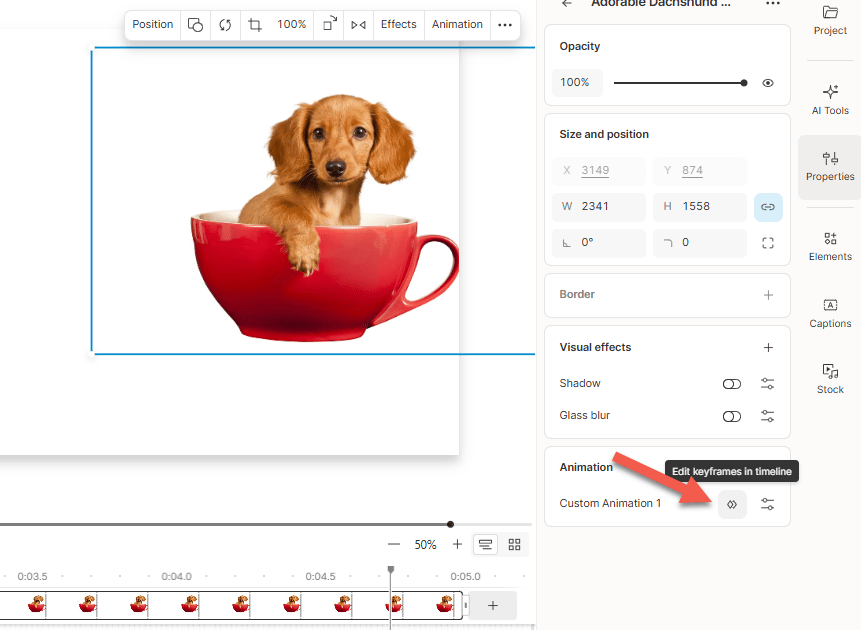
Add an animation to a layer
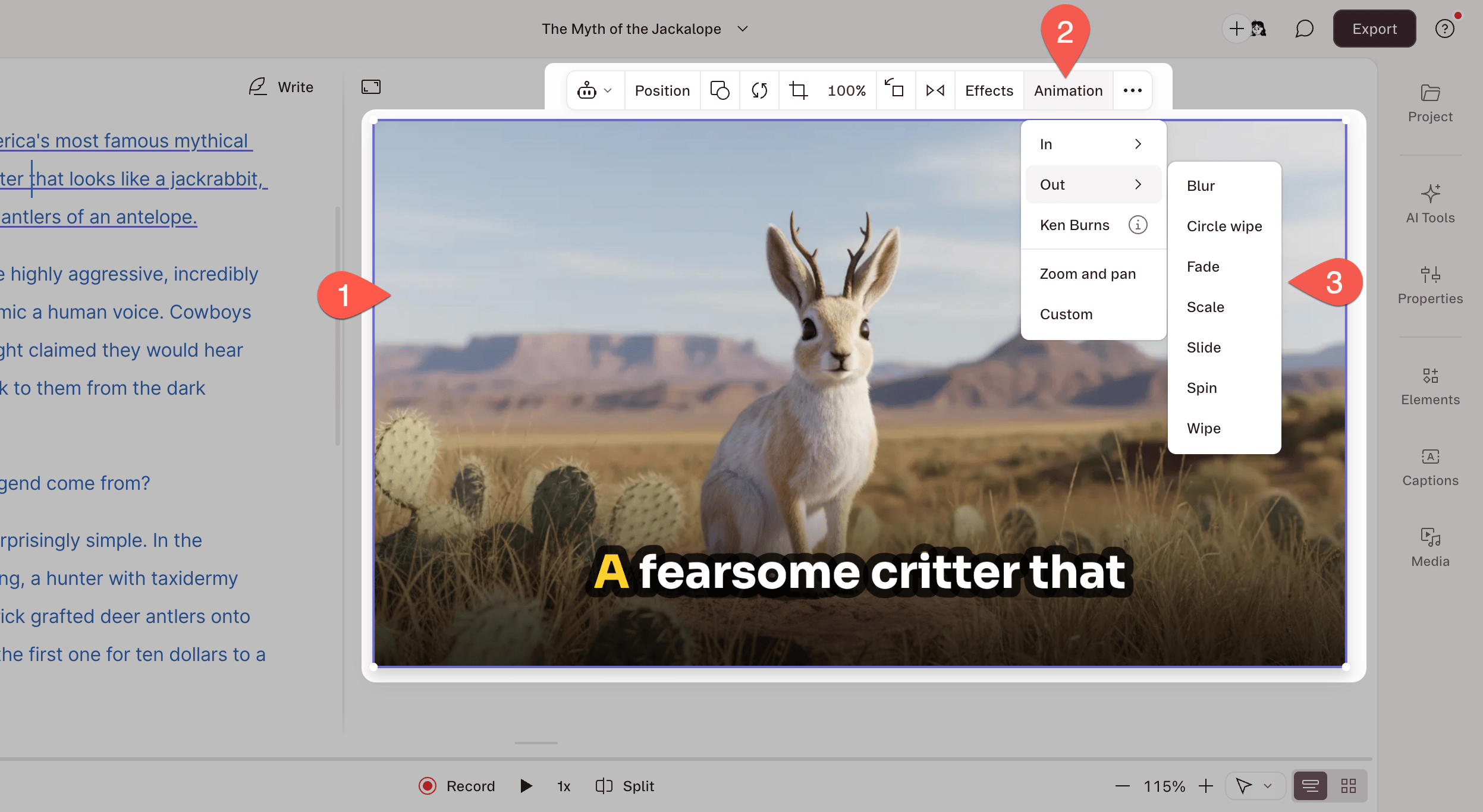
- Select the visual layer in the Scene Editor.
- In the hover menu, click Animation.
- Choose a preset from the dropdown, or select Custom.
Remove an animation
- Select the animated layer in the Scene Editor.
- Click Animation in the hover menu.
- Open the options menu for the animation.
- Select Remove.
Available animation presets
Choose from the following in/out presets for a visual layer:Custom keyframe animations
While most use cases can be handled via scene transitions, a custom animation allows for more granular control of how a visual element appears, moves, or changes. Define the start and end using keyframes, then adjust properties like position, size, and opacity.Add and adjust a custom keyframe animation
- Select a visual in the Scene Editor.
- Click Animation, then select Custom.
- Your animation appears in the timeline with two keyframes.
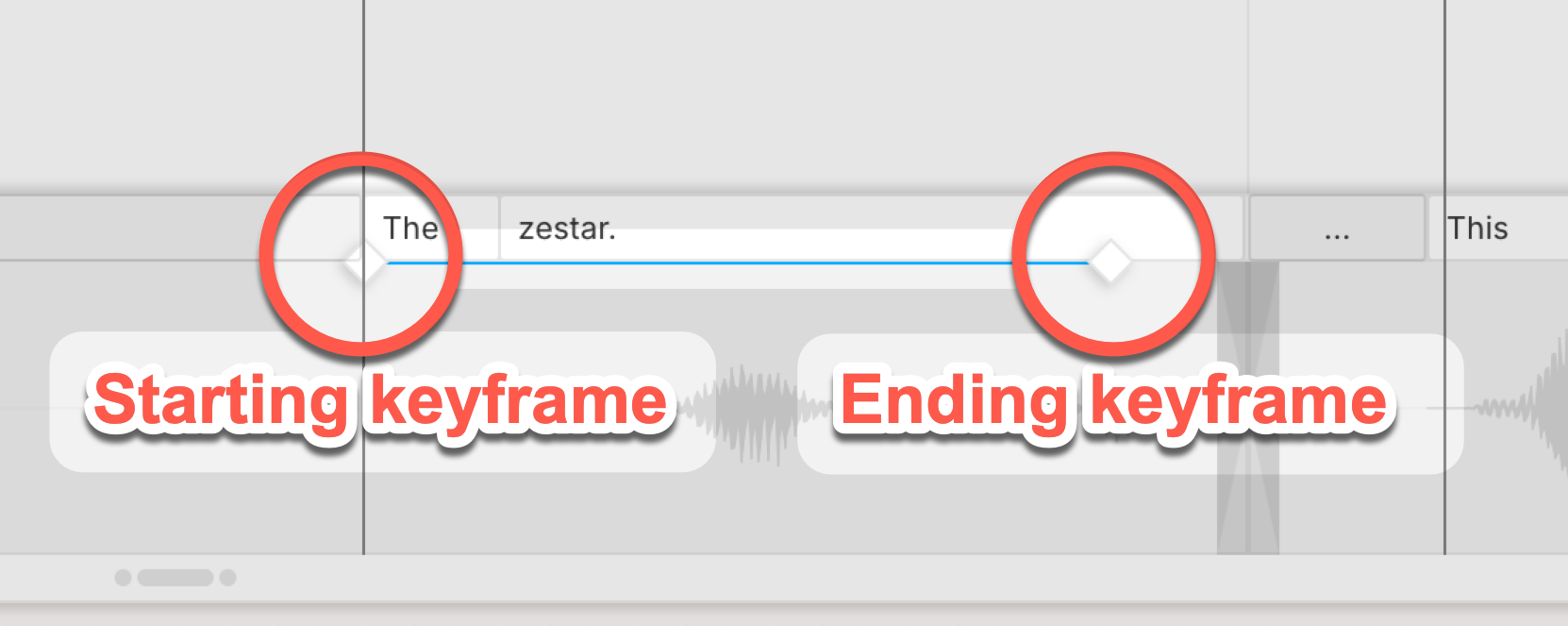
- Select the start keyframe and adjust position, size, rotation, cropping, or opacity.
- Repeat for the end keyframe.
- Press
Escto exit animation mode.