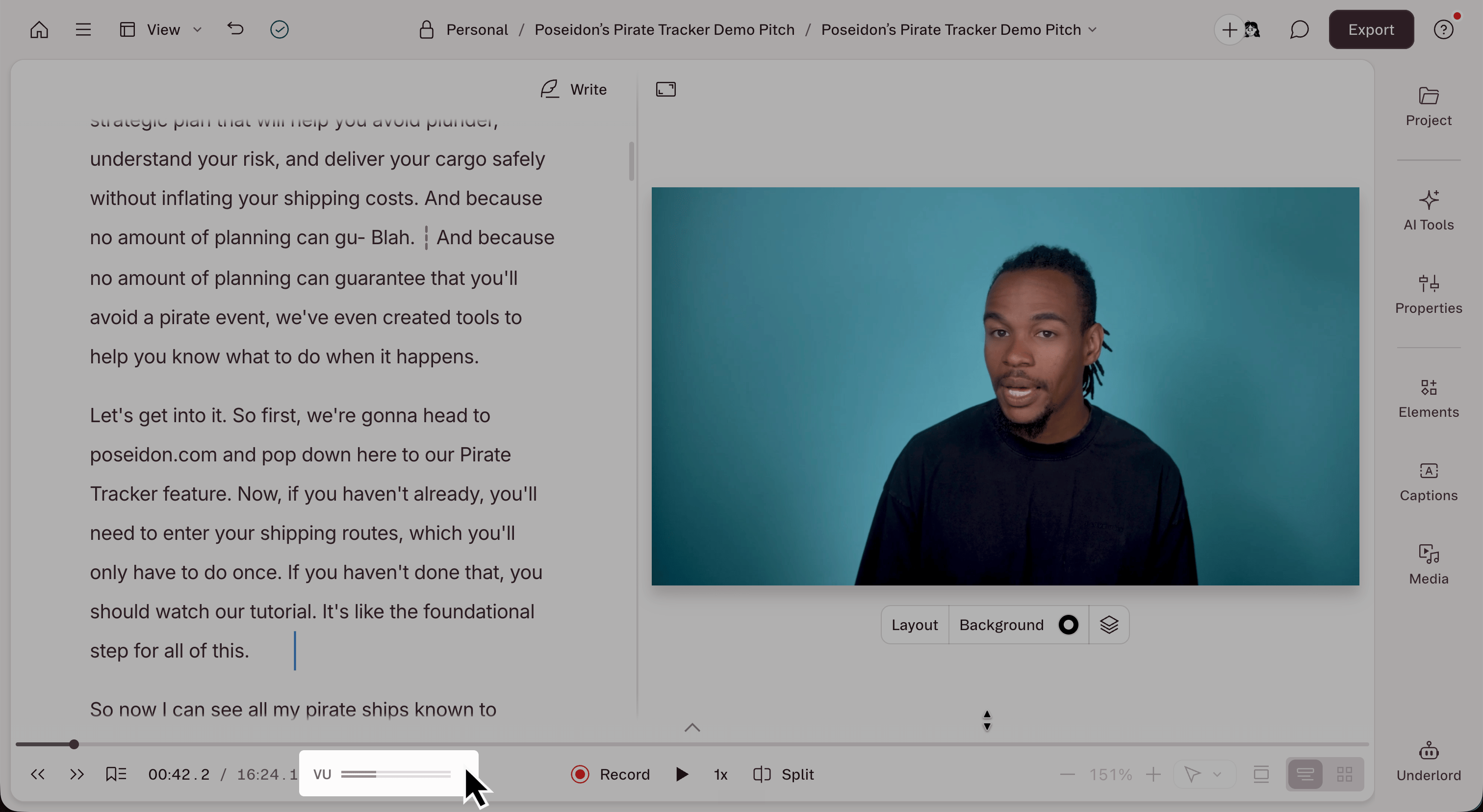
Monitor Audio Levels with VU Meter
The meter has decibel scale from -30 to 0 dB and will display audio levels during playback. The VU meter will only show levels of active audio layers or clips. For example, if you solo an audio layer, you can monitor the level of the individual layer. Your audio levels will turn yellow or red if your audio approaches or begins to clip.Balancing audio levels for clear playback
Here are a few quick tips for balancing audio:- Record at proper input levels.
- Adjust individual layer volumes.
- Pan layers and tracks.
- Use auto-level clip or enable automatic volume leveling in your project settings.
- Apply volume automation.
Toggle viewing the VU meter
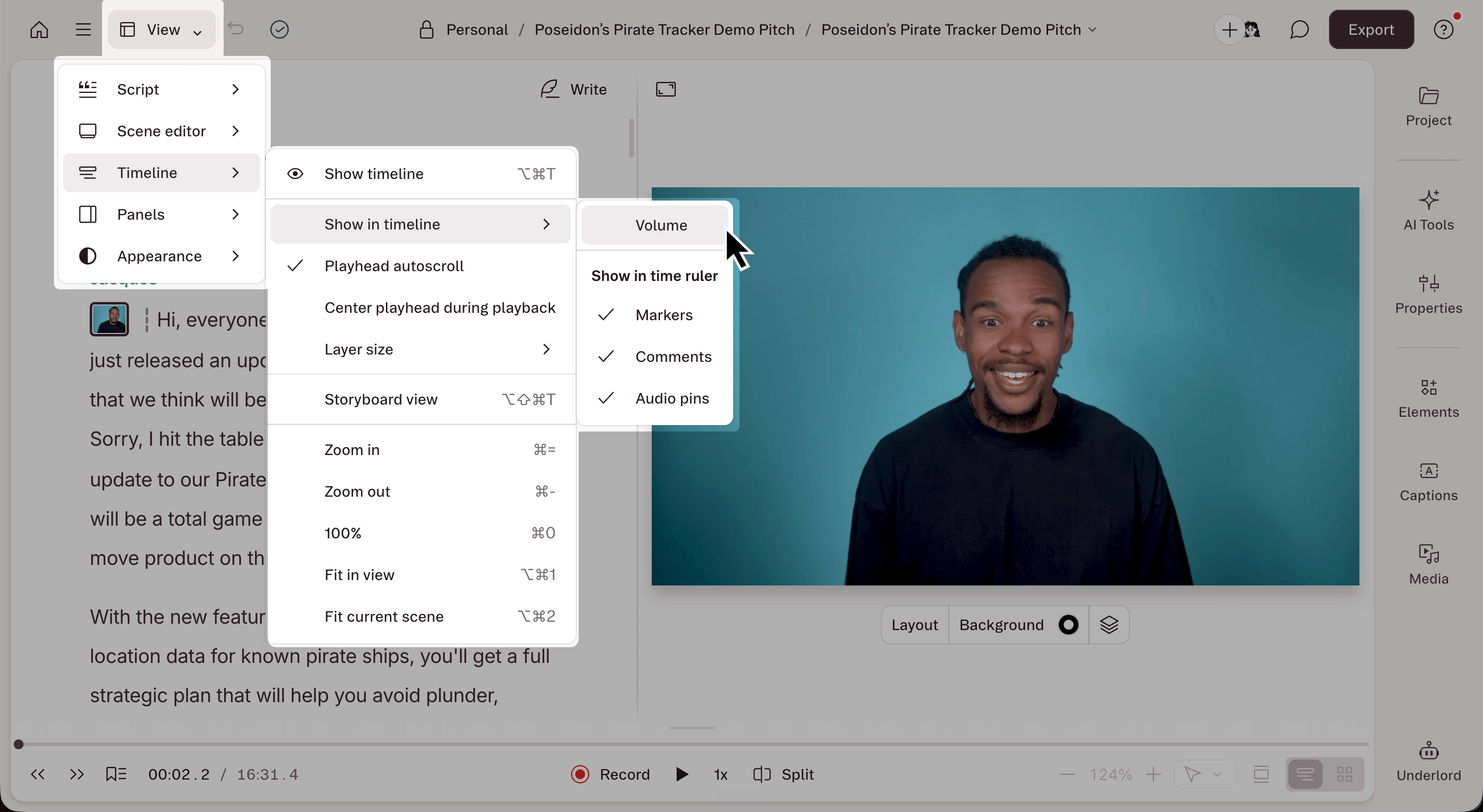
Show or hide the VU meter in the Timeline by opening the View menu in the top left corner, then select Timeline > Show in timeline > Volume, or pressCommand + Option + U (macOS) or Control + Alt + U (Windows).