

Adjust audio across your whole compositionTo set volume or panning for all audio in your composition, click the composition title at the top of the Script editor.
Learn more about composition audio properties.
Learn more about composition audio properties.
Adjust volume for script tracks and layers
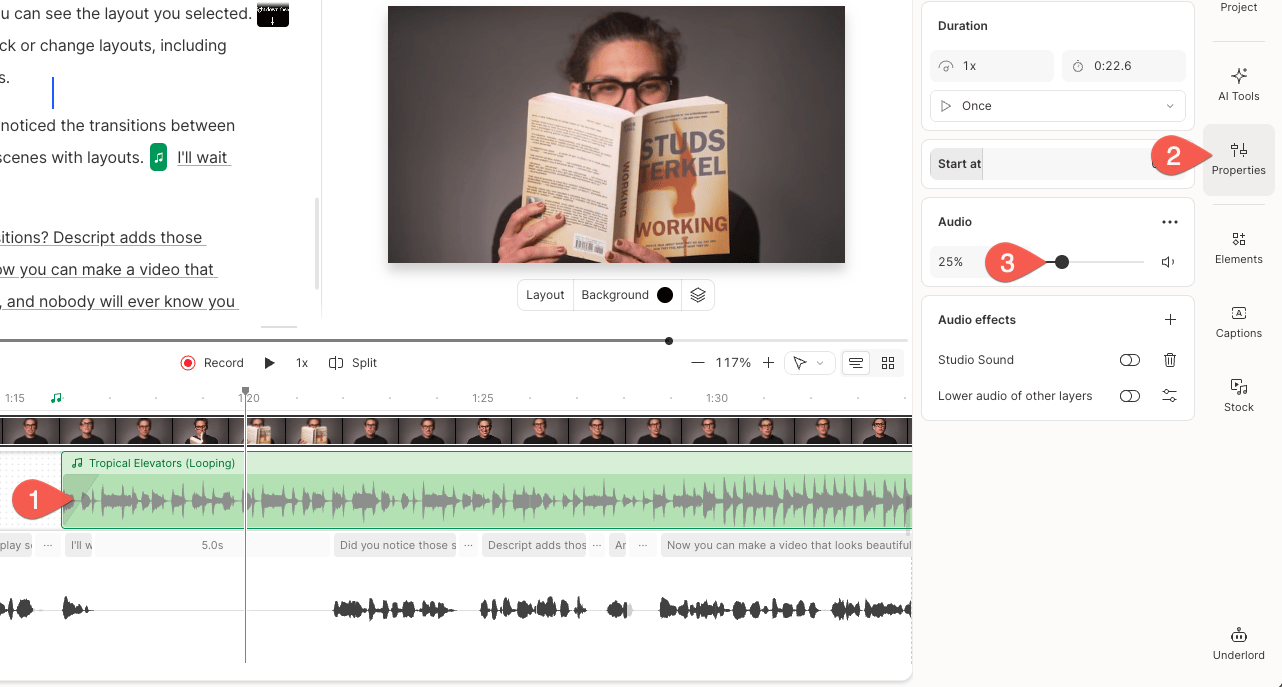
- Select part of the script, or click a script track, audio layer, or video layer in the Timeline.
- In the right-hand sidebar, locate the Audio slider in the Properties panel.
- Adjust the volume using the slider or enter a specific value in the volume field.
Mute a clip or selection
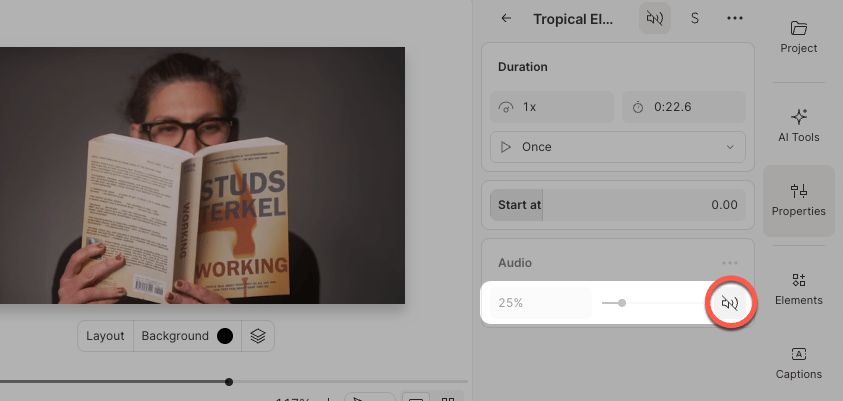
To mute your selection, click the
Pan audio left or right
- Select part of your script, or choose an audio or video layer in the Timeline.
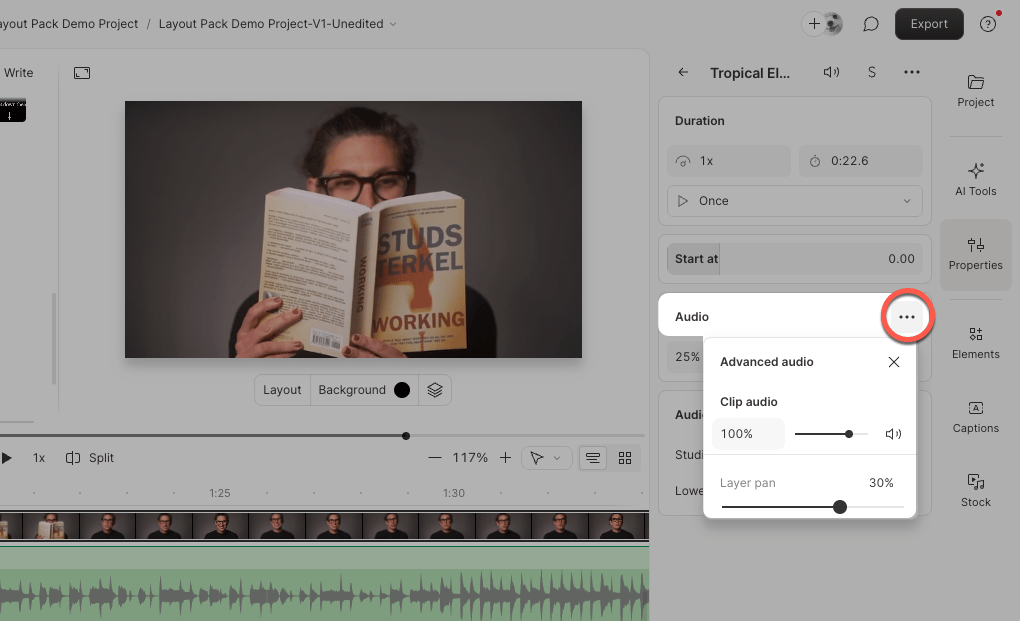
- In the Properties panel, click the

- Use the slider to pan audio left or right, or enter a pan value manually.
Adjust volume and panning in sequences
You can adjust volume and panning for individual tracks inside a sequence using the Sequence editor.- Select a sequence in the Timeline.
- Press
Shift + Command + O(Mac) orShift + Ctrl + O(Windows) to open the Sequence editor. - Select the track you want to adjust, then use the Properties panel to modify volume or pan settings.