

Add a text animation
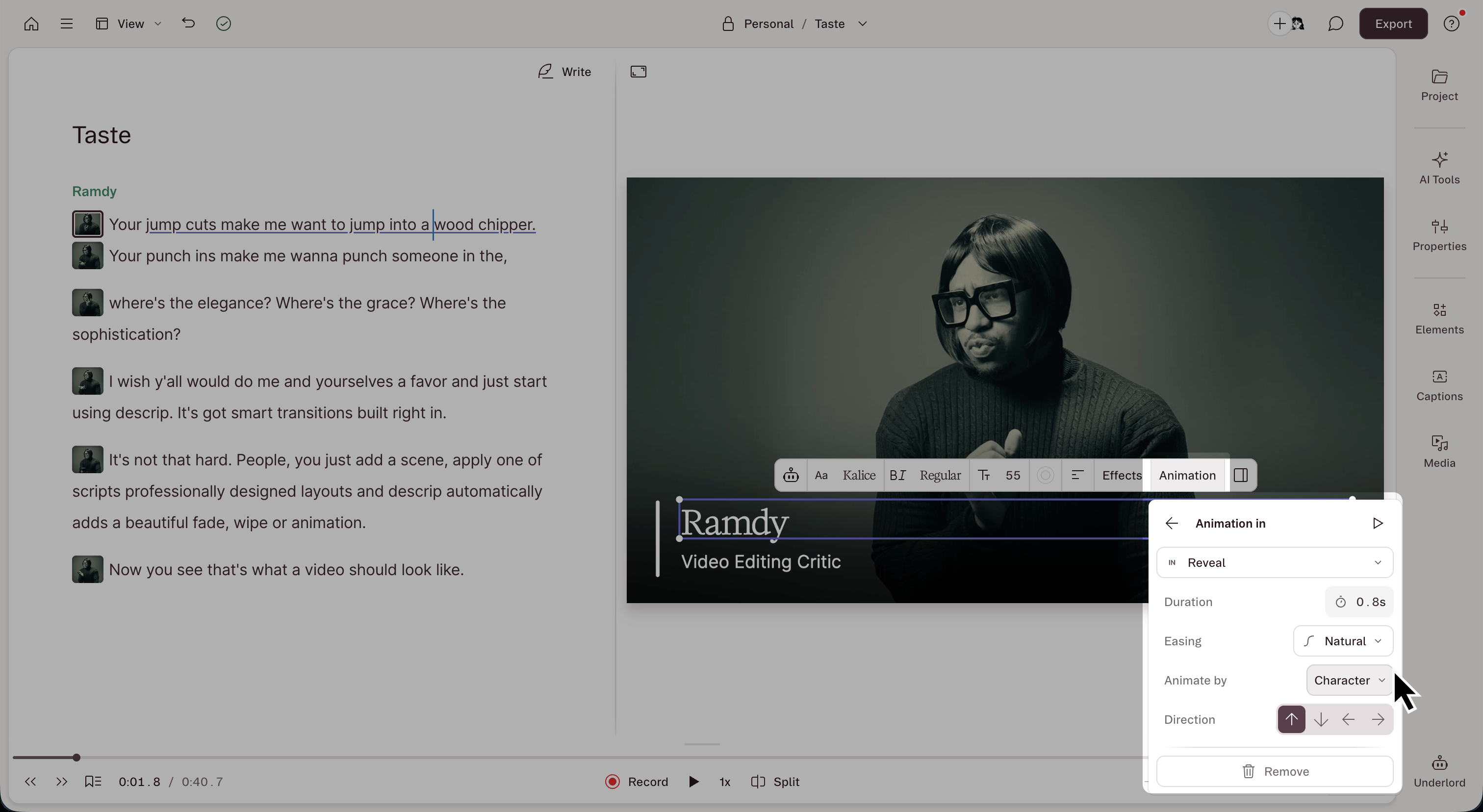
- Select a caption or text layer in the Scene Editor.
- Click the Animation button in the scene editor menu that appears.
- Choose In (as the layer arrives), Out (as the layer leaves), or Custom.
- For In and Out animations, select a preset, then adjust the available parameters.
Available text animations
Text and caption layers use the same in/out presets shared with visual layers: Blur, Fade, Scale, Slide, Spin, and Wipe plus text-only animations that move the text itself: Appear, Reveal, Pop, Bounce, Pulse, Glitch, Flicker, Wave, and Wiggle.Animate by word, line, or paragraph
Apply text animations to different units of text.- By character: each letter animates separately. Only available for text layers, not captions.
- By word: each word animates separately
- By line: each line animates as a unit
- By paragraph: the whole block animates together