

Adjust share page settings
You can update most settings directly on the share page. The one exception: changing resolution requires a full re-export. Select the Settings icon (gear) in the top right of the share page to open the settings panel.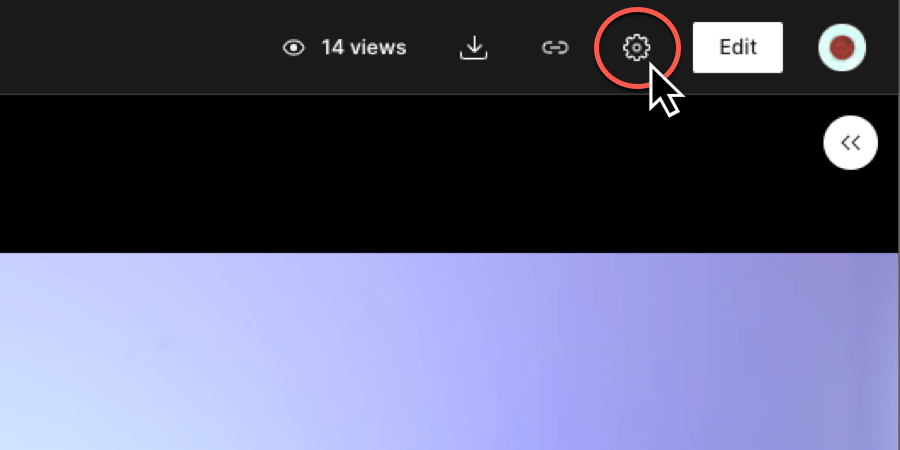
Drive owners can change the default privacy settingDrive owners can change the default publish privacy setting in their Drive settings.
Unpublish the page
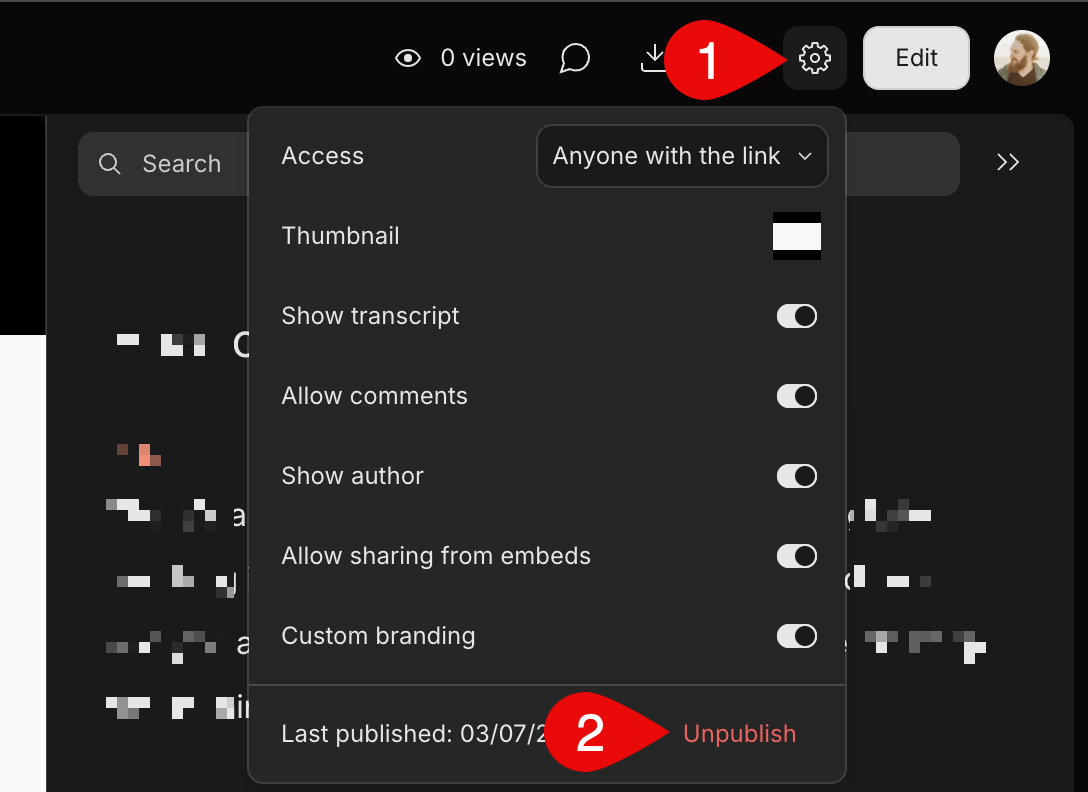
Note, comments won’t be saved after unpublishing. Any comments added directly on the share page won’t be saved after you unpublish.- Open the share page.
- Click the Settings icon (gear) in the top right.
- Click Unpublish at the bottom of the menu.\
Download your content
Downloading from a published share page is up to 10x faster than exporting locally. Click Download at the top of the share page. You can also access this from the Publish panel in Descript. Learn more about downloading a published page.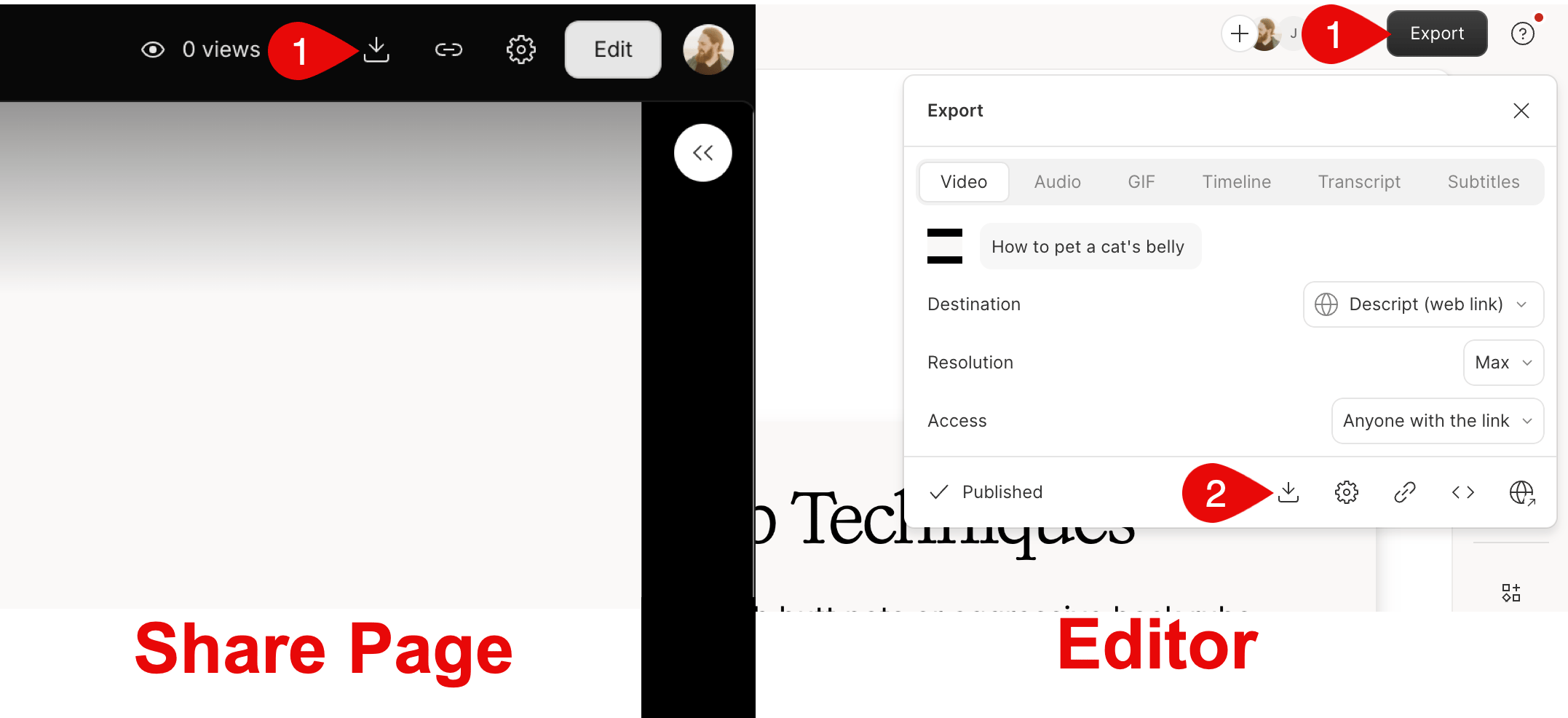
How to copy a link or embed code
From the Descript editor: Click Export, then click the paperclip icon to Copy link.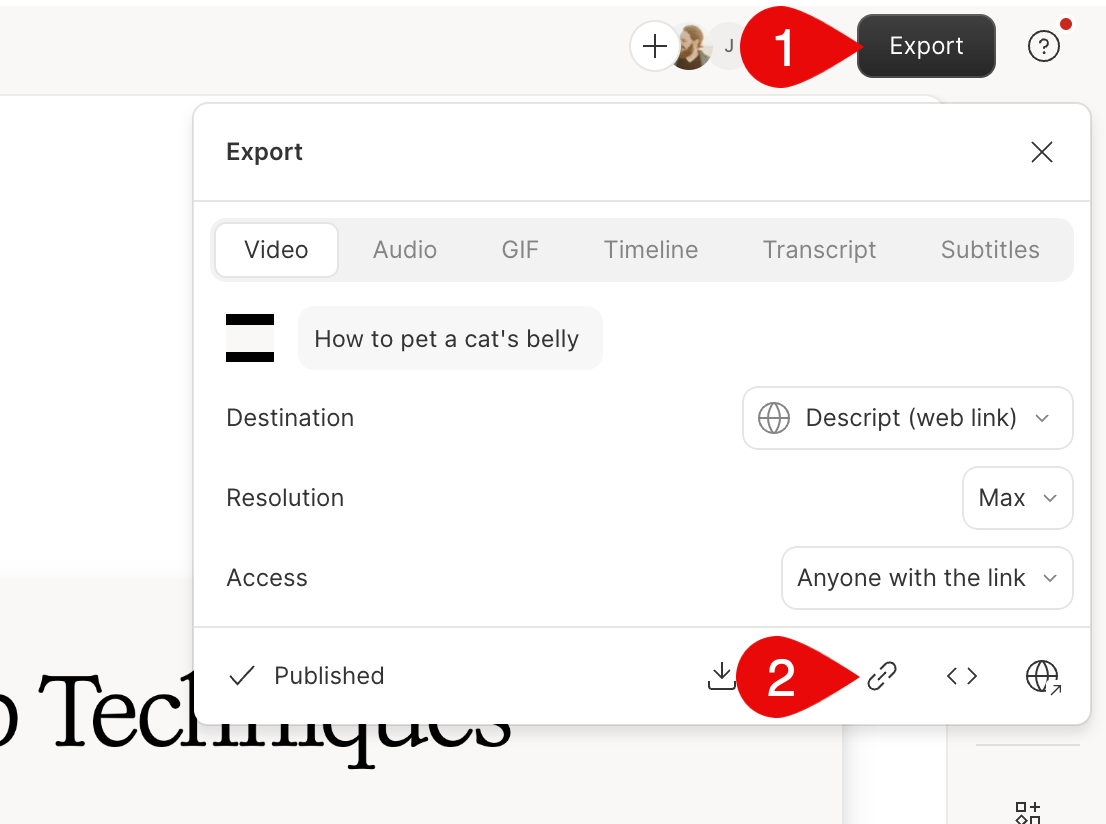
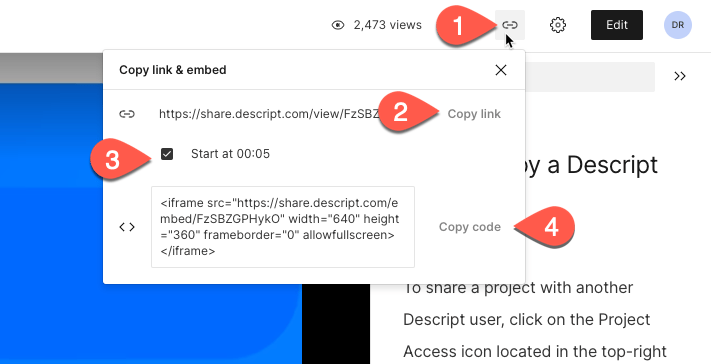
- Click the link icon at the top of the share page.
- Click Copy link to copy the URL to your clipboard.
View embedded videos with access controls
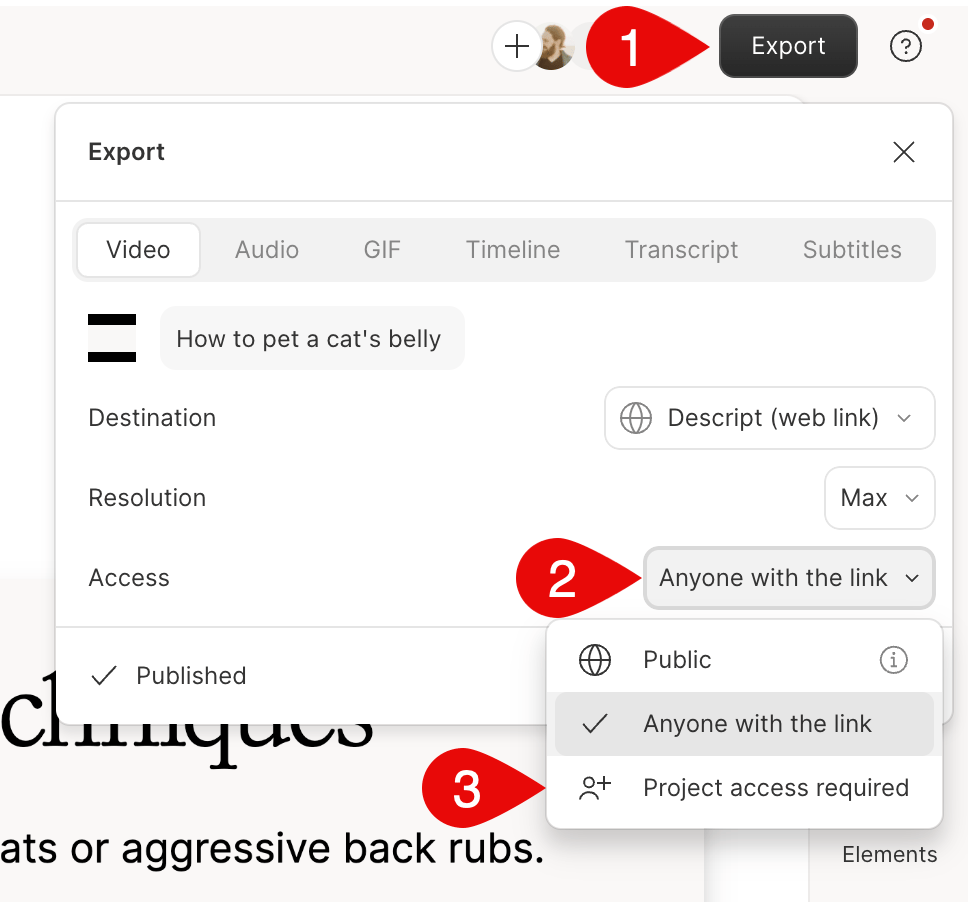
If you’ve set access to Project Access Required or Drive Access Required (enterprise plans only), viewers will need to log in to watch the video. The login experience varies by platform:- In a web app using Chrome: Viewers are prompted to log in directly on the page — no redirect needed.
- On other platforms (like Slack): Viewers are redirected to Descript’s login page. Once logged in, they can view the video.
Track page views
If you created the share page, you can see the total view count in the Page views icon in the top right corner of the page.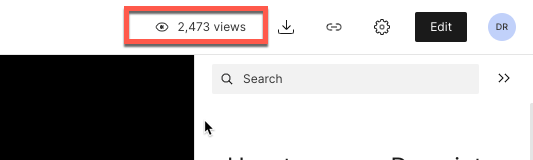
Comment on a share page
Comments on the share page are separate from comments inside a composition.- Click the spot in the video or audio where you want to comment. Or, if Show transcript is enabled, highlight a section of the transcript.
- Click Show comments on the page.
- Click Add a comment.
- Type your comment and click Send.
Shift + Cmd + M (Mac) or Shift + Ctrl + M (Windows) to add a comment at the current playhead position or at a highlighted transcript region.
Open the project from the share page
If you have access to the project, click Edit at the top of the share page to open it in Descript.Not seeing the Edit button?Make sure you’re signed in. Click the ⋮ menu in the top right and select Sign in.