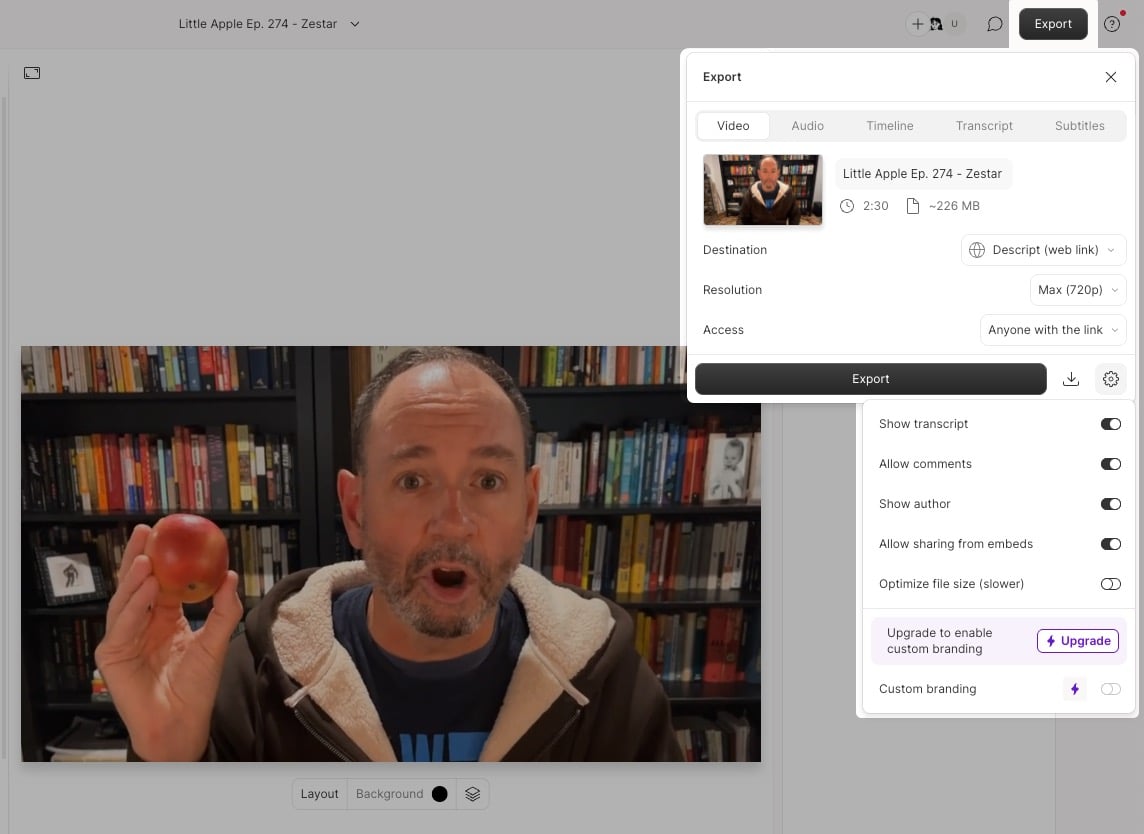
Plan limitsYour plan determines the maximum length of videos you can export to a web link. Videos exceeding this limit will be converted to audio-only. Check your plan’s details on our pricing page.If you’re on a legacy plan, see the limits in our Understanding your Legacy Plan guide.
Export to Descript (web link)
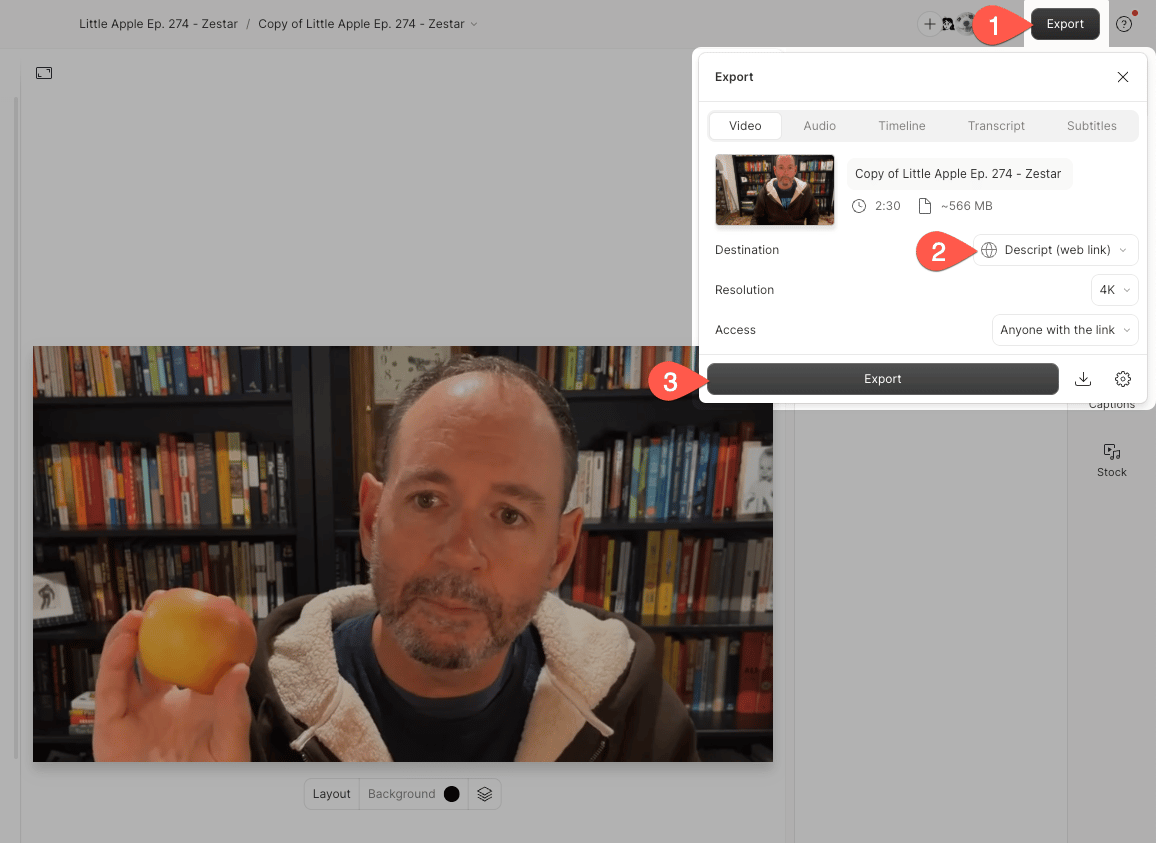
- Click the Export button at the top-right corner of the editor.
- Select Descript (web link) as the export destination.
- Click Export to publish to your web link.
Update your web link / share page
You can update your content while maintaining the original URL. Follow the same steps as exporting — you’ll see an Update button instead of Export. If you’ve made edits since your last web link export, you must click Update to publish these changes to your share.descript.com URL. Without updating, both downloads and the web link URL will display the previous version of your project.Comments will be removedUpdating or removing a share page permanently deletes all comments on that page (but not comments in the Descript editor). Project comments are private to collaborators, while share page comments appear publicly on content exported with Descript (web link). Learn more about commenting directly in projects.
Download your content from the share page
The Download button saves the version of your project from the last time it was exported to a web link. If you’ve made any changes since then, you’ll need to update first to sync the changes to your share page, and then download. If you use the download button without updating, you’ll be saving a previous version of your project to your device.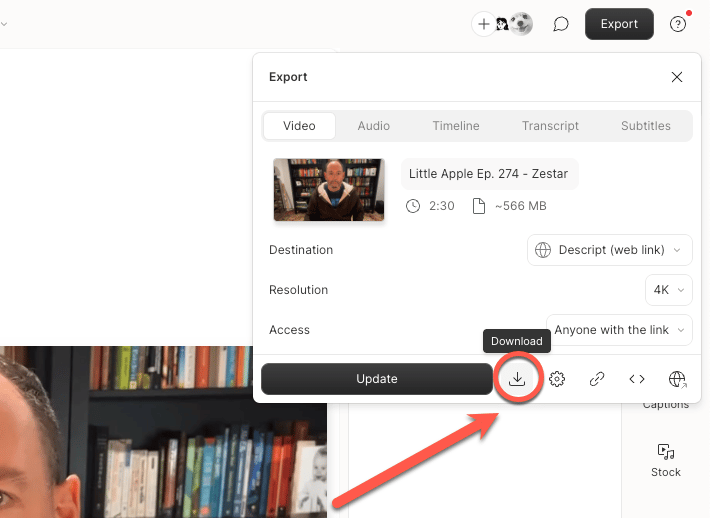
Need the latest version without updating?Use a local export to save your current composition to your device without updating the web link. See our Export a video or GIF locally guide for those steps.
Remove a share page
To unpublish a page, click the gear icon in the Export menu, then select Unpublish.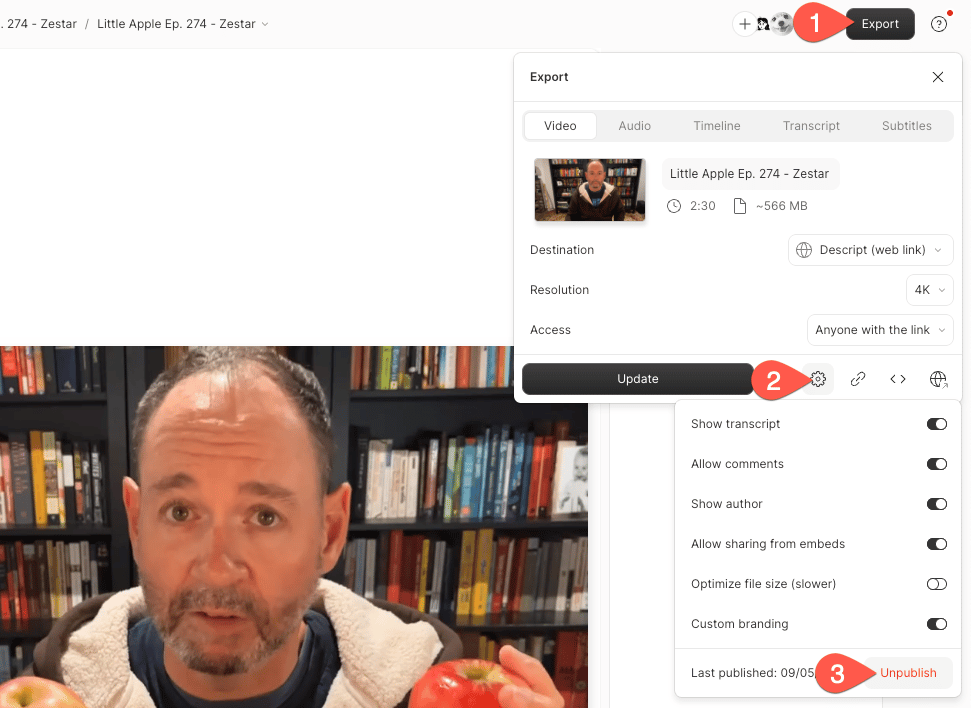
Export settings and permissions