

Are you only seeing audio export options? Be sure to check that you are not working in an audio-only composition if you want to export video.
Export video (MP4)
- In the editor, click Export in the upper-right corner.
- Select the Video tab.
- Choose Local export as the destination.
- Adjust your export settings (see Export settings below).
- Click Export.
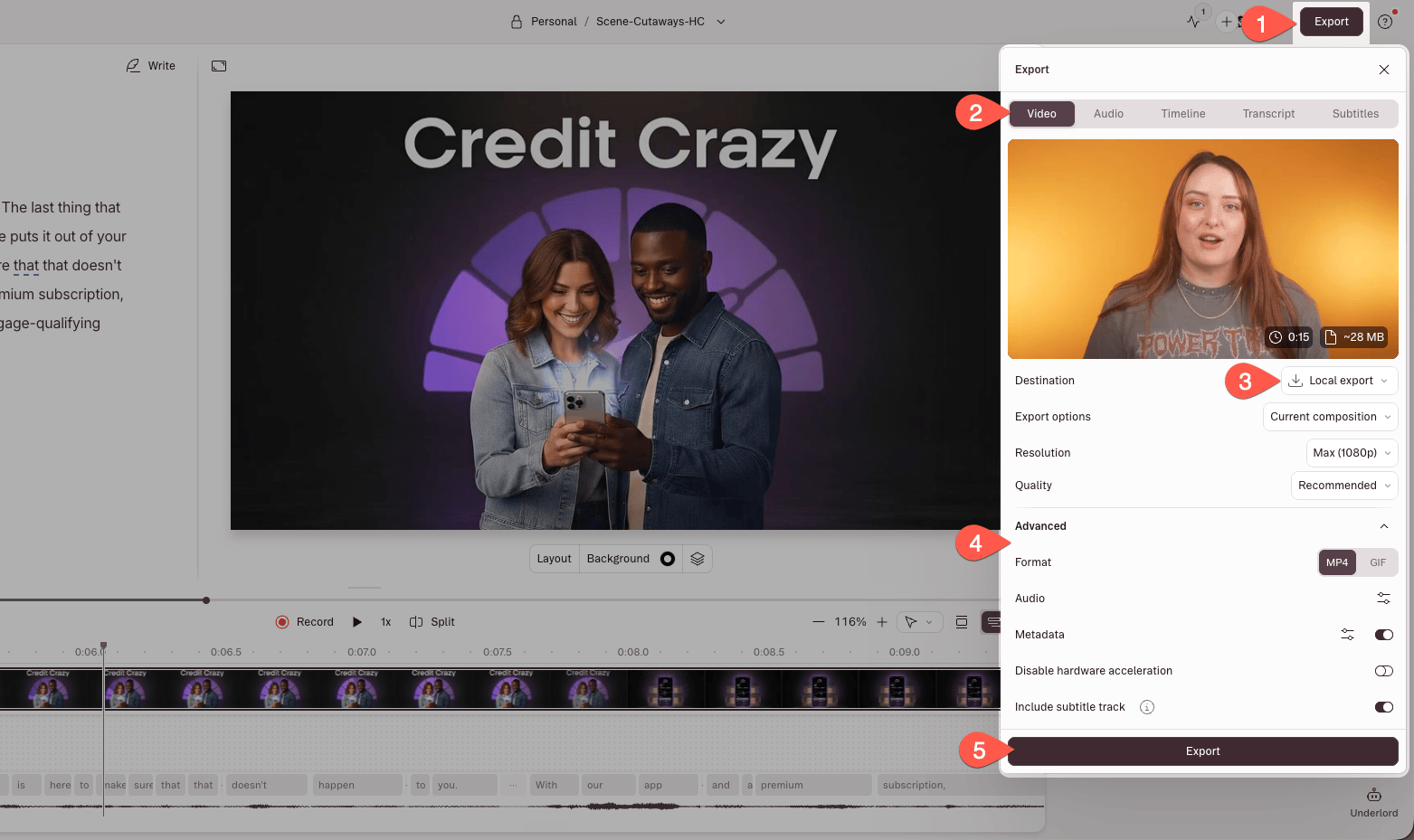
Export panel with Local Export options, including an option for the GIF format
Export a GIF
Previously, exporting GIFs was its own tab in the export panel. Now you’ll find GIF export as a Format option under Local Export → Video.Export settings
When exporting video or GIFs, you can configure the following settings. Some options are format-specific.Video watermark
Exports from a Free drive will include a Descript watermark in the bottom-right corner. Upgrading to a paid Hobbyist, Creator, or Business plan removes the watermark from all future exports. Existing exports must be republished or exported again after upgrading.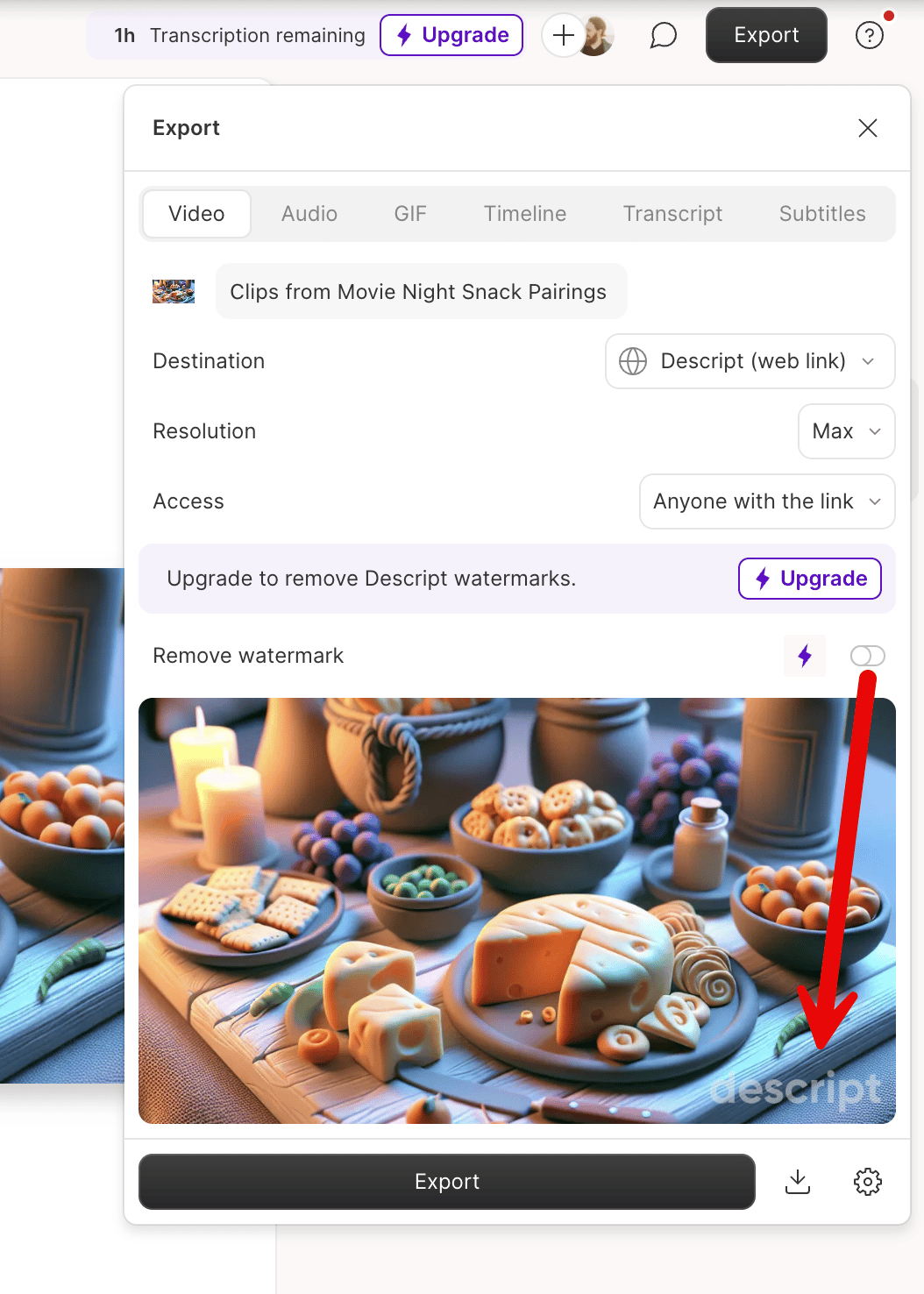
Watermark placement on exports from Free drives