Duplicate a project
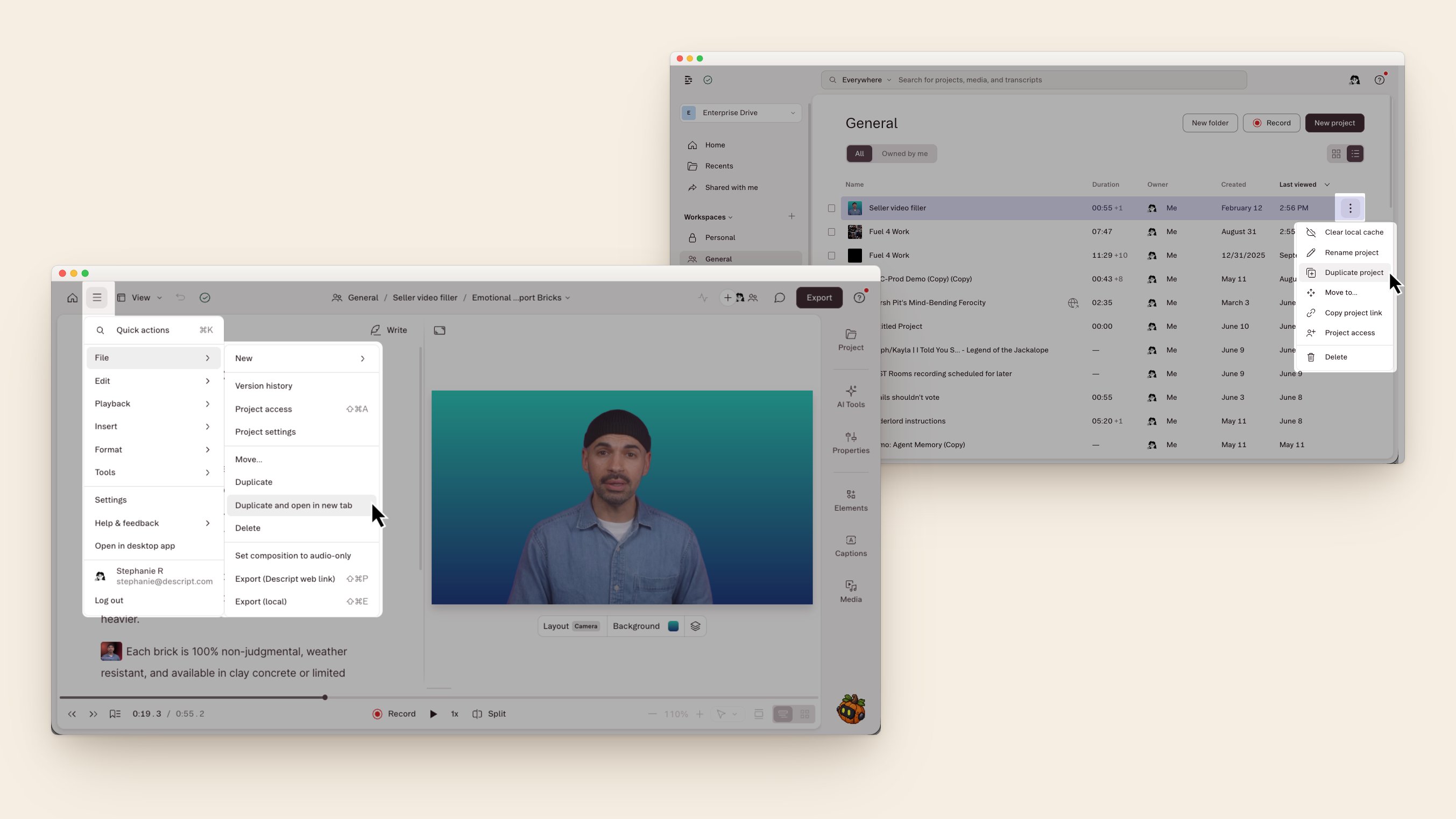
Duplicating a project makes a full copy of the entire project, including all compositions, files, and sequences. A new project will be created in your Drive with the same name, followed by “(Copy).” You can rename it at any time. Duplicate a project from either the Drive view or within the Descript editor:- From the Drive view, click the ellipsis (…) next to the project name and select Duplicate project from the available menu options.
- From within the editor, open the menu in the top-left corner and select File > Duplicate to create a copy and stay on the original project. To open the copy immediately in a new tab, select File > Duplicate and Open in New Tab instead.
Duplicate a composition
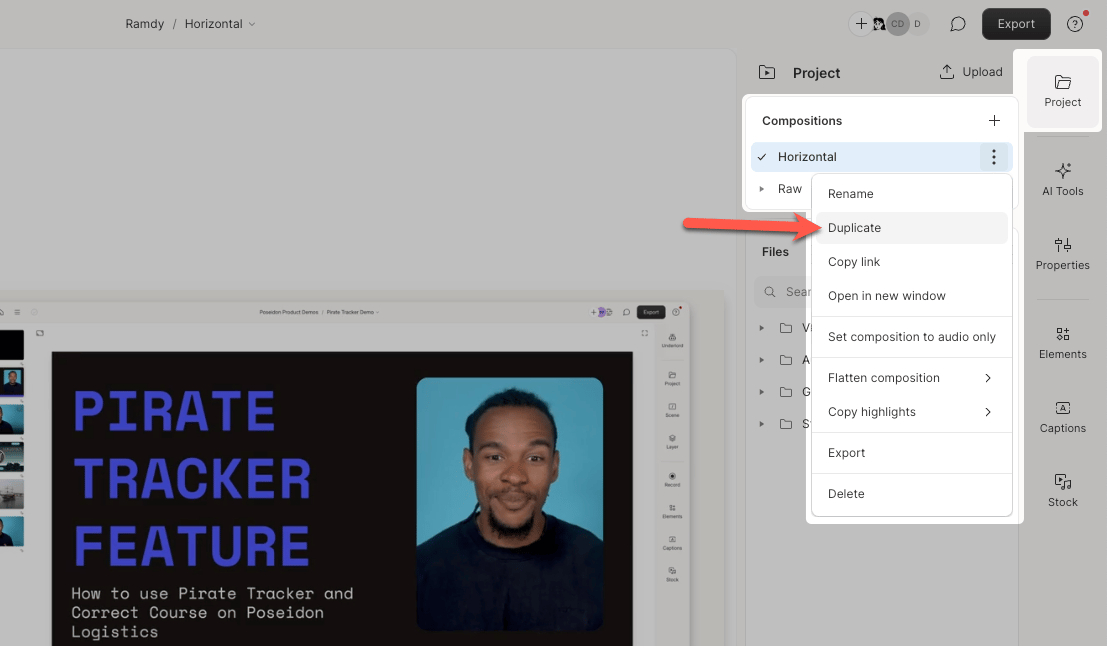
To copy a composition in the same project:- Open the Project panel and locate the Compositions section.
- Click the ellipsis (…) next to the composition name.
- Select Duplicate.
Copy a composition into another project
To create a new project from a composition:- Open the source project and view the composition you want to copy.
- Open the destination project in a second Descript window or tab, or create a new project.
- Select all or part of the script text from the source, right-click, and choose Copy.
- In the destination project, right-click in the script and choose Paste.
Duplicate a selection to another composition
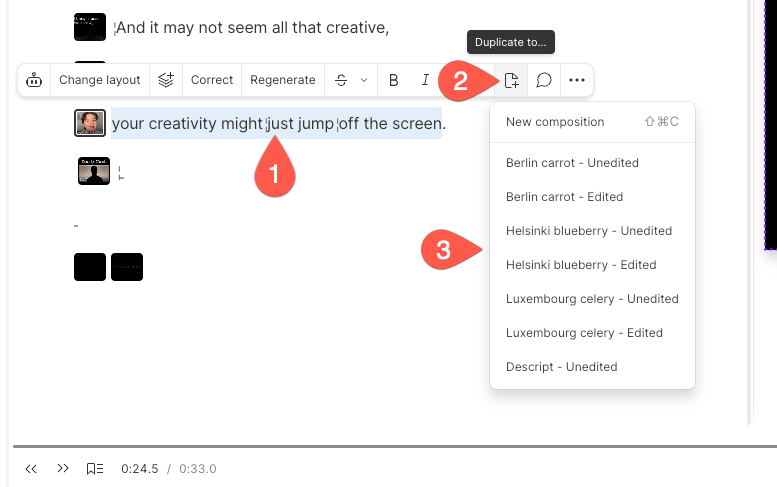
To copy a section of a composition to another composition:- Highlight the text you want to copy in the script. Any linked media will also be copied.
- Click the Duplicate to… icon (page with a plus sign) in the hover menu.
- Choose the composition where you want the selection added. You’ll see a confirmation message when it’s copied.
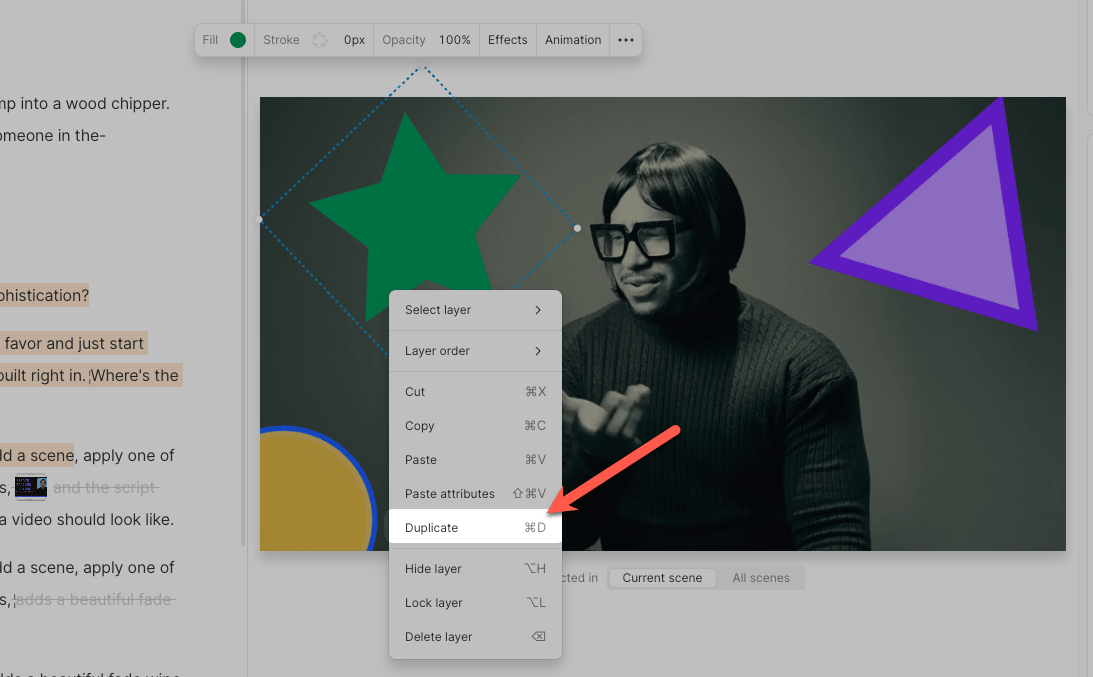
Duplicate layers in the scene editor
To duplicate a visual or audio layer:- Right-click the layer in the scene editor
- Select Duplicate from the available options in the dropdown menu