

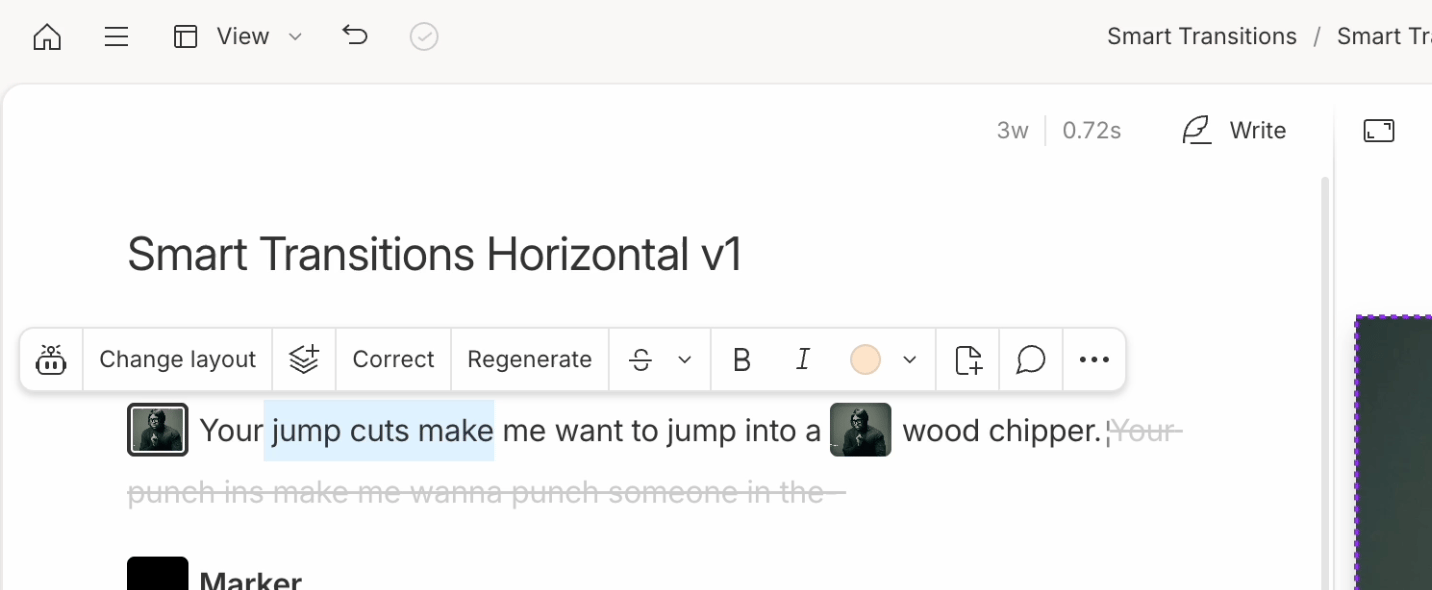
- Ask Underlord — start a conversation with Underlord, Descript’s AI co-editor.
- Change layout — opens the layout picker. If a layout is selected, applies the layout to the selection and creates a new scene
- Add layer — Add new layers right in the Script Editor—like imported files, stock media, text, captions, shapes, or recordings.
- Add scene — Opens the layout picker so you can quickly apply a layout to a scene.
- Correct— This will allow you to correct the text of your script without affecting the audio.
- Regenerate — Make a correction or smooth out an edit with Regenerate.
- Edit your script — choose to ignore your selection (disabled for AI speech),delete it,replace with a gap clip, or just correct the transcript without editing the underlying script audio or video..
- Make your text selection bold or italic.
- Highlight— Highlight sections in your script in different colors. You can then use Copy highlights to aggregate your highlighted sections in a new composition.
- Duplicate to… — Quickly copy selections to a new or other compositions in your project.
- Add comments — Communicate and collaborate with your teammates by leaving comments and reminders in your script.
- Ellipsis — Display the right-click menu for your selection.