

Some shortcuts only work in specific modesSingle-letter keyboard shortcuts will only be available when working in the Script Editor while not using Write Mode or Correct Mode.
Access the keyboard shortcut list in Descript
To view all available shortcuts in the app:- Press
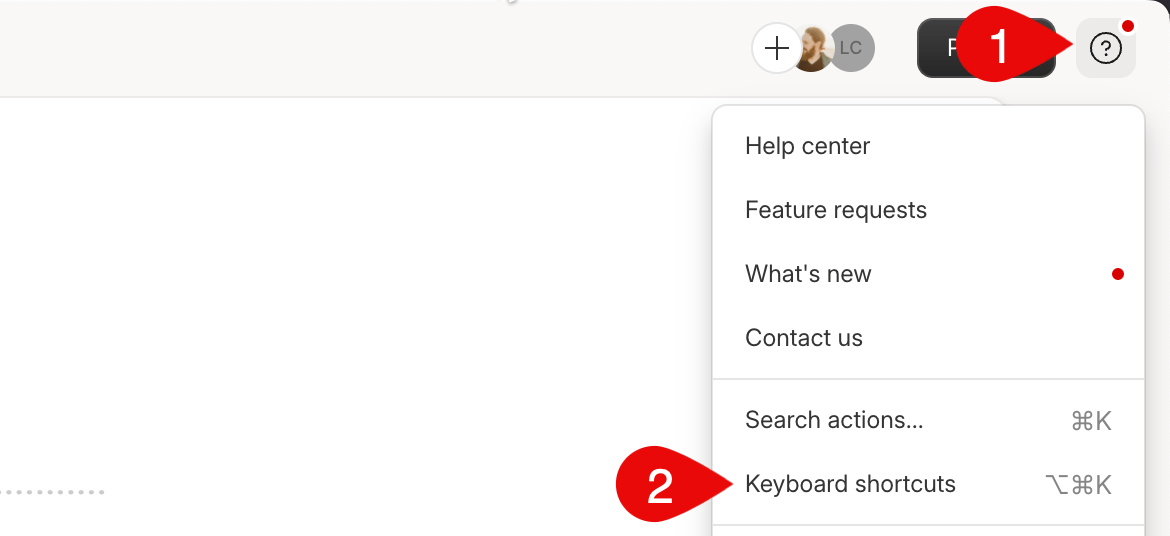
Option + /(Mac), orCtrl + /(Windows) - Or click the Help icon in the upper-right corner of your Descript window, then select Keyboard Shortcuts
Screen Recorder
This section includes shortcuts for starting and stopping the Screen Recorder in the Descript desktop application. The default shortcut is Command/Ctrl + Shift + 2, but can be customized via your settings. Learn more about Descript’s Screen Recorder.Playback
This section includes shortcuts for controlling playback, setting markers, scrubbing through your project, and adjusting playback speed.Timeline
These shortcuts help you navigate and edit directly in the timeline — including tools for zooming, cutting clips, replacing content, and toggling the timeline view.Tools
The Tools section includes shortcuts for toggling text correction, punctuation, and capitalization, as well as searching for actions within the app.You can also use Correct mode - smake a selection in the transcript and click the Correct text icon (pencil) in the hover toolbar — or use the `Option
- C
(macOS) orAlt + C` (Windows) keyboard shortcut. Learn more about correcting your transcript.