

Write mode gives you a place to write your script in Descript before any audio exists. Start with placeholder text, then bring it to life later with AI Speakers or your own voice. Common uses include scripting videos before recording or writing custom content for text-to-speech. If you’re recording from a script, you can also use placeholder text while you record directly in Descript. Learn more about Descript’s teleprompter feature.

How to use Write mode

You can enter Write mode in a few different ways:
  • Start typing on a blank line in the Script editor—Write mode will turn on automatically.
  • Click the Write button at the top of the Script editor.
  • Press Command + E (macOS) or Control + E (Windows) to toggle Write mode on or off.
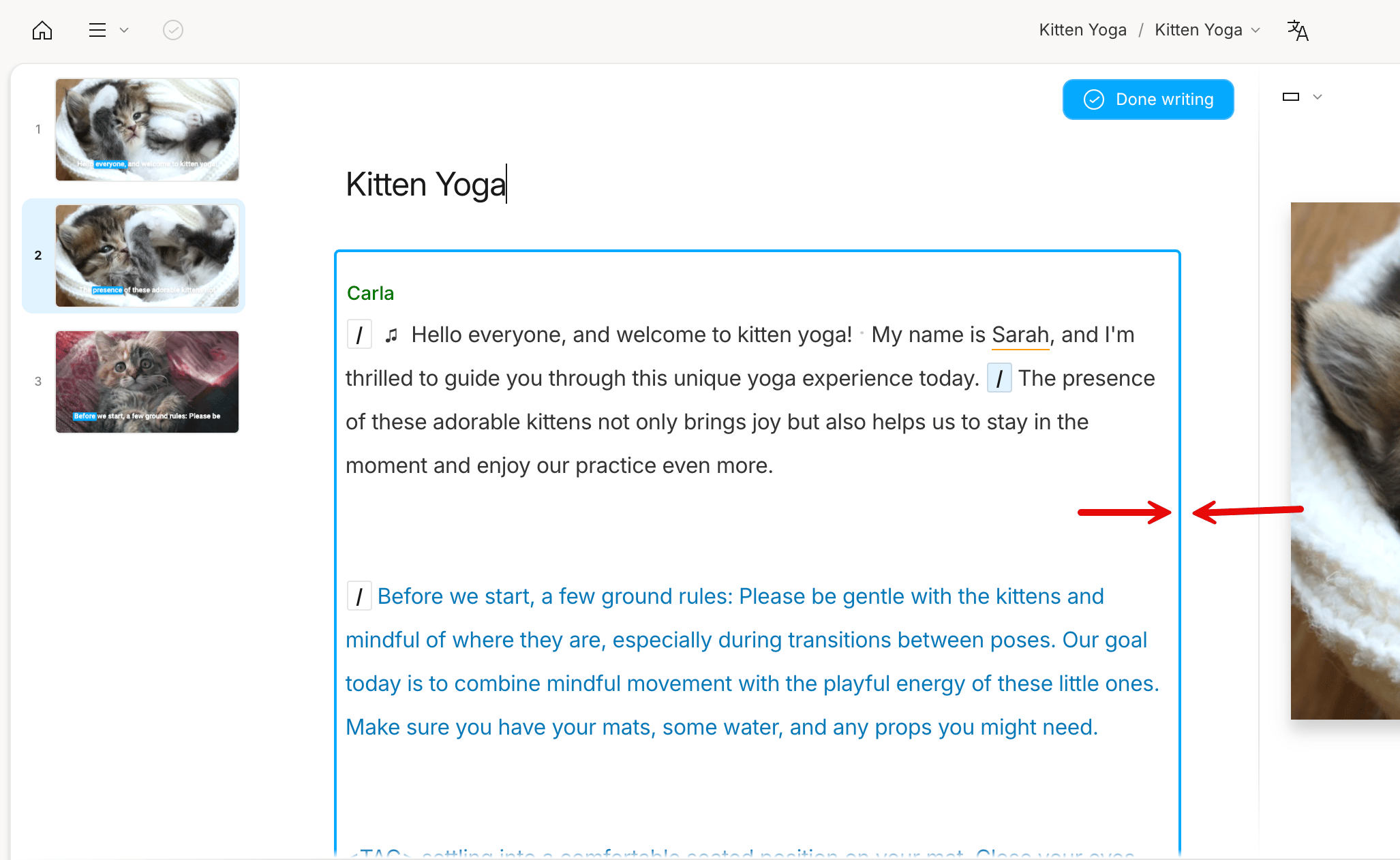
You’ll know Write mode is active when you see a blue border around the Script editor and a Done writing button at the top. Write mode enabled with a blue border around the script editor.

Write mode and keyboard shortcuts

While Write mode is enabled:
  • Use Command + S (macOS) or Control + S (Windows) to start and stop playback.
  • Single-letter keyboard shortcuts are temporarily disabled.
  • You can still use @ to assign a speaker label to the upcoming line of text.