

Why convert AI speech
AI voice clips behave differently from recorded audio. Until you convert, you can’t:- Adjust word boundaries
- Edit the clip directly in the timeline
- Apply trims, fades, or crossfades
- Get precise control over playback and alignment
Convert AI speech
You can convert AI speech from the script or from the timeline. Both produce the same result.From the script
- Select the AI speech text in your script.
- Click the ellipsis (…) icon in the hover menu.
- Select Convert to audio.
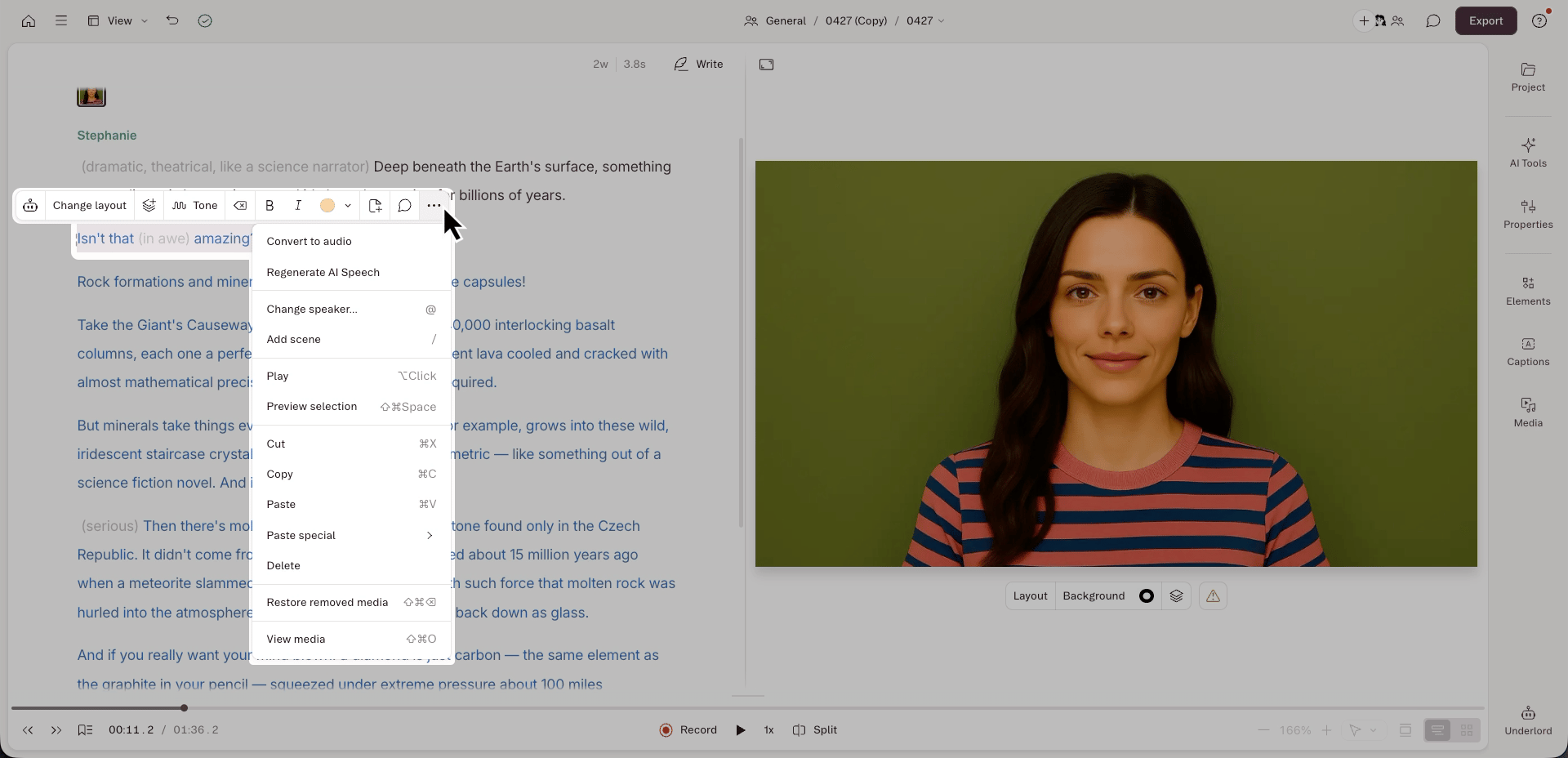
From the timeline
- Hover over the AI voice clip in the timeline.
- Click Convert to audio.
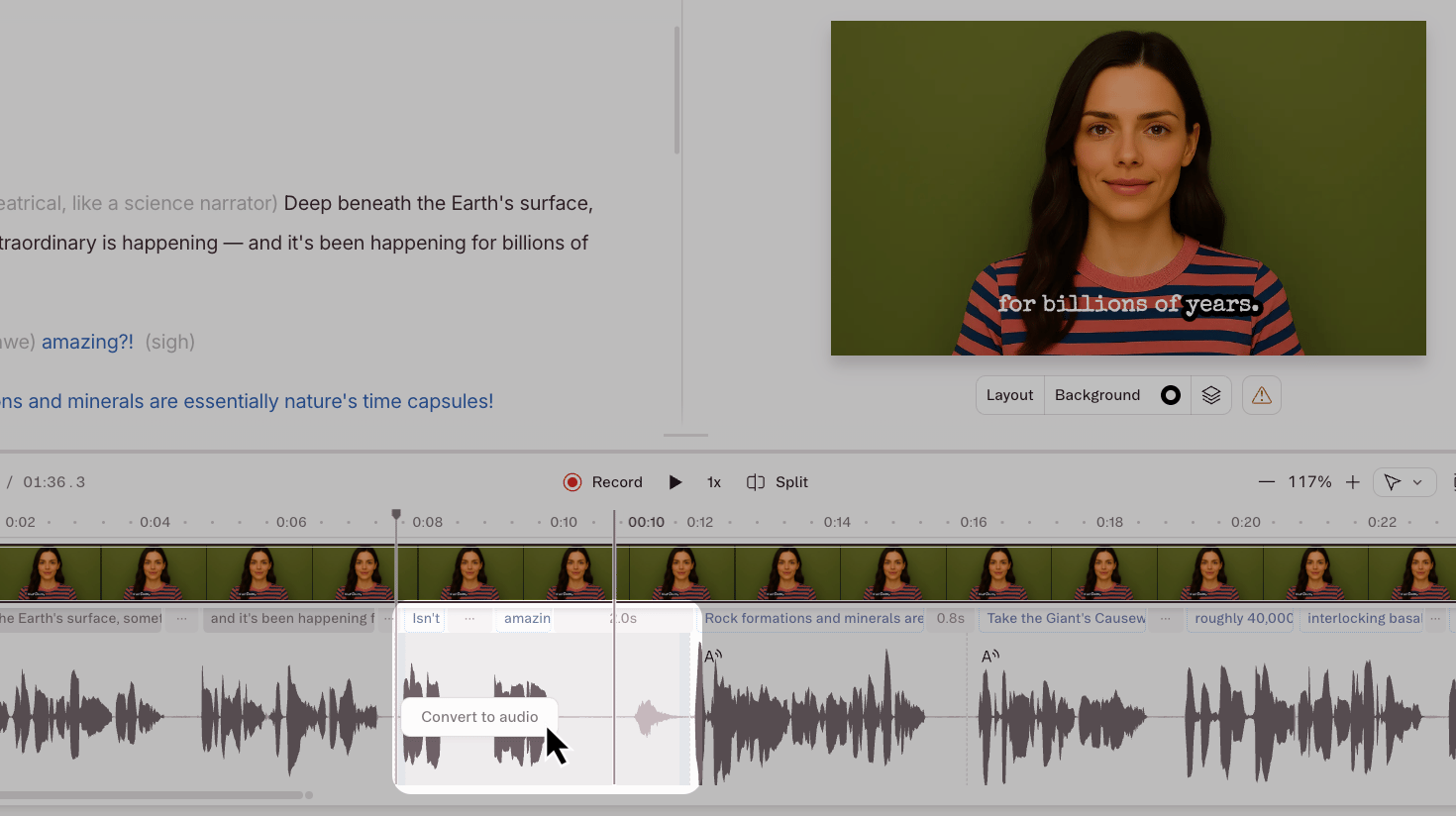
What changes after you convert
Once converted, the clip behaves like any other recorded audio layer. A few things to know:- The text stays in your script as a transcript of the converted audio. Editing it won’t change the audio — you’d need to delete the converted clip and generate new AI speech instead.
- AI Speaker controls disappear for the converted clip. You can’t change the voice, regenerate, or direct delivery with tone tags.
- Existing tone tags become regular inline notes. Any parenthesized tags in your script (like
(serious)or(sigh)) stop directing AI delivery and become plain text annotations. They’re safe to delete without affecting the converted audio.
FAQs
Can I undo the conversion?
Can I undo the conversion?
Yes, immediately after converting — use
Cmd + Z (Mac) or Ctrl + Z (Windows), or restore from version history. Once you’ve moved on, conversion is effectively permanent. To change what the voice says, delete the converted audio and generate new AI speech from the script.Can I convert just part of a paragraph?
Can I convert just part of a paragraph?
Yes. Select only the text you want to convert, then use the ellipsis menu to convert. The rest of the paragraph stays as AI speech.
Why can't I see the convert to audio option?
Why can't I see the convert to audio option?
The clip may already be a standard audio layer, or you may not have selected AI speech text. Confirm the text is highlighted and assigned to an AI Speaker before opening the hover menu.