Text-to-speech text colors and what to do
Light blue text
Text has been added to a composition, but no AI speaker has been assigned. You will also see this color text if an AI speech has been assigned, but write mode is currently enabled. What to do: Assign an AI speaker if needed or disable Write mode to generate speech.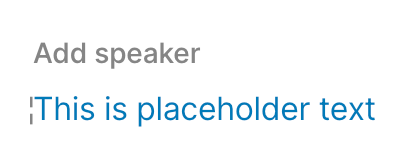
Pulsing dark blue text
AI speech is currently being generated and will appear soon. What to do: Wait for the generation process to complete.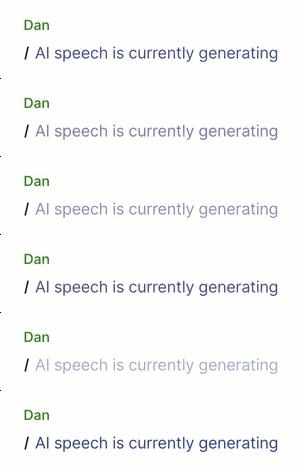
Dark blue text
AI speech has been generated, and Write mode is currently disabled; the AI speech has not yet been converted to audio. What to do: Enable Write mode or play the script to convert it to audio.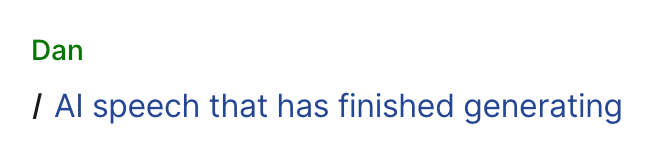
Black text
AI speech that has been converted to audio. What to do: No action needed.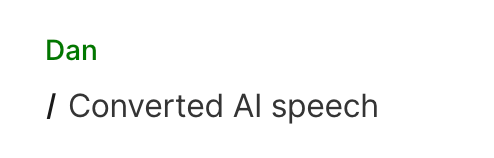
Black text with an orange dotted underline
AI speech has failed to generate, typically from a faulty internet connection interrupting the generation process. What to do: Ensure a stable internet connection and retry generating AI speech.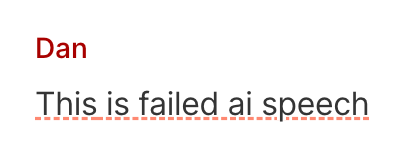
Grey text with a strikeout
This is what your transcript looks like as you make your Regenerate edits. What to do: Continue editing until satisfied.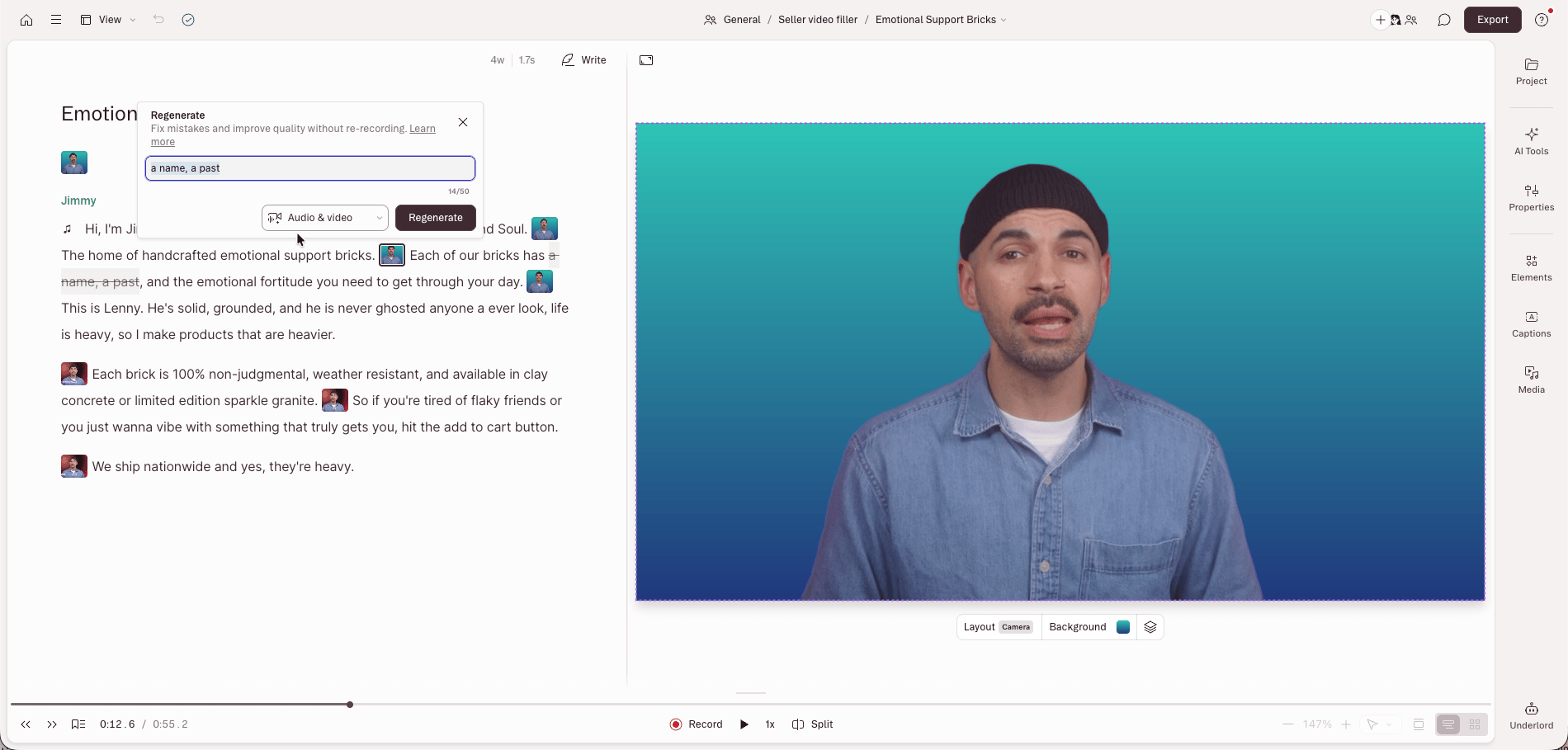
Grey pulsing text with a pulsing grey dotted underline
Regenerate speech is currently being generated and will appear soon. What to do: Wait for the process to complete.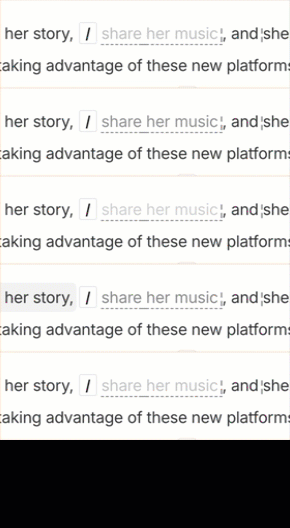
Black text with grey dotted underline
Regenerate speech has been generated but has yet to be converted to audio. What to do: Play the script to convert it to audio.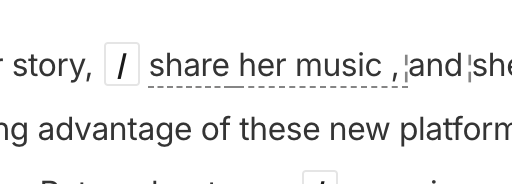
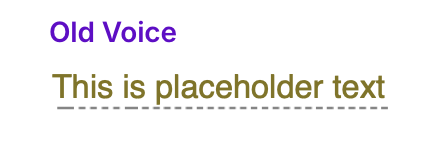
Yellow / Gold text with a grey dotted underline
The AI speech cannot be generated because the legacy AI Speaker being used lacks consent or valid training audio. What to do: Try creating a new AI speaker and then apply the new AI speaker to the project or section.