

Speakers is getting a UI update!This is rolling out progressively. Your app may look slightly different in the meantime.
.png?fit=max&auto=format&n=oijtXUZra0-n-l-c&q=85&s=91cd4230cd6dcd3d2a866a849e376dfb)
Create a voice clone
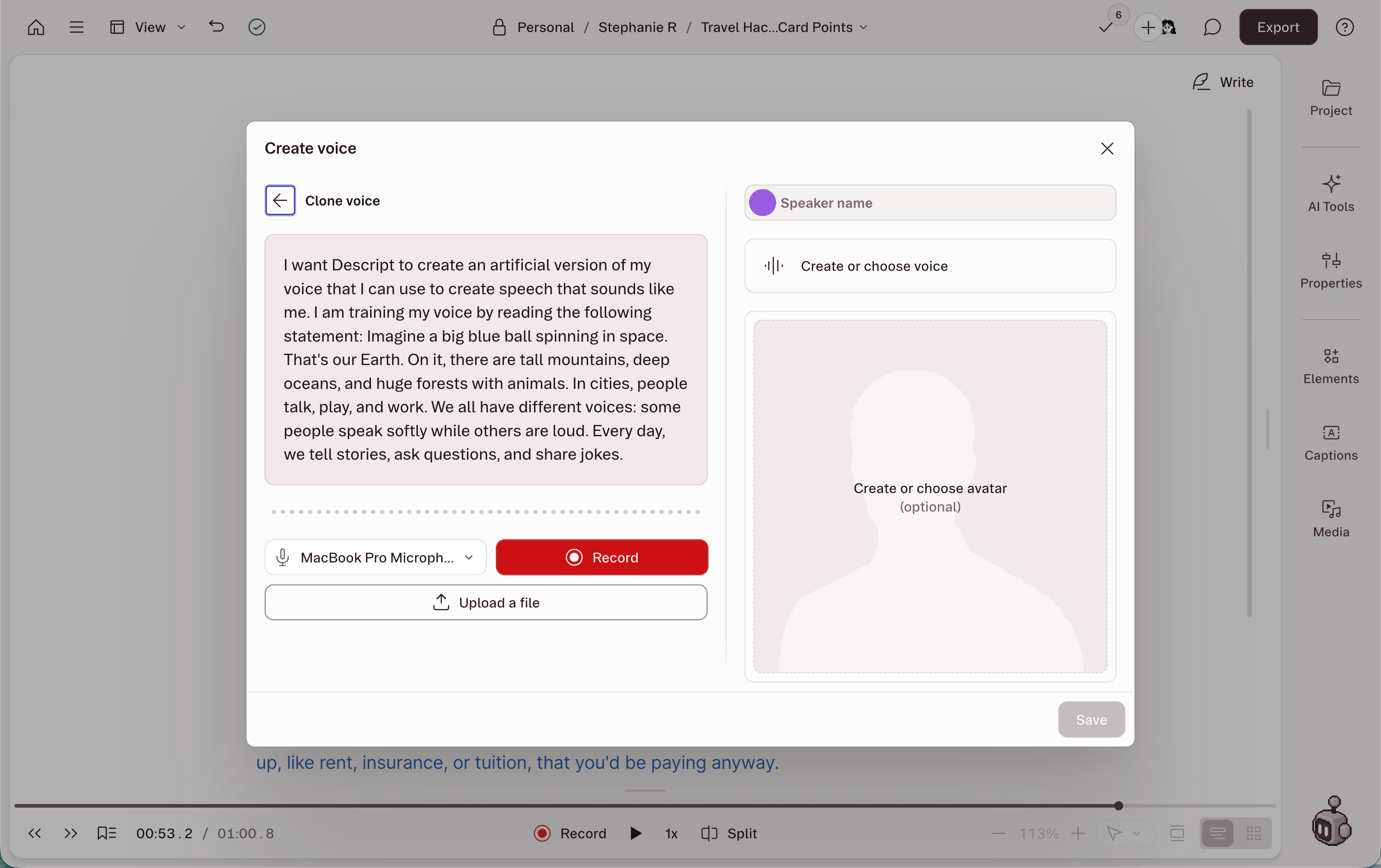
If you haven’t already, add a Speaker label to your script and name your Speaker(s).- Click the microphone icon next to the Speaker label.
- Choose how to clone your voice.
- Record your consent statement into Descript. Follow the voice-creation prompts to record and submit the consent statement.
- Or, upload a recording of the consent statement. Use this option if you’re creating a voice clone for someone else, or for someone who cannot record directly in Descript.
- Enter a voice name, then click Submit.
- After Descript creates the voice, click Save to apply it to your Speaker.
Consent and voice authorization
Descript requires explicit recorded authorization from the person whose voice will be used before creating a voice clone. Voice clones can only be created by the person themselves, or by someone acting on their behalf with the person’s recorded authorization.Consent statement text
Consent statement text
I want Descript to create an artificial version of my voice that I can use to create speech that sounds like me. I am training my voice by reading the following statement: Imagine a big blue ball spinning in space. That’s our Earth. On it, there are tall mountains, deep oceans, and huge forests with animals. In cities, people talk, play, and work. We all have different voices: some people speak softly while others are loud. Every day, we tell stories, ask questions, and share jokes.
- A deceased individual
- A non-consenting person
- Someone unable to record the consent statement
- Audio from an AI or artificial source
Troubleshooting
I'm not happy with my voice clone. How can I improve it?
I'm not happy with my voice clone. How can I improve it?
Create a new voice clone with a fresh recording of the consent statement. You can’t add more voice samples or training data to an existing clone, but you can shape the result by:
- Recording the consent statement in a specific tone and style (casual and friendly, formal and authoritative, and so on).
- Speaking clearly and intentionally — your delivery during the consent script directly shapes how your AI Speaker sounds.
- Using your usual microphone and recording setup.
- Changing the voice generation model for your text-to-speech audio in App Settings.
Can I create different styles of the same voice?
Can I create different styles of the same voice?
Multiple style variations within a single voice clone aren’t currently supported. Instead, create multiple voices, each with a different delivery. For example, you could:
- Create one voice clone with a casual, conversational tone.
- Create another with a more formal, professional delivery.
- Create additional clones with different emotional qualities or speaking styles.
My voice doesn't match my accent
My voice doesn't match my accent
Voice clones are generated using a model based on US English pronunciation, so accents may not always be preserved accurately. If your clone doesn’t sound right, try switching your voice generation model in App Settings.The ElevenLabs v2, v3, and v4 models can produce different results. Test each one to see which model better captures your accent.We’re exploring broader accent support in the future.