

Usage noteOn current plans, this feature uses AI Credits. Learn more about tracking your Media Minutes and AI Credits.Legacy and Sunset plans track usage differently. See our Understanding your Legacy and Sunset plan guide for details.
Remove filler words from your script
Descript automatically detects common filler words like “um” and “uh” in your composition. These appear underlined in light blue in the script editor. To remove them, open the AI Tools panel in the right sidebar and choose Remove filler words. This opens a sidebar with all detected filler words. You can review timestamps, preview the audio, and choose how to handle each one.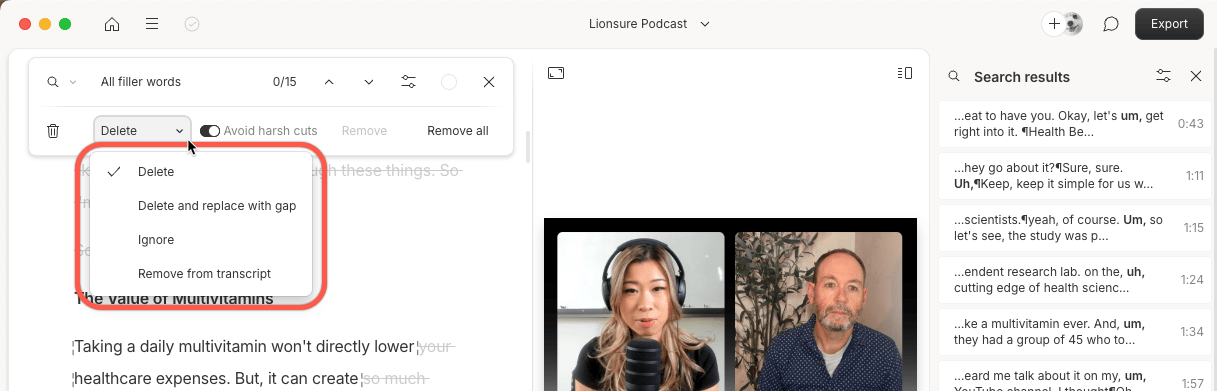
Choose how to handle each filler word
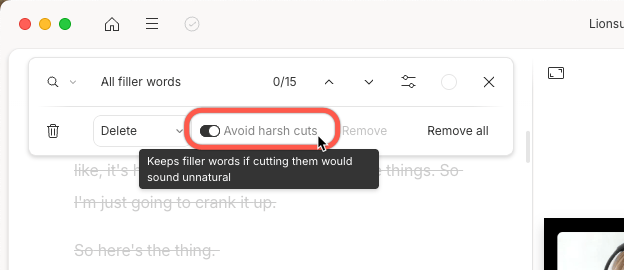
You can preview each instance and choose one of the following options:Avoid harsh cuts
Remove filler words from part of your composition
By default, filler word removal applies to the entire composition. To target a specific section:- Select the portion of your script you want to clean up.
- Duplicate that selection to a new composition: How to duplicate selection.
- Open the new composition and run Remove filler words.
- Copy and paste the cleaned-up script back into your original composition.