Async recordings are available on Enterprise plans only. This feature is gradually rolling out; check back soon if you don’t see it just yet.
Create an async recording link
You must be a drive-level editor or admin to create an async recording link.- Open or create a Descript project.
- In the recording options, select Invite to record async.
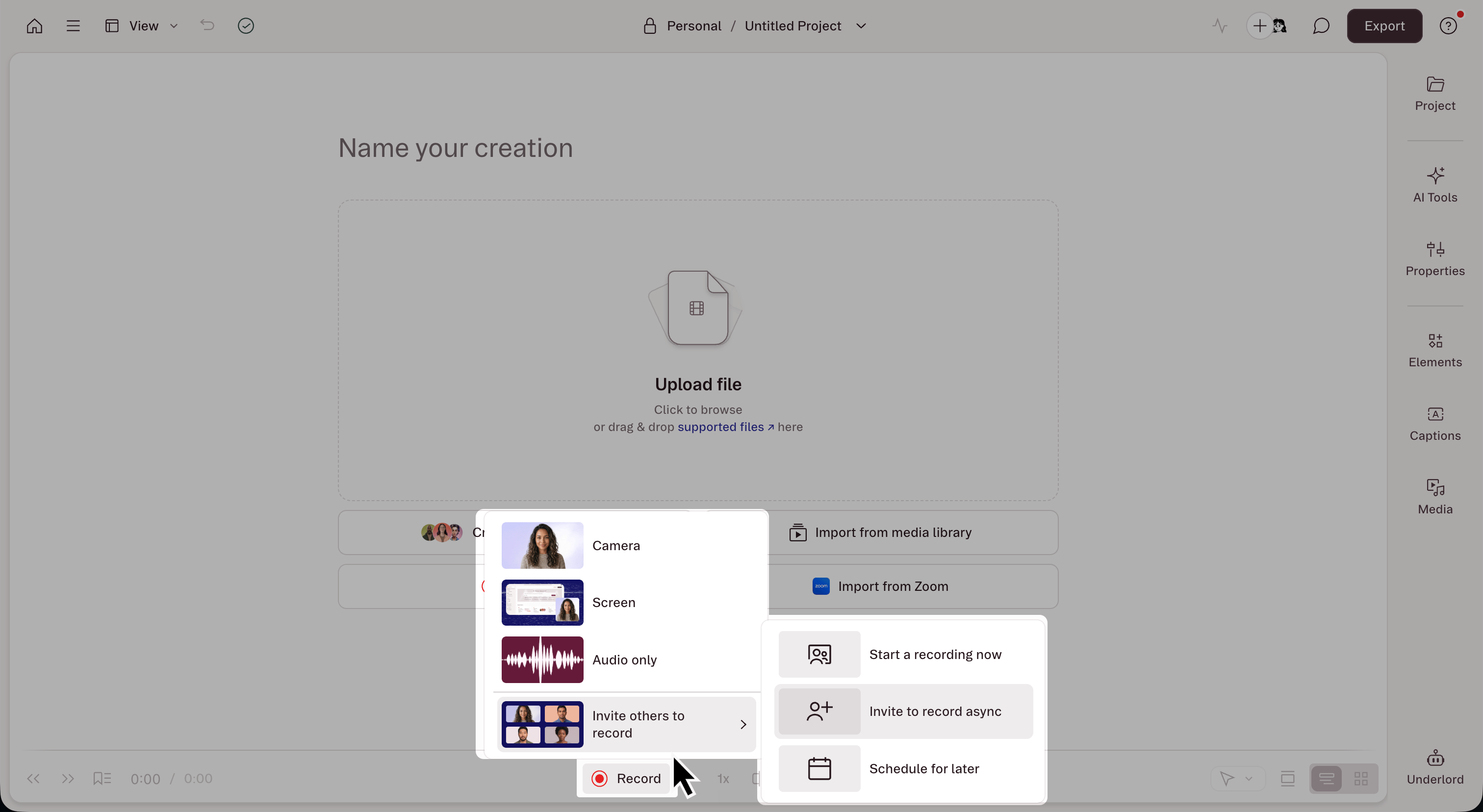
- Add a Title for the link.
- Optionally add a teleprompter script. This will appear on screen as instructions during the guest’s recording session.
- Set a Link expiration date and time. After that date the link stops accepting new submissions.
- Click Create link, then copy and share it with your contributors.
Async session links
Created links can be retrieved from the Project Access menu near the top-right corner of the editor window.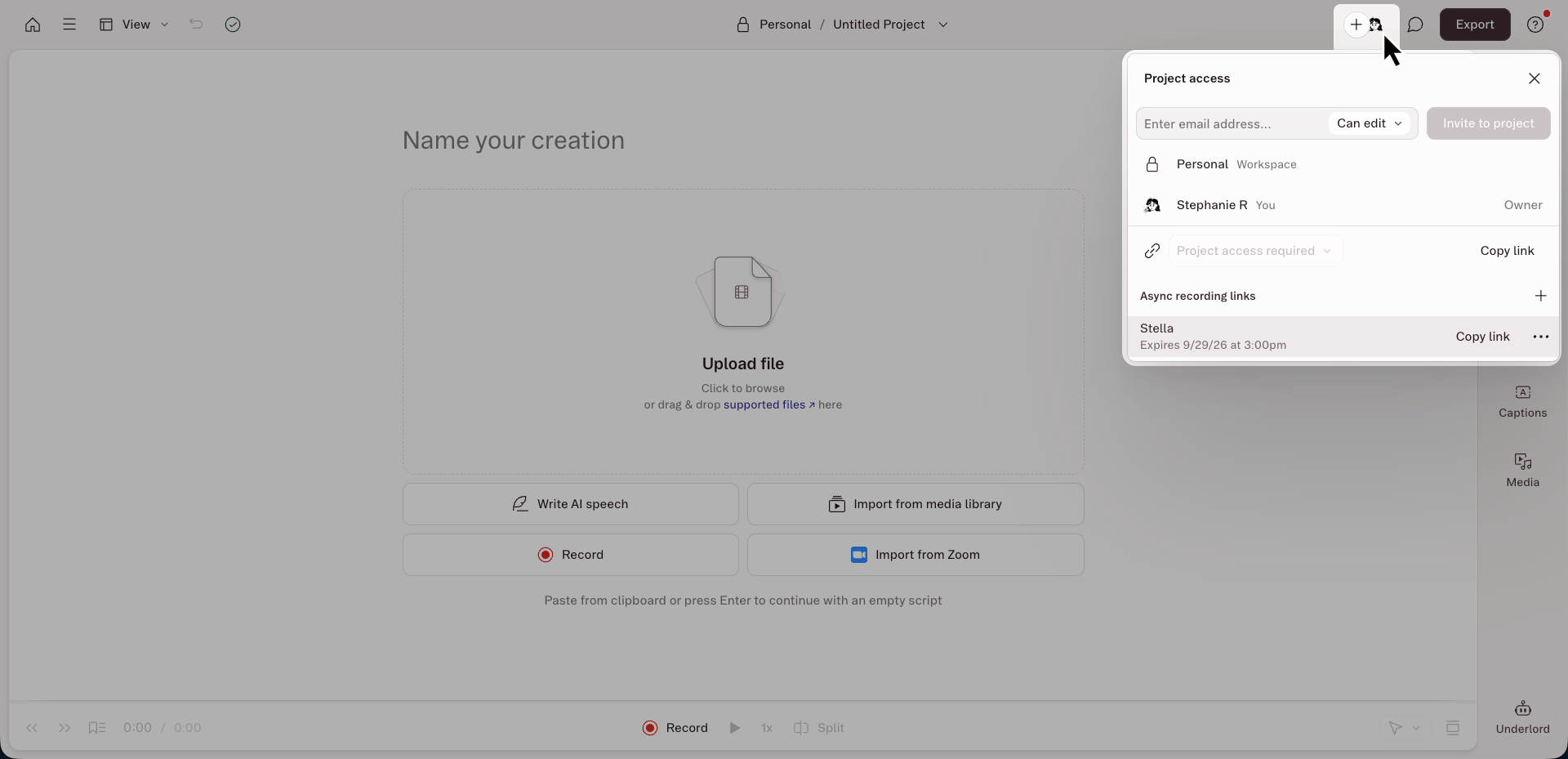
Guest experience
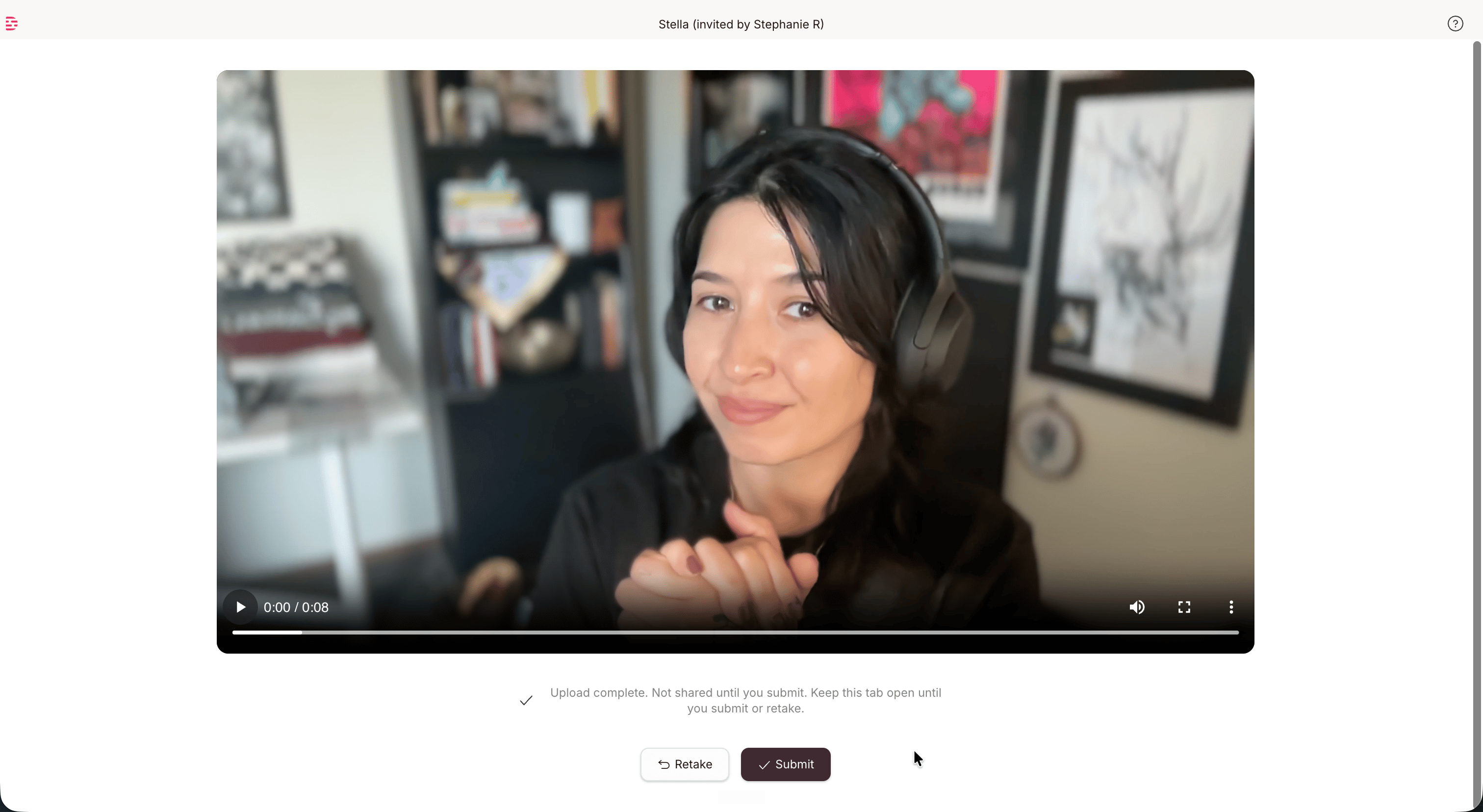
When guests open the link, they’ll enter their name on the welcome screen, complete a device check, then see any notes you’ve left in the teleprompter. After recording, guests can playback, review, and either submit or re-record the take. Each async session will result in a single take. The submitted take is uploaded directly to the host project. Guests cannot see the Descript project, other guests, or any other content.