

Related resourcesThis article focuses on using Editor Comments during a live Room session. For other types of comments and to better understand who can leave them, check out:
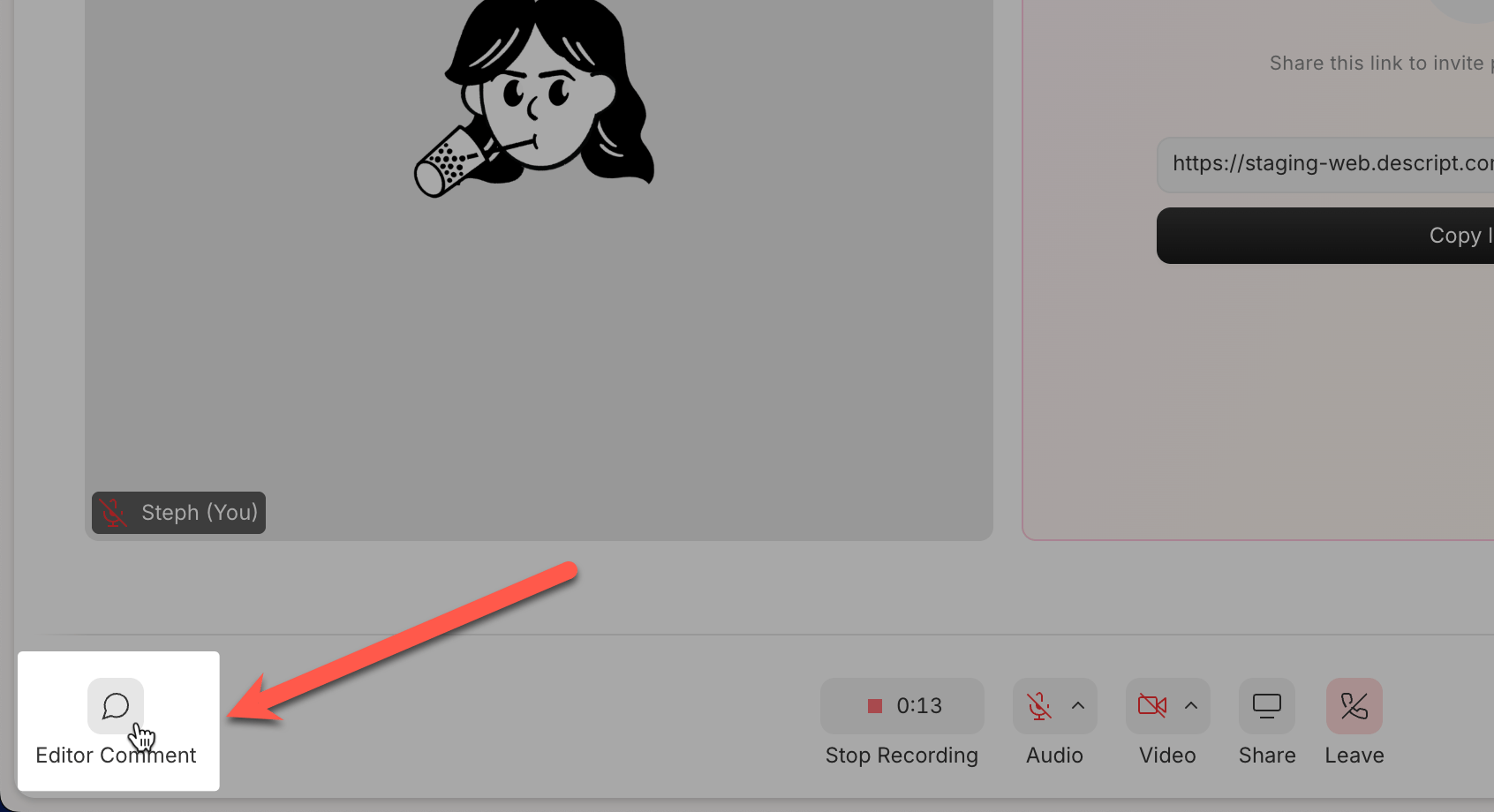
Leave a comment during a live Room session
- Click the Comment icon in the lower-left corner of the Room window.
- Type your comment and click submit.
- Your comment appears in the Editor Comments panel during the session and is added to the script after the recording ends.
The Editor Comments panel during a live Room session. Click the image to view at full size.
Where comments appear after the session
After recording ends:- Editor Comments are added to the resulting Descript project
- Comments are time-stamped and clickable.
- You can reply to, resolve, or delete them just like any other Descript comment. Learn more about commenting in a Descript project