
Are you a Rooms owner or host?See our dedicated guide here: Create a Room and invite participants.
- Desktop
- Phone or tablet
Join a Descript Room
When you open a Room link, you’ll see the pre-join screen where you can configure your equipment before entering.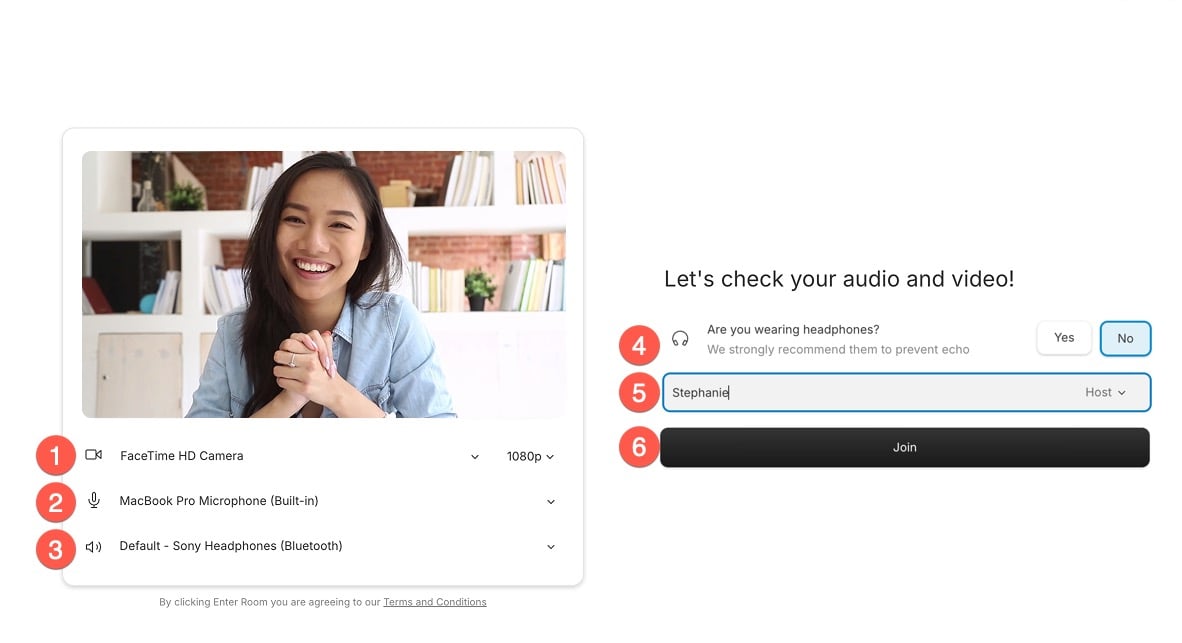
- Select your camera: Choose your camera and resolution. Click the camera icon to join without video.
- Select your microphone: Pick a microphone. Click the mic icon to join muted.
- Select your speakers: Choose your output device (speakers or headphones).
- Are you wearing headphones?
- Yes (headphones): Echo cancellation disabled
- No (speakers): Echo cancellation enabled. This prevents echo for other participants.
- Enter your display name: Descript uses this for speaker labels.
- Click Join: Once ready, click Join to enter the Room.
Recording quality checklist
Check your device specs
Before connecting, confirm your device meets our minimum requirements.Use a supported browser
On a desktop or laptop, use Chrome, Edge, Arc, Firefox, Safari (version 26 or later), or Opera.Test your internet connection
For best results, use a wired connection if possible. If using Wi-Fi, stay near your router and close unnecessary apps or tabs.Test your speed at fast.com (click “Show more info” to view upload speeds):- Minimum: 10 Mbps upload/download
- Recommended: 20 Mbps upload/download
- For 4K recording: 30 Mbps upload minimum
Tip: If your connection is unstable, consider joining with your camera off to save bandwidth.
Record in a quiet, well-lit space
Find a quiet, well-lit area with minimal background noise. If there’s unavoidable noise, enable Background noise reduction under Settings > Audio. Learn more about Descript Room settings.Wear headphones
We recommend wearing headphones during recording to prevent echo and audio feedback. Wired headphones are the best choice — they have minimal latency, won’t disconnect, and support 48kHz recording quality.Bluetooth headphones can work, with some important callouts: avoid using a Bluetooth headset as both your mic input and audio output at the same time (this forces the device into a lower-quality audio mode, which significantly reduces sound quality).If you choose to use Bluetooth headphones, make sure your headphones are fully charged before your session.Use an external mic and camera (if available)
External equipment offers better quality than built-in hardware. Sit directly in front of the camera and speak clearly into the mic.Check your audio levels: Watch the VU meter while speaking—your voice should reach about 75% (white area touching yellow, not red).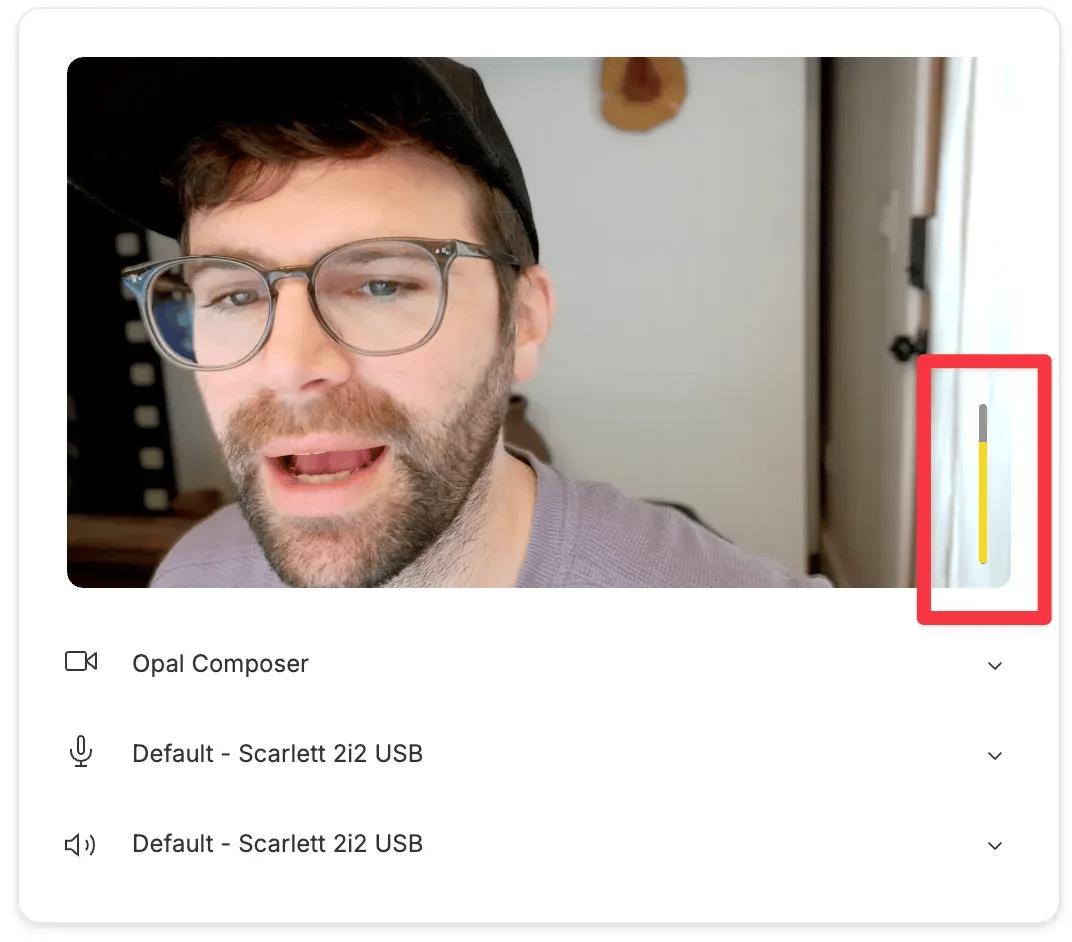
During your session
Check your network health
Open the People tab to see your network status. Green means your connection is stable.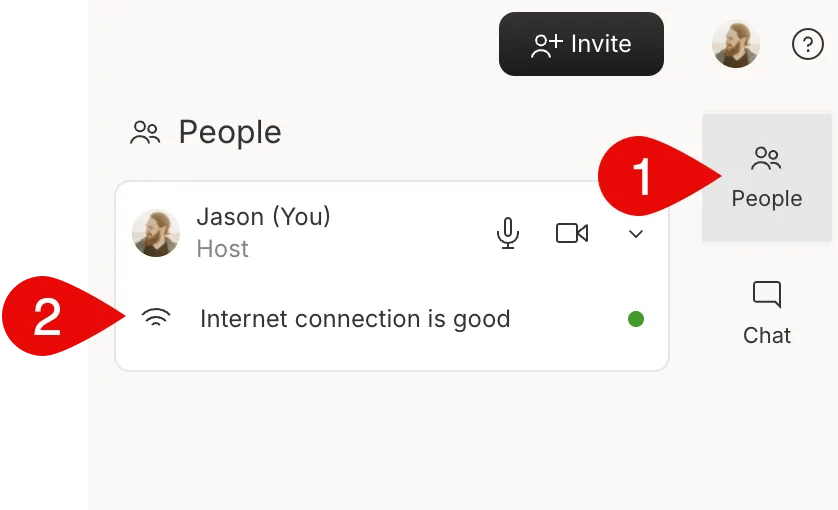
Adjust settings if needed
Open Settings using the gear icon in the upper right. If you’re signed in, open your profile menu and select Settings. Learn more about Descript Room settings.Pin a participant
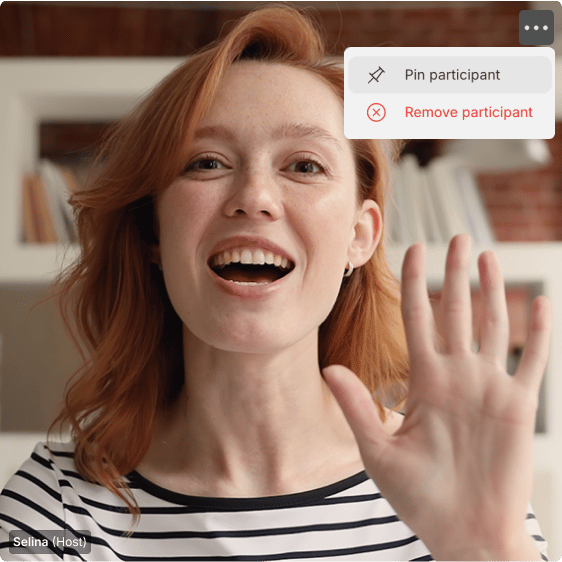
You can pin any participant to keep them displayed prominently in your view. When you pin someone, they’ll stay on your main screen regardless of who is speaking. This works with both Gallery view (grid layout) and Speaker view (active speaker layout).To pin a participant: Click the 3-dot menu on their video tile, then select Pin. You can also access this option from the People sidebar.