

Need to record right now?See Create a Rooms session and invite participants to start an immediate session.
Schedule a Rooms session
- From the drive view sidebar, select Rooms recordings under the Tools section.
- Select Schedule for later.
- In the scheduling window, set:
- Title: name for the session
- Date, Start time, End time, and Timezone
- Expand Advanced options to choose where the recording is saved and who can start it:
- Save recording to: choose New project in [drive name] or Existing project. Recordings save directly to this pinned project. For a new project, pick the workspace and folder it’s created in. See Save scheduled recordings to a workspace.
- Who can start the recording?: choose Host only, [drive name] members, Anyone with access to the project, or Anyone with the link. Any option other than Host only lets someone record into the scheduled Room without the host present. With Anyone with the link, the link stops working after the scheduled end time.
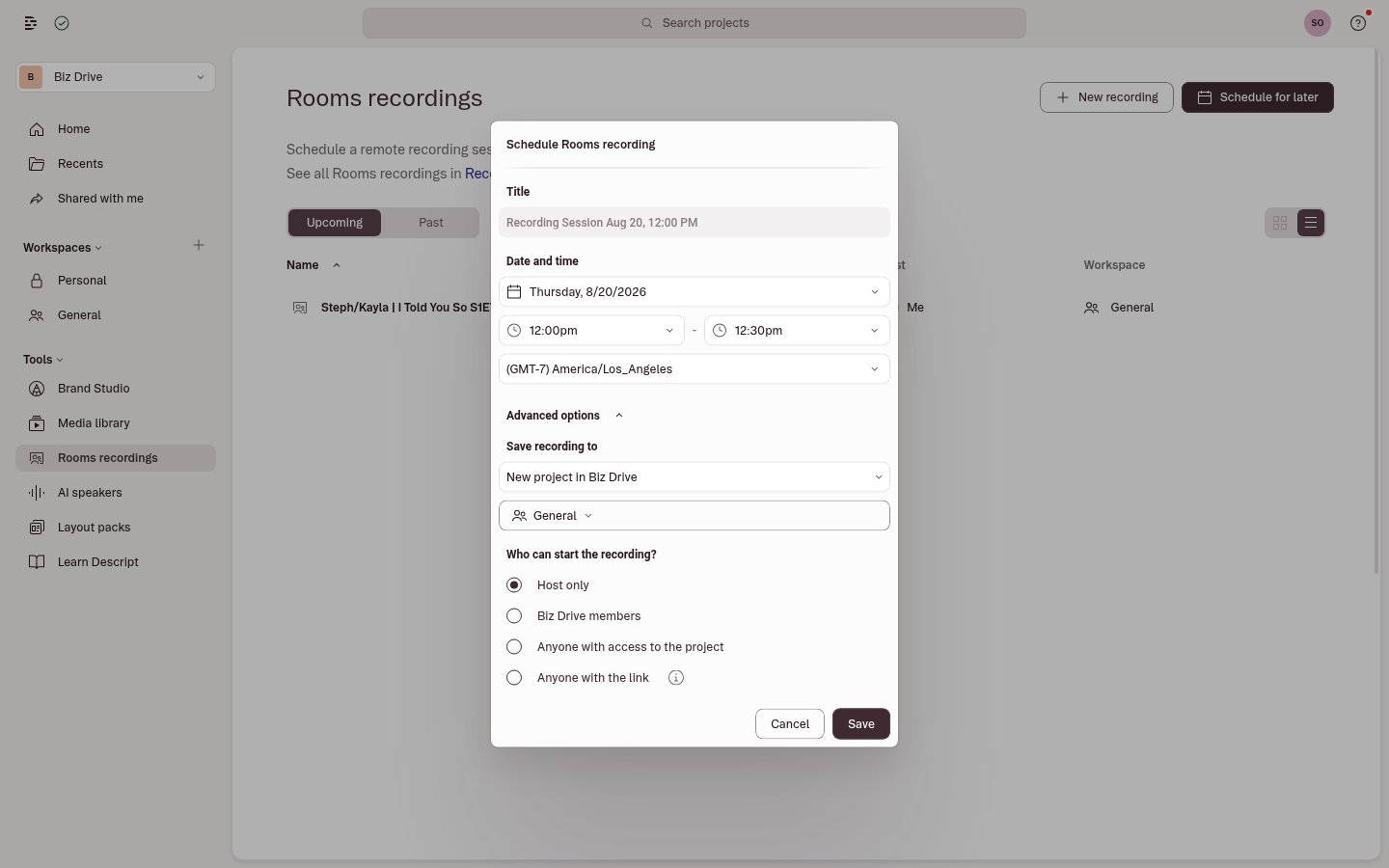
- Select Save to confirm.
- To invite guests, either copy the invite link and share it directly, or create a calendar event in Google Calendar or Outlook and add guests there.
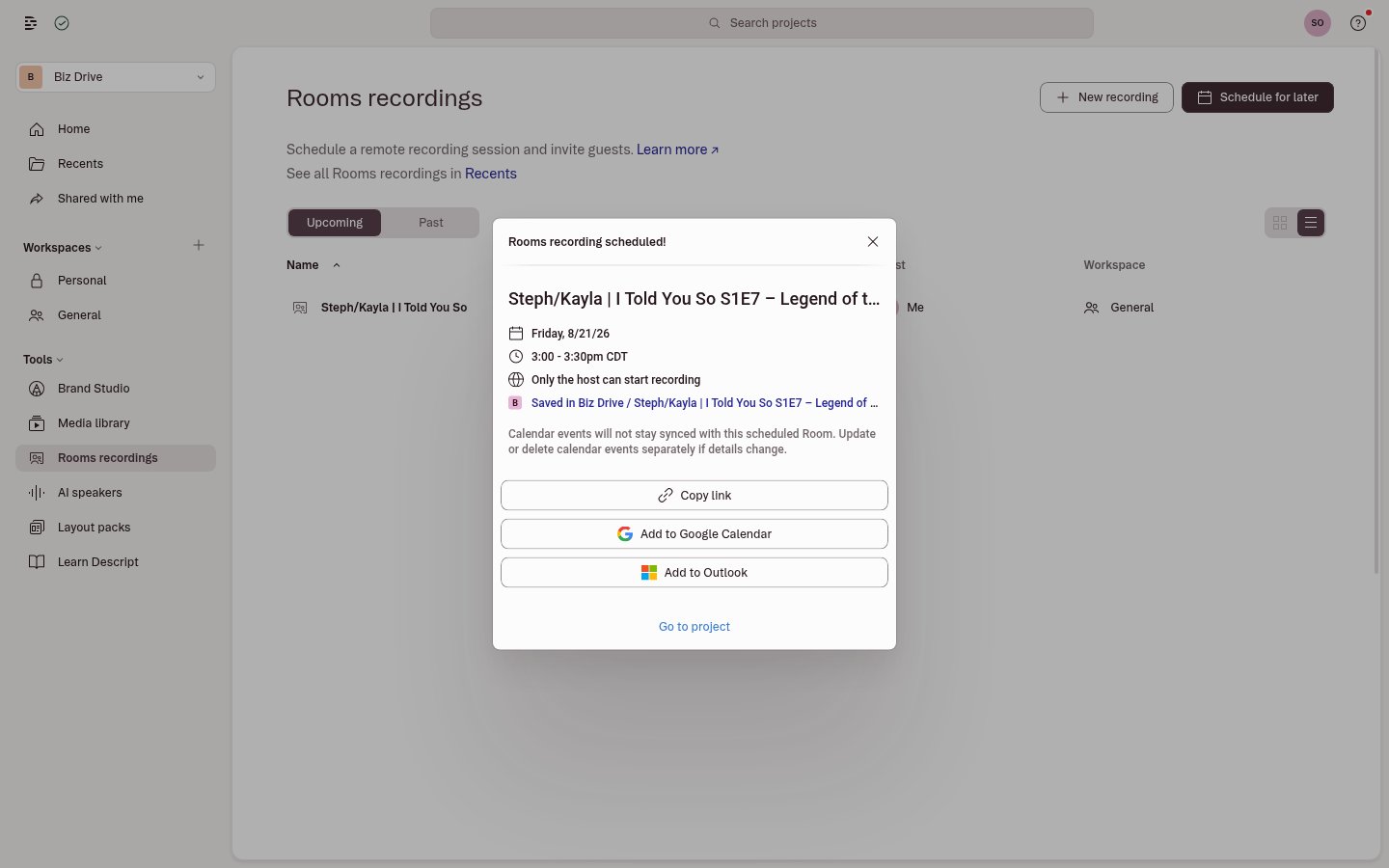
Other entry pointsThe scheduling window is also available from the Record button in the top-right of the drive view, or at the bottom of any open project. Select Schedule for later from the menu.
Save scheduled recordings to a workspace
Each scheduled Room saves its recording to a project in the workspace you choose, so you can keep recordings for different shows, clients, or teams separate.- In the scheduling window, expand Advanced options.
- Under Save recording to, select New project in [drive name].
- Select the location picker below it, then choose a workspace, such as General, your personal workspace, or a custom workspace. Expand a workspace to choose a folder inside it.
Coming from SquadCast?Workspaces are the closest match to SquadCast Shows. Create a custom workspace for each show and add its team as members, then schedule each episode’s Room into that workspace. Custom workspaces are available on Enterprise plans. Learn more in Workspaces.
View, edit, or delete scheduled sessions
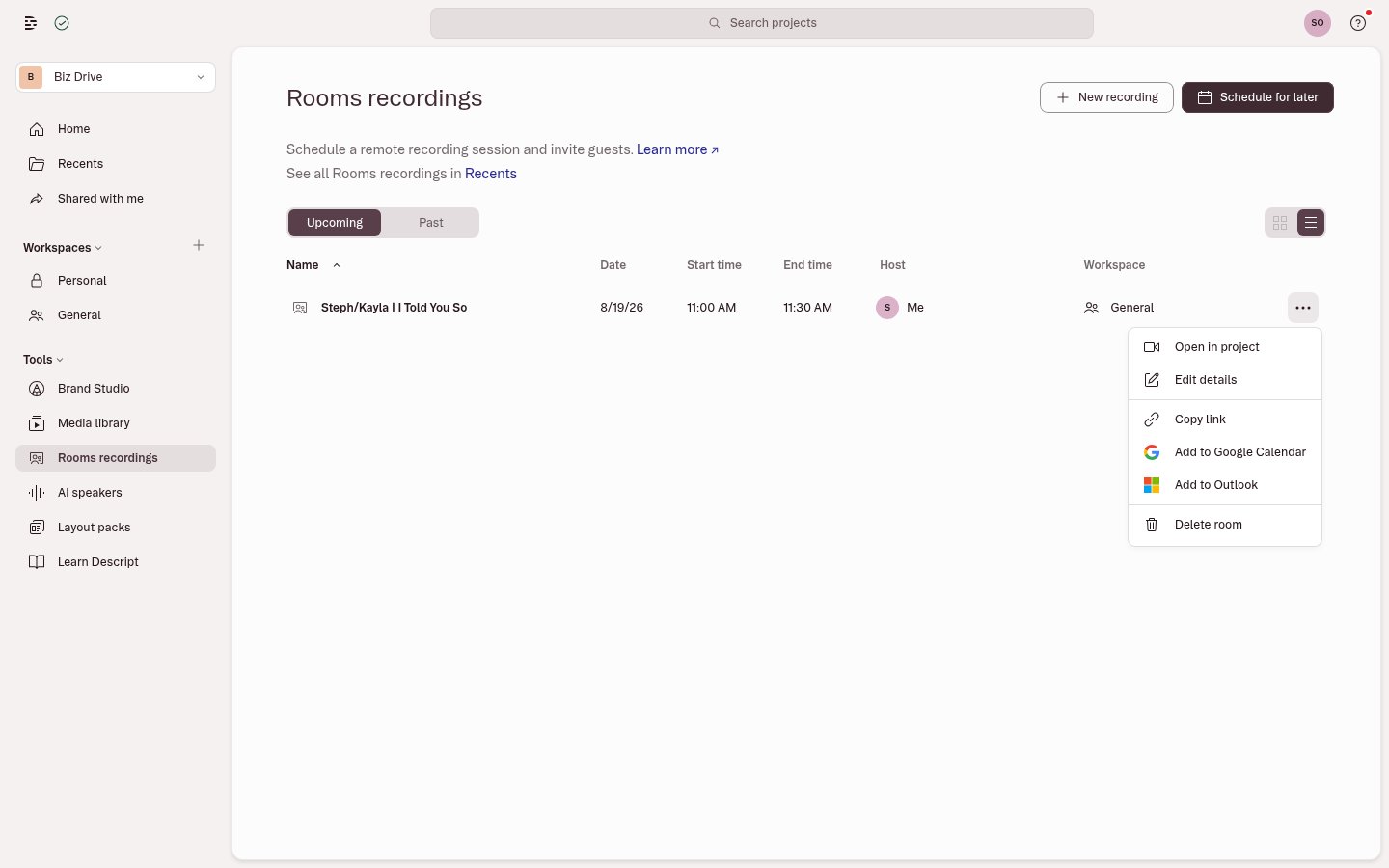
All scheduled Rooms you’ve created appear in the Rooms recordings tab in the drive sidebar, organized into two views:- Upcoming: sessions scheduled for a future date and time
- Past: completed sessions whose scheduled time has elapsed
Tips for a smooth session
- Invite guests through your calendar app. The Rooms scheduler generates an invite link you can share directly, or you can add it to a Google Calendar or Outlook event to invite guests. If your calendar app auto-adds a Zoom, Teams, or Google Meet link, remove it so participants don’t join the wrong call.
- Start the Room before guests arrive. Someone with permission to start the session must enter the Room first. Plan to open your Room a few minutes before the scheduled time.
- Share the Guest Recording Checklist. Send guests the Guest Recording Checklist for Descript Rooms ahead of the session so they can prepare their setup in advance.
Known limitations
- The Rooms tab shows only sessions you created. Sessions scheduled by other drive members won’t appear there.
- Past only lists scheduled sessions. Recordings started from the regular New recording flow don’t appear in Past. Those recordings are saved directly to their project.
- Role-specific links aren’t currently supported. Scheduling generates a generic guest invite link. To assign specific roles like Co-host, Producer, or Viewer, see Roles in Descript Rooms.
- You can’t change where a recording is saved after scheduling. To use a different project or workspace, delete the session and schedule a new one.
- Basic members can only save new projects to their personal workspace.
- Scheduled Rooms events don’t sync with calendar apps. If you edit or cancel a session in Descript, update the calendar event in Google Calendar or Outlook separately.