

Some of your recordings have stopped uploading
Some of your recordings have stopped uploading
Sometimes, recordings may stop uploading, but partial recordings
are
still available for editing. You’ll be notified once the full
recordings are uploaded, and you can replace the partial recordings
with the complete versions. To avoid delays, guests are asked
to rejoin the room or open the
recovery link as
soon as possible if their files have stalled. This link allows
them to resume uploading their recordings and remains valid for
seven days. For instructions on how to use these recovered files,
see
Recovering and Replacing Stalled Recordings with Descript Rooms.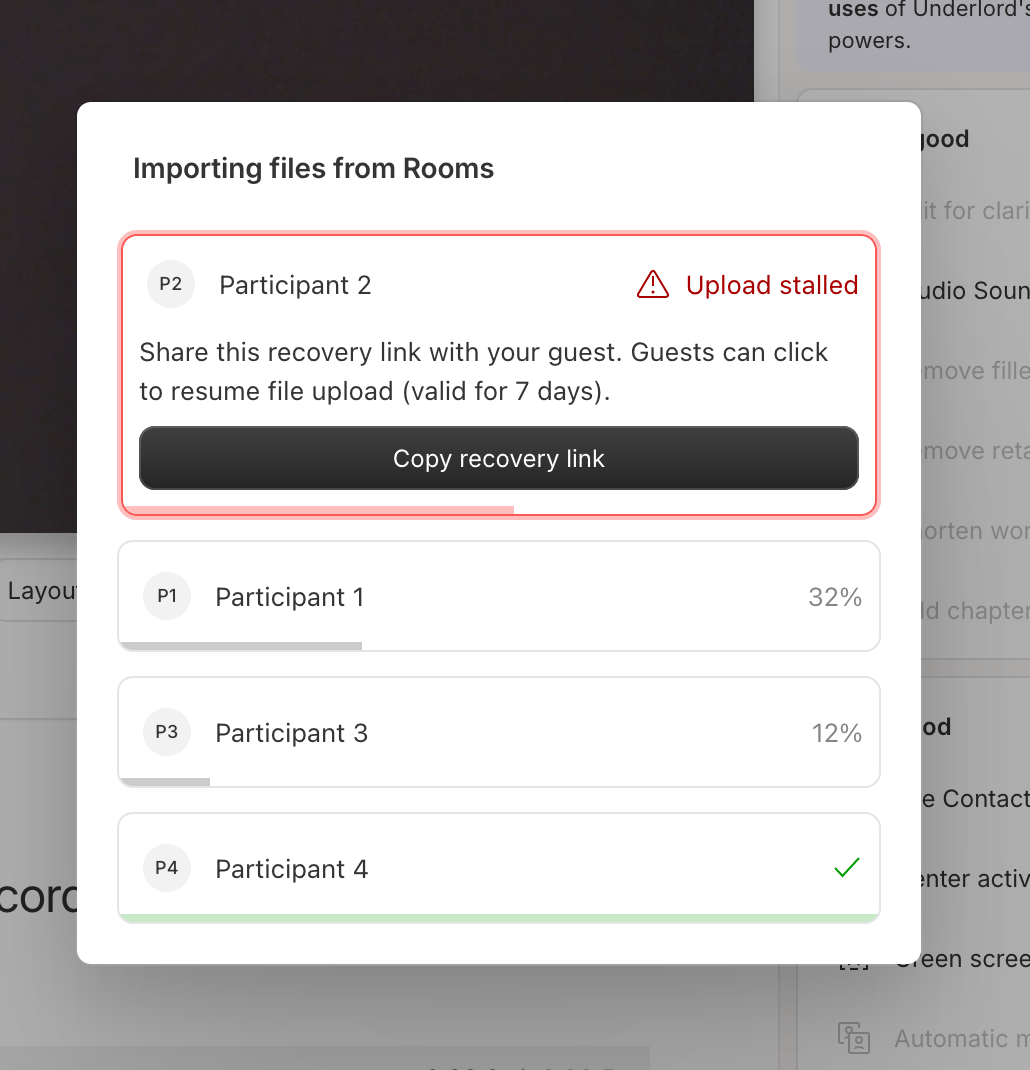
Low disk space warning
Low disk space warning
If you see a low disk space warning in Descript Rooms, your device
doesn’t have enough free storage to reliably record or upload
session
files. This can lead to stalled uploads, recording failures,
or lost
files.Quick fixes
- Free up at least 20 GB of local disk space.
- Close other tabs and applications to free up memory.
- Bookmark the Descript web editor to enable persistent storage.
- Clear your browser cache and refresh the page.
Do not do this if you have files pending recovery.
- Update your browser to the latest version.
- Switch from Incognito or Private mode to a normal browser window, or try another browser.
- Reset site permissions for
descript.comand restart the browser. - Review
- Check antivirus or firewall settings that might block Descript.
- Disable settings that automatically delete site data when the browser closes.
- Go to Settings → Privacy and security → Site settings → View permissions and data stored across sites.
- Search for
descript.com, then clear the data or confirm it isn’t removed on close. - Under Cookies and other site data, ensure site data isn’t cleared automatically for
descript.com.
- Go to Settings → Privacy → Manage Website Data.
- Find and remove
descript.com, then reload the page. - If you’re using Private Browsing, switch to a standard window.
Error importing your Rooms recordings
Error importing your Rooms recordings
You may see this error if, while uploading, one of the participants
(including yourself) closes the Rooms tab before the upload can
be completed. If this happens, encourage all guests (including
the host) to rejoin the room or open the
recovery link as
soon as possible and upload the files. This link allows you to
resume uploading your recordings and remains valid for seven
days. For instructions on how to use these recovered files, see
Recovering and Replacing Stalled Recordings with Descript Rooms.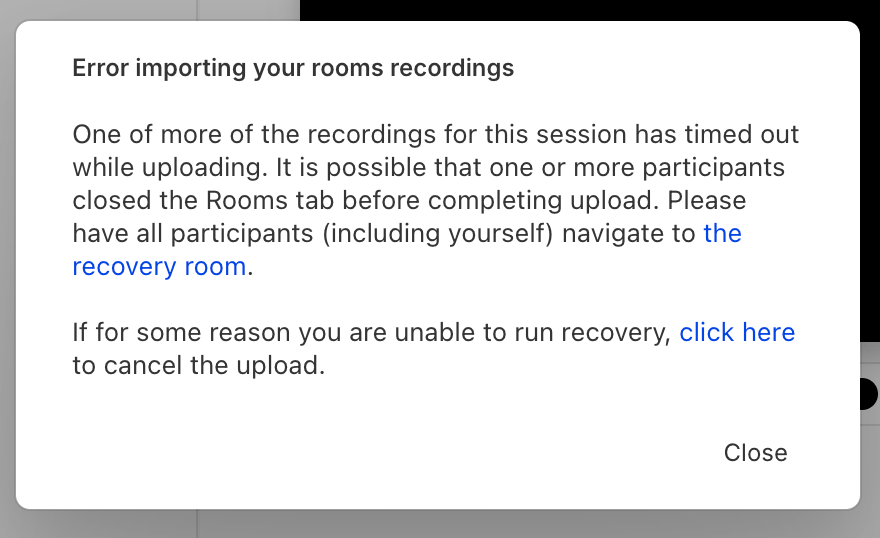
No recovery files were found after a failed upload
No recovery files were found after a failed upload
If you find yourself in a situation where you are unable to recover
any files after a primary upload has failed, you will have to
use the files in the backup folder of your project. This is because
the primary files are unavailable and cannot be recovered. Backup
recordings in Rooms are captured for each participant in the
session. These backups are similar to Zoom-quality recordings
and act as a failsafe in case the primary recordings encounter
issues. You can find these files by navigating to the
Recordings > Room - (date and time) > Backup
folder
in your project files. You can find steps for how to use these
files in the existing sequence here:
Recovering and Replacing Stalled Recordings with Descript Rooms.
No camera or microphone available
No camera or microphone available
If your camera or microphone isn’t accessible, it could be due
to
the browser’s site data settings. This may cause a blank video
feed,
and a small icon will appear in the address bar. To resolve this,
ensure that your settings for 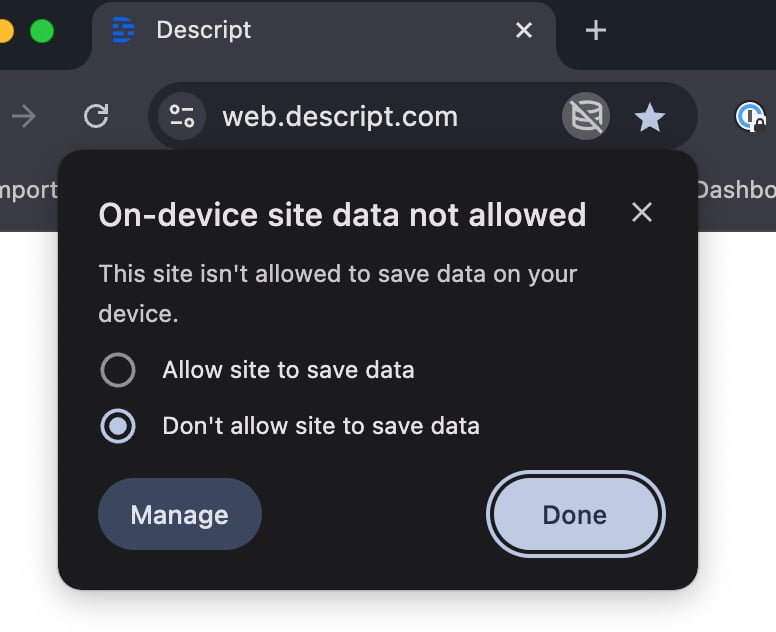
web.descript.com are
set
to Allow site to save data. You can do this
by
clicking the icon in the address bar and adjusting the settings.High-Quality upload stalled
High-Quality upload stalled
If any of your high-quality uploads stalls, have your guests rejoin the room or share the
recovery link with
your guests to enable them to resume their uploading as soon
as possible. This link is valid for seven days, ensuring that
any interrupted uploads can be attempted to be recovered. If
the upload resumes, it will not be shown in the Room, but
partial recordings will be available for editing while they upload.
Once the full recordings are uploaded, you’ll be notified, and
you can replace
the partial recordings with the complete versions. To avoid delays,
guests are asked to open
the recovery link
as soon as possible if their files have stalled. This link allows
them to resume uploading their recordings and remains valid for
seven days. For instructions on how to use these recovered files,
see
Recovering and Replacing Stalled Recordings with Descript Rooms.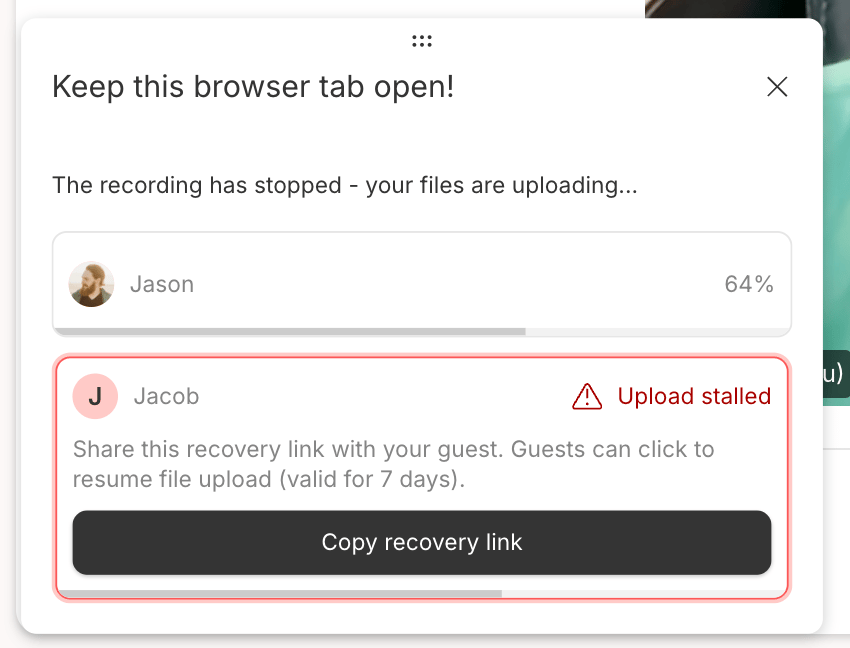
Accidentally closed the browser or tab while uploading
Accidentally closed the browser or tab while uploading
If you accidentally close your tab during an ongoing recording,
you
can use the recovery link
to try to resume any incomplete uploads.
Connection was lost
Connection was lost
You may see this error if your network fully disconnects. If
this happens, your primary recordings will still be stored in
your browser. We encourage guests and/or hosts to rejoin the room or open the
recovery link as
soon as possible and upload the files. This link allows you to
resume uploading your recordings and remains valid for seven
days. For instructions on how to use these recovered files, see
Recovering and Replacing Stalled Recordings with Descript Rooms.
You were removed from the call Rooms message
You were removed from the call Rooms message
This may happen if you were removed from the Room by a host.
If the host
did not remove you and this removal is unexpected, work with
the host
to rejoin the Room.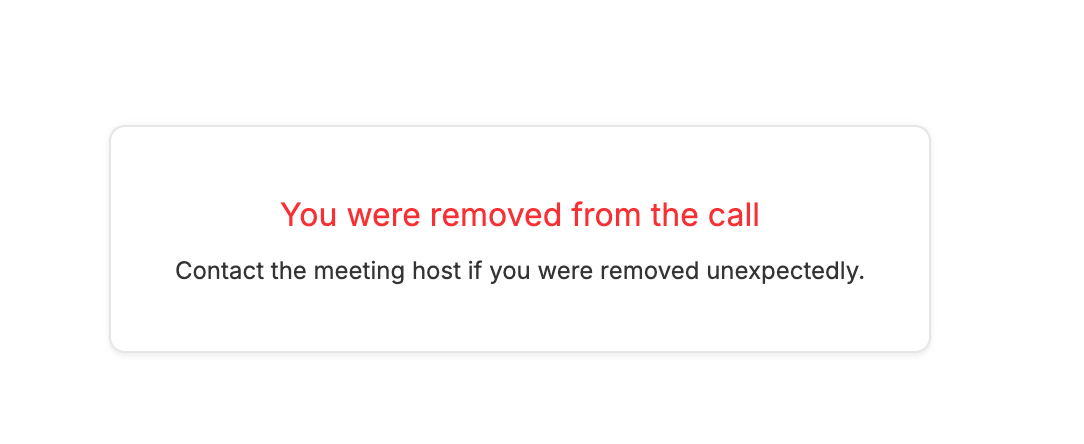
Why is my Descript Rooms recording showing lower FPS?
Why is my Descript Rooms recording showing lower FPS?
If you’re noticing that your video recording has a lower frame
rate
(FPS) in Descript Rooms, there are a few potential reasons for
this:
- CPU and browser limitations: Descript Rooms automatically adjusts the frame rate based on your system’s performance. Lower FPS can occur if your computer’s CPU is overtaxed or unable to process the video encoding in real time. This is especially common with high-resolution recordings like 4K, which can be demanding on certain systems, particularly on Windows.
- Screen sharing: When sharing screens, the FPS of your screen share (not your video) may drop intentionally because screen sharing generally involves less motion compared to regular video recordings, reducing the need for higher frame rates.
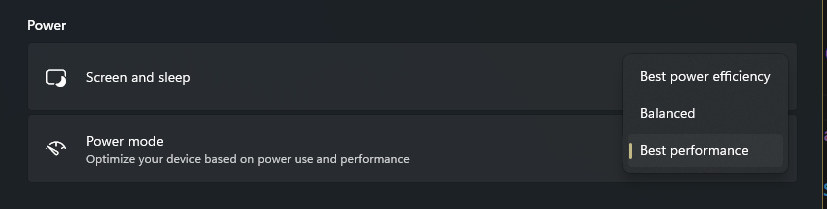
- Power settings on Windows: If you’re using a Windows device, the system’s power profile may affect recording performance. A power profile set to Best power efficiency or Balanced can significantly limit the CPU performance, leading to lower FPS. Ensure your power profile is set to Best performance to allow Descript Rooms to utilize the full capabilities of your system.
- Restart your computer: A simple reboot before you begin recording can free up system resources and reduce the load on your CPU.
- Close other applications: Make sure no other high-demand software is running during your recording to allow Descript Rooms to utilize more of your system’s processing power. This includes ensuring your browser has access to the maximum available resources.
- Check your recording resolution: Higher resolutions like 4K demand more processing power. If possible, lower your resolution to improve frame rate performance. To adjust this, check the settings in your camera software and set it to a lower resolution, such as 1080p, for better performance during recordings.
- Adjust your power settings (Windows): On
Windows,
ensure your Power mode is set to
Best performance. You can change this in
your
system’s power settings by navigating to
Settings > System > Power & sleep,
then selecting Best performance from the
power
mode dropdown.\
My recorded video resolution is not what I expect it to be (4k)
My recorded video resolution is not what I expect it to be (4k)
To confirm if your device supports 4K recording:
- Open Chrome and go to:
chrome://media-internals/ - Open Edge and go to:
edge://media-internals/ - Look under the Video Capture tab to check your device’s supported resolutions.