- Recover a stalled or incomplete Rooms recording
- Start editing using a partial or cloud backup file
- Manually replace a partial file in your sequence with a recovered recording
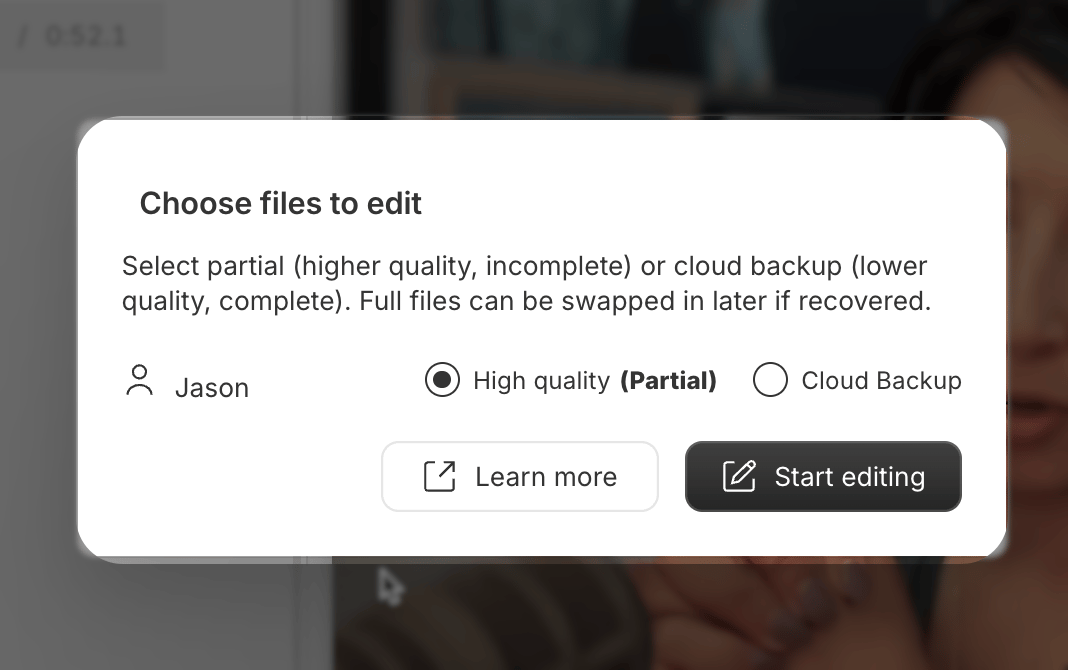
- Understand the difference between high-quality and cloud backup files
What to do when a Rooms recording upload stalls
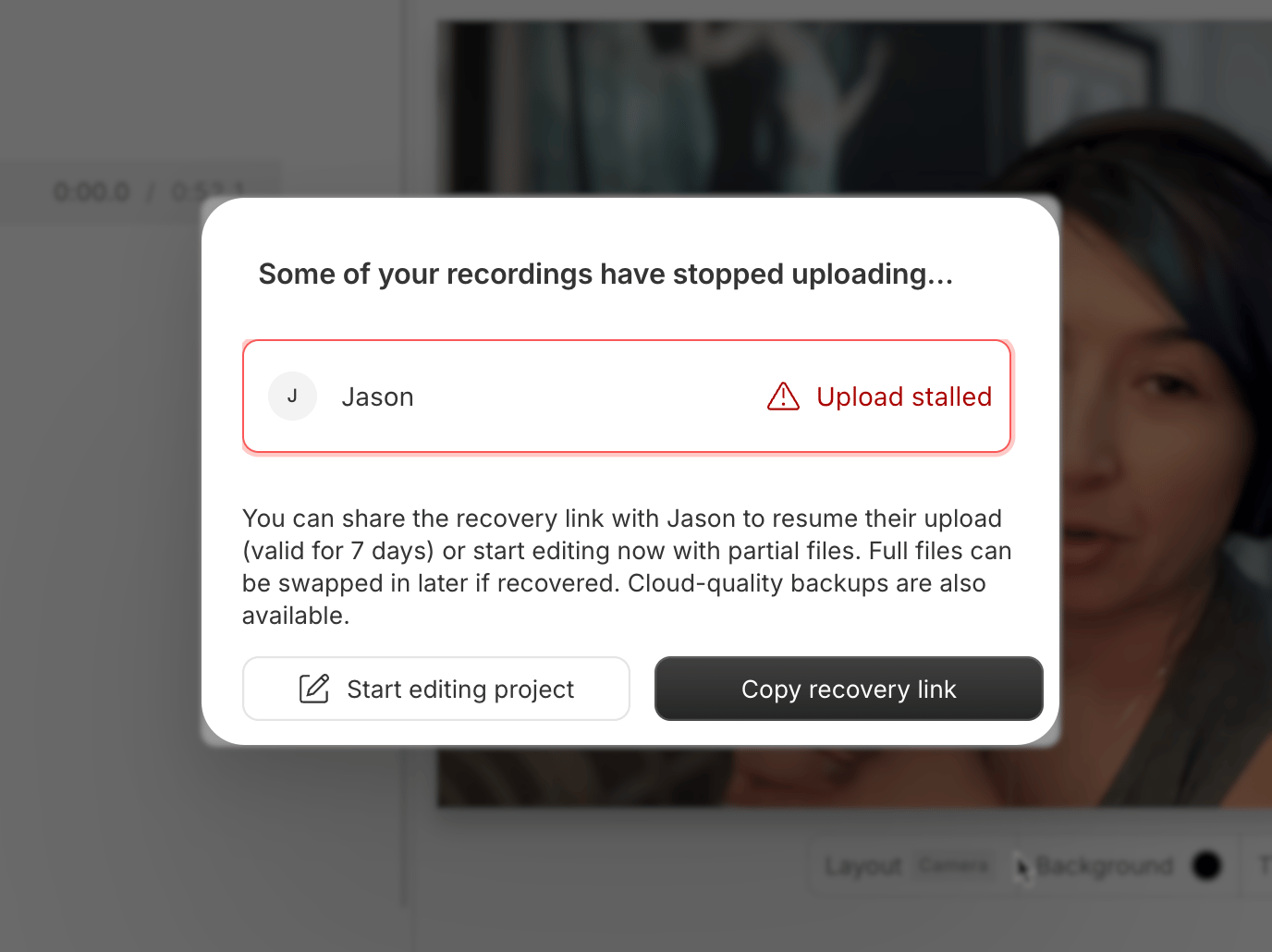
If Descript detects that one or more recordings from your Rooms session failed to upload, you’ll see a message letting you know the upload has stalled. From here, you’ll have two options:- Start editing project — Begin working with partial or cloud backup files right away. You can replace these later if a full-quality recording becomes available.
- Copy recovery link — Share this recovery link with the participant whose upload stalled. They can also just rejoin the room. If they reopen Descript or the room within 7 days, the full-quality file may still be recovered.
Access the recovered file
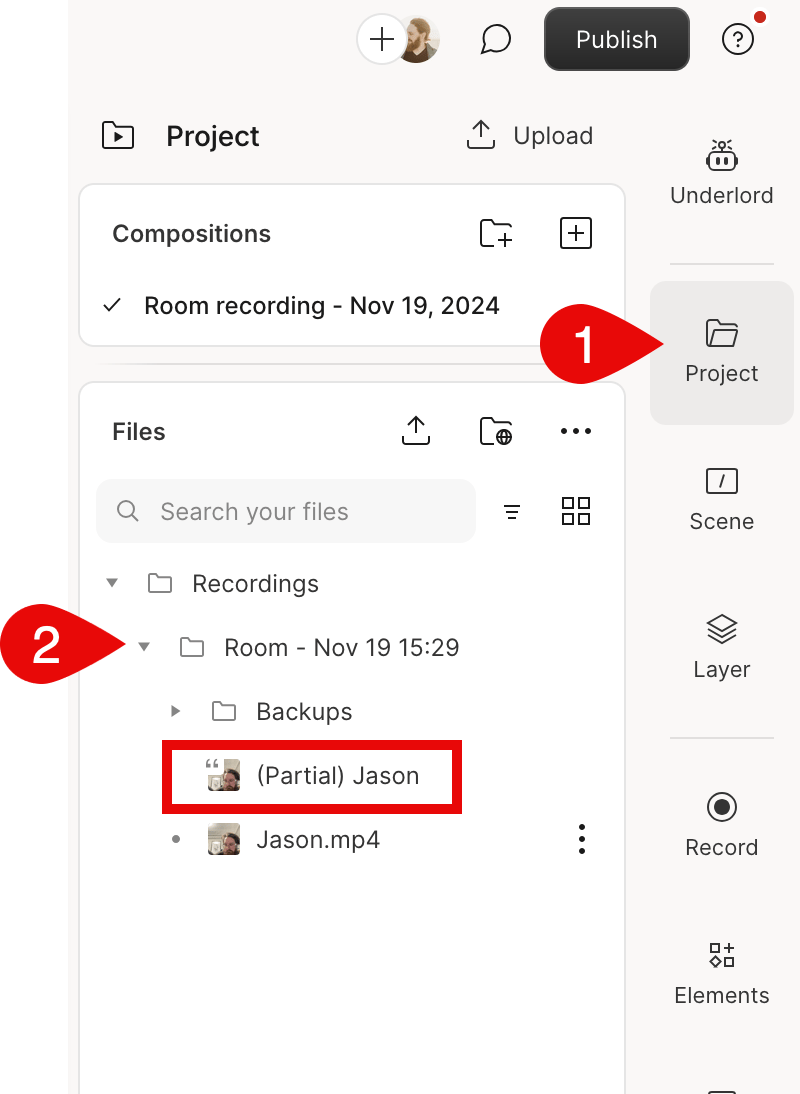
If a stalled upload is successfully recovered, the recovered file will be added to your project automatically and saved in the Backups folder. Navigate to: Files > Recordings > Room – (date and time) > BackupsReplace a partial recording with the recovered file
If you started editing with a partial or cloud backup file, and a high-quality recording becomes available later, you can replace the lower-quality file without losing your work. The recovered file should match the full length of your session. It will be added to your project automatically, but you’ll need to manually replace the earlier file in your sequence. To replace a file:- In the project panel, under the Files section, locate the sequence that contains the partial file. From the file options menu, select Edit sequence to open the Sequence Editor.
- In the Sequence Editor, click Add media in the top-right corner.
- In the file picker, choose the recovered file from the Recordings folder. Then click Add track.
- Remove the track with the partial file. It will usually be shorter than the recovered one. Select it and click Delete track in the right panel.
- When you’re done, click Done to close the Sequence Editor. If you don’t see the new file, check the Properties paneland unhide it if needed.
What if I can’t recover the primary recordings?
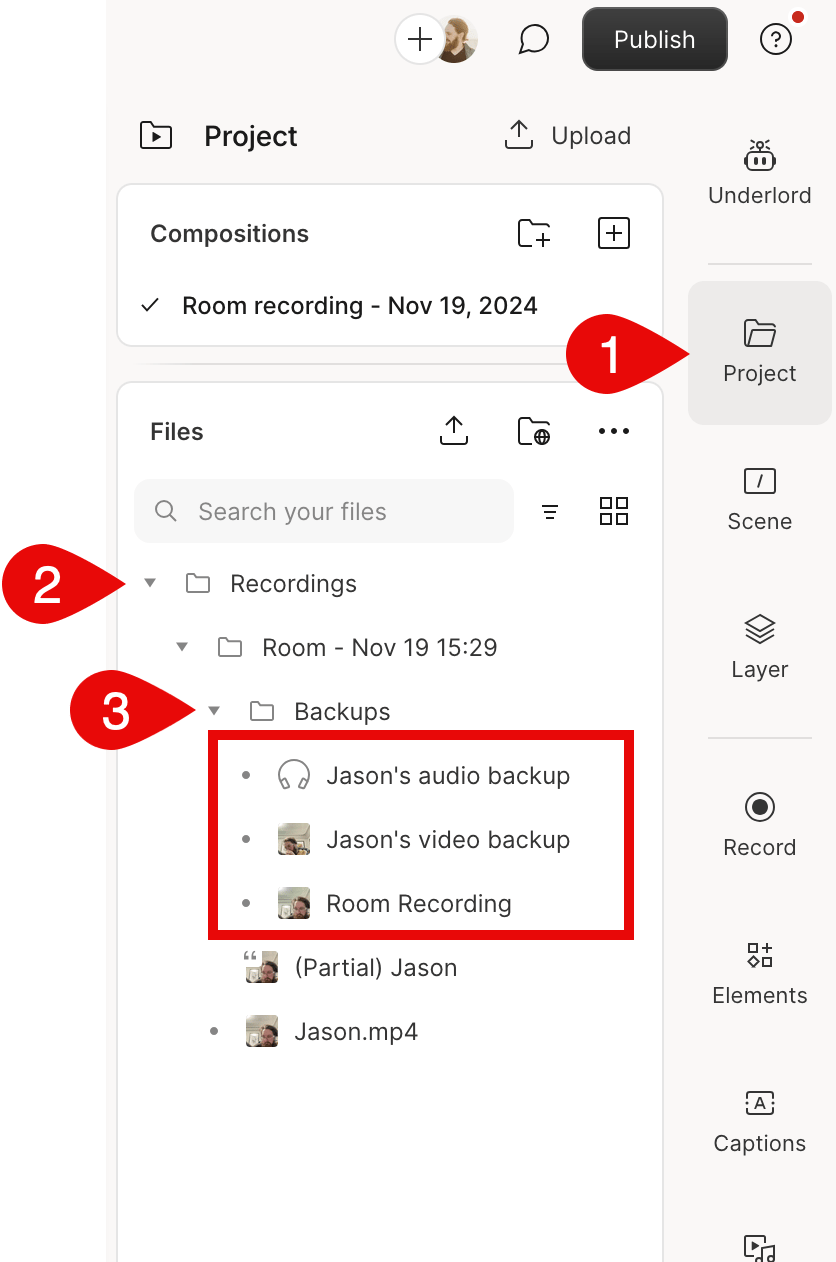
If a recording can’t be recovered — for example, if a participant closed their browser before the upload started or didn’t rejoin the room or reopen Descript within 7 days — you may still have a fallback. Descript creates backup recordings for each participant in a Rooms session. These are lower-quality (Zoom-like) files saved as separate audio and video tracks. You can find them at: Files > Recordings > Room – (date and time) > Backups To use a backup, add both the audio and video files to your sequence as separate tracks. While lower in quality, these files allow you to continue editing without starting over.