

Open the app settings menu
PressCmd/Ctrl + , from anywhere in Descript to open Settings. This works from the drive view or an open project.
Other ways to open Settings
Other ways to open Settings
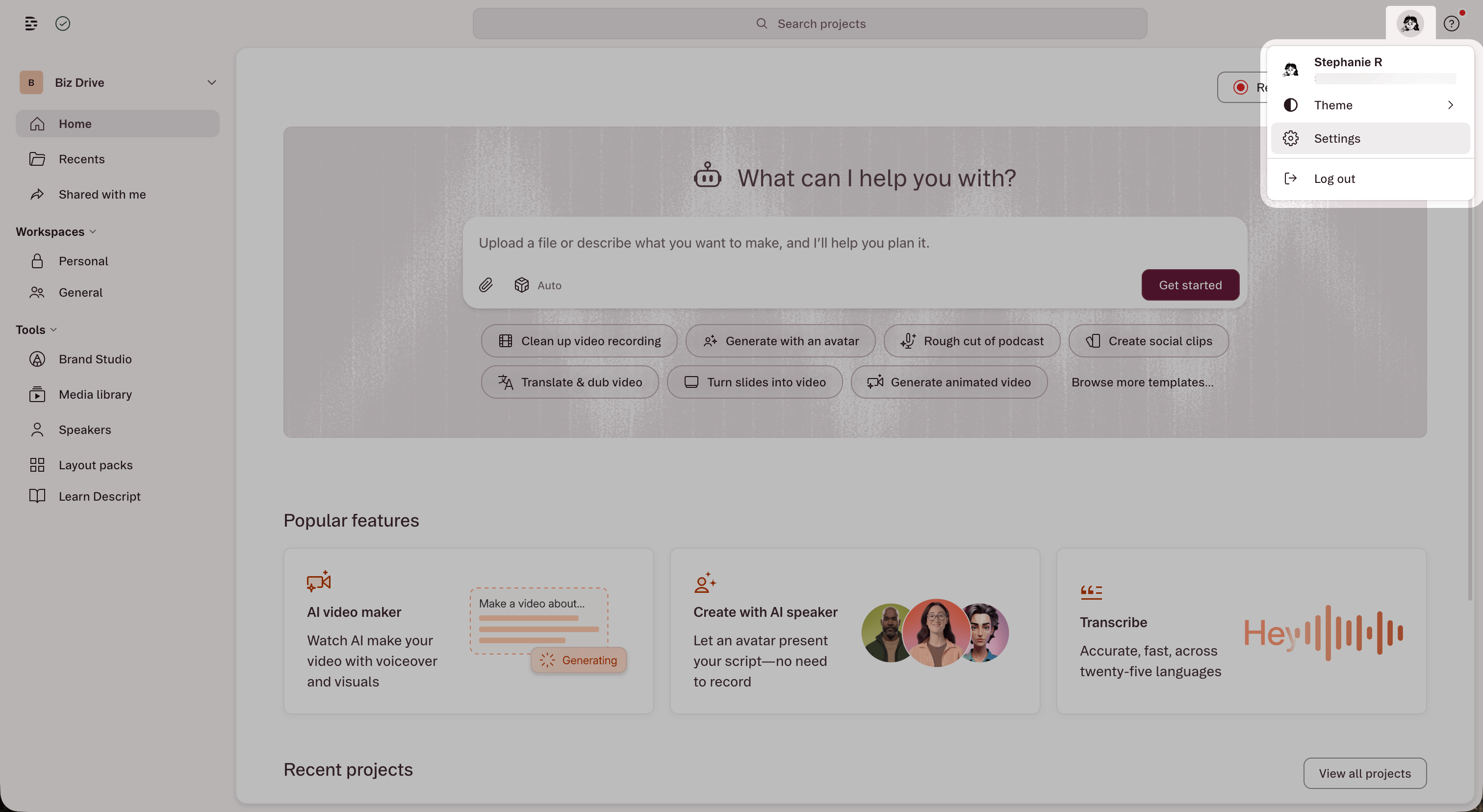
- From the drive view header: Click your profile icon in the top-right corner and select Settings.
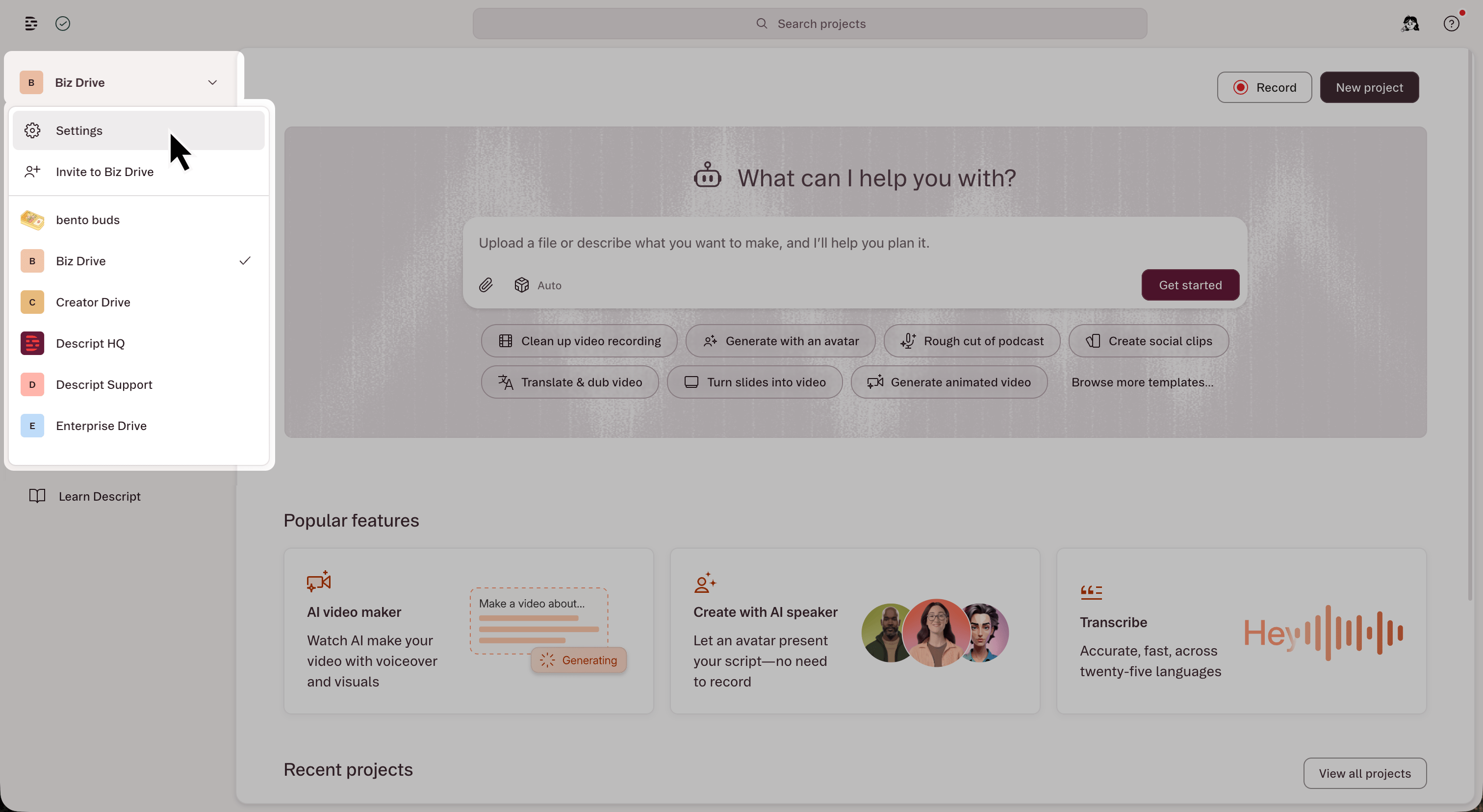
- From the drive view: Click the drive selector in the top-left corner and choose Settings.
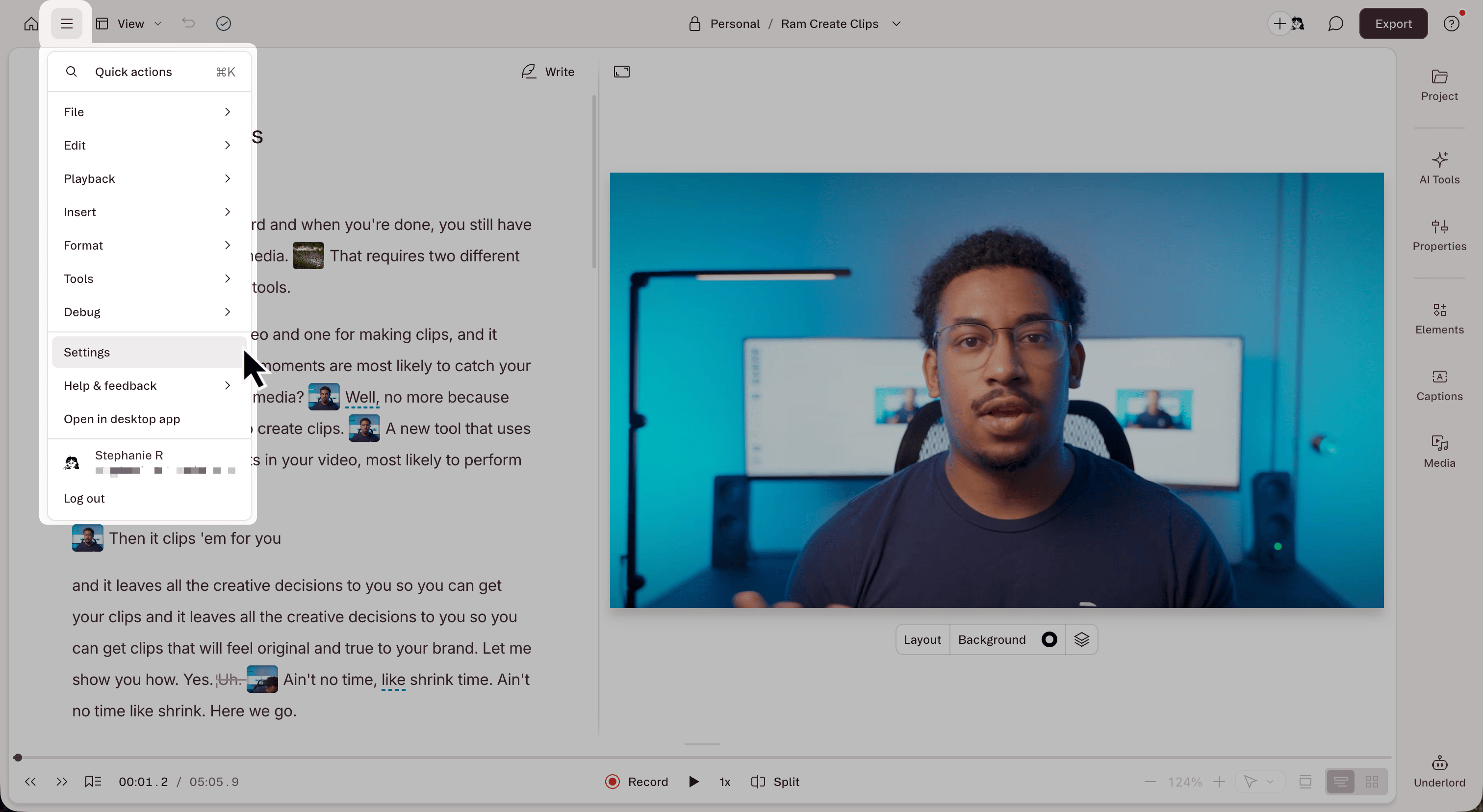
- From an open project: Click the menu icon in the top-left corner of the editor and select Settings.
General
Transcription settings
Advanced settings
Labs
Enable early-stage features to test and share feedback.Account
AI models
Set the default AI model for Underlord, transcription, and generative media (Image, Video, AI Speech, Avatars). You can also override the model for a specific session directly in the editor. To change your transcription model, choose it next to Transcription under Core. Language and glossary options are in Transcription settings under General. Different models balance quality, speed, and AI Credit usage. Availability may vary by plan. Learn more about generative image and video models.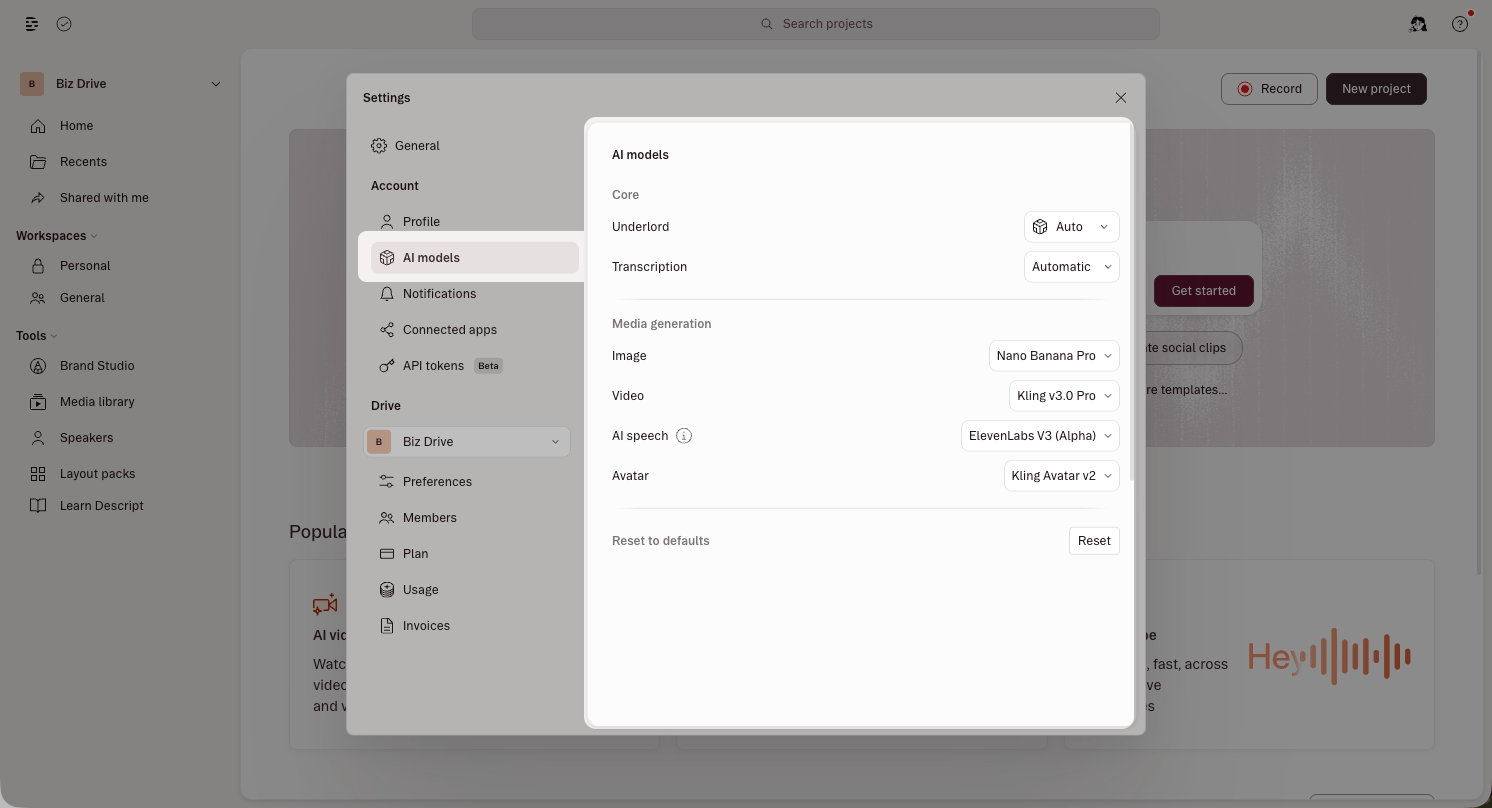
Connected apps
Descript MCP
Connect Descript to external AI assistants like Claude, ChatGPT, and Cursor. The Descript MCP tab includes connect buttons for each supported assistant, plus the MCP server URL (https://api.descript.com/v2/mcp) for other compatible clients.
For setup instructions, see Descript MCP overview.