Before getting started
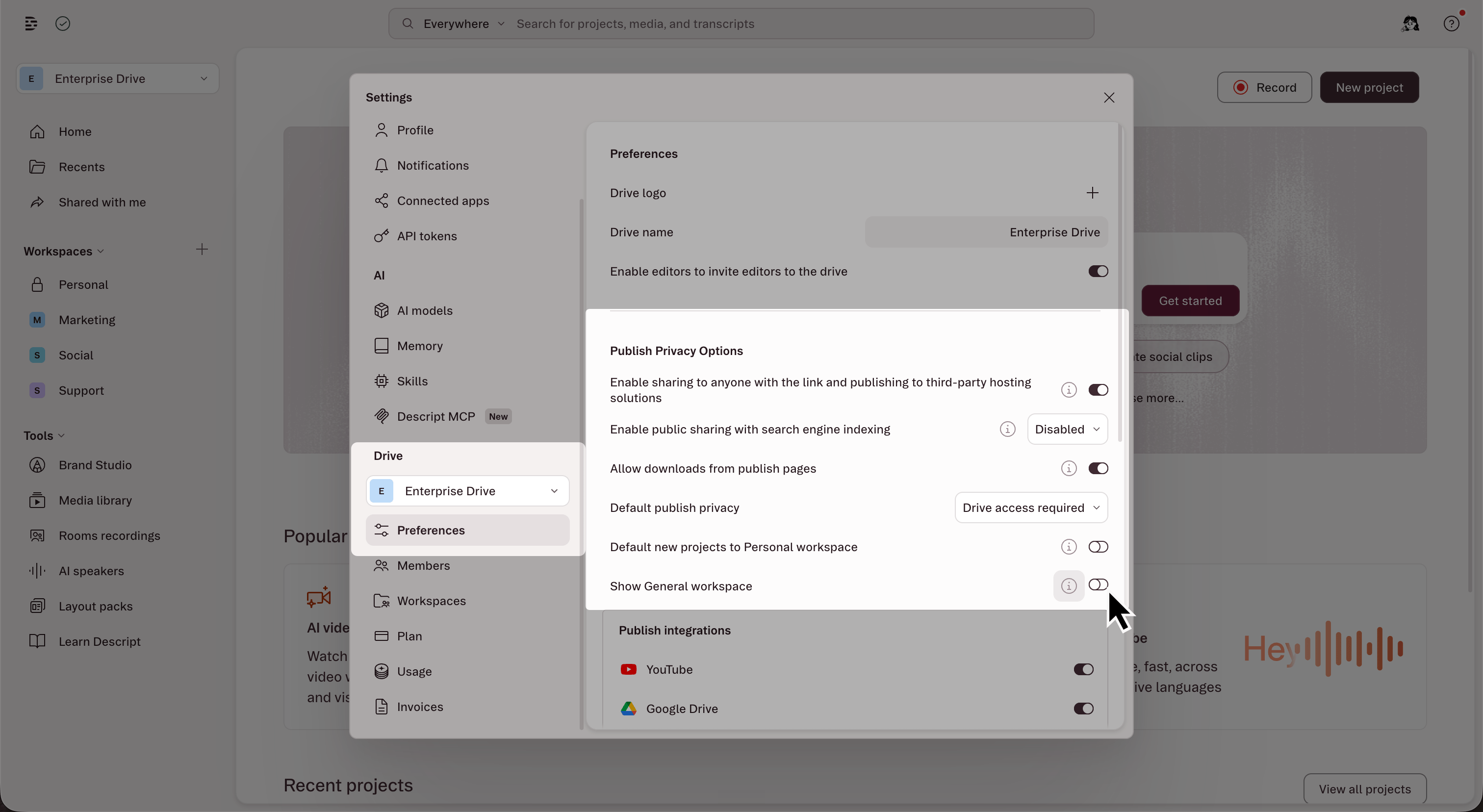
Before hiding it, we recommend moving projects out of the General workspace and into a custom workspace first. Any projects that aren’t moved remain in General. These projects are still accessible by direct link, search, and via the Recents tab in the Drive view. Our team can assist with moving your projects. Projects can only be moved one at a time. If you need folders moved and/or have several projects in the General workspace that need to be relocated, reach out to us here.To hide the General workspace:
- Open App Settings with the keyboard shortcut
cmd/ctrl + , (comma) - In the left sidebar, select the target drive from the dropdown menu
- Then, click Preferences.
- Under Publish Privacy, turn off Show General workspace. If the switch is disabled, create a custom workspace first.
- A confirmation dialog appears — review it and click Yes, hide General to confirm.