

What is an API?
The Descript API is an HTTPS interface. Your app, Zapier, or the command line sends a request. Descript runs the work, often as a background job, then returns a result. Every request includes an API token. The token proves the request is yours and tells Descript which Drive to use. Without a valid token, the API rejects the request. New to APIs? Here’s a glossary of important terms.Glossary of key concepts
Glossary of key concepts
API token: A secret key that authenticates your requests. Each token is tied to one Drive. Treat it like a password. Don’t share it.Job: A long-running operation such as importing media, running an Underlord edit, or publishing. Each job has an ID and a status you can check. Job lists cover the last 7 days by default and can look back up to 30 days.Media minutes and AI credits: Importing and processing media uses media minutes from your plan. Underlord edits use AI credits. If you run out of either, requests return a 402 error.Projects and compositions: A project is a container for your content. You can import into a new project or an existing one. A project can have multiple compositions, for example a rough cut and a final version. When importing, you can specify how clips are arranged in a composition.
What can I do with the API?
Here’s what you can do with the Descript API today:- Import media from a URL or upload a local file. Transcription runs automatically. You can create a new project, add files to an existing one, or import directly into the drive media library.
- Edit with Underlord: add captions, remove filler words, apply Studio Sound, generate scenes, create highlight reels, and anything else Underlord can do.
- Create a project from a prompt as part of an automated workflow.
- Target a specific composition in a project.
- Find and manage projects in your Drive. Search by name, filter by date, and open the compositions inside any project.
- Organize with folders. Import into a named folder path, with nested folders created automatically.
- Publish finished projects to a Descript web link and get back signed URLs.
- Export a transcript as text, Markdown, HTML, RTF, DOCX, or SRT.
- Track progress as import, agent, and publish jobs run.
- Search your drive. Find projects, transcripts, composition text, media filenames, folder names, and layout packs across the entire drive.
How to create your API token
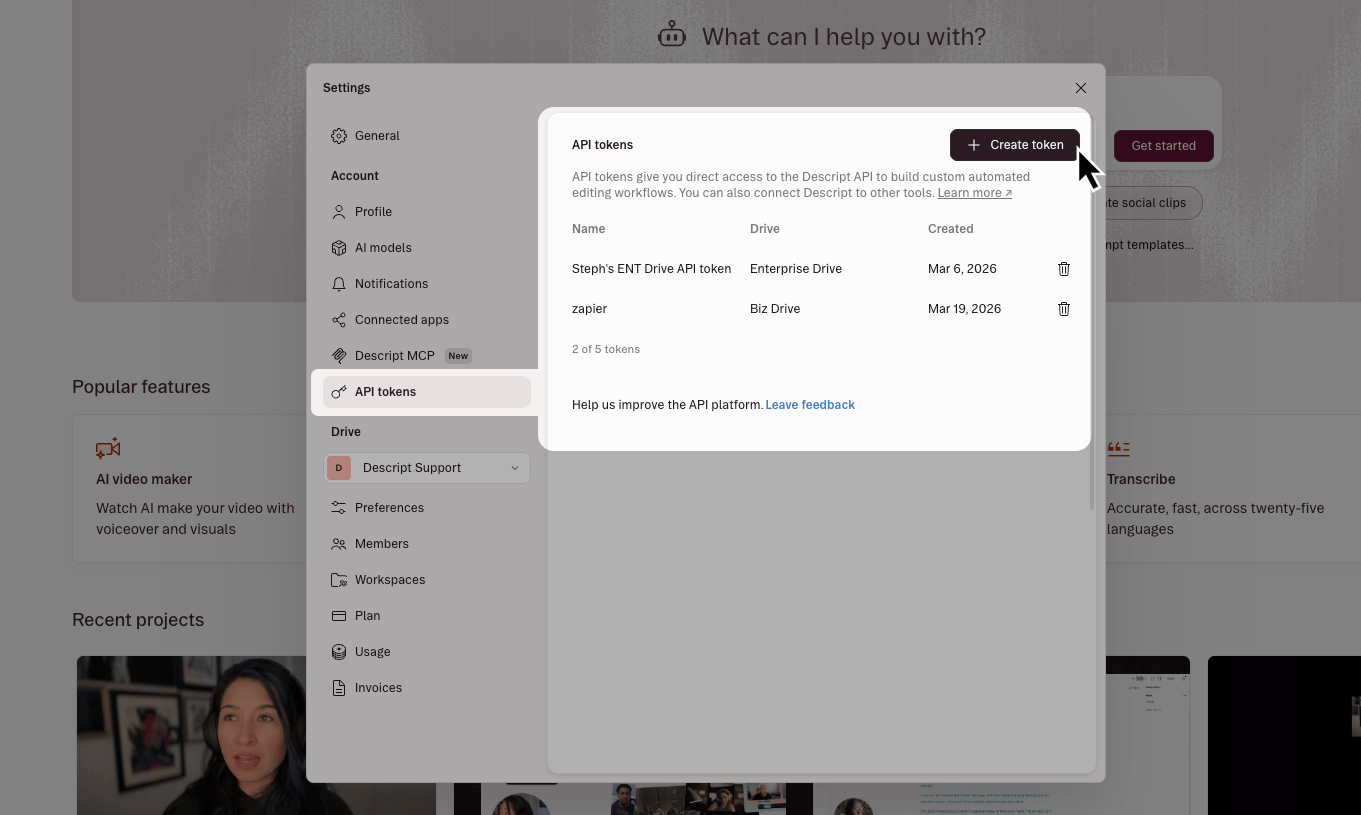
Your API token authenticates your requests and connects them to a specific Descript Drive. Each token is tied to one Drive, so if you work across multiple Drives, create a separate token for each.- Go to your Descript App settings and click the API tokens section.
- Click Create token.\
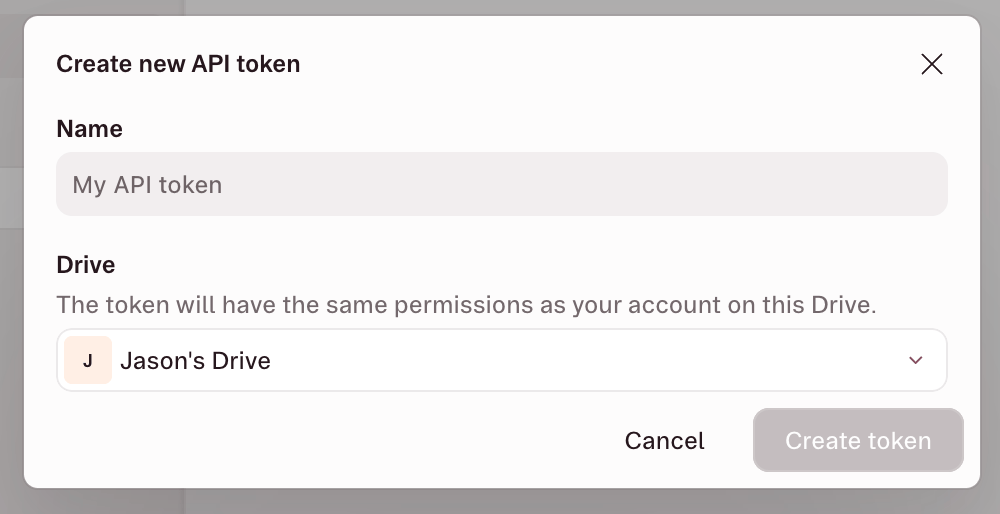
- Give your token a name and select the Descript drive it should be tied to. When you’re ready, click Create token.\
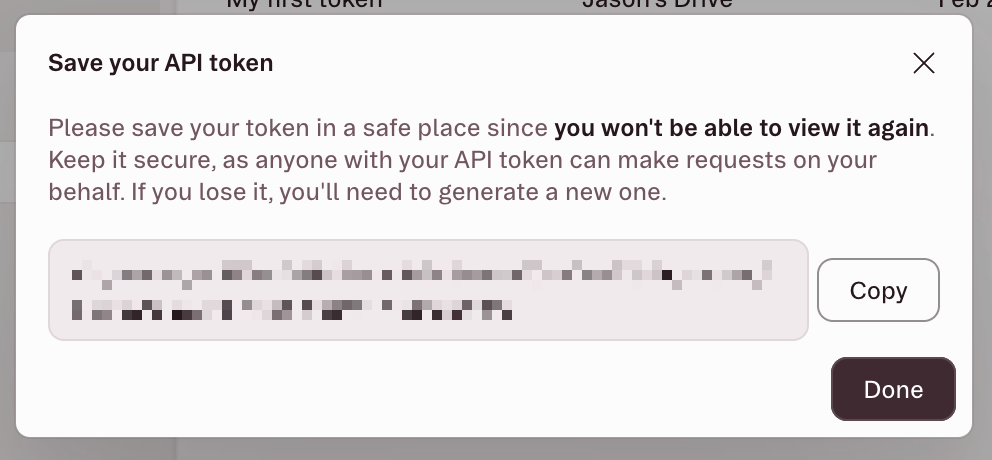
- Copy and store your token in a safe place. You won’t be able to view it again. If you lose it, generate a new one.\
Choose how to use the API
Zapier, the command line, direct HTTP, and AI coding tools all talk to the same API. Example requests- “Create a Descript project from this video URL”
- “Add Studio Sound and captions to my latest project”
- “Make a 30-second highlight reel from my project”
- “Write a script about how to make great coffee and create a video from it”
Zapier — Connect Descript to your existing workflows
Zapier — Connect Descript to your existing workflows
Set a trigger (new file, new recording, new post), then run a Descript action. Best for teams already using Zapier, or anyone who wants automation without writing code.Add Descript’s Zapier integration from the Zapier marketplace and connect it with an API token. See Connect Descript to Zapier for setup instructions, available actions and searches, and options that require a direct API request.
Command line
Command line
Install the CLI, drop in your API token, and run imports, edits, and searches from your terminal. It handles polling and shows live progress. Useful for testing before you build something real.Set up the CLI
Direct API
Direct API
Call the API directly over HTTP. You own the logic: job orchestration, error handling, webhooks, and retries. Good for engineering teams standing up production workflows.Read the API documentation
AI coding tools (Cursor, Claude Code, Codex)
AI coding tools (Cursor, Claude Code, Codex)
Connect the Descript MCP so your coding tool can call Descript while you write an integration. In Descript, open Settings → Descript MCP and use the Cursor connect button, which opens the Cursor MCP marketplace listing. For Claude Code or other clients, add the MCP server URL from Connect Descript to any AI assistant (custom MCP).For HTTP requests from your own code, use an API token and the API documentation.
Known limitations
- No rendered file download without publishing. You can publish to a Descript web link and get signed URLs to the MP4 or audio file. Downloading a finished video or audio file without publishing is not supported. Do that in the Descript app: export video or export audio. Transcript export is available through the API.
- YouTube URLs are not supported as import sources. Pass a direct file URL or upload the file instead.
- Job history is available for 30 days. After that, job records are no longer accessible through the API.
- Single-Drive scope. Each token is tied to one Drive. Editing a project on a different Drive returns an error.
- Cloud storage links vary by client. For direct API requests, convert Google Drive or Dropbox share links to direct download links. The CLI converts supported share links automatically. For Zapier, see Connect Descript to Zapier.