

Set language preferences
If you work with multiple languages, you can set a preferred transcription language and/or enable Always ask before transcribing in your App settings. When enabled, Descript will prompt you to select a language before each transcription.Re-transcribe in a different language
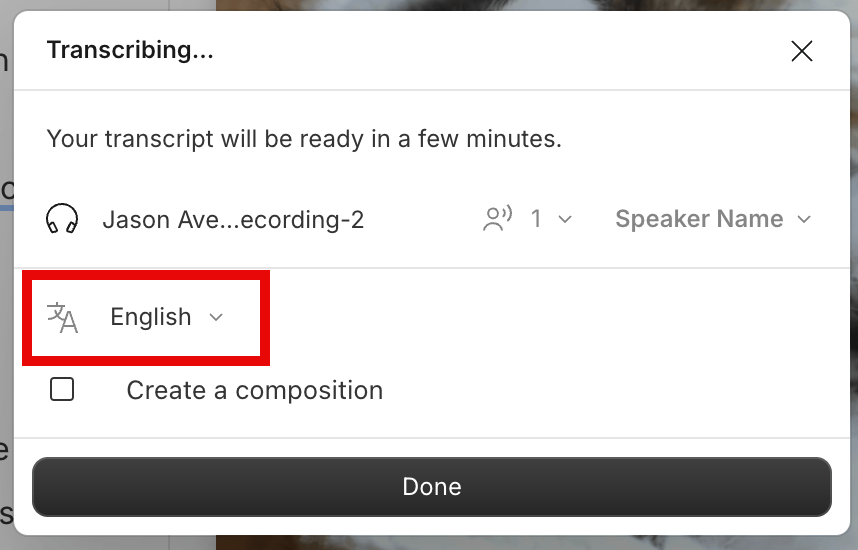
If the wrong language was selected during your initial transcription, you can re-transcribe the file:- Click Project in the right-hand sidebar and open the Files section.
- Click the
 next to your file name.
 - Select Re-transcribe.
- Choose the correct transcription language.
- Click Done to re-transcribe your file.\
Language support for editing and AI tools
Some Descript features currently support only English transcripts. If you’re using another language, note the following tools are English-only:Inverse Text Normalization (ITN)ITN automatically formats spoken numbers and dates (e.g., “Nineteen Forty-Five” → “1945”). Currently supported in English, French, and Spanish.
Translation and multi-language files
- Descript supports transcription in only one language per file. Files with multiple spoken languages are not currently supported.
- To translate your transcript into another language, see our Translate and dub speech feature suite