

Before you start
- English only: This feature currently supports English-language transcripts only.
- Speaker labels: Speaker names should be followed by a colon (
Speaker Name: dialogue text). Descript will detect and apply labels automatically. - Content matching: Your transcript should closely match the underlying audio or video. Minor differences like filler words (“um,” “uh”) are okay, but major mismatches may cause issues.
How to replace or import a transcript
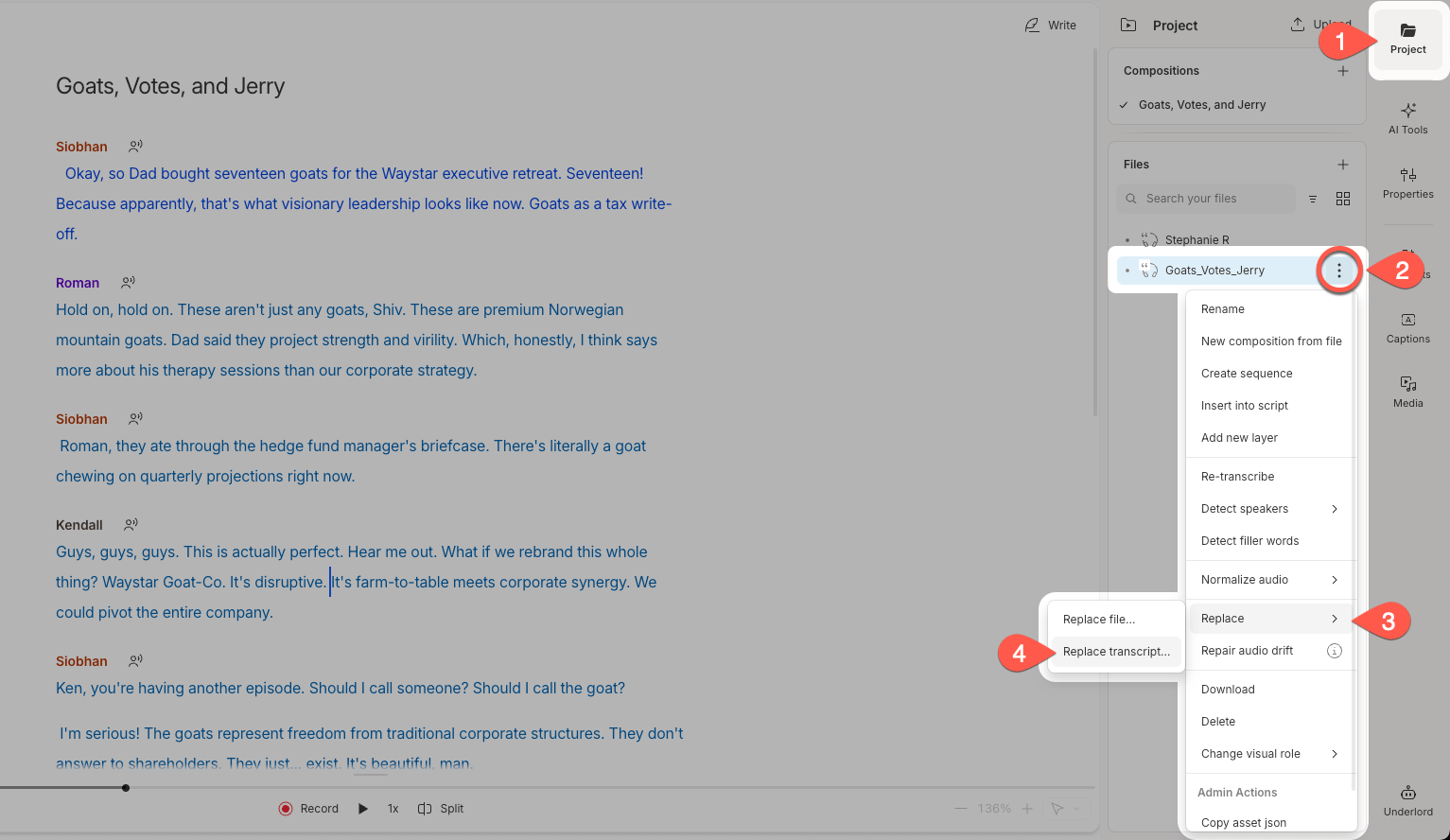
- pen the Project panel in the right sidebar.
- Click the ••• menu next to your file.
- Select Replace.
-
Click Replace transcript….
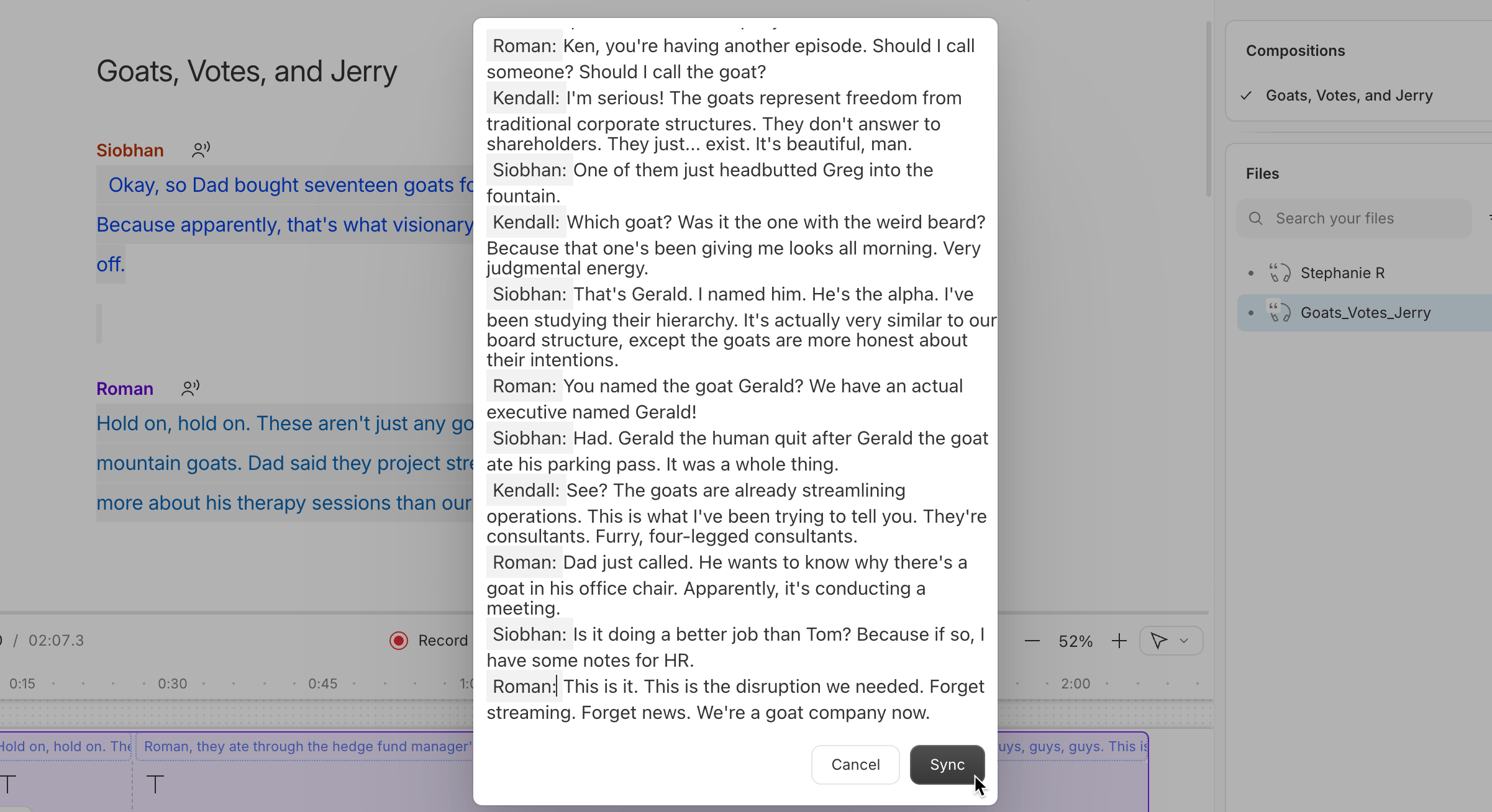
- Paste your transcript into the text box that appears.
-
Click Sync to apply your imported transcript.
Not seeing the Replace transcript option?
If you’re working with an untranscribed file, use Import transcript from the project file’s actions menu instead.
If you’re working with an untranscribed file, use Import transcript from the project file’s actions menu instead.